
Bluetooth allows devices to connect wirelessly.
It is commonly used for:
- Headphones
- Speakers
- Smartwatches
- Hearing aids
- Car audio systems
- Keyboards
- Mice
When Bluetooth stops working, it can seem confusing.
Fortunately, the solution is often simple.
Common Signs of Bluetooth Problems
You may notice:
✔ Device cannot be found
✔ Pairing fails
✔ Device keeps disconnecting
✔ No sound through headphones
✔ Bluetooth switches itself off
✔ Device appears connected but does not work
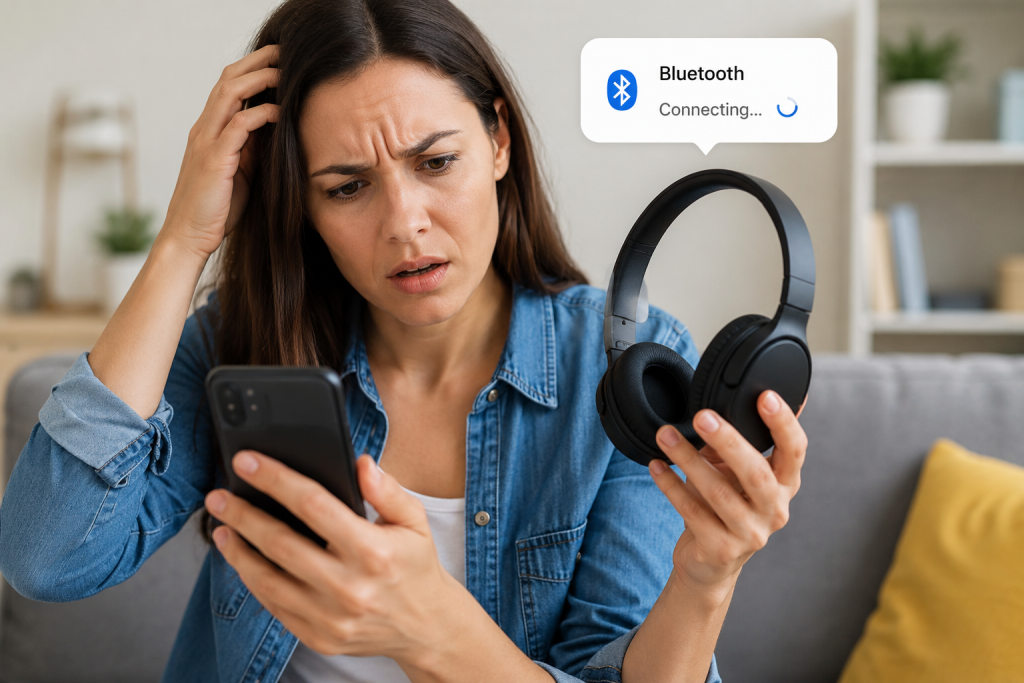
Step 1 – Turn Bluetooth Off and On Again
This is the simplest fix.
On your phone:
- Open Settings
- Tap Bluetooth
- Turn Bluetooth off
- Wait 10 seconds
- Turn Bluetooth back on
Many temporary connection problems disappear after a quick reset.
Step 2 – Move Devices Closer Together
Bluetooth works best over short distances.
Try moving the devices within a few feet of each other.
Walls, furniture and other electronics can sometimes interfere with the signal.
Step 3 – Make Sure the Device Is Charged
Low batteries can cause connection problems.
Check that your:
- headphones
- speaker
- smartwatch
- keyboard
have enough battery power.
Many Bluetooth devices automatically disconnect when battery levels become very low.
Step 4 – Restart Both Devices
A restart can solve many temporary problems.
Try restarting:
- your phone
- your tablet
- your Bluetooth device
Then attempt pairing again.
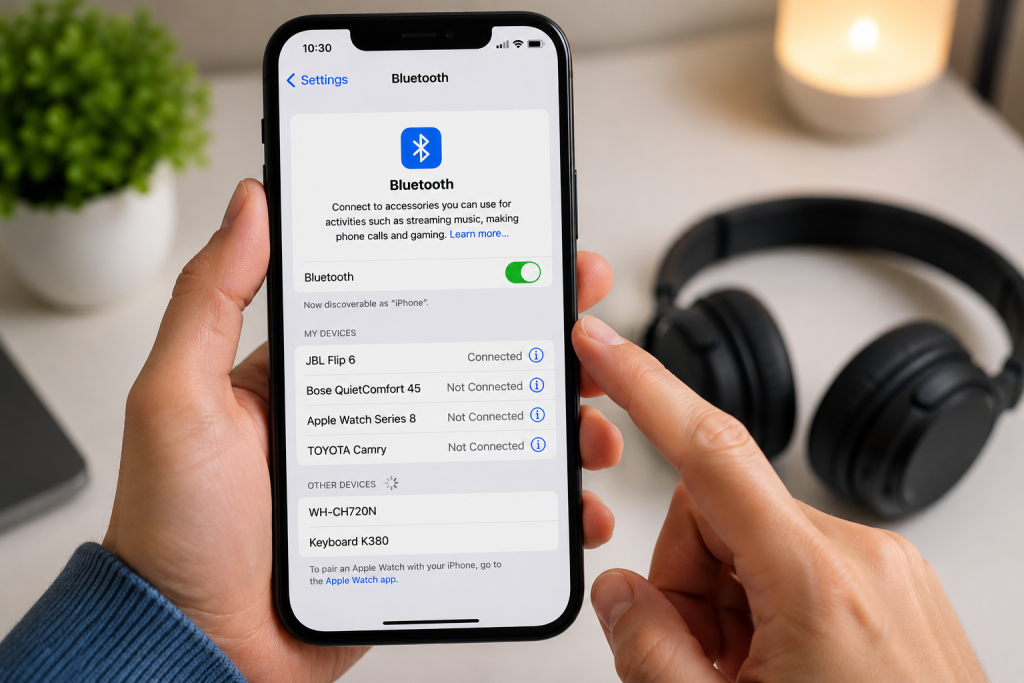
Step 5 – Remove and Reconnect the Device
Sometimes old connection information becomes corrupted.
To fix this:
- Open Bluetooth settings
- Find the device
- Select “Forget Device”
- Reconnect from scratch
This often solves persistent Bluetooth issues.
Step 6 – Check Pairing Mode
Many Bluetooth devices must enter pairing mode before they can connect.
This usually involves:
- holding the power button
- holding the Bluetooth button
- waiting for a flashing light
Check the instructions supplied with the device.
Step 7 – Check for Software Updates
Updates can fix Bluetooth bugs.
Check for:
✔ Phone updates
✔ Tablet updates
✔ App updates
Keeping software updated can improve Bluetooth reliability.
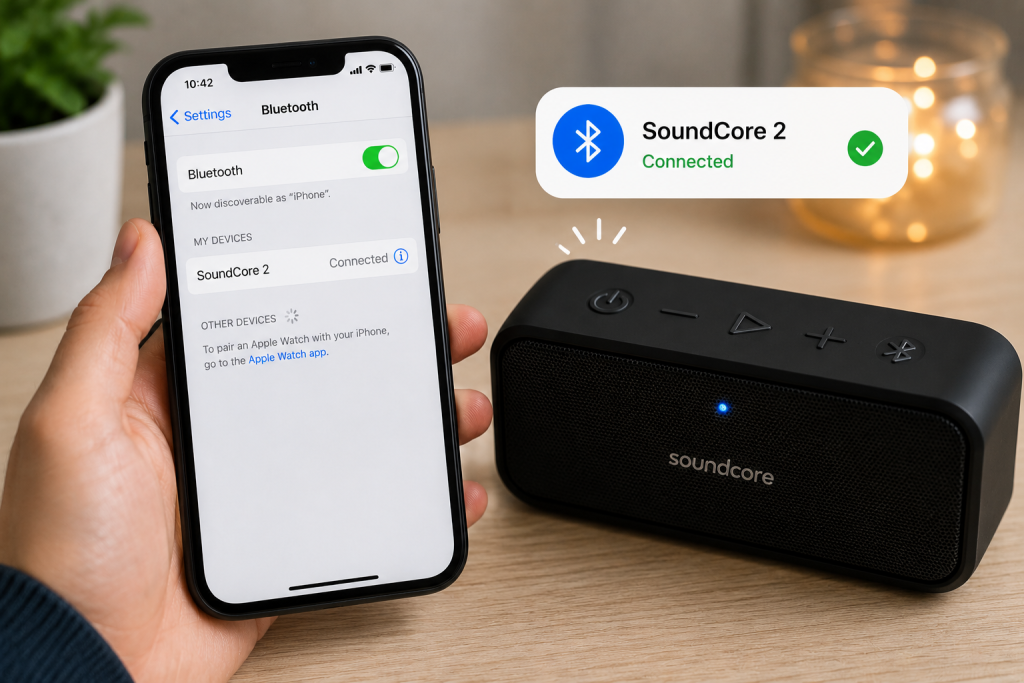
Step 8 – Disconnect Other Devices
Some devices can only maintain a limited number of Bluetooth connections.
If your headphones are already connected to another phone, they may refuse to connect to yours.
Try disconnecting unused devices first.
Common Bluetooth Problems
Bluetooth Headphones Won’t Connect
Try:
- charging headphones
- forgetting device
- repairing connection
- restarting phone
Bluetooth Speaker Won’t Connect
Check:
- speaker battery
- pairing mode
- distance between devices
Car Bluetooth Not Working
Try:
- restarting vehicle system
- deleting old phone connections
- reconnecting your phone
Hearing Aid Bluetooth Problems
Move closer to the phone and ensure hearing aid batteries are charged.
If problems continue, consult the manufacturer’s support guide.

Frequently Asked Questions
Why does Bluetooth keep disconnecting?
Common causes include:
- low battery
- software glitches
- interference
- outdated software
Can too many Bluetooth devices cause problems?
Yes.
Some phones struggle when many devices have been paired previously.
Removing old devices can help.
Is Bluetooth safe?
Yes.
Bluetooth is generally safe for everyday use and is built into millions of devices worldwide.
Should I leave Bluetooth on all the time?
You can, but turning it off when not needed may slightly improve battery life.
Simple Tips to Prevent Bluetooth Problems
✔ Keep devices charged
✔ Install updates
✔ Remove unused paired devices
✔ Restart devices occasionally
✔ Stay within Bluetooth range
✔ Avoid pairing too many devices
Final Thoughts
Bluetooth connection problems are very common.
In most cases, the solution is simple:
- restart devices
- recharge batteries
- reconnect the device
- check pairing mode
You do not need to be a technology expert.
Following these simple steps will solve most Bluetooth problems.
You May Also Find Helpful
👉 Why Is My Wi-Fi Not Working?
👉 Why Is My Phone Battery Draining Fast?
👉 Why Is My Phone Storage Full?
👉 How to Connect Bluetooth Headphones
- How to Pay for Parking With Your Phone: A Simple Beginner’s Guide
- How to Use a Car Park Payment Machine: A Simple Beginner’s Guide
- How to Use a Supermarket Self-Service Checkout: A Simple Beginner’s Guide
- What Is a Smart Speaker and How Does It Work? A Beginner’s Guide
- What Is a Smart Plug and How Does It Work? A Beginner’s Guide