
Is Your Browser Slow or Not Working Properly?
If websites are loading slowly or not working correctly, the problem is often your browser cache.
This is very common — and easy to fix.
The good news is:
👉 Clearing your cache can quickly improve speed and fix many problems.
This guide will show you exactly how to do it, step by step.
You do not need any technical knowledge.
If you’re new to technology or just looking for some straightforward tips, you’re in the right place. This beginner’s guide will help you understand what cache is and why clearing it regularly can keep your device running smoothly. You’ll find detailed instructions for various browsers, tips for mobile devices, and even ways to tackle cookies. By the end of this post, you’ll have practical tools and strategies to enhance your browsing speed and optimize your online experience.
So, let’s dive into the nitty-gritty of cache clearing and equip you with the knowledge to make your internet activities faster and more efficient.
Key Takeaways
– Clearing your cache can significantly improve browser speed and performance by removing stored data that clogs your system.
– Each major browser (Chrome, Safari, Firefox) has its own process for clearing the cache, making it essential to learn the steps for your specific browser.
– Mobile devices also accumulate cache, and knowing how to manage it can enhance your browsing experience on the go.
– Cookies can slow down your browser too, so it’s helpful to clear them along with your cache for optimal performance.
– Regularly clearing your cache and cookies helps prevent issues like loading errors and outdated content, keeping your browsing experience fresh.
Contents
- 1. What is Cache and Why Clear It?
- 2. Clearing Cache on Google Chrome
- 3. Clearing Cache on Safari
- 4. Clearing Cache on Firefox
- 5. Clearing Cache on Mobile Devices
- 6. Beyond Cache: Clearing Cookies
- 7. Using Browser Extensions for Cache Management
- 8. Troubleshooting Common Browsing Issues
- 9. Realizing the Benefits of Regular Cache Clearing
- 10. Final Tips and Tricks for Cache Clearing
1. What is Cache and Why Clear It?
Cache acts as a temporary storage space for your browser, speeding up site loading times by saving bits of data like images and text. Over time, this stored data can accumulate, leading to slower performance and outdated content. By clearing your cache regularly, you help your browser work more efficiently, allowing for a smoother browsing experience.
Start by checking your cache size and noticing any slowdowns. If you frequently visit the same sites, clearing the cache can refresh the data displayed. This not only improves speed but also ensures you’re seeing the latest updates on websites.
Benefits of clearing your cache:
– Improved Speed: A clean cache enhances browsing speed significantly.
– Updated Content: Always view the latest versions of websites.
– Storage Space: Free up space on your device for other uses.
Understanding cache lays the groundwork for better browsing habits. It empowers you to keep your online activities efficient and enjoyable.
Fun fact: your browser can stash megabytes of data in its cache, slowing you down over time. With regular cache clearing, sites load faster and you’ll see updated content sooner—no more stale images or old text slowing your browsing.
2. Clearing Cache on Google Chrome
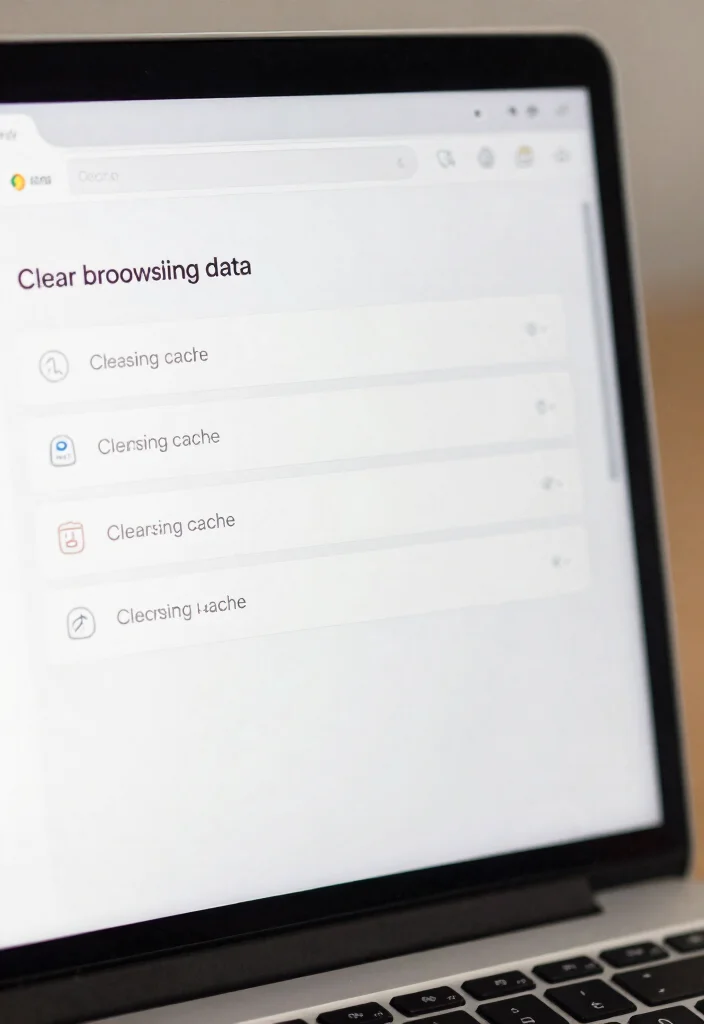
Clearing your cache in Google Chrome is simple and quick. Just open Chrome, click the three vertical dots in the top right corner, and select ‘More tools.’ From there, click ‘Clear browsing data.’ Choose ‘Cached images and files,’ and consider checking ‘Browsing history’ for a thorough clean. Finally, select your desired time range and hit ‘Clear data.’
To maintain optimal performance, set a monthly reminder for this task. If a site still misbehaves after clearing the cache, try removing cookies as well for a deeper clean.
Steps to clear cache in Chrome:
– Open Chrome settings: Access the menu by clicking the three dots.
– Select Clear browsing data: Choose what to remove easily.
– Pick time range: Decide how far back to clear.
This quick process can significantly enhance your browsing speed and overall efficiency!
📹 Related Video: How To Clear Cache In Google Chrome – Full Guide
3. Clearing Cache on Safari
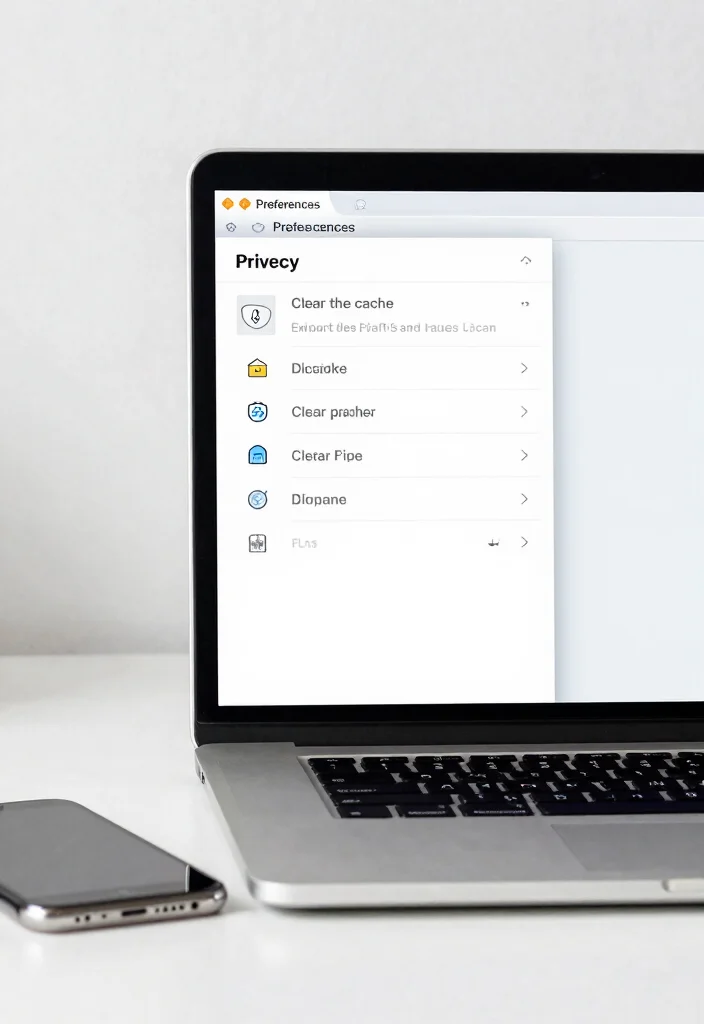
For Mac users, clearing Safari’s cache is a breeze. Simply open Safari and find ‘Preferences’ in the menu bar. Navigate to the ‘Privacy’ tab and click ‘Manage Website Data.’ You can either select ‘Remove All’ to clear everything or choose specific sites to clean up.
Make it a habit to clear your cache regularly, especially if browsing feels sluggish. Keep in mind that after clearing the cache, some sites might load slowly the first time as they need to re-download data.
Steps to clear cache in Safari:
– Open Preferences: Access the settings easily from the menu.
– Navigate to Privacy: Find where to manage website data.
– Clear stored data: Choose to remove all or specific data.
With just a few clicks, you can keep Safari running smoothly and efficiently.
4. Clearing Cache on Firefox

Clearing cache in Firefox is straightforward. Open Firefox, click on the three horizontal lines in the top right corner, and select ‘Options.’ Go to ‘Privacy & Security,’ then find ‘Cookies and Site Data.’ Click ‘Clear Data,’ ensuring ‘Cached Web Content’ is selected, and hit ‘Clear.’
For a proactive approach, enable the option to delete cookies and site data when Firefox closes. If you continue experiencing slow speeds, restart your browser after clearing the cache.
Steps to clear cache in Firefox:
– Access Options: Open the menu to find settings.
– Navigate to Privacy: Locate where to manage data.
– Clear Cached Content: Remove old data efficiently.
Regularly managing your Firefox cache ensures a smoother and faster browsing experience.
5. Clearing Cache on Mobile Devices
Mobile browsing often requires regular cache clearing for optimal performance. For Android, open the Chrome app, tap the three dots in the top right corner, go to ‘History,’ and then ‘Clear Browsing Data.’ Select ‘Cached images and files’ and press ‘Clear Data.’ For iOS, go to the Settings app, scroll to ‘Safari,’ and select ‘Clear History and Website Data.’
Regular cache clearing on mobile devices can free up valuable storage space. Also, consider whether using apps offers a better experience than mobile browsing with a browser.
Steps to clear cache on mobile:
– For Android: Use Chrome’s settings to clear cache.
– For iOS: Access Safari settings for a clean slate.
Keeping your mobile device cache-free significantly speeds up site loading while you’re on the move.
You might also like

The Ultimate Guide to Exploring Koh Kradan: Discover Thailand's Hidden Island Paradise – Travel vibes Plan Your Next Adventure The Ultimate Guide to Exploring Koh Kradan: Discover Thailand's Hidden Island Paradise | Travel vibes Plan Your Next Adventure

Islands to Hop Between in Thailand and Vietnam
6. Beyond Cache: Clearing Cookies
While cache is essential, clearing cookies can also enhance your browsing experience. Cookies are small data pieces stored by websites to remember your preferences and logins. They can accumulate and potentially lead to privacy concerns or slowdowns. To clear cookies, follow similar steps as clearing cache for your browser.
Be cautious when clearing cookies, as it may log you out of websites you frequent. Regularly doing this maintains your privacy and can improve performance, especially during long browsing sessions.
Steps to clear cookies:
– In Chrome: Follow cache clearing steps and check cookies data.
– In Safari: Manage website data in Preferences.
– In Firefox: Clear cookies alongside cache easily.
Taking the time to clear cookies regularly can significantly boost your browsing efficiency.
Fun fact: cookies can accumulate to hundreds of files, and cache clearing can help speed browsing by up to 20%. Regular cookie cleanup boosts privacy and performance. Just remember: clearing cookies may log you out of frequently visited sites.
7. Using Browser Extensions for Cache Management
If you want to simplify the process of clearing cache, browser extensions can be incredibly helpful. These tools can automate cache clearing and remove unwanted data with just a few clicks. Some popular options include:
– Clear Cache: One-click cache clearing without diving into settings.
– History Cleaner: Clears cache and effectively manages your browsing history.
– CCleaner Browser Extension: Optimizes browser performance by scheduling clean-ups of cache and cookies.
Before adding any extension, check reviews and compatibility to ensure it meets your needs. Automating this task can save you time and help you remember to clear your cache regularly.
With the right tools, managing your cache can effortlessly fit into your browsing routine.
8. Troubleshooting Common Browsing Issues

After clearing your cache, you might still face some browser issues. To tackle common problems:
– Pages Not Loading Correctly: Clear both cache and cookies, then restart your browser.
– Slow Performance: Besides clearing cache, check for background apps that may be slowing you down.
– Error Messages: Often caused by outdated cache; clear it and refresh the page.
Regular maintenance prevents many issues from arising, keeping your browsing smooth. Make a habit of checking your browser every few weeks to ensure everything runs optimally.
Knowing how to troubleshoot empowers you to maintain your browser’s performance effectively!
9. Realizing the Benefits of Regular Cache Clearing

The advantages of clearing your cache extend beyond speed. Regularly maintaining your browsing environment can lead to:
– Enhanced Privacy: Clearing cache and cookies protects your personal information.
– Faster Browsing: Less accumulated data results in quicker loading times.
– Less Glitching: Ensures websites load fresh content rather than outdated versions.
Consider setting a monthly reminder to prioritize this task. The small effort of regularly clearing cache can significantly enhance your everyday internet usage.
By adopting the habit of clearing cache, you can truly optimize your online experience!
How To Clear Your Cache and Improve Your Browsing
Tools You’ll Need:
– A computer or mobile device
– Internet connection
– Web browser (Google Chrome, Firefox, Safari, etc.)
Step 1: Understand What Cache Is
Before clearing your cache, it’s important to know what it is. Cache is temporary data stored by your browser to help load websites faster. It keeps images, scripts, and files so you don’t have to download them again each time you visit a site. However, too much cache can slow down your browser and cause loading issues.
Step 2: Open Your Browser Settings
Launch your web browser and locate the settings menu. This is usually represented by three dots or lines in the upper corner of your browser window. Click on it to open the dropdown menu. From there, select “Settings” or “Preferences” to enter the configuration area.
Step 3: Locate Privacy or History Settings
Once you’re in the settings menu, look for sections labeled “Privacy,” “Security,” or “History.” The wording may vary depending on the browser you are using. Find the option that mentions “Clear browsing data” or “Manage data” — this is where you will clear your cache.
Step 4: Choose What to Clear
When prompted, you’ll see options to clear different types of data. Make sure to select “Cached images and files.” You can also choose to clear browsing history and cookies if you want a fresh start. However, remember that clearing cookies will log you out of websites, so you might want to uncheck that option if you’re not ready to log back in.
Step 5: Select Time Range
You’ll often see an option to choose the time range for which you want to clear the cache. If you’re trying to solve a current problem, select “All time” or “Last 24 hours.” This ensures you remove as much unnecessary data as possible.
Step 6: Clear the Cache
After selecting your desired options, click the button to clear the data. This may take a few moments, depending on how much data there is. Once it’s done, you may notice a slight pause in browser performance as it rebuilds the cache with fresh data.
Step 7: Restart Your Browser
Close and reopen your browser to ensure the changes take effect. This step is crucial for refreshing your browsing experience. When you return to websites, you may find they load faster and display correctly.
Pro Tip: Regularly clearing your cache can improve browsing speed and fix loading issues. Consider scheduling this task once a month or whenever you notice your browser slowing down. Remember to also check for browser updates, as keeping your browser up to date helps with performance.
By following these steps, you can effectively clear your cache and enhance your online experience. This simple practice keeps your browsing smooth and efficient, allowing you to enjoy the web without interruptions.
10. Final Tips and Tricks for Cache Clearing
To conclude, here are some final tips to keep your browsing experience smooth:
– Stay Updated: Regularly update your browser for the best performance.
– Bookmark Important Pages: Bookmark essential sites after clearing your cache for easy access.
– Leverage Built-in Tools: Use tools provided by your browser to manage cache and cookies effectively.
– Check Settings Regularly: Review your privacy and security settings periodically.
Knowledge is key; understanding how your browser works allows you to optimize your experience. Incorporating these tips into your routine can lead to better performance and a more enjoyable browsing journey.
❝ Cache clearing isn’t just cleanup—it’s your daily speed boost. Stay updated, bookmark key pages, and use built-in tools so every browsing session starts fresh and secure. ❞
Conclusion

Clearing your cache and understanding how your browser works is essential for maintaining an efficient browsing experience. From regular maintenance to knowing how to troubleshoot common problems, these skills will enhance not just your speed but also your online security.
Stay proactive about your browsing habits, and don’t hesitate to revisit this guide whenever you need a refresher. Happy browsing!
Frequently Asked Questions
What is cache clearing and why should I do it?
Cache clearing means removing the data your browser stores to speed up loading (like cached images and files). It helps fix loading issues, free up disk space, and improve privacy by deleting stored data from sites you’ve visited. In this beginner guide to cache clearing, you’ll learn what to clear, when to clear, and practical steps for common browsers.
How do I clear my cache on common browsers (Chrome, Firefox, Safari, Edge)?
Here are quick, practical steps for the big four browsers:
• Google Chrome: Menu (three dots) > More tools > Clear browsing data. Choose a Time range (e.g., All time) and check Cached images and files. Click Clear data. Keyboard shortcut: Windows Ctrl+Shift+Del; Mac Cmd+Shift+Del.
• Mozilla Firefox: Menu > Settings > Privacy & Security > Cookies and Site Data > Clear Data. Check Cached Web Content and click Clear.
• Safari (Mac): Safari > Preferences > Advanced > Show Develop menu. Develop > Empty Caches. (iOS: Settings > Safari > Clear History and Website Data.)
• Microsoft Edge: Menu > Settings > Privacy, search, and services > Clear browsing data. Choose what to clear (e.g., Cached images and files) and confirm.
Will clearing my cache log me out of websites or delete saved passwords?
Clearing cache primarily removes locally stored files; it can sign you out of sites if cookies are cleared, but it usually won’t delete saved passwords. If you want to keep you signed in, consider only clearing Cached images and files and leaving cookies intact. If you need to clear cookies too, expect some sites to require you to log in again afterward. This is a common concern for cache clearing in everyday browsing.
How often should I clear my cache?
There’s no one-size-fits-all schedule. Clear your cache when sites load old content, you notice slower performance, or you’re using a shared/public computer for privacy. As a beginner guide rule of thumb, you can clear cached data every few weeks or after major browsing sessions that involve sensitive information. Use it as a troubleshooting tool rather than a daily habit unless you’re chasing a specific issue.
What are some tips and tricks to manage cache effectively without losing data?
Try these practical tips from this beginner guide to cache clearing and browsing smarter:
• Clear only Cached images and files when you don’t want to sign out of sites. If you need privacy, you can also clear cookies—but be aware it signs you out.
• Use private/incognito mode for sensitive sessions to avoid storing cache and cookies altogether.
• When possible, choose a shorter Time range (like Last 24 hours) to clear only recent cache instead of everything.
• Enable options like clear data on exit if your browser supports them, especially on shared devices.
• Regularly check your storage space; a full cache can slow things down.
• After big updates or site changes, clearing cache can help you see the latest content without issues.
- How to Pay for Parking With Your Phone: A Simple Beginner’s Guide
- How to Use a Car Park Payment Machine: A Simple Beginner’s Guide
- How to Use a Supermarket Self-Service Checkout: A Simple Beginner’s Guide
- What Is a Smart Speaker and How Does It Work? A Beginner’s Guide
- What Is a Smart Plug and How Does It Work? A Beginner’s Guide