Getting comfortable with Zoom has become essential in today’s digital world. Whether you’re joining a virtual meeting for work or catching up with friends and family, video calls have changed how we communicate. I created this post to help you navigate the ins and outs of Zoom so you can feel confident and prepared whenever you log on.
If you’re someone who often finds yourself struggling with video calls, this guide is just for you. From adjusting your settings to choosing the right background, we’ll cover everything you need to make your calls smooth and effective. I’ve pulled together essential tips that are practical, straightforward, and perfect for anyone looking to enhance their video calling experience.
By the end of this guide, you’ll have a solid understanding of how to Zoom like a pro. You’ll learn how to engage better with your audience, minimize distractions, and set yourself up for success before the call even starts. Let’s dive in and make your next video call seamless!
Key Takeaways
– Ensure you choose a clean and professional background to create a good impression during your video calls.
– Always check your internet connection before the call; a stable connection is key for clear communication.
– Dressing appropriately can boost your confidence and make you feel more professional during calls.
– Familiarize yourself with the Zoom interface to easily navigate features like screen sharing and chat.
– Prepare in advance; having an agenda or notes can help you stay focused and on track during your conversation.
Contents
- 1. Choosing the Right Background
- 2. Check Your Internet Connection
- 3. Dress for Success
- 4. Use Quality Equipment
- 5. Master the Zoom Interface
- 6. Engage Actively
- 7. Manage Distractions
- 8. Prepare for Your Call
- 9. Follow Up After the Call
- 10. Embrace the Learning Curve
1. Choosing the Right Background

Your background speaks volumes during a video call. Selecting a neat and professional backdrop creates the right impression and keeps your audience focused on you. Consider natural settings like your living room or a well-arranged home office for a personal touch while maintaining professionalism.
Start by decluttering your space to eliminate distractions. Choose neutral colors that provide a calm, professional vibe. If you want to switch things up, explore Zoom’s virtual backgrounds, but ensure your lighting is good to avoid visual glitches.
Key tips for a compelling background:
– Declutter your space for a tidy look.
– Choose neutral colors to enhance professionalism.
– Use a virtual background if needed, ensuring good lighting.
Your chosen background can significantly elevate your message, making you appear more credible.
Did you know that a neat, neutral backdrop can boost audience focus by about 40% on Zoom calls? Declutter first, choose calm colors, and keep natural lighting in mind for a professional, personal touch.
📹 Related Video: How to Change your Background on Zoom
2. Check Your Internet Connection
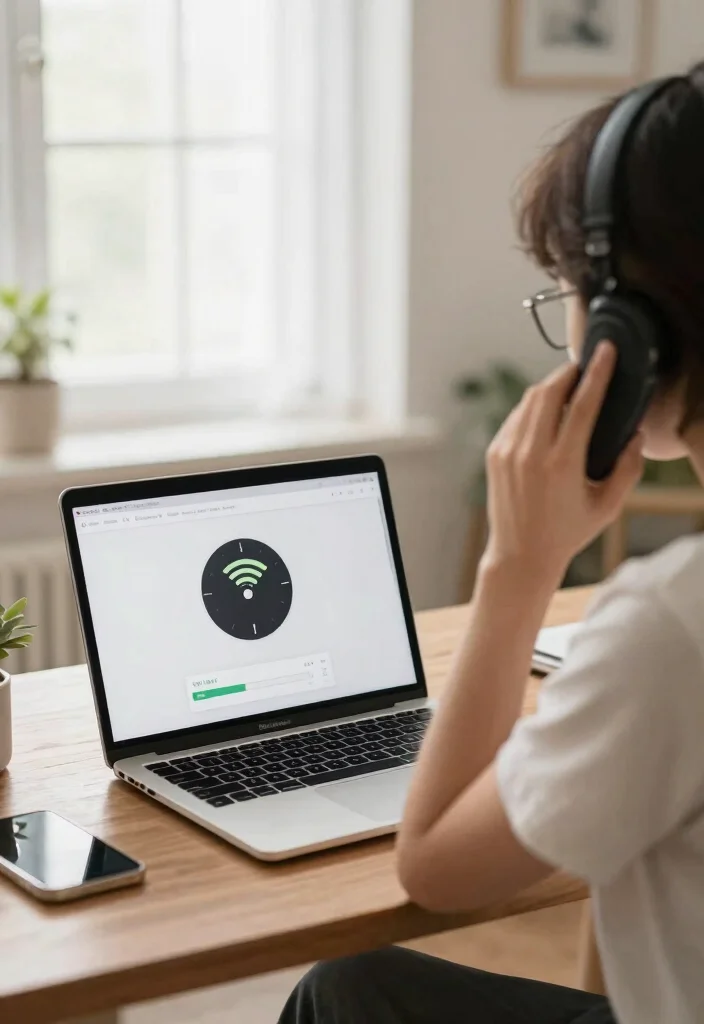
A strong internet connection is crucial for seamless video calls. It can make the difference between a smooth conversation and a frustrating experience filled with lags.
To guarantee a reliable connection, test your speed before the call and aim for at least 1.5 Mbps. Position yourself closer to your router or consider using a wired connection for better stability. Avoid heavy network use during your call to minimize disruptions.
Steps to ensure a solid connection:
– Test your internet speed ahead of time.
– Move closer to the router for better signal strength.
– Limit streaming or downloads during calls.
A reliable connection keeps you focused and maintains professionalism throughout your discussions.
3. Dress for Success

Dressing well at home can boost your confidence and enhance your presence during video calls. Choose comfortable yet professional outfits that align with the tone of your conversation.
Opt for solid colors to avoid distractions; patterns can take attention away from you. Since video calls usually focus on your upper body, wear tops that convey professionalism, even if you’re in comfy pants below the camera. Don’t forget to groom yourself; a polished look can elevate your confidence.
Tips for dressing appropriately:
– Wear solid colors to stand out effectively.
– Focus on upper body attire for visual impact.
– Groom yourself for a neat appearance.
By dressing for success, you empower yourself to engage better and leave a lasting impression.
Dress for success, even from the couch: solid colors on top can boost your presence on Zoom, while a polished look up top boosts confidence. Remember, it’s the upper half that shines in video calls—so choose professional tops and stay groomed.
4. Use Quality Equipment
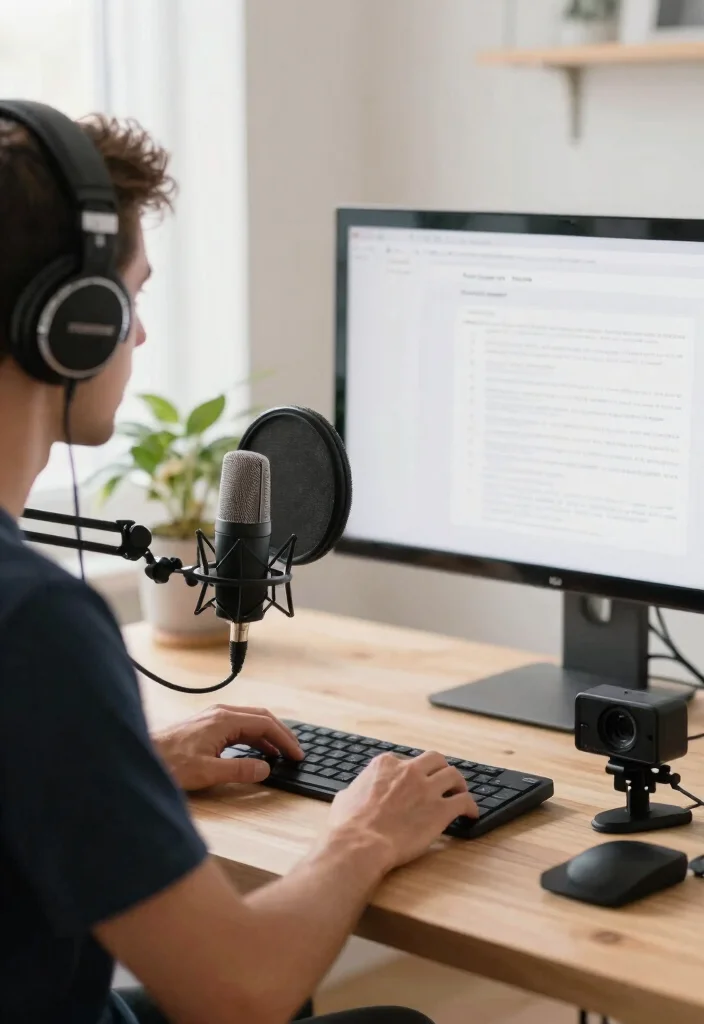
Investing in quality equipment greatly enhances your video call experience. The right tools ensure clearer audio and video, making communication smoother and more effective.
If your laptop’s camera isn’t cutting it, consider an external webcam for improved clarity. Enhance your audio by using an external microphone to eliminate background noise. Additionally, wearing headphones or earbuds can help reduce echo and enhance sound quality.
Consider these equipment upgrades:
– Upgrade to a high-quality webcam for clear visuals.
– Use an external microphone for better sound.
– Wear headphones to minimize distractions.
Quality equipment will make your calls more enjoyable and professional, reflecting well on you.
5. Master the Zoom Interface
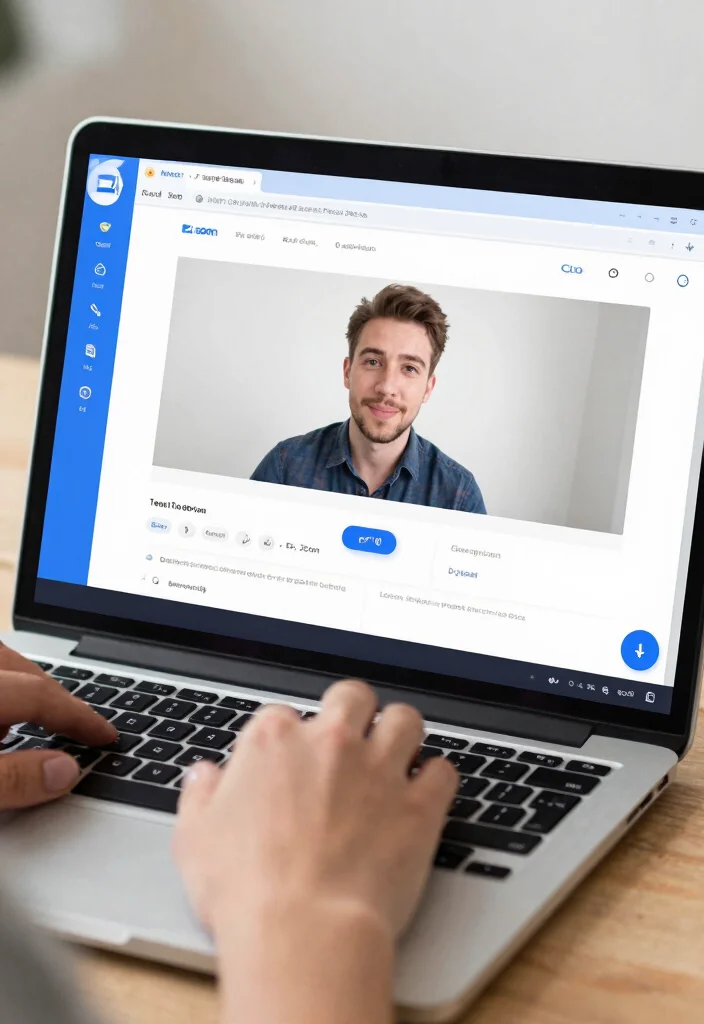
Familiarizing yourself with the Zoom interface can boost your confidence and efficiency during calls. Knowing where features are can save time and eliminate frustration.
Focus on mastering essential features like the mute button to manage background noise effectively. Practice screen sharing for presentations or documents, which is vital in collaborative meetings. Additionally, learn how to utilize the chat feature for seamless interaction without interrupting the flow.
Key features to focus on:
– Know where the mute/unmute button is located.
– Practice screen sharing for effective presentations.
– Familiarize yourself with the chat functionality for better communication.
Mastering these tools will help you navigate calls like a pro and keep conversations on track.
Fun fact: 72% of new Zoom users waste time hunting for the mute, screen share, and chat controls. Mastering the interface can cut those tiny frictions—and save you several minutes each call. Get comfy with the basics, and the flow will feel effortless.
You might also like
Keep Forgetting Passwords? Here’s a Simple Way to Organise Them

Beginner's Guide: How to Clear Your Cache and Improve Your Browsing –
6. Engage Actively

Active engagement during video calls enhances how your message is perceived. Being present and showing interest fosters better connections and communication.
Make eye contact by looking into the camera, which creates a sense of direct engagement. Use natural hand gestures to emphasize your points and keep the conversation lively. Don’t hesitate to ask questions to encourage participation and make the call more interactive.
Ways to engage actively:
– Maintain eye contact to connect better.
– Use gestures to emphasize your points.
– Ask questions to encourage participation.
By staying engaged, you’ll create a dynamic atmosphere that ensures everyone feels included in the conversation.
7. Manage Distractions
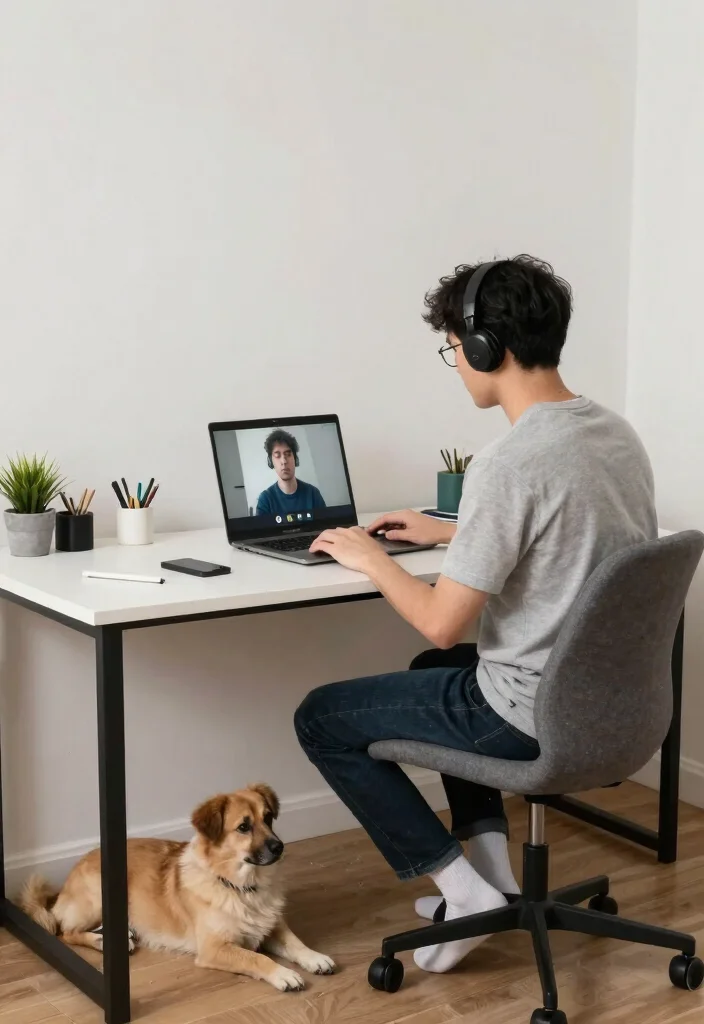
Distractions can easily disrupt video calls, whether it’s pets or family members. Managing these interruptions is vital for maintaining professionalism and focus.
Activate ‘Do Not Disturb’ mode on your devices to silence notifications and minimize interruptions. Inform your family members about your call schedule to reduce unexpected distractions. Setting up a specific area for video calls can also help you get into the right mindset and limit disruptions.
Strategies to manage distractions:
– Use Do Not Disturb mode on devices.
– Inform family members of your call schedule.
– Create a dedicated space for video calls.
By proactively managing distractions, you’ll maintain focus and create a smoother communication experience.
8. Prepare for Your Call

Preparation is key to a successful video call. Knowing your discussion topics and having necessary materials ready can help the conversation flow smoothly.
Outline key points to keep the conversation organized and on track. Gather any documents or notes you may need during the call to reference easily. Always test your camera, microphone, and internet connection beforehand to avoid technical issues.
Preparation tips include:
– Outline discussion points for clarity.
– Gather materials for easy reference.
– Test your equipment prior to the call.
With proper preparation, you’ll approach the call feeling confident and ready to engage.
You Might Also Like

Perfect 3-Day Itinerary for Your Trip to Polignano a Mare
How to Plan the Ultimate Holiday Itinerary:
How To Zoom: Essential Tips for Smooth Video Calls Every Time
Tools You’ll Need:
– A reliable computer or mobile device
– Zoom application installed
– Stable internet connection
– Headphones or speakers
– Webcam (if not built-in)
– Microphone (if not built-in)
Step 1: Download and Install Zoom
✔ Visit the Zoom website or your device’s app store.
✔ Download the application and follow the installation prompts.
✔ Create an account or sign in if you already have one.
Step 2: Set Up Your Profile
✔ Open the Zoom app and go to your profile settings.
✔ Upload a clear photo, so others can recognize you.
✔ Fill in any necessary information like your name and email.
Step 3: Schedule a Meeting
✔ Click on “Schedule a Meeting” within the app.
✔ Set a date, time, and topic for your meeting.
✔ Make sure to adjust settings like video on/off and password protection.
Step 4: Send Invitations
✔ After scheduling, you’ll receive a meeting link.
✔ Copy this link and send it via email or messaging apps to participants.
✔ You can also add a calendar invite for easy access.
Step 5: Join the Meeting
✔ At the scheduled time, click on the meeting link.
✔ Choose whether to join with video or audio based on your settings.
✔ If prompted, allow Zoom to access your camera and microphone.
Step 6: Familiarize Yourself with the Interface
✔ Once in the meeting, take a moment to explore the interface.
✔ Locate the mute/unmute button, camera toggle, and chat options.
✔ Familiarize yourself with features like screen sharing and reactions.
Step 7: Engage Actively
✔ Use video to make the call more personal; it helps with engagement.
✔ Participate in discussions and react with emojis to show your involvement.
✔ Ask questions to keep the conversation flowing and lively.
Step 8: Manage Background and Distractions
✔ Choose a quiet space with minimal background noise for your calls.
✔ Use a neutral background or a virtual background feature in Zoom.
✔ Mute yourself when not speaking to limit distractions for others.
Step 9: Follow Up After the Call
✔ Send a thank-you email or message to participants after the meeting.
✔ Include any action items discussed or additional resources.
✔ This helps maintain communication and shows appreciation for their time.
Pro Tip: Always test your equipment before the meeting! Try a practice call with a friend to ensure everything works smoothly. This way, you can troubleshoot any issues ahead of the actual meeting.
Remember, Zoom is a powerful tool for online communication. With a bit of preparation and practice, you’ll be able to conduct smooth and productive video calls every time!
9. Follow Up After the Call
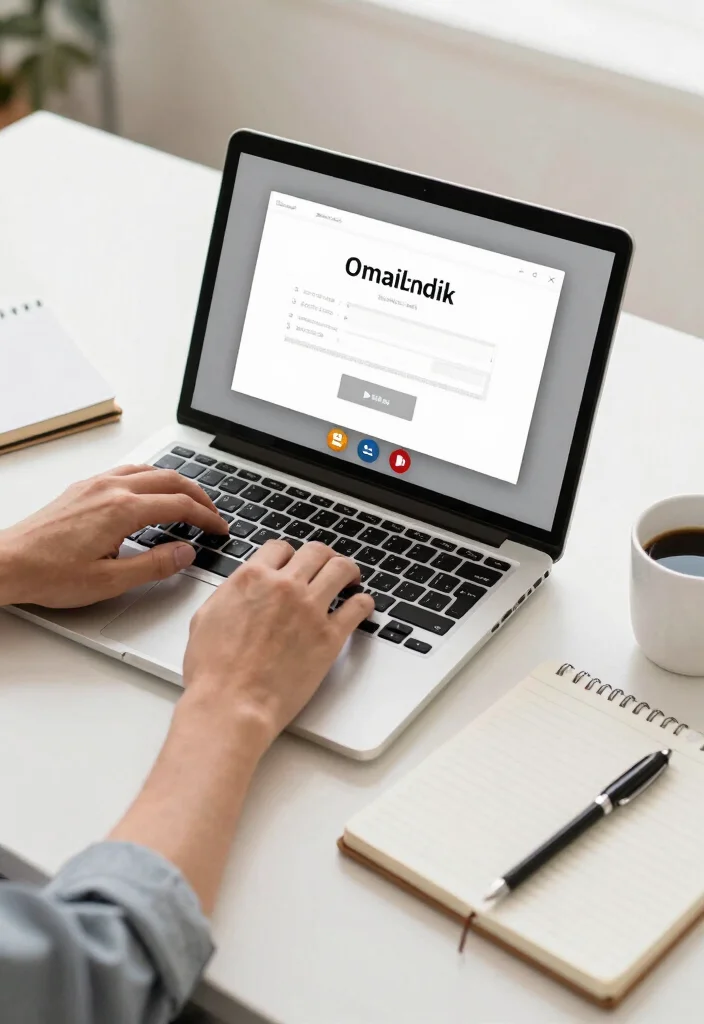
Following up after a video call is essential to reinforce connections and keep communication lines open. This action shows professionalism and appreciation for others’ time.
Send a thank-you email to acknowledge contributions or insights shared during the call. Summarize key points and outline any action items to ensure everyone is on the same page. If needed, propose dates for follow-up meetings to maintain momentum.
Effective follow-up strategies:
– Send a thank you email to express appreciation.
– Summarize key points discussed during the call.
– Propose dates for future meetings if necessary.
Following up reinforces relationships and demonstrates your commitment to ongoing communication.
10. Embrace the Learning Curve
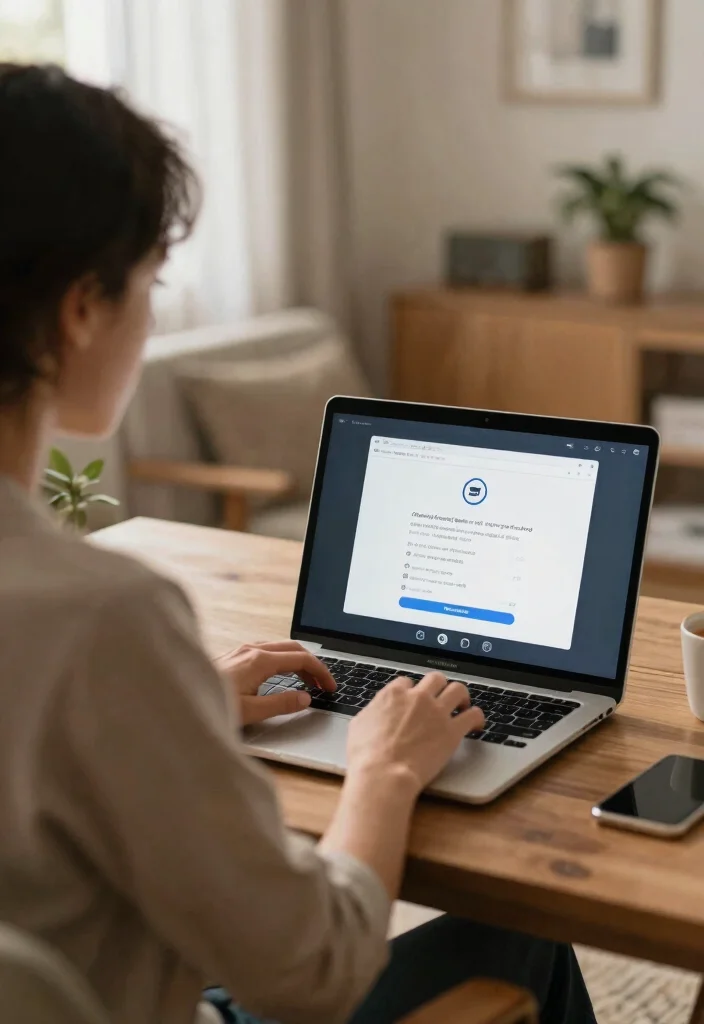
Always remember that there’s room for improvement in your video call skills. Embracing the learning curve of using Zoom will make you a more effective communicator over time.
Seek feedback from peers about your video call effectiveness and areas you can improve. Watch online tutorials to learn about Zoom features and enhance your skills. The more you practice, the more comfortable you’ll become with the platform’s functionalities.
Ways to continue learning:
– Seek feedback from peers regularly.
– Watch tutorials for skill enhancement.
– Practice regularly to boost your comfort level.
Embracing this process will not only improve your skills but also increase your confidence in online communication.
Conclusion
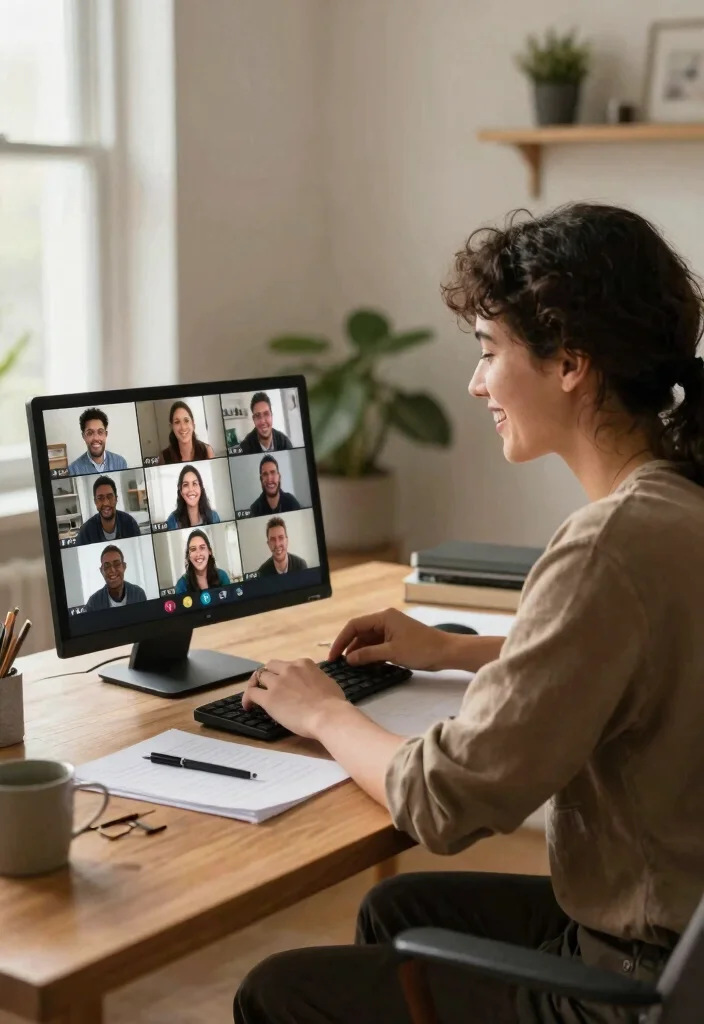
Mastering the art of Zoom calls enhances your online communication experience, making it more enjoyable and effective. By implementing these tips—from setting the right background to actively engaging during calls—you’ll be well on your way to becoming a Zoom pro!
As you continue to refine your skills, don’t forget to embrace each new experience as an opportunity for growth. Happy Zooming!
Frequently Asked Questions
What equipment do I need to start a Zoom video call and how to Zoom effectively?
Getting started with How to Zoom is easy. You mainly need three things: a device with a camera and microphone, a reliable internet connection, and the Zoom app (or a browser).
First, choose your device: a laptop, desktop, or smartphone. A headset or earbuds can dramatically improve audio and reduce echoes.
Next, install and sign in: download the Zoom app or use Zoom in a browser, and create a free Zoom account if you don’t have one.
Test before your first call: go to zoom.us/test or start a quick meeting to check your microphone and camera. Make sure Zoom has permission to use your camera and microphone in your device settings.
Finally, know the basics: you can start a New Meeting to talk with others or Join an existing one with a meeting ID. With these basics, you’re ready to master How to Zoom.
What are the basic controls I should know for a smooth Zoom video call?
Here are the basics to keep your Zoom video call smooth:
Mute/unmute and start/stop video: use the bottom-left controls to silence yourself or turn on your camera.
Share screen: click Share Screen to present slides, documents, or your desktop.
Participants and chat: open Participants to see who’s in the meeting and use Chat for quick messages.
Reactions and raise hand: use Raise Hand if you want to speak without interrupting.
Layout and extras: switch between Gallery and Speaker view, and adjust audio/video settings in Settings if needed. Practice a quick test before real calls.
How can I improve audio and video quality on Zoom calls and avoid common glitches?
To improve audio and video quality on Zoom calls, try these practical tips:
Use a stable connection: ethernet is best, or sit close to your Wi‑Fi router.
Limit bandwidth usage: close other apps and downloads during the call.
Light and framing: face a simple light source, keep yourself centered, and avoid backlighting.
Camera and mic: position at eye level and run a quick mic test in Zoom settings.
In Zoom, you can turn off HD if needed to save bandwidth and ensure a smoother video call experience.
For best results, run a quick setup test before important meetings.
What common issues happen during Zoom calls and how can I troubleshoot them?
Common issues include not being able to hear others, others can’t hear you, your video won’t show, or the meeting won’t load. Quick fixes: check your microphone and camera permissions in your device settings, restart the Zoom app, and rejoin the meeting. In Zoom, test your speaker and microphone in Audio Settings. If video won’t appear, verify the correct camera is selected in Video Settings. If the meeting won’t load, try a web browser option or update your Zoom client. If needed, temporarily disable VPN or firewall conflicts and close bandwidth-heavy apps. These steps cover most basics for online communication when things go wrong.
What security settings should I enable to keep Zoom calls private and safe?
To keep Zoom calls private and safe: enable Waiting Room and require a passcode or limit access to authenticated users. In Screen Sharing, restrict to Host or guard it with a setting. Turn off Join Before Host so meetings start together. Use Lock Meeting once all participants arrive. Manage participants by removing disruptive users if needed. For extra safety, avoid sharing sensitive information in chat and regularly review your security settings in the Zoom app.
📱 Smartphone Basics | 💻 Computer Basics | 🧩 Apps Guides | 🌐 Internet & Email | 🔒 Online Safety | ❓ Simple Technology Questions