
Have you ever been locked out of your own online account because you forgot your password? It happens to the best of us! In our fast-paced digital lives, keeping track of multiple secure passwords can be a real challenge. That’s why I created this guide. I want to help you navigate the frustrating waters of password recovery so you can regain access to your accounts quickly and securely.
If you’re someone who values online security yet struggles with remembering passwords, you’re in the right place. This post is for anyone who has ever felt the panic of realizing they’ve forgotten a password or the dread of being unable to access important accounts. Together, we’ll explore practical steps to recover your secure access and tips to create passwords that are both easy to remember and hard for others to guess.
By the end of this guide, you’ll be equipped with actionable tips and tricks to recover lost passwords efficiently. You’ll discover helpful features like browser password managers, password reset options, and the importance of two-factor authentication. Plus, I’ll share essential advice on creating secure passwords and maintaining your online security. Let’s dive into the world of password recovery!
Key Takeaways
– Check Browser Password Managers: Many web browsers store your passwords securely. Check your browser settings to retrieve forgotten passwords easily.
– Utilize Password Reset Features: Most platforms offer a password reset option. Use this feature to recover access by following the instructions sent to your email.
– Two-Factor Authentication: Adding this layer of security can help reset your password securely. It provides an extra step when logging in, making it harder for unauthorized users to gain access.
– Security Questions: If set up, security questions can be a helpful backdoor for recovery. Make sure you choose questions and answers that are memorable yet hard for others to guess.
– Use a Password Manager: Consider using a password manager to store and generate secure passwords. This will simplify your online experience and reduce the chances of forgetting them in the future.
Contents
- 1. Check Browser Password Managers
- 2. Utilize Password Reset Features
- 3. Two-Factor Authentication
- 4. Security Questions: The Forgotten Backdoor
- 5. Creating a Secure Password
- 6. Use a Password Manager
- 7. Regularly Update Your Passwords
- 8. Recovery Emails: Keep Them Updated
- 9. Stay Informed on Digital Security
- 10. Trust Your Instincts: Know When to Seek Help
1. Check Browser Password Managers
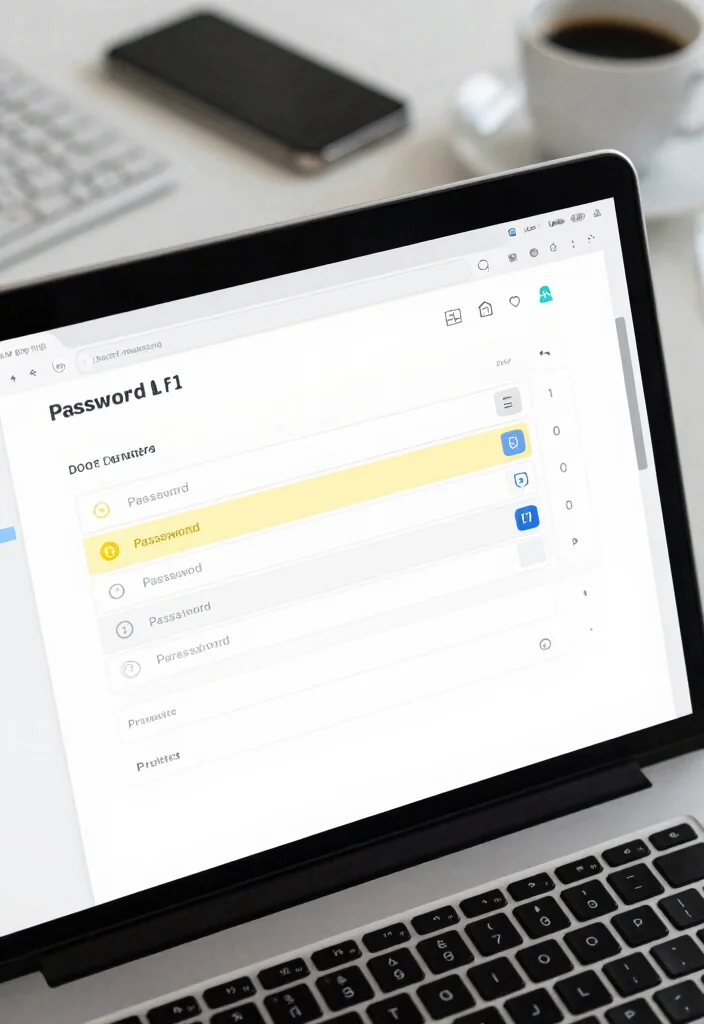
If you’ve ever lost track of your passwords, browser password managers can be a lifesaver. These tools securely store your login details, making retrieval easy and convenient. Just dive into your browser’s settings to find your saved passwords, and you’ll be back in action in no time.
Start by locating your browser’s settings and navigating to the ‘Passwords’ section. This process is simple, allowing you to view, manage, or even delete passwords as needed. Regularly updating your browser can also enhance security features, so keep it fresh.
Key steps for accessing your saved passwords:
– Open your browser settings.
– Go to the ‘Passwords’ section.
– Authenticate if needed to view saved passwords.
– Copy the password for use.
Bonus Tip: Keep your browser updated for better security features.
This method is perfect for those who use one device consistently, but consider using a dedicated password manager for added security.
2. Utilize Password Reset Features
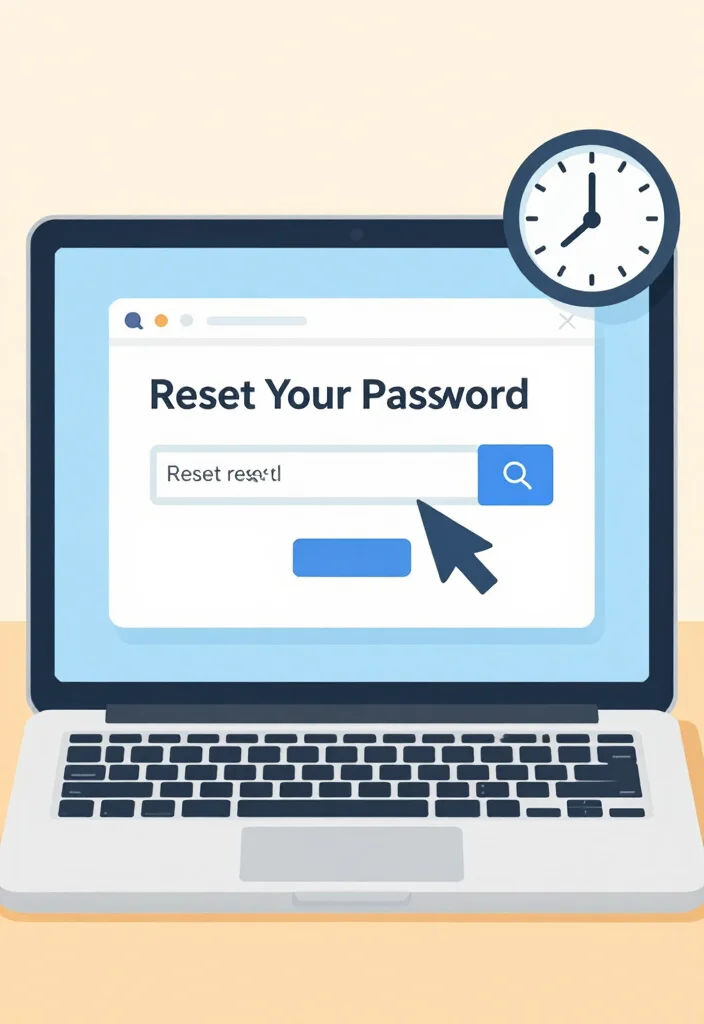
If you can’t remember your password, don’t worry! Most accounts offer a straightforward password reset option. Simply enter the email linked to your account, and you’ll receive a reset link to create a new password that’s both strong and easy to remember.
It’s essential to act quickly on the reset link you receive to ensure account security. Make sure your new password is unique and doesn’t resemble your old ones to protect against unauthorized access.
Follow these steps to reset your password:
– Visit the login page of your account.
– Click on ‘Forgot Password’ or similar.
– Input your email and check for the reset link.
– Follow the email instructions to reset your password.
Important: Use a mix of uppercase, lowercase, numbers, and symbols for security.
This method effectively helps you regain access, especially if two-factor authentication is enabled.
3. Two-Factor Authentication
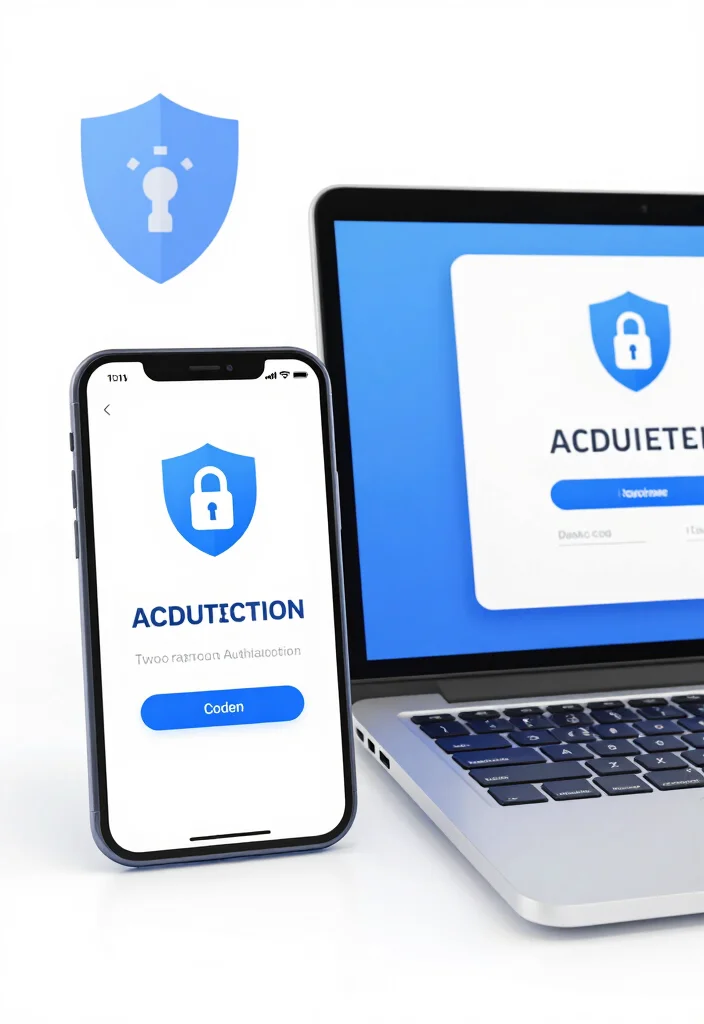
Two-factor authentication (2FA) is an effective way to keep your accounts secure. This method requires a code sent to your phone or an authenticator app, ensuring that even if someone knows your password, they can’t access your account without the second factor.
Make sure you have access to your secondary device when logging in. This extra step significantly enhances security for your online accounts.
Here’s how to use 2FA:
– Enter your username and password.
– Check your phone for the authentication code.
– Input the code to access your account.
Recommended: Keep your phone charged and connected.
Enabling 2FA across all supported accounts can greatly reduce the risk of unauthorized access.
Fun fact: Two-factor authentication blocks up to 99.9% of account hacks. If someone knows your password, they still need the second factor—your phone or authenticator—to sign in, so set up 2FA and keep backup codes handy.
4. Security Questions: The Forgotten Backdoor
Many accounts include security questions you set up during registration. If you remember the answers, this can be a quick way to regain access. Just be sure your answers match exactly what you provided during setup.
Security questions can be a reliable fallback if you forget your password, though they can sometimes feel outdated. Choose questions that only you know the answers to, avoiding easily guessed information.
Steps to recover using security questions:
– Select ‘Forgot Password?’ on the login page.
– Choose the security questions option.
– Answer the questions accurately to unlock your account.
Tip: Choose obscure questions to enhance security.
This method can still be useful when other recovery options fail.
5. Creating a Secure Password
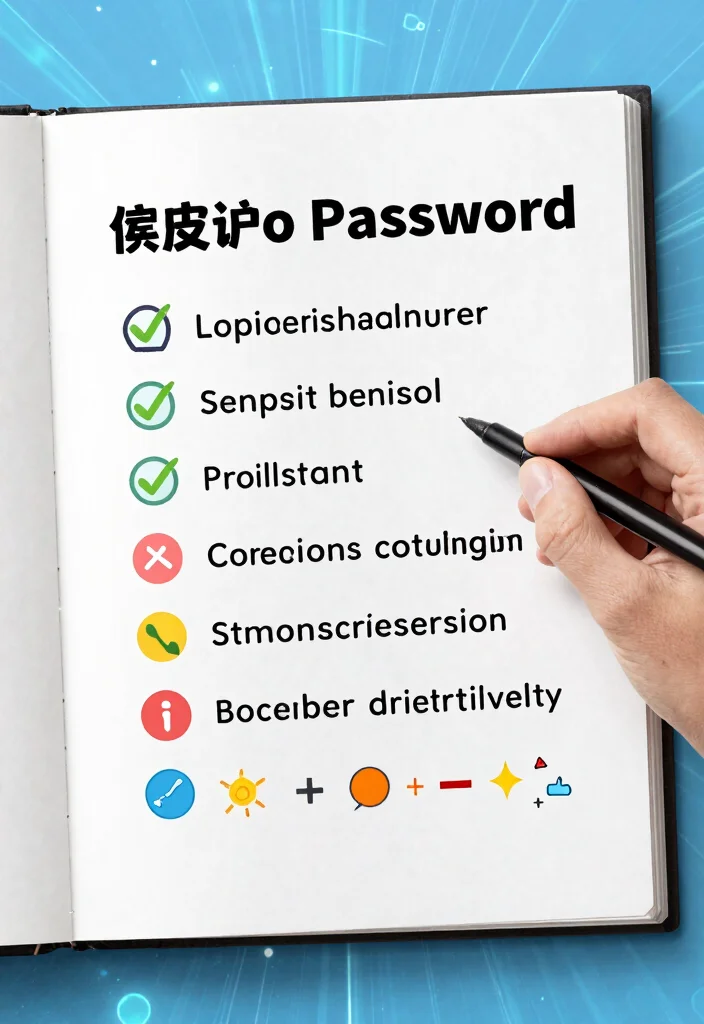
Crafting a strong password is essential for protecting your accounts. Aim for at least 12 characters, mixing letters, numbers, and symbols. Avoid using easily guessable information like birthdays or names.
Consider creating a memorable phrase and replacing letters with symbols for added complexity. This makes it easier to recall while maintaining security.
Steps for creating a strong password:
– Choose a memorable phrase.
– Replace letters with symbols or numbers (e.g., ‘a’ becomes ‘@’).
– Mix uppercase and lowercase letters.
– Add random characters for complexity.
Smart Tip: Use a passphrase made of random words for easier recall.
Establishing a strong password enhances your protection against unauthorized access.
You might also like
6. Use a Password Manager
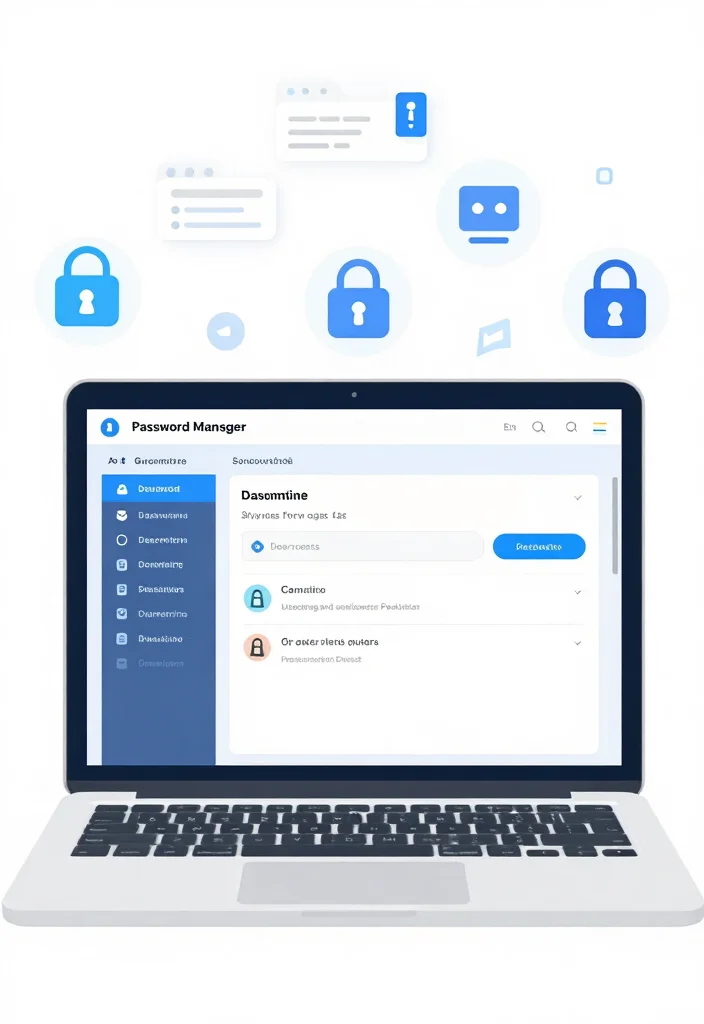
Password managers are invaluable tools for keeping your passwords organized and secure. They can generate strong passwords, store them, and auto-fill login information, making your online life much easier.
By using a password manager, you can maintain unique, complex passwords for all your accounts without the hassle of memorizing each one. Popular options include LastPass, Dashlane, and 1Password.
Steps to use a password manager:
– Choose a reputable password manager.
– Download and set it up on your devices.
– Use it to generate strong passwords for new accounts.
Tip: Always use a strong master password for your manager.
Investing in a password manager simplifies your digital experience and keeps your information secure.
📹 Related Video: ULTIMATE Password Manager Setup Tutorial for Beginners (step by step)
7. Regularly Update Your Passwords
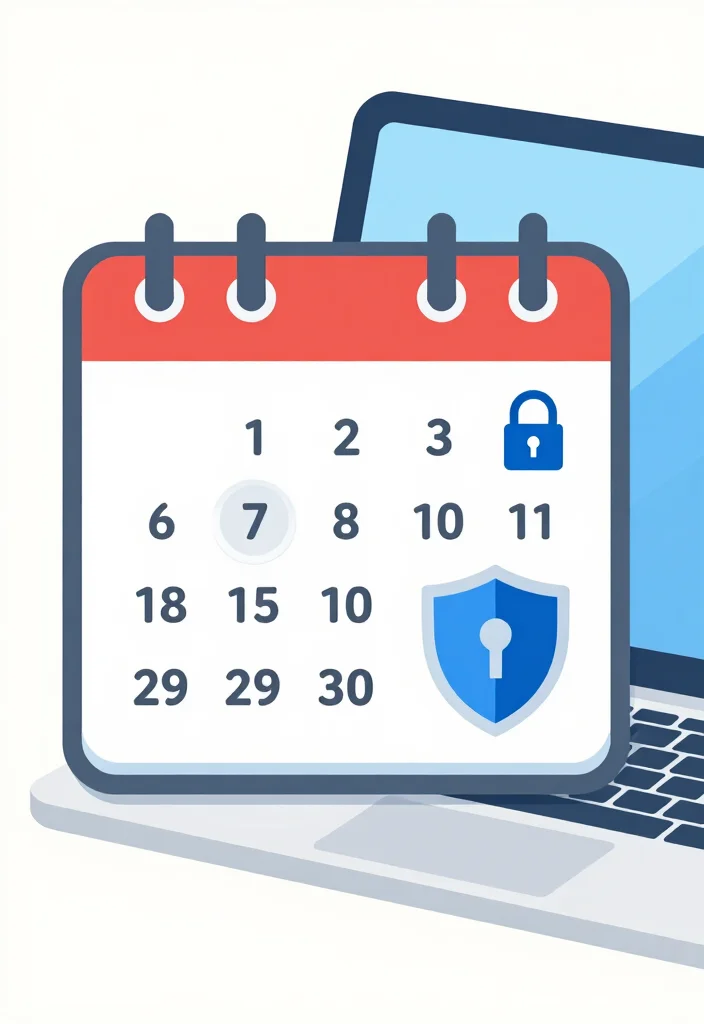
Keeping your passwords updated is a proactive way to enhance your security. Aim to change your passwords every few months, especially for sensitive accounts like banking or social media.
This practice makes it much harder for hackers to access your accounts over time. Consider setting reminders to ensure you stay on top of this important task.
Steps for updating passwords:
– Set a reminder to change passwords regularly.
– Use new passwords each time; avoid reusing old ones.
– Record the updated password in your password manager.
Important: Only update passwords on secure devices to prevent interception.
By refreshing your passwords, you increase security and safeguard your accounts against breaches.
8. Recovery Emails: Keep Them Updated
Your recovery email is vital for receiving password resets and security alerts. Keeping this email up to date can prevent you from losing access to your accounts.
Regularly check your recovery settings and update your email as needed. This simple step can significantly improve your account’s security and recovery options.
Steps to ensure your recovery email is current:
– Regularly check your account recovery settings.
– Update your recovery email if needed.
– Verify that you can access that email.
Tip: Use a dedicated email for recovery purposes to enhance security.
Keeping your recovery email updated ensures you can quickly recover your passwords when necessary.
Fun fact: 68% of password recovery successes happen when the recovery email is kept up to date. Regularly check your recovery settings and update your email as needed to stay in control. A quick verify now can save you hours later.
How To Create a Secure Password
Creating a secure password is essential for protecting your online accounts. A strong password can deter unauthorized access and keep your personal information safe. Follow these steps to create a password that is both secure and easy to remember.
1. Choose Length Over Complexity
Aim for a password that is at least 12-16 characters long. Longer passwords are generally harder to crack. Include a mix of letters, numbers, and symbols. For example, instead of “password123,” think of something like “BlueSky@2023!” This added length makes it significantly tougher for attackers.
2. Use a Mix of Characters
Incorporate uppercase and lowercase letters, numbers, and special characters into your password. The variety creates more combinations, making it harder for hackers to guess. For instance, instead of using “Summer2023,” try “$umm3r2023!” By changing letters to look similar, you create a unique variation.
3. Avoid Common Words and Phrases
Stay away from easily guessed passwords like “123456,” “password,” or phrases related to your personal information such as names or birthdays. Attackers often use dictionary attacks that guess common words. Instead, think of a random phrase or create an acronym from a sentence you can remember, like “I love hiking in the mountains!” which could become “ILuvHiking@Mt!”
4. Use Password Managers
Consider using a password manager to generate and store complex passwords securely. These tools can create random passwords for you, so you don’t have to remember each one. This way, you can easily access your accounts with unique, strong passwords. Popular options include LastPass, Dashlane, and 1Password.
5. Regularly Update Your Passwords
Make it a habit to change your passwords regularly—every 3-6 months is a good rule of thumb. This practice limits the risk if your password is ever compromised. Set a reminder in your calendar to do this, ensuring that your accounts remain secure over time.
6. Enable Two-Factor Authentication (2FA)
Whenever possible, activate two-factor authentication on your accounts. This adds an extra layer of security by requiring a second form of identification, like a text message or an app code, in addition to your password. Even if someone guesses your password, they would still need this second factor to access your account.
Pro Tip: Use a memorable but unique phrase or sentence that only you would think of, and modify it with numbers and symbols. This technique makes it easier to recall while maintaining high security.
By following these steps, you can create a secure password that will keep your online accounts safe. Remember, the stronger and more unique your password, the harder it is for others to access your secure information. Stay vigilant and proactive about your password security!
9. Stay Informed on Digital Security
Staying updated on digital security trends helps you stay ahead of potential threats. Follow cybersecurity blogs and subscribe to newsletters to learn about new risks and protective measures.
Engaging with online communities can also provide valuable insights and tips for safeguarding your digital presence. Sharing your knowledge with others can promote collective security.
Steps to stay informed:
– Identify reliable sources for security news.
– Read updates regularly as a habit.
– Engage with communities for tips and advice.
Important: Share what you learn with friends and family.
Awareness is key in protecting your digital life, empowering you to make informed security choices every day.
10. Trust Your Instincts: Know When to Seek Help
If you’re feeling overwhelmed or suspect a security breach, don’t hesitate to seek help. Professionals and tech-savvy friends can assist you in recovering your passwords and securing your accounts.
Most online platforms offer customer support to guide you through the recovery process. Document any unusual activity in your accounts to provide context for those helping you.
Steps to get help:
– Contact the customer support of the service.
– Provide necessary information to verify your identity.
– Follow their guidance for recovery.
Helpful Tip: Document any unexpected activity for reference.
Asking for help reinforces your security, ensuring a path back to safe access.
Don’t beat yourself up if you’re stuck—get help fast. A quick call to customer support can unlock password recovery and save your accounts from bigger headaches. Stay calm, document odd activity, and lean on friends or pros when you need a hand.
Conclusion
Recovering your secure password doesn’t have to be a daunting task. With the right strategies and tools in hand, you can regain access to your accounts swiftly and securely. By following these tips and staying informed about password security, you can reduce the chances of forgetting important passwords in the future. Embrace these methods, secure your digital life, and keep your information safe!
Frequently Asked Questions
What steps should I take first when I forget my password and can’t access my account?
When you forget your password, begin with the service’s official password recovery page—look for ‘Forgot password?’ or ‘Can’t access your account?’. Use the reset link sent to your registered email or phone, and then sign in on the official site or app. If you don’t receive the email or SMS, check spam folders and make sure you’re on the legitimate site to avoid phishing. Have handy your username and any recovery details the service asks for. After you regain access, review your security settings, enable two-factor authentication, and craft a new password using strong, unique criteria. Follow the reset tips from the service so you know exactly how to complete the process. For extra protection, store your new password securely with a password manager so you’re less likely to forget in the future.
How can I recover my password securely without falling for phishing or scams?
To recover securely, only use the official site or app and avoid phishing pages. Check the URL, look for https and a valid certificate, and never click links in unsolicited emails. If available, use the service’s built-in recovery flow rather than email links. Enable two-factor authentication and use a trusted password manager to generate and store reset codes and the new password. Never share verification codes or recovery codes with anyone—even support staff. If you’re ever unsure, pause and contact the service through official channels. That way you maintain secure access throughout password recovery.
What are the best reset tips to avoid lockouts and keep my account protected?
Here are practical reset tips: confirm you have access to your chosen recovery method (email or phone) before starting. Create a new, unique password—not reused elsewhere—and consider a memorable passphrase. Keep backup codes in a secure place and update your recovery options after the reset. Turn on two-factor authentication for extra protection and consider a password manager to store credentials securely. Review devices that are logged in and sign out of old sessions. Finally, test logging in on a different device to confirm everything works.
What should I do if I no longer have access to my recovery email or phone?
If you’ve lost access to your recovery email or phone, start with any other recovery options the service offers (security questions, backup codes, trusted devices). Contact customer support through official channels and verify your identity; they can help you regain access and update your recovery options. Once you’re back in, remove outdated methods and set new ones you control. Keep backup codes in a secure place and enable an authentication method such as an authenticator app or hardware key for secure access.
How can I prevent forgetting passwords in the future and keep secure access?
Make forgetting passwords a thing of the past with a password manager, biometric login, and memorable passphrases. Use unique passwords for every site and store them securely. Turn on two-factor authentication for extra protection and consider enabling biometric login on your devices. Regularly review security settings, update recovery information, and keep your software and apps up to date to protect secure access.