
Paying for parking with your phone can seem confusing the first time you try it.
You arrive at a car park expecting to use a payment machine, only to find a sign telling you to download an app, enter a location number or pay using your phone.
There may also be several numbers and QR codes on the sign, which can make it difficult to know where to start.
The good news is that once you’ve set up a parking app, paying for parking is usually quite straightforward.
This beginner-friendly guide explains how to pay for parking with your phone step by step, including how to find the correct parking app, enter the right location, add your car, pay safely and check that your parking session has actually started.
Quick answer: Check the official parking sign to find the parking service and location or zone number. Download the correct app from your phone’s official app store, add your vehicle and payment details, choose how long you want to park and pay. Always check for confirmation that your parking session has started before walking away.
On this page
- What Does Pay by Phone Parking Mean?
- What You Need Before You Start
- Step 1: Find the Correct Parking App
- Step 2: Download the App Safely
- Step 3: Create Your Account
- Step 4: Add Your Car
- Step 5: Enter the Location or Zone Number
- Step 6: Choose How Long You Want to Park
- Step 7: Check the Price and Pay
- Step 8: Check Your Parking Has Started
- Can I Extend My Parking From My Phone?
- Be Careful With QR Codes and Fake Parking Websites
- What If the Parking App Doesn’t Work?
- Simple Parking App Checklist
- Frequently Asked Questions
What Does Pay by Phone Parking Mean?
Pay by phone parking simply means paying for your parking using your smartphone instead of—or sometimes as an alternative to—a physical payment machine.
The car park normally uses a particular parking service or app.
The parking sign should tell you which service is used.
You may see parking services such as RingGo, PayByPhone or JustPark, although the service varies depending on the car park.
The basic process is usually similar:
Find the correct app → add your vehicle → identify the car park → choose your parking time → pay → check confirmation.
You don’t need to understand everything about smartphones to do this. The important thing is to follow each step carefully.
What You Need Before You Start
It helps to have the following ready:
- Your smartphone
- An internet connection
- Your vehicle registration number
- A debit or credit card, or another supported payment method
- Access to your email or mobile number if the app needs to verify your account
- The parking location or zone number shown on the sign
If you have poor mobile reception, setting up the parking app may take longer.
Don’t rush
If you’ve never done this before, take your time.
You don’t have to complete everything in a few seconds just because somebody else appears to know what they’re doing.
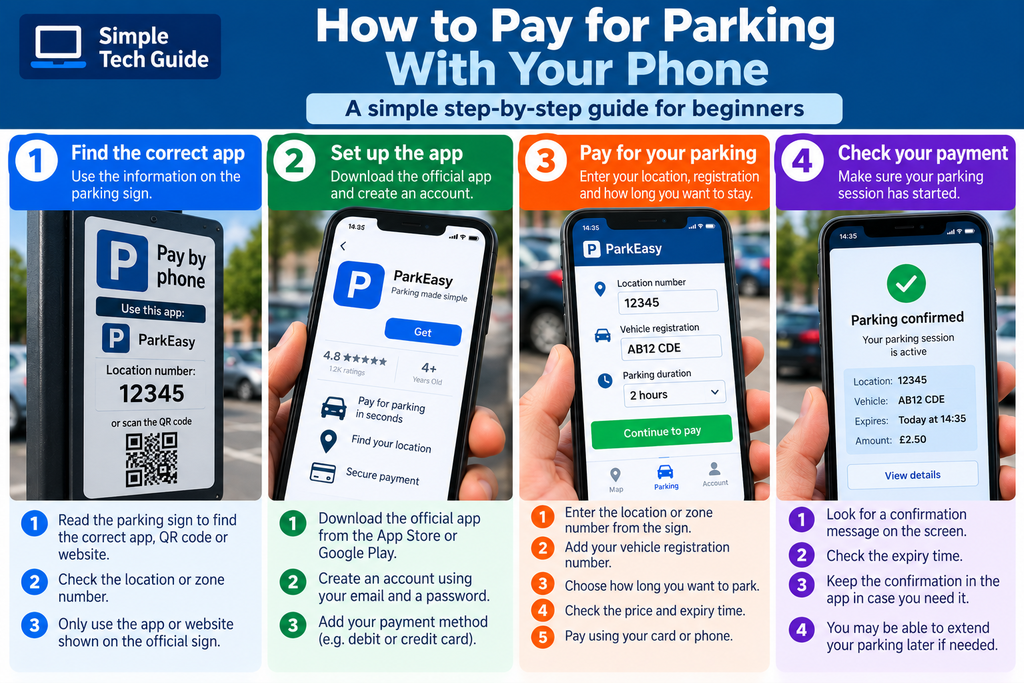
Step 1: Find the Correct Parking App
Start by reading the official parking sign.
Look for wording such as:
Pay by phone
Pay by app
Cashless parking
or
Pay using…
The sign should tell you the name of the parking service.
Don’t simply search for “parking app” and download the first result you see. Different car parks use different services.
Look for the location number too
The sign will often display a number labelled something like:
Location
Location code
Zone
or
Location ID
You’ll probably need this shortly.
Step 2: Download the App Safely
Once you know which parking service the car park uses, open your phone’s official app store.
On an iPhone, this is the App Store.
On most Android phones, this is Google Play.
Search for the parking service named on the sign.
Before installing it, check that the app name and provider look correct.
Then tap:
Get
or
Install
and wait for the app to download.
Be cautious about QR codes
Some parking signs contain QR codes that open a website or app.
QR codes can be useful, but you don’t have to use one.
If you’re unsure, a safer and simpler option can be to read the name of the parking service on the official sign and find its app yourself through the Apple App Store or Google Play Store.
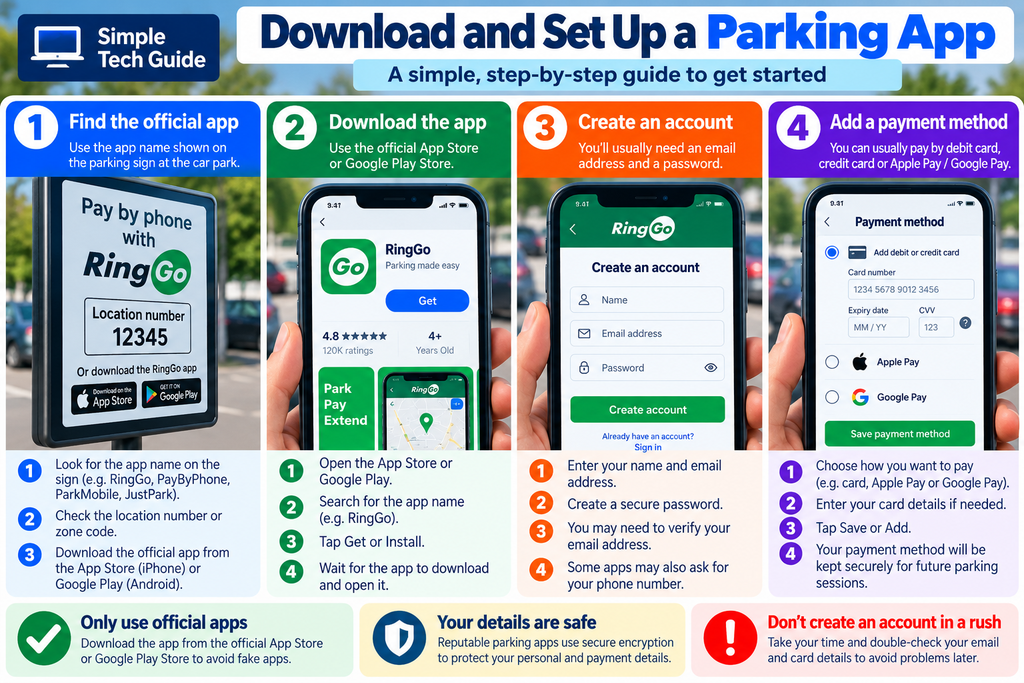
Step 3: Create Your Account
When you first open a parking app, it may ask you to create an account.
You might need to provide:
- Your name
- Email address
- Mobile telephone number
- A password
You may then receive a text message or email containing a verification code.
If so, enter that code into the app.
Choose a password you can remember securely
Don’t use the same simple password for every account.
If your phone offers to save the password securely for you, that can make signing in easier next time.
Step 4: Add Your Car
The app will normally ask for your vehicle registration number.
This is the registration shown on your number plate.
For example:
AB12 CDE
Enter it carefully.
You may also be asked for information such as:
- Vehicle make
- Vehicle colour
- Vehicle type
Not every app asks for all of these.
Check the registration carefully
This is particularly important.
If you enter the wrong registration, the parking payment may not be correctly associated with the vehicle you are actually parking.
If you have more than one vehicle stored in the app, make sure the correct one is selected before paying.
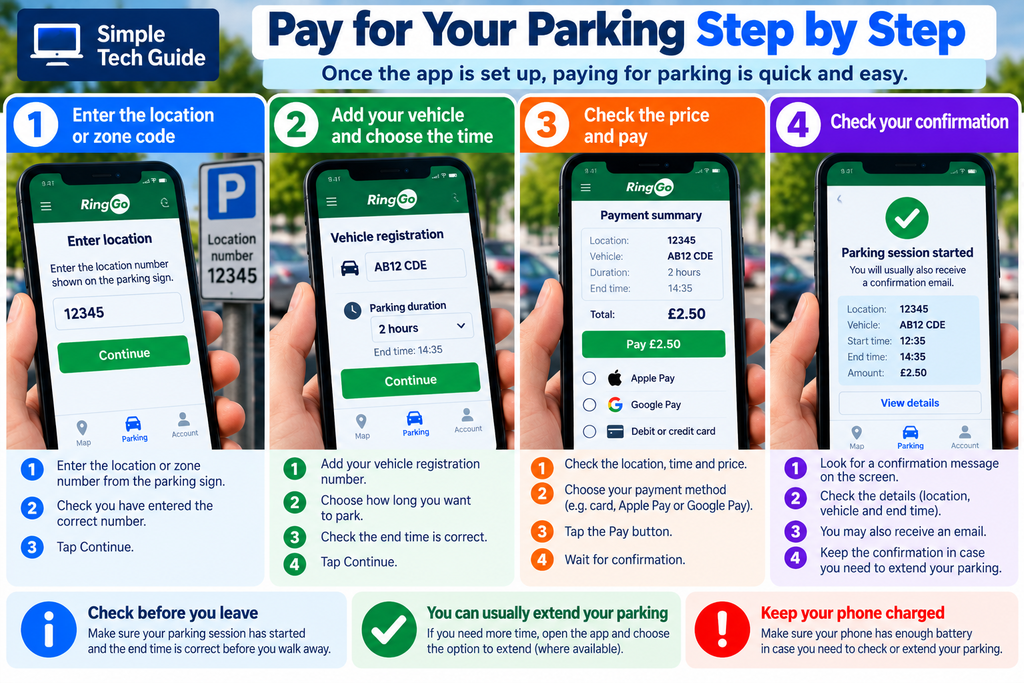
Step 5: Enter the Location or Zone Number
Now you need to tell the app where you have parked.
Look at the official parking sign again.
Find the location or zone number.
For example:
Location: 12345
Enter that number into the app.
Some apps may also allow you to select the car park from a map.
Check the location before continuing
If the app displays a street name, car park name or location, check that it matches where you actually are.
A nearby car park could have a different location number and different charges.
Step 6: Choose How Long You Want to Park
Next, choose your parking duration.
For example:
1 hour
2 hours
4 hours
or another available period.
The app should show you the expected end time.
If it says:
Parking ends: 2:35 pm
ask yourself whether that gives you enough time.
Some car parks have a maximum stay, so you may not be allowed to extend indefinitely.
Step 7: Check the Price and Pay
Before pressing the payment button, check:
Location ✓
Vehicle registration ✓
Parking duration ✓
End time ✓
Price ✓
The app will then ask you to choose or confirm a payment method.
Depending on the service and your phone, this might include a debit or credit card or a supported mobile wallet.
Follow the instructions shown by the app to complete the payment.
Step 8: Check Your Parking Has Started
This is one of the most important steps.
Don’t assume you’ve paid simply because you pressed the payment button.
Wait for confirmation.
You should see something indicating that the parking session is active, started or confirmed.
Check the:
- vehicle registration
- location
- start time
- end time
- amount paid
You may also receive an email, notification or receipt.
Only once you have confirmation should you assume the parking session has started successfully.
Can I Extend My Parking From My Phone?
Often, yes.
This can be one of the biggest advantages of paying by phone.
Imagine you’ve paid for one hour but realise you’re going to be another 30 minutes.
Instead of returning to the car park, you may be able to open the app and extend the parking session from wherever you are.
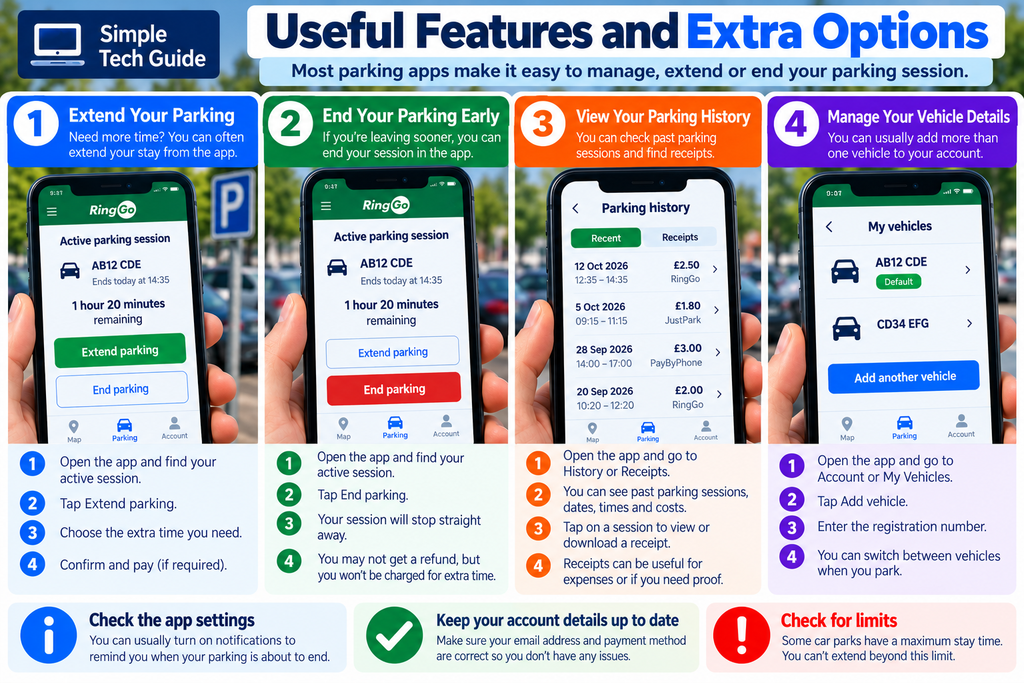
Look for an option such as:
Extend parking
or
Add time
Choose the additional time and confirm any additional payment.
But check the parking restrictions
Being able to use the app doesn’t necessarily mean you’re allowed to remain indefinitely.
A car park may have a maximum stay or other restrictions.
Always follow the parking conditions shown on the signs.
Other Useful Parking App Features
Once you’ve become comfortable using the app, you may find some useful additional features.
Depending on the particular parking service, these can include:
Parking reminders — notifications when your parking is approaching its end time.
Parking history — see previous parking sessions and payments.
Receipts — useful if you need proof of payment or claim parking as an expense.
Multiple vehicles — useful if your household has more than one car.
Saved payment details — avoids entering card information every time.
Some apps may also let you end or manage a parking session, although features and charging arrangements vary.
Be Careful With QR Codes and Fake Parking Websites
This deserves special attention.
You may see a QR code attached to a parking machine or sign.
Scanning a QR code can open a website instantly, which is convenient—but you should still make sure you’re using the genuine parking service.
A safer approach if you’re uncertain
If the sign clearly names the parking company or app:
- Read the name.
- Open the official Apple App Store or Google Play Store yourself.
- Search for that parking app.
- Check the app before installing it.
Be particularly cautious if a QR code or website unexpectedly asks for unusual personal information or payment details.
If something doesn’t look right, don’t enter your bank-card information.
What If the Parking App Doesn’t Work?
Don’t panic. There may be another way to pay.
I have no internet connection
Look at the parking sign for alternative payment methods.
Some parking services may offer telephone or other payment options.
I can’t create an account
Check that your email address and telephone number have been entered correctly.
If you’re waiting for a verification code, give it a moment and check your text messages or email.
The app can’t find the location
Check the location or zone number on the parking sign and enter it again carefully.
My card isn’t accepted
Check the payment information and whether another supported payment method is available.
The app says payment failed
Don’t assume you’re parked.
Check whether the app shows an active parking session.
If it doesn’t, follow the instructions provided by the parking operator and try an available alternative payment method.
I can’t work out what to do
Look at the official parking sign for a help telephone number, website or alternative payment instructions.
What If I Don’t Have a Smartphone?
Check the parking signs.
Some car parks still provide a physical payment machine or another way to pay.
The available alternatives depend on the particular car park.
If there is a payment machine available, see our:
How to Use a Car Park Payment Machine: A Simple Beginner’s Guide
This is why it’s useful to understand both methods.
Simple Parking App Checklist
Before leaving your car, check:
☐ I have the correct parking app
☐ I have entered the correct location or zone
☐ I have selected the correct vehicle
☐ My registration number is correct
☐ I have selected enough parking time
☐ The price looks correct
☐ The payment has been accepted
☐ My parking session shows as active
☐ I know what time the parking expires
☐ I have checked whether there is a maximum stay
If all of those are correct, you’re ready to go.
The Most Important Thing to Remember
You don’t need to memorise how every parking app works.
Different apps may look slightly different, and they can change over time.
Remember the basic process:
Read the official sign → find the correct app → check the location → select your vehicle → choose your time → pay → confirm the parking session is active.
Once you’ve done it a couple of times, it usually becomes much easier.
Frequently Asked Questions
How do I pay for parking with my phone?
Check the official parking sign to find which parking service is used. Download the correct app, create an account if necessary, add your vehicle, enter the location or zone number, choose your parking duration and complete the payment. Check that your parking session shows as active before leaving.
Do I need to download an app to pay for parking?
Not always. It depends on the car park. Some provide physical payment machines or other payment methods, while others use phone-based parking services.
What is a parking location or zone number?
It is a code that identifies the particular parking area. You’ll normally find it on the parking signs or payment machine.
Where do I find my car registration?
Your vehicle registration is the combination of letters and numbers displayed on your vehicle’s number plates.
Can I extend my parking using my phone?
Many parking apps allow you to extend a parking session where the car park rules permit it. Check the app and the parking restrictions before relying on this.
How do I know if my parking payment worked?
Check the app for confirmation that the parking session has started or is active. Also check the vehicle, location and expiry time.
What happens if I select the wrong vehicle?
If you have more than one vehicle stored in your account, check carefully before paying. If you realise you’ve selected the wrong vehicle after payment, follow the parking operator’s instructions for assistance rather than assuming the payment covers the correct car.
Is it safe to scan a QR code on a parking machine?
QR codes can be legitimate, but don’t assume every QR code is trustworthy. If you’re uncertain, use the parking service named on the official sign and find its app through your phone’s official app store instead.
Do I need to display a ticket if I pay with my phone?
Usually the payment is linked electronically to your vehicle registration, but you should always follow the instructions for the particular car park.
What if I don’t have a smartphone?
Check the parking signs for other available payment methods, such as a payment machine or telephone payment service.
More Out & About Tech Guides
Everyday technology can be useful once you know what each screen and button is asking you to do.
Continue with:
How to Use a Car Park Payment Machine: A Simple Beginner’s Guide
How to Use a Supermarket Self-Service Checkout: A Simple Beginner’s Guide
Coming next:
How to Scan a QR Code With Your Phone
How to Use Contactless Payments
How to Use a Train Ticket Machine
At Simple Tech Guide, we explain everyday technology in straightforward language, one step at a time.