
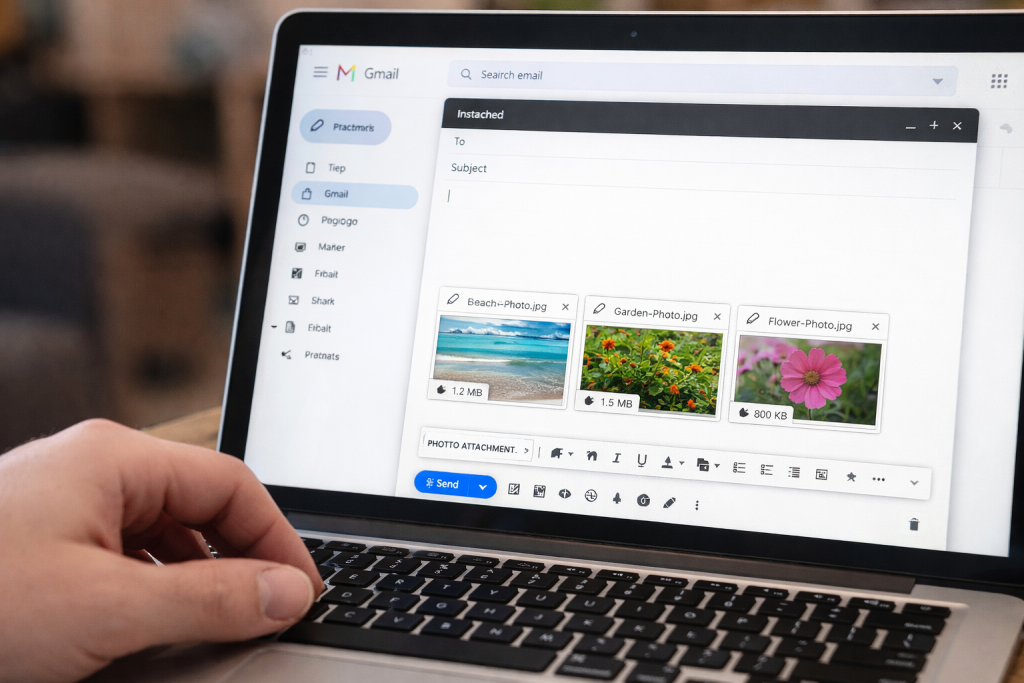
Sending several photos in one email is easy once you know how to select more than one picture.
On a phone, you can usually select several pictures in your Photos or Gallery app and then choose Share → Email or Gmail.
On a computer, create a new email, choose the Attach button and select several photos from your files.
This beginner-friendly guide shows you how to send multiple photos by email on iPhone, Android, Windows and Mac, including what to do if your photos are too large to send..
Take your time and follow the steps.
How to Send Multiple Photos by Email
The easiest method depends on your device.
On iPhone or Android:
- Open your Photos or Gallery app.
- Select the photos you want to send.
- Tap Share.
- Choose your email app, such as Mail, Gmail or Outlook.
- Enter the recipient’s email address.
- Wait for the photos to attach and tap Send.
On a Windows PC or Mac:
- Open your email and create a new message.
- Click the Attach 📎 button.
- Find your photos.
- Select several photos at once.
- Choose Open or Attach.
- Wait for them to upload and click Send.
If the email won’t send: Try sending fewer photos. Several high-resolution pictures can exceed your email provider’s attachment-size limit.
Photos attached but the email still won’t send?
➡️ Why Won’t My Email Send Photos? 8 Simple Fixes
Trying to send lots of photos? Email providers limit how large an email can be. If your photos are too large to send, you may need to send fewer at a time, reduce their size, or share them using a link.
This guide explains each method step by step below.
The steps are slightly different on Windows, Mac, iPhone and Android, but we’ll show you exactly what to do for each device.
What Does Attaching Multiple Photos Mean?
Attaching multiple photos means sending more than one picture in the same email message.
For example, you might want to send:
• holiday photos
• pictures of documents
• family photos
• screenshots
All of these can be added to one email.
What You Need
To attach multiple photos to an email you need:
• an email account
• photos saved on your device
• internet connection
The process is the same for most email services.
Step-by-Step: Attach Multiple Photos to an Email
Step 1 — Open Your Email
Open your email service such as:
• Gmail
• Outlook
• Yahoo Mail
Click Compose or New Email.
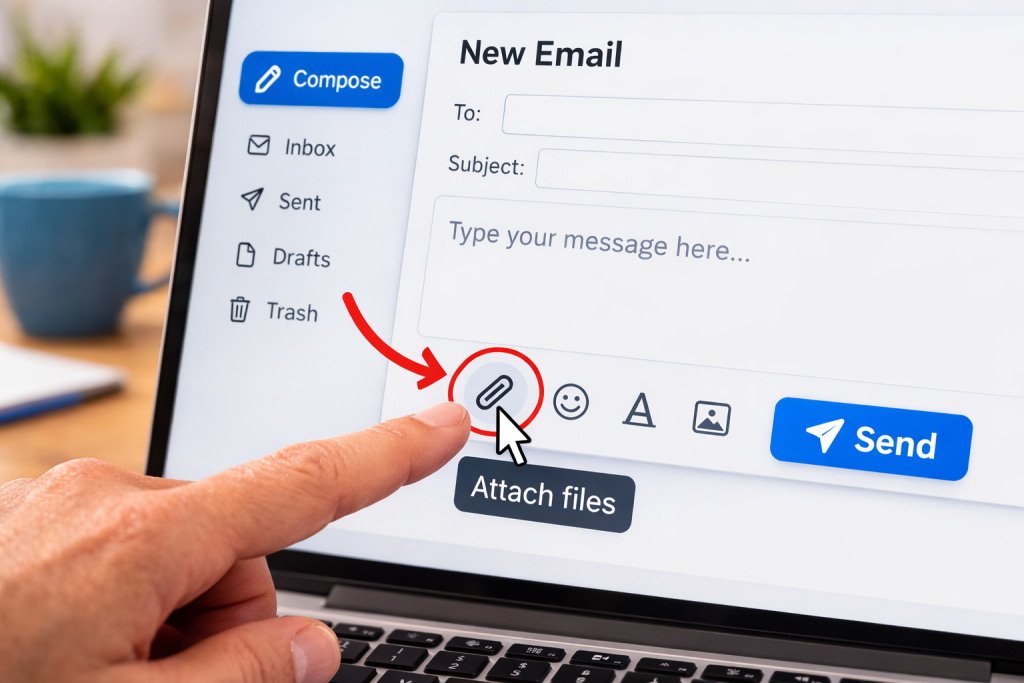
Step 2 — Click the Attachment Icon
Look for the paperclip icon.
This is the button used to attach files.
Click the paperclip icon.
Step 3 — Select Your Photos
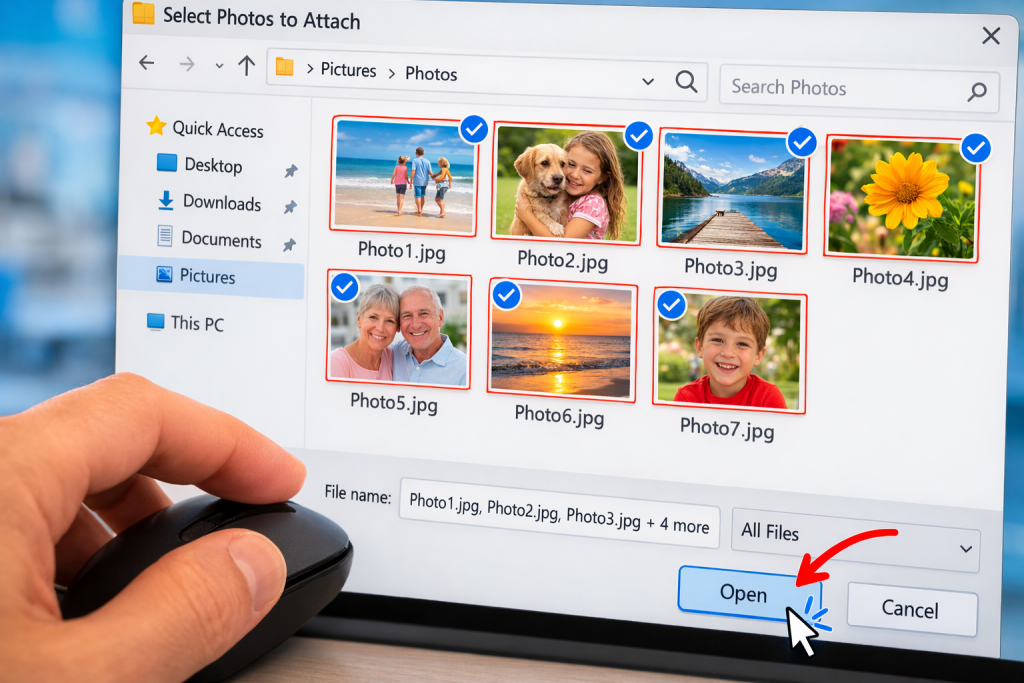
A window will open showing your files.
To select multiple photos:
On Windows:
Hold Ctrl while clicking each photo.
On Mac:
Hold Command while clicking photos.
You can choose several images at the same time.
Step 4 — Wait for Photos to Upload
After selecting the photos click Open.
The images will begin uploading to your email.
You may see:
• small photo previews
• file names
• a loading circle
Wait until the upload finishes.
Step 5 — Send the Email
When the photos appear in the email:
Click Send.
Your recipient will receive all the photos in one email.
How to Send Multiple Photos by Email on a Computer
The steps are similar on a Windows PC or Mac. Start by opening the email service you normally use, such as Gmail, Outlook or Yahoo Mail.
On a Windows PC
- Click the first photo you want to attach.
- Hold down the Ctrl key on your keyboard.
- While holding Ctrl, click each additional photo you want to send.
- Release the Ctrl key when you’ve selected them.
- Click Open or Attach.
On a Mac
- Click the first photo you want to attach.
- Hold down the Command (⌘) key.
- While holding Command, click each additional photo you want to send.
- Release the Command key when you’ve selected them.
- Click Open or Choose.
Tip: If the photos are next to each other in a folder, you can also select a group using Shift, but Ctrl/Command is usually easier for beginners choosing individual photos.
- Open the Photos app.
- Tap Select in the top-right corner.
- Tap each photo you want to send. A tick will appear on the selected photos.
- Tap the Share button — the square with an upward arrow.
- Choose Mail, Gmail, Outlook, or the email app you normally use.
- A new email should open with your selected photos attached.
- Enter the recipient’s email address.
- Add a subject or message if you want to.
- Tap Send.
If you can’t see your email app
Scroll through the available sharing options and look for your email app.
If you still can’t see it, tap More to view additional apps.
If the photos are too large
Try selecting fewer photos and sending them in smaller groups.
If one or two photos send successfully but a larger group doesn’t, the combined attachment size may be too large for one email.
How to Send Multiple Photos by Email on an Android Phone
On most Android phones, you can send several photos directly from the Gallery or Google Photos app.
- Open Gallery or Google Photos.
- Press and hold the first photo you want to send.
- Tap the other photos you want to include.
- Tap the Share button.
- Choose your email app, such as Gmail or Outlook.
- A new email should open with the selected photos attached.
- Enter the recipient’s email address.
- Add a subject or message if you want to.
- Tap Send.
If you can’t see your email app
Look through the available sharing options or tap More to see additional apps.
The exact buttons may look slightly different depending on your Android phone and the version of the app you’re using.
If the photos won’t send
Try sending just one photo first.
If one photo sends but several don’t, try sending the pictures in smaller groups. The combined attachment size may be too large for one email.
If the Photos Won’t Attach
Sometimes photos do not attach because:
• the files are too large
• the internet connection is slow
• the email service has attachment limits
If this happens try:
• sending fewer photos
• reducing image size
• sending multiple emails
Good to Know
• Most email services allow up to 20–25MB of attachments
• Large photos may take longer to upload
• Multiple photos can be sent in the same email
Take your time — nothing will break.
Helpful Next Guides
How to Attach a Photo to an Email
How to Send Photos From Your Phone by Email (Step-by-Step Guide)
Why Won’t My Email Send Photos? (Simple Fix Guide)
Latest posts:
- How to Pay for Parking With Your Phone: A Simple Beginner’s Guide
- How to Use a Car Park Payment Machine: A Simple Beginner’s Guide
- How to Use a Supermarket Self-Service Checkout: A Simple Beginner’s Guide
- What Is a Smart Speaker and How Does It Work? A Beginner’s Guide
- What Is a Smart Plug and How Does It Work? A Beginner’s Guide
Pingback: Why Won't My Email Send Photos? 8 Simple Fixes
Pingback: Email Not Working? Simple Fixes for Sending & Receiving Problems
Pingback: Why Won’t My Email Send Photos? 8 Simple Fixes