
You can’t break anything by following these steps.
Before You Start
- You cannot break anything by attaching a photo
- You can take your time
- If something looks slightly different, that is normal
- You can come back to this page anytime
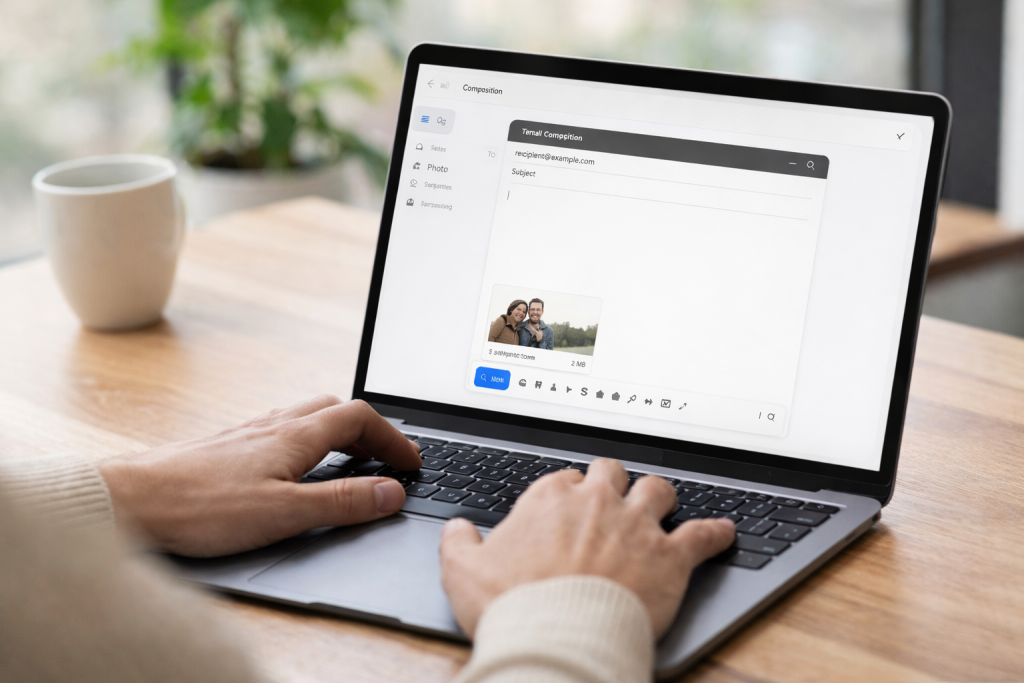
This guide is part of our Internet & Email Basics for Beginners section.
This guide shows you how to attach a photo to an email, step by step.
You are in the right place if you want to send a picture to someone by email and are not sure where to click.
You won’t break anything by following these steps, and you can take your time.
What Does “Attach a Photo” Mean?
If you are new to email, you may also find our guide What Is Email and How Does It Work? helpful.
Attaching a photo means:
- Adding a picture to an email
- So the other person can see or download it
The photo stays on your device.
Nothing is removed.
What You Need
- A device with email (computer, phone, or tablet)
- A photo already saved on your device
- An email you are writing or replying to
Step 1: Start a New Email (or Reply)
- Open your email app or email website
- Click New, Compose, or Reply
A blank email will open.
Step 2: Look for the Attachment Icon
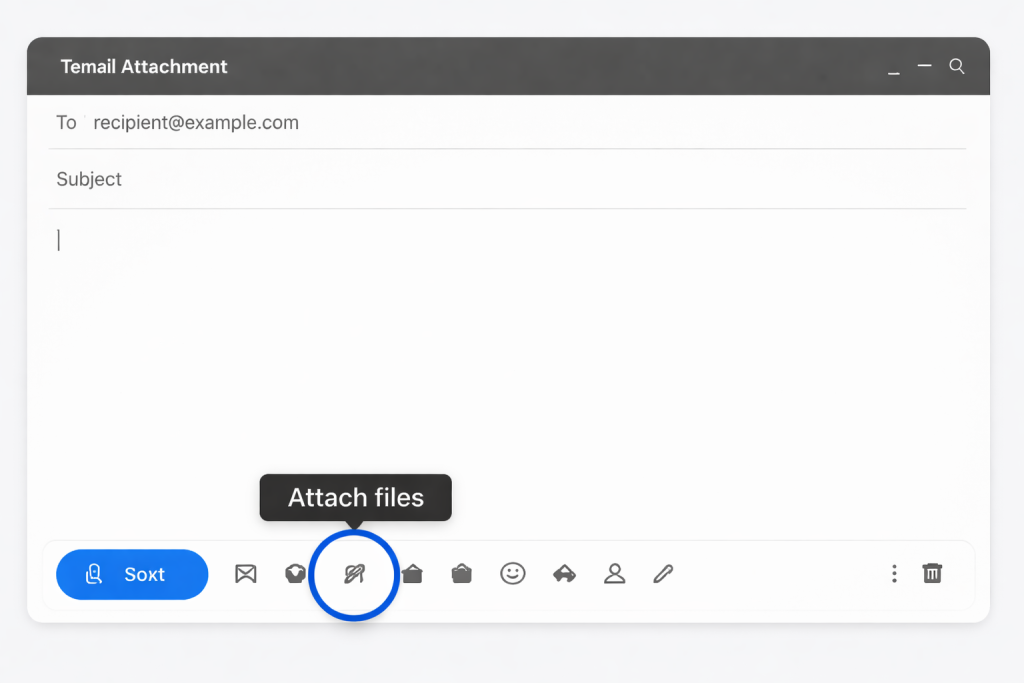
Look for:
- A paperclip icon
- Or a button that says Attach, Add, or Insert
This is the attachment button.
Step 3: Choose the Photo
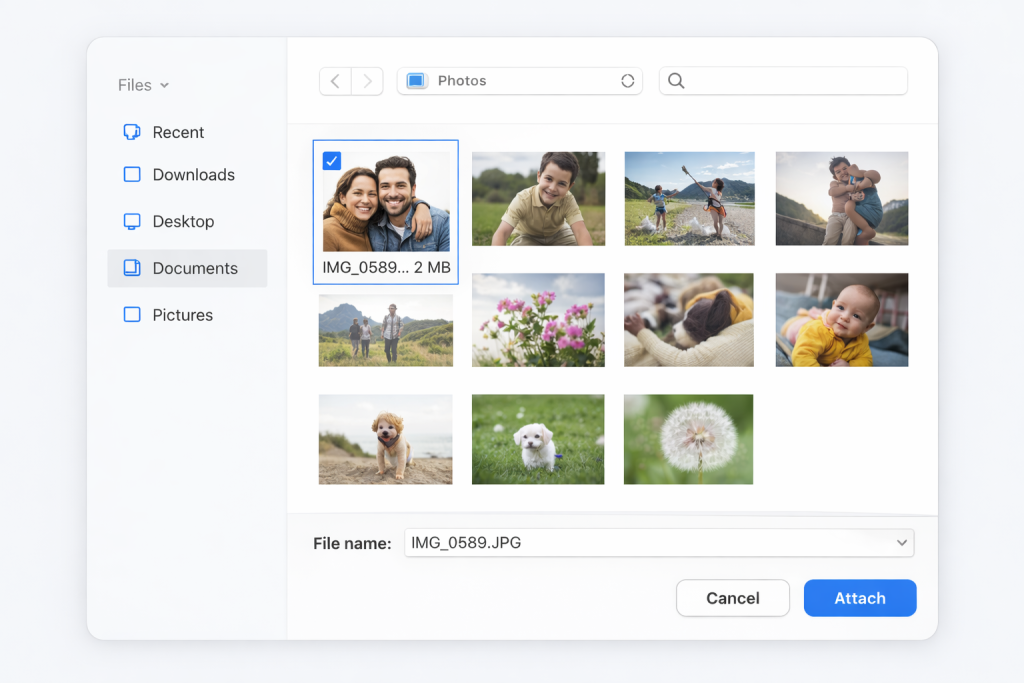
When you tap or click the attachment button:
- A list of files or photos will appear
- Choose the photo you want to send
Nothing is sent yet.
Step 4: Wait for the Photo to Attach
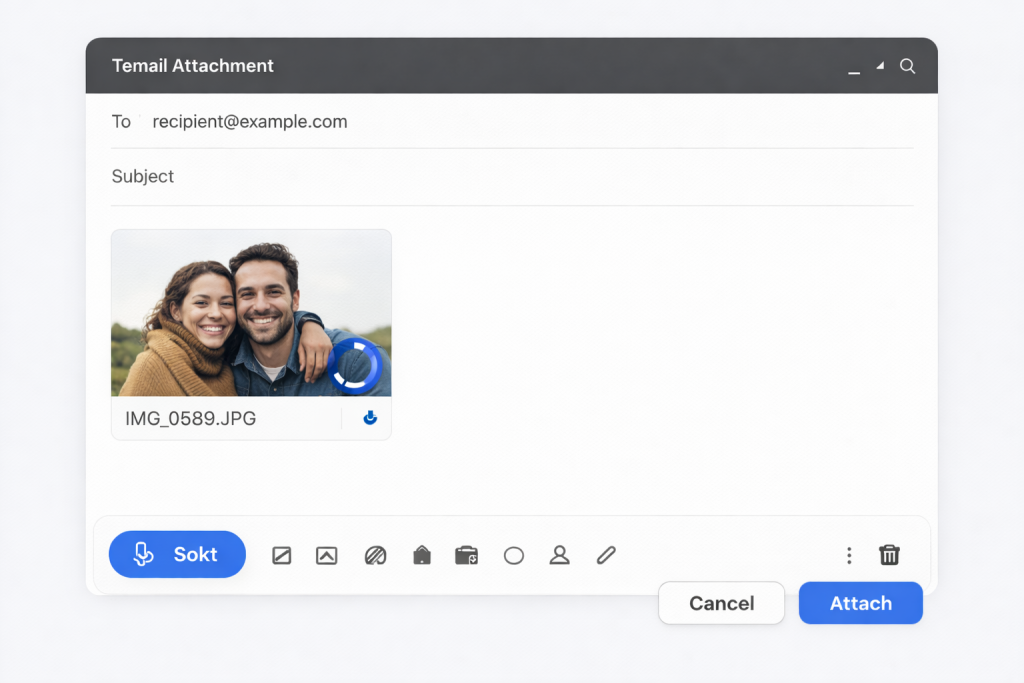
You may see:
- The photo name
- A small thumbnail
- A loading circle
This means the photo is being added.
Wait until it finishes.
Step 5: Send the Email
- When the photo is attached, press Send
That’s it.
The photo will be sent with your email.
Common Questions
What if I attach the wrong photo?
Nothing is broken.
You can remove the photo before sending and choose another one.
Why is the photo taking a long time?
Photos can be large.
This is normal, especially on slow internet connections.
Can I attach more than one photo?
Yes.
You can attach more than one photo to the same email.
Will the other person definitely receive the photo?
If the email sends successfully, the photo goes with it.
If something goes wrong, you can always send it again.
Good to Know
- You can stop before pressing send
- You can delete an email draft at any time
- Attaching a photo does not send it automatically
Take your time. You are doing fine.
Helpful Next Steps
How to Send Multiple Photos by Email: Phone & Computer Guide
How to Send Photos From Your Phone by Email (Step-by-Step Guide)
Why Won’t My Email Send Photos? 8 Simple Fixes
Simple Tech Guide
Calm, beginner-friendly technology help