
If your email has suddenly stopped working, don’t panic and don’t start changing lots of settings.
Most email problems have a fairly simple cause.
You might be unable to send a message, new emails might not be arriving, your email app might not open properly, or you may keep being asked for your password.
The important thing is to work out what has stopped working.
This guide will help you do that one step at a time.
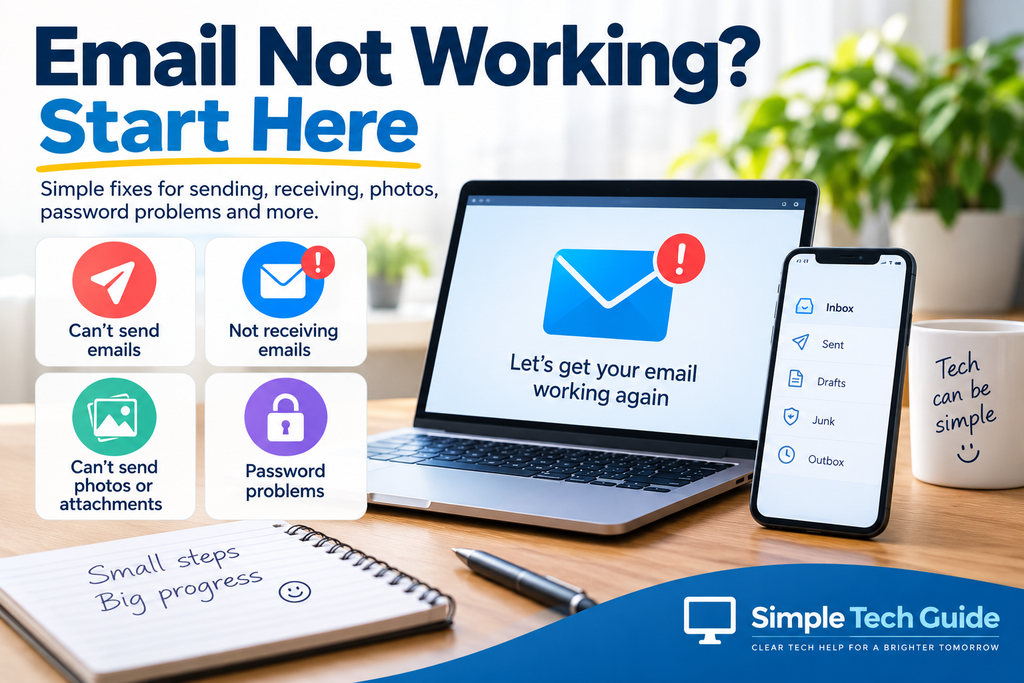
Quick Answer: What’s Wrong With Your Email?
Choose the problem that sounds most like yours:
📤 I can’t send emails
Your messages won’t send, stay in the Outbox or show an error.
📥 I’m not receiving emails
People say they’ve emailed you, but nothing arrives.
📷 I can’t send photos or attachments
Normal emails work, but messages containing photographs or files won’t send.
🔐 I can’t sign in to my email
Your password isn’t accepted or you’re being asked to sign in again.
📱 My email works on one device but not another
For example, email works on your computer but not your phone.
⏳ My emails are stuck in the Outbox
A message appears to be waiting and won’t leave.
↩️ My email came back or says it couldn’t be delivered
You sent an email but received a delivery-failed or undeliverable message.
🔔 Emails arrive but my phone doesn’t tell me
The email itself works, but notifications have stopped.
Not sure which one applies?
Start with the simple test below.
First: Is It Your Email Account or Your Device?
This is one of the most useful things you can check.
Suppose you normally read your email using an app on your phone.
Instead of changing the app’s settings, try signing into your email through its website in a web browser.
For example, if you use Gmail, Outlook or Yahoo Mail, open the provider’s website and try signing in there.
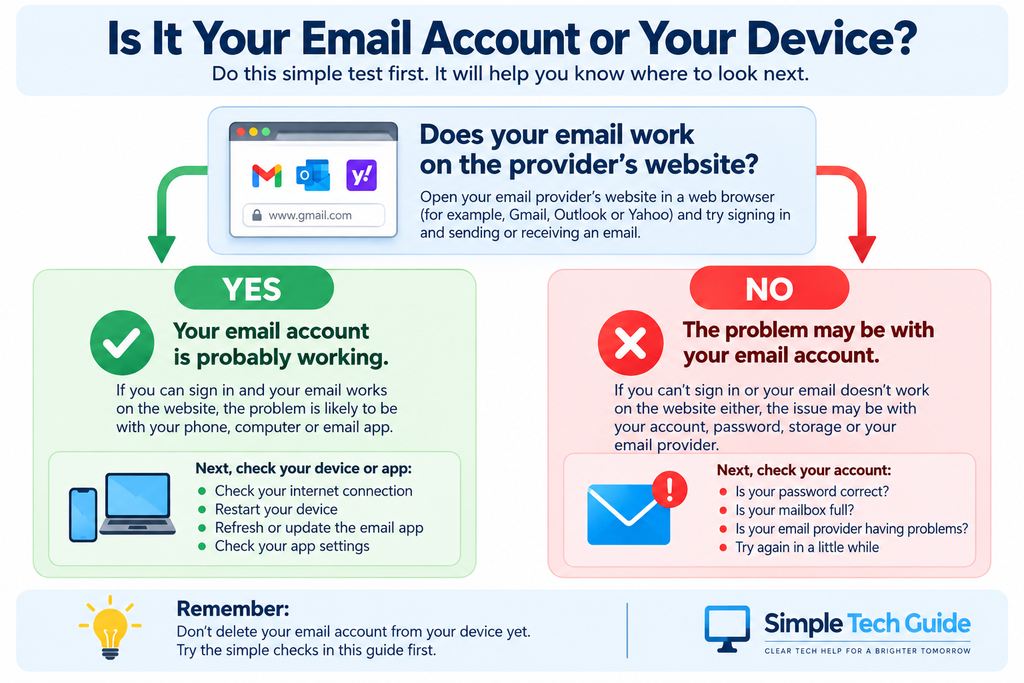
If your email works on the website
That’s good news.
Your email account itself is probably working, so the problem may be with the email app, phone, tablet or computer you’re using.
If your email doesn’t work on the website either
The problem may instead involve your account, password, storage or email provider.
Important: Don’t delete your email account from your phone yet. Try the simple checks in this guide first.
1. Check Your Internet Connection
Email needs an internet connection.
Open your web browser and try visiting a website you don’t already have open.
If websites aren’t loading either, your email may be fine — the problem could simply be your Wi-Fi or mobile internet connection.
Try:
- Turning Wi-Fi off and back on
- Moving somewhere with a better signal
- Checking whether other devices can use the internet
- Restarting your phone, tablet or computer
If websites work normally, continue below.
2. I Can’t Send Emails
First, try sending a very simple test email.
Send a short message with:
- No photograph
- No attachment
- No complicated formatting
You can send it to a family member, friend or another email address you own.
If the simple email sends
Your email account is probably capable of sending messages.
The problem may be the photo, attachment or particular message you were trying to send.
If the simple email doesn’t send
Check:
- Is it sitting in your Outbox?
- Does an error message appear?
- Have you recently changed your email password?
- Does your email work through the provider’s website?
- Is your mailbox or storage full?
Don’t start changing advanced email settings yet. Work through the simpler checks first.
3. I Can’t Send Photos or Attachments
This is a particularly common problem.
If ordinary emails send successfully but emails containing photographs don’t, the photographs may simply be too large.
Modern phones take high-quality photographs, and several of them together can make a surprisingly large email.
Don’t keep pressing Send repeatedly.
Instead, try:
- Sending fewer photographs at once
- Reducing the size of the photographs if your phone offers the option
- Sending the photographs in more than one email
- Using a sharing link for a very large collection
Need more help with photographs?
→ Why Won’t My Email Send Photos? 8 Simple Fixes
→ How to Send Multiple Photos by Email: Phone & Computer Guide
4. I’m Not Receiving Emails
If you can send messages but new ones aren’t arriving, start with the easy checks.
Check your Junk or Spam folder
Sometimes a genuine message is mistaken for junk.
Look for folders called:
Junk
or
Spam
If you find the missing message there, mark it as Not Junk or Not Spam if your email service provides that option.
Check whether you’re receiving anything
Ask someone you trust to send you a simple test email.
Even better, if you have another email address, send yourself one.
This helps distinguish between:
“I’m not receiving one particular person’s email”
and:
“I’m not receiving any email at all.”
That’s an important difference.
Check your storage
Some email services can stop receiving new messages when the account is full.
Don’t immediately start deleting important emails, though.
First check whether storage is actually the problem.
5. My Email Keeps Asking for My Password
Before doing anything else, ask yourself:
Have I recently changed my email password?
If you changed the password through Gmail, Outlook, Yahoo or another provider, your phone or computer may still be trying to use the old password.
That can cause the email app to repeatedly ask you to sign in.
Don’t know your password?
Don’t repeatedly guess.
Use the official Forgot password or Reset password option provided by your email company.
⚠️ Be careful with unexpected password messages
If you receive an unexpected email or text telling you that your email account needs “urgent verification”, don’t automatically click the link.
Open your email provider yourself instead.
And never give another person your email password or a security code sent to your phone.
6. Email Works on My Computer but Not My Phone
This is a useful clue.
If you can sign into your email normally on your computer or through the provider’s website, the account itself is probably working.
The problem may be limited to the phone or email app.
Try these simple steps first:
- Check that the phone has internet access.
- Close the email app and open it again.
- Restart the phone.
- Open the email app and refresh the inbox.
- Check whether the app is asking you to sign in again.
- Think about whether you’ve recently changed your email password.
Don’t immediately remove the email account from your phone.
First make sure you can sign into the account successfully through the email provider’s website.
7. My Emails Are Stuck in the Outbox
The Outbox is where an email may wait before it has successfully been sent.
If a message remains there, check whether it contains:
- Lots of photographs
- A large attachment
- A video
- A very large file
Try sending a new email containing only a few words.
If the new email sends
The stuck message itself is probably the problem.
Try removing large attachments or sending fewer photographs.
If nothing sends
Go back to the earlier checks:
Internet → provider website → password → storage → provider
This helps narrow down the cause without changing lots of settings.
8. My Email Says “Delivery Failed” or “Undeliverable”
This is different from an email simply refusing to send.
A delivery failed, undeliverable or returned message usually means your email attempted to go somewhere but couldn’t be delivered successfully.
First, check the recipient’s email address carefully.
A tiny mistake is enough.
For example:
john.smith@email.com
is not the same as:
jon.smith@email.com
Other possible causes include:
- The recipient’s mailbox is full
- Their email address no longer exists
- Their email provider has rejected the message
- There is a temporary problem
- The message has been treated as spam
If the address is definitely correct, wait a little while and try again before changing lots of settings.
9. My Emails Arrive but I Don’t Get Notifications
Your email may actually be working perfectly.
The problem could simply be notifications.
Check whether:
- Your phone is on silent
- Do Not Disturb is switched on
- Notifications have been disabled for the email app
- Notifications are allowed but the sound is switched off
The important distinction is:
No notification does not necessarily mean no email.
Open the email app and check whether new messages are actually there.
10. Check Whether Your Email Provider Is Having Problems
Sometimes nothing is wrong with your phone or computer.
Gmail, Outlook, Yahoo and other email services can occasionally experience service problems.
If your email suddenly stops working on all your devices at the same time, the problem could be with the email provider rather than anything you’ve done.
Before changing complicated settings, check the provider’s official service information if available.
If there is an outage, changing your password or deleting your email account won’t fix it.
You normally just need to wait for the service to recover.
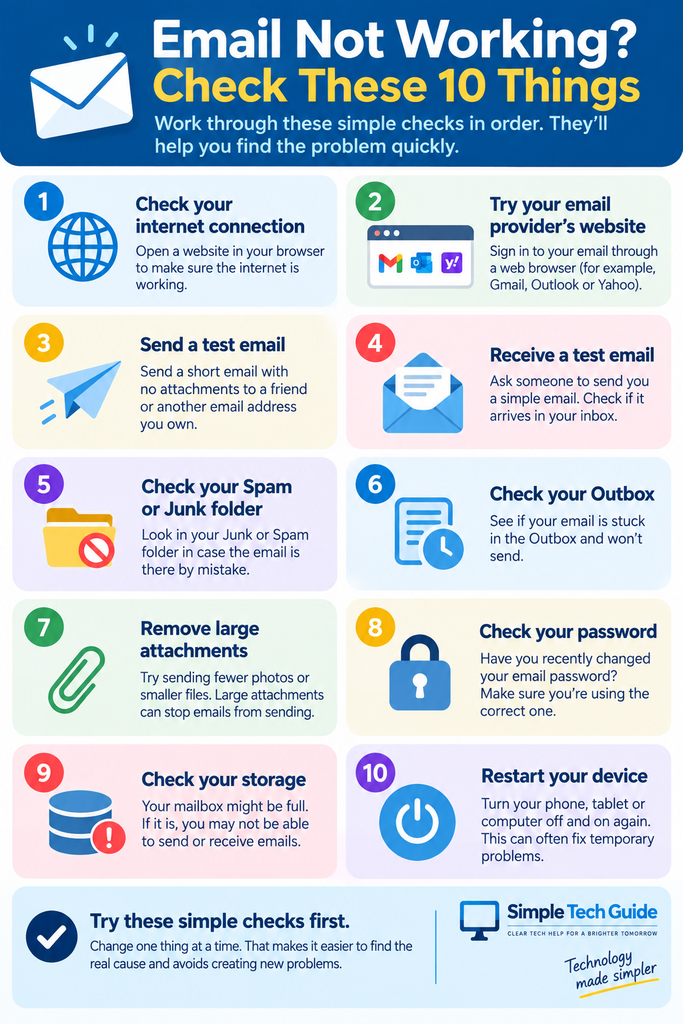
The Simple Tech Guide Email Problem Checklist
If you’re getting confused, work through these checks in this order:
| Check | What to do |
|---|---|
| 1. Internet | Open a normal website |
| 2. Provider website | Try signing into your email online |
| 3. Test sending | Send a short email with no attachments |
| 4. Test receiving | Ask someone to send you an email |
| 5. Spam/Junk | Look for missing messages |
| 6. Outbox | Check for a stuck message |
| 7. Attachments | Remove large photos or files |
| 8. Password | Think about whether it recently changed |
| 9. Storage | Check whether your email account is full |
| 10. Restart | Restart your phone or computer |
Work from 1 to 10 rather than changing several things at once.
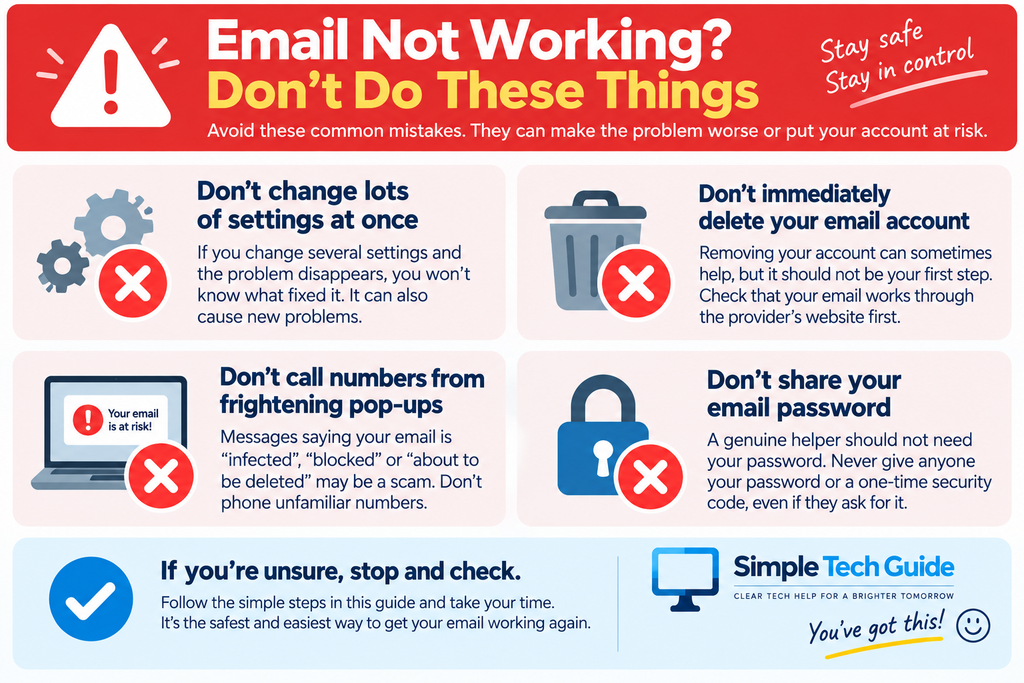
What NOT to Do When Your Email Stops Working
This is just as important as knowing what to try.
❌ Don’t change lots of settings at once
If you change five things and the problem disappears, you won’t know what fixed it.
Worse, you may accidentally create another problem.
❌ Don’t immediately delete your email account
Removing and adding an account again can sometimes help, but it should not be your first step.
Confirm that your email address and password work through the provider’s website first.
❌ Don’t pay someone because of a frightening pop-up
A message claiming your email is “infected”, “blocked” or “about to be deleted” may be a scam.
Don’t telephone an unfamiliar number displayed in a pop-up.
❌ Don’t give anyone your email password or security code
A genuine helper should not need your password.
Never give somebody a one-time security code sent to your phone just because they ask for it.
❌ Don’t assume your emails have disappeared
If an app stops displaying your messages, they may still be safely stored in your online email account.
That’s another reason the provider-website test near the beginning of this guide is so useful.
Gmail, Outlook or Yahoo — Does It Matter?
The basic troubleshooting process is similar whichever major email service you use.
Start with:
Internet → provider website → simple test email → password → storage → device or app
After that, the exact instructions can differ depending on which email service and device you use.
That’s why it’s useful to identify the problem before changing advanced settings.
Still Can’t Work Out What’s Wrong?
Go back to one question:
Can you use your email through the provider’s website?
YES → Concentrate on the app or device where email isn’t working.
NO → Concentrate on the account, password, storage or email provider.
Then identify the exact symptom:
Can’t send?
Can’t receive?
Photos won’t send?
Password rejected?
Message stuck?
Delivery failed?
The more precisely you can describe what’s happening, the easier the problem becomes to solve.
Related Simple Tech Guide Help
If you’re still having trouble, these guides may help:
→ Why Won’t My Email Send Photos? 8 Simple Fixes
→ How to Send Multiple Photos by Email: Phone & Computer Guide
→ What Is Email and How Does It Work?
→ How to Use Email on a Smartphone
→ Which Is the Best Free Email Provider? Nine Expert Picks
Frequently Asked Questions
Why has my email suddenly stopped working?
Common causes include an internet connection problem, an email app that isn’t syncing, a changed password, full account storage, a stuck message or a temporary problem with the email provider.
Start by checking whether you can sign into your email through the provider’s website.
Why can I receive emails but not send them?
Try sending a simple message without photographs or attachments.
If that works, the original message or attachment may be the problem.
Also check your Outbox, internet connection, password and available account storage.
Why can I send emails but not receive them?
Check your Spam or Junk folder, account storage and whether you’re receiving any messages at all.
Ask someone you trust to send you a test message.
Why does my email work on my computer but not my phone?
That suggests the problem may be with the phone, email app or its connection rather than the underlying email account.
Try signing into your email provider’s website to help confirm this.
Will I lose my emails if I restart my phone?
Simply restarting your phone should not delete emails stored in your online email account.
That’s very different from deleting an email account or changing its settings.
Should I delete and reinstall my email app?
Not as your first troubleshooting step.
Try the simpler checks in this guide first and confirm that your account works through the email provider’s website.
Final Advice
When email stops working, don’t start with the most technical solution.
Start with the simplest questions:
Is the internet working?
Can I access my email through its website?
Can I send a simple email with no attachment?
Can somebody send me a test email?
Have I changed my password?
Those five checks can tell you a surprising amount about where the problem lies.
And remember:
Change one thing at a time.
That’s the easiest way to solve the problem without accidentally creating another one.
Pingback: How to Send Photos on a Smartphone (Step by Step Guide)