

Sending photos on a smartphone is a great way to share moments with family and friends. If you have never done it before, it can feel confusing at first — but it is easier than it looks.
Why Won’t My Phone Send Photos? (Simple Fix Guide)
This guide will show you how to send photos on a smartphone step by step, using simple instructions.
What You Need Before You Start
- A smartphone that is turned on
- At least one photo saved on your phone
- An internet connection (Wi-Fi or mobile data)
You do not need any technical knowledge to follow these steps.
Step 1: Open the Photos App

- Unlock your smartphone.
- Look for the Photos or Gallery app.
- The icon often looks like a small picture or flower.
- Tap the app once to open it.
This is where your photos are stored.
Step 2: Choose the Photo You Want to Send
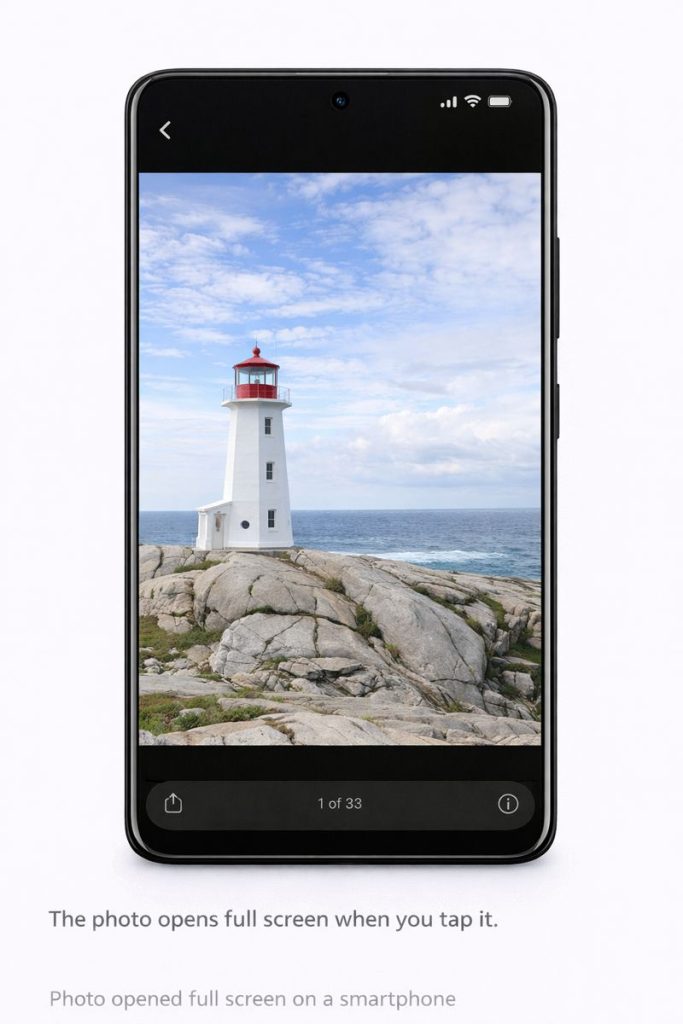
- Scroll through your photos slowly.
- Tap the photo you want to send.
- The photo should open full screen.
If you want to send more than one photo, some phones allow you to select multiple images.
Step 3: Tap the Share Button

- Look for the Share icon.
- It often looks like an arrow or three connected dots.
- Tap the Share icon once.
A list of ways to send the photo will appear.
Step 4: Choose How to Send the Photo
You may see options such as:

- Messages or Text Message
Tap the option you want to use.
If you are not sure which one to choose, Messages is usually the simplest.
Step 5: Choose the Person to Send It To
- Select a contact from the list
- or
- Type the person’s name or phone number
Check that the name or number is correct before sending.
Step 6: Send the Photo
- Look for the Send button
- It may look like an arrow or say “Send”.
- Tap it once.
The photo will now be sent.
How Do You Know It Worked?
- The photo appears in the message
- You may see a tick, check mark, or “Sent” message
If it doesn’t send straight away, wait a moment — this is normal.
Common Problems and Reassurance
- If nothing happens, check your internet connection
- Large photos can take longer to send
- You cannot accidentally send a photo without pressing Send
Take your time. There is no rush.
Summary
You now know how to:
- Find photos on your phone
- Use the Share button
- Choose how to send a photo
- Send it to the right person
The more you do this, the easier it becomes.
Where to Go Next
Is your email not working at all? See our simple email troubleshooting guide.
You may also find these guides helpful:
- How to Connect a Smartphone to Wi-Fi
- What Apps Are and How to Use Them
- Why Won’t My Phone Send Photos? (Simple Fix Guide)
Or return to the Smartphone Basics page to choose another guide.