
Updated August 2026
If your email won’t send photos, the most common causes are photos that are too large, a weak internet connection, attachments that haven’t finished uploading, or a temporary problem with your email app.
A useful first test is to create a new email and try sending just one photo. If one photo sends successfully but several photos don’t, the combined size of the attachments may be the problem.
This beginner-friendly guide takes you through eight simple checks for Gmail, Outlook and other email services.
Why Won’t My Email Send Photos? (Quick Answer)
If your email won’t send photos, the most common reasons are:
- 📷 Your photos are too large.
- 🌐 Your internet connection is weak or unavailable.
- ⏳ The photos haven’t finished uploading.
- 📧 Your email provider has an attachment size limit.
- 📱 Your email app has a temporary problem.
The good news is that most of these problems are easy to fix.
Simply work through the steps below one at a time.
Before You Start
Before trying the fixes below, remember:
- ✅ You have not broken anything.
- ✅ This is a very common problem.
- ✅ Most fixes only take a few minutes.
- ✅ You can safely try each step one at a time.
Take your time—you are doing fine.
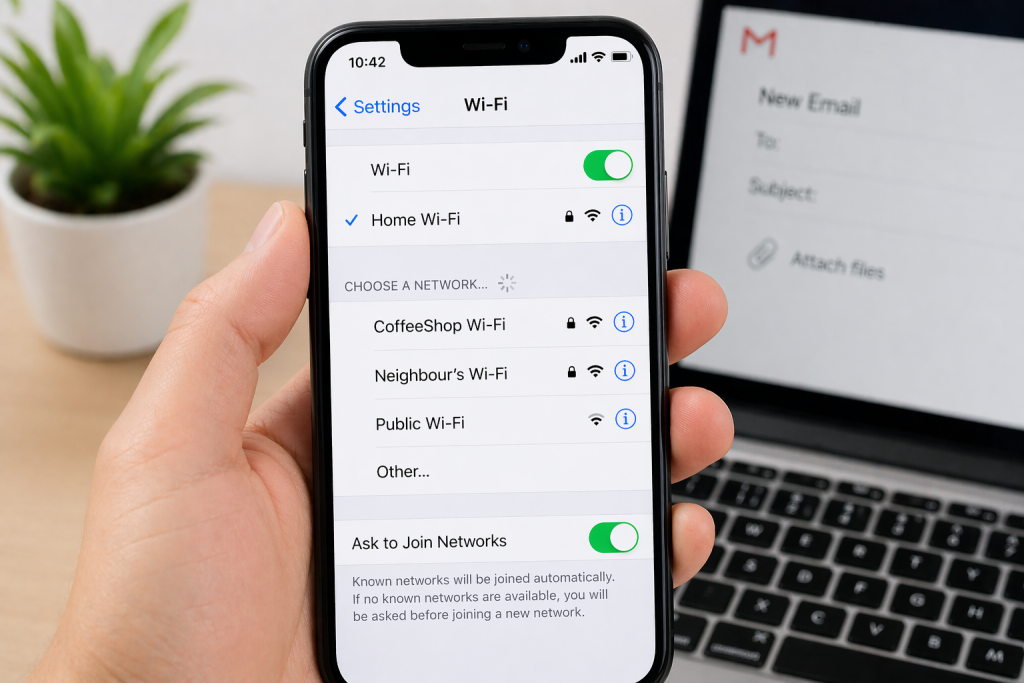
1. Check Your Internet Connection
Photos need an internet connection before they can be sent.
Check whether you are connected to:
- Wi-Fi
- Mobile Data (on a phone)
If you are not connected:
- Turn Wi-Fi or Mobile Data on.
- Wait a few seconds.
- Try sending the email again.
2. Your Photos Might Be Too Large
If you’re trying to send several photos in one email, the combined size of the attachments may be too large.
Try this simple test:
- Create a new email.
- Attach just one photo.
- Wait until the photo has finished uploading.
- Send the email.
If one photo sends successfully
That’s a useful clue. Your email account and internet connection are probably working.
The original email may contain too many photos or attachments that are too large when combined.
Try sending the photos in smaller groups across two or more emails.
Need to send several pictures?
➡️ How to Send Multiple Photos by Email (Phone & Computer Guide)
If one photo still won’t send
Continue with the checks below. The problem may be the individual photo size, internet connection, email app or email account.
3. How Large Can an Email Attachment Be?
Most email providers limit how large an email attachment can be.
Many services allow attachments of around 20–25 MB, although this varies depending on the provider.
If your photos are too large, you can:
- Send fewer photos.
- Reduce the size of the photos.
- Compress them into a ZIP file (computer).
- Share them using Google Photos, iCloud or OneDrive.
- Quick test: Create a new email, attach just one photo and send it to yourself. If that works, your email account is probably working and the problem is likely related to the size or number of photos attached to the original email.
4. Wait for the Photos to Finish Uploading
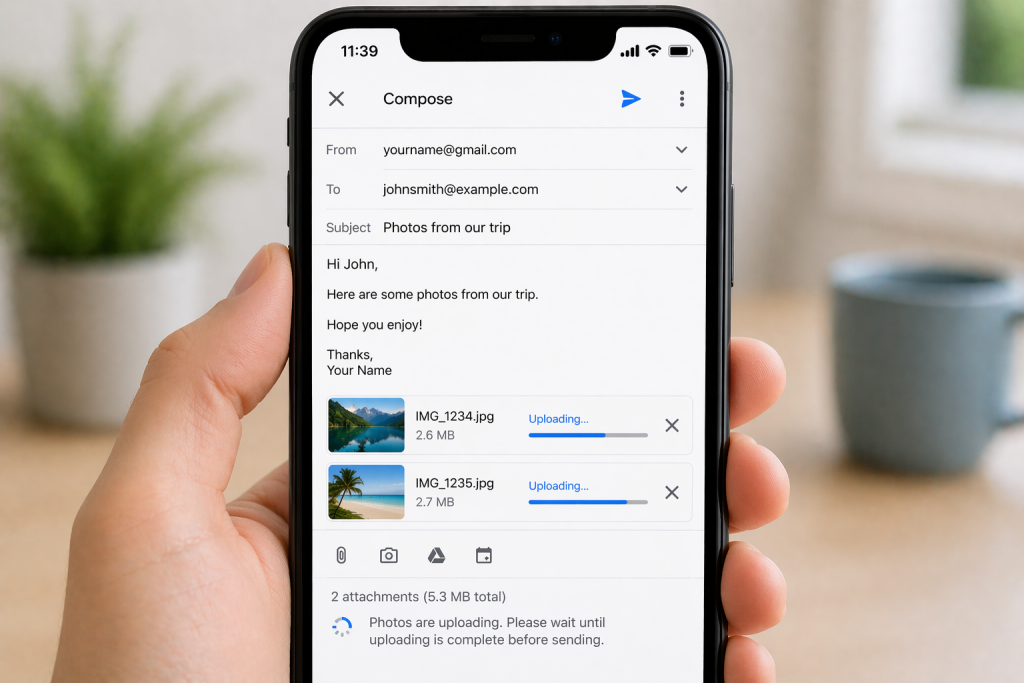
Large photos can take time to upload.
Before pressing Send, make sure the upload has finished.
You may see:
- A loading circle.
- A progress bar.
- Small photo previews.
Wait until the upload is complete before sending the email.
5. Check Your Outbox
If an email containing photos hasn’t sent, it may still be waiting in your Outbox.
Open your email app and look for a folder called Outbox.
If the email is there:
- Check that you’re connected to the internet.
- Wait for the photos to finish uploading.
- Open the email and try sending it again.
If the message repeatedly returns to the Outbox, try sending a new email with just one photo attached.
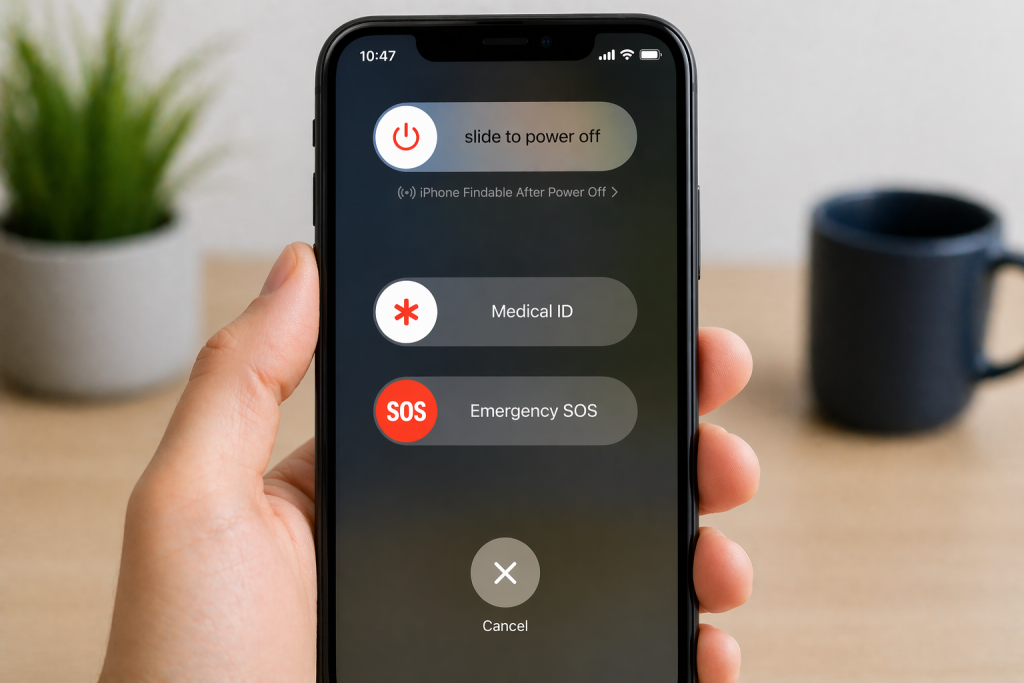
6. Restart Your Device
A simple restart often fixes temporary problems.
Turn your:
- Computer
- Tablet
- Smartphone
off completely.
Wait a few seconds before turning it back on and trying again.
7. Check Your Email App
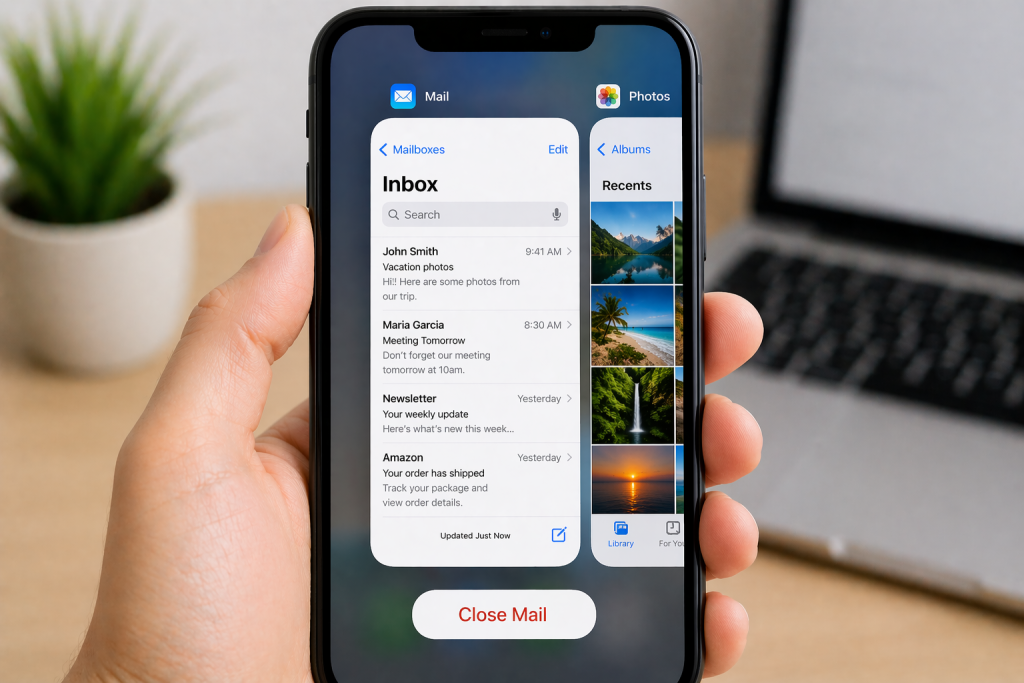
Sometimes the problem is simply a temporary issue with your email app.
Try:
- Closing the app completely.
- Opening it again.
- Trying to send the email once more.
If the problem continues, restarting your device often helps.
Check Your Phone Storage Space
If your phone is very low on storage space, apps may not work properly.
Check whether your phone has some free storage available. If it is almost full, try removing a few files or unused apps, then restart your phone and try sending the photo again.
8. If You’re Using Gmail
If Gmail won’t send your photos:
- Check your internet connection.
- Make sure the photos have finished uploading.
- Try sending fewer photos.
- Close and reopen the Gmail app.
- Restart your phone or computer if needed.
8. If You’re Using Outlook
If Outlook won’t send your photos:
- Check your internet connection.
- Make sure the attachments have uploaded completely.
- Try sending fewer photos.
- Restart Outlook if necessary.
Frequently Asked Questions
Why does my email say “Failed to Send”?
Usually because:
- There is no internet connection.
- The photos are too large.
- The upload has not finished.
- Your email app has a temporary problem.
Why do my photos stay stuck uploading?
This often happens because:
- Your internet connection is slow.
- The photos are very large.
- Your email app has temporarily frozen.
Wait a little longer or restart the app.
Can I send 50 photos in one email?
Usually not.
Large numbers of photos often exceed your email provider’s attachment limit.
It is usually better to:
- Send smaller groups of photos.
- Use more than one email.
- Share a Google Photos or OneDrive link.
Why do photos send from my phone but not my computer?
Check that:
- Your computer is connected to the internet.
- The photos have finished uploading.
- The files are not too large.
Good to Know
- Most email photo problems are easy to fix.
- You have not damaged your device.
- If one method doesn’t work, try the next step.
- Taking your time usually solves the problem.
Final Thoughts
If your email won’t send photos, don’t panic.
In most cases, the problem is simply:
- Photos that are too large.
- A slow internet connection.
- The upload not finishing.
- A temporary issue with your email app.
By working through the steps above one at a time, you will usually find the cause and get your photos sent successfully.
You May Also Find These Helpful
- How to Send Multiple Photos in an Email
- How to Attach a Photo to an Email
- How to Send Photos From Your Phone by Email (Step-by-Step Guide)
Latest posts:
- How to Pay for Parking With Your Phone: A Simple Beginner’s Guide
- How to Use a Car Park Payment Machine: A Simple Beginner’s Guide
- How to Use a Supermarket Self-Service Checkout: A Simple Beginner’s Guide
- What Is a Smart Speaker and How Does It Work? A Beginner’s Guide
- What Is a Smart Plug and How Does It Work? A Beginner’s Guide
Pingback: Email Not Working? Simple Fixes for Sending & Receiving Problems