
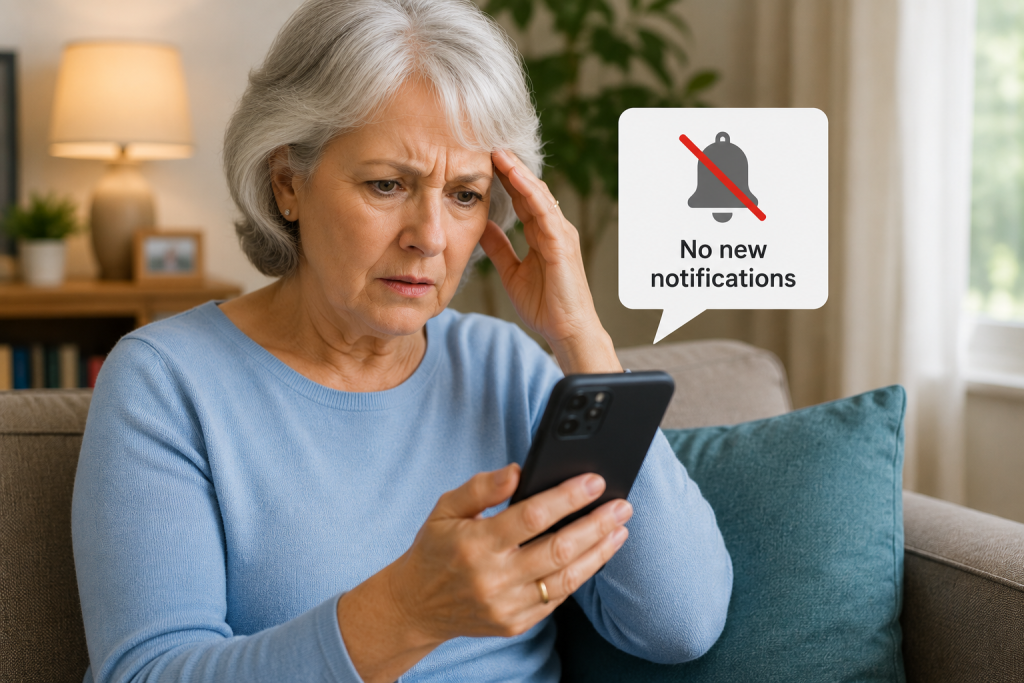
Are notifications suddenly not appearing on your phone?
Perhaps you’re missing text messages, WhatsApp messages, emails, missed calls or alerts from your favourite apps. You might only see new messages when you actually open the app.
Don’t worry – this is a common smartphone problem, and in many cases the solution is surprisingly simple.
In this beginner-friendly guide, we’ll explain why notifications may not be working and take you through the easiest fixes for both iPhone and Android phones.
Quick Answer: Why Am I Not Getting Notifications?
If you’re not receiving notifications on your phone, the most common reasons are:
- 🔕 Notifications have been turned off
- 🌙 Do Not Disturb or a Focus mode is switched on
- 🔋 Battery-saving settings are restricting apps
- 📶 Your phone isn’t connected properly to the internet
- 🔇 Your notification volume is turned down
- 📱 Notifications are disabled for one particular app
- 🔄 Your phone or app needs restarting or updating
The best place to start is by checking whether the problem affects every app or just one app.
1. Check Whether Notifications Are Turned On
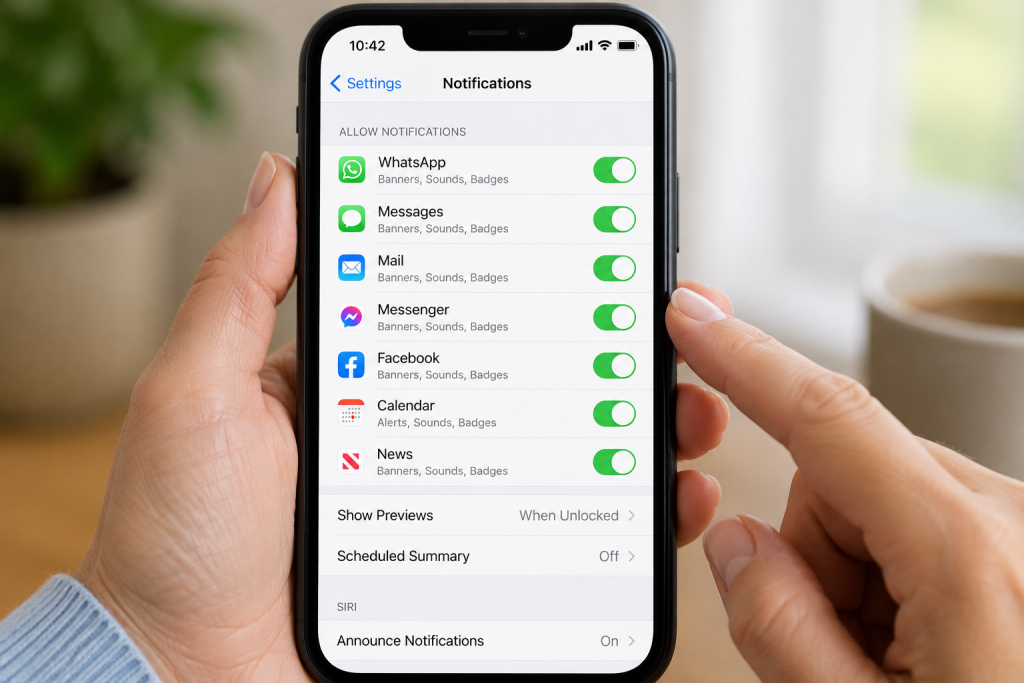
Your phone allows you to control which apps can send notifications.
It’s possible to accidentally turn notifications off for a particular app.
On an iPhone:
Go to:
Settings → Notifications
Select the app you’re having problems with.
Make sure Allow Notifications is turned on.
You can also check where notifications are allowed to appear, such as:
- Lock Screen
- Notification Centre
- Banners
On an Android phone:
The exact steps vary slightly depending on the manufacturer, but generally go to:
Settings → Notifications → App notifications
Select the app and make sure notifications are allowed.
💡 Simple Tech Guide Tip: If you’re receiving WhatsApp notifications but not email notifications, the problem is probably with the email app’s notification settings rather than your entire phone.
2. Check Do Not Disturb
Do Not Disturb is designed to stop your phone from interrupting you.
When it’s turned on, some calls, messages and app notifications may be silenced.
On an iPhone:
Open the Control Centre and look for Focus or the crescent moon symbol.
You can also go to:
Settings → Focus
Check whether Do Not Disturb, Sleep or another Focus mode is active.
On Android:
Swipe down from the top of the screen to open Quick Settings.
Look for Do Not Disturb and make sure it isn’t switched on accidentally.
You can also search for “Do Not Disturb” in your phone’s Settings.
3. Check Your Phone’s Sound and Volume
Sometimes notifications are arriving, but you simply aren’t hearing them.
Try increasing your phone’s volume.
Also check whether your phone is:
🔇 On silent
📳 Set to vibrate only
🔉 Using a very quiet notification sound
If notifications appear on the screen but don’t make a sound, your sound settings are likely to be the problem.
4. Check Your Internet Connection
Many apps need an internet connection to receive new information.
This includes:
- Messenger
- Banking apps
- News apps
Check that your phone is connected to Wi-Fi or mobile data.
Try opening a website in your browser.
If the website doesn’t load, you may have an internet connection problem rather than a notification problem.
💡 Quick test: Turn Wi-Fi off temporarily and try using mobile data. If notifications suddenly arrive, your Wi-Fi connection may be the issue.
5. Restart Your Phone
This sounds simple, but it’s worth trying.
Restarting your phone can clear temporary software problems that may be stopping notifications from appearing correctly.
Turn the phone completely off, wait around 30 seconds, then turn it back on.
After restarting, wait a few minutes and see whether notifications begin appearing again.
6. Check the App’s Own Notification Settings
Some apps have their own notification controls in addition to your phone’s settings.
For example, an email app might allow notifications generally but only alert you about certain email accounts.
Open the app that’s causing problems and look for:
Settings → Notifications
Check that the alerts you want are enabled.
This is particularly important for:
📧 Email apps
💬 Messaging apps
📱 Social media
📰 News apps
7. Check Battery Saver or Low Power Mode
Phones have battery-saving features designed to make the battery last longer.
Unfortunately, these settings can sometimes restrict what apps are allowed to do in the background.
This may mean an app doesn’t check for new messages until you open it.
On iPhone:
Go to:
Settings → Battery
Check whether Low Power Mode is turned on.
Try temporarily switching it off to see whether notifications return.
On Android:
Go to:
Settings → Battery
Look for settings such as:
- Battery Saver
- Power Saving
- Background Usage
- Battery Optimisation
The exact wording varies between Android phones.
If notifications from one particular app are delayed, check whether your phone is restricting that app’s background activity.
8. Are Notifications Only Appearing When You Open the App?
This is an important clue.
If you open WhatsApp or your email app and suddenly receive several messages at once, the app may not be refreshing properly in the background.
Possible causes include:
- Battery-saving restrictions
- Background activity restrictions
- Poor internet connection
- Mobile data restrictions
- An outdated app
Check the app’s battery and background settings and make sure it is allowed to operate normally.
9. Update the App
An outdated app can occasionally cause notification problems.
Open the Apple App Store or Google Play Store and check whether an update is available for the affected app.
Install any available updates and restart the app.
10. Update Your Phone
Your phone’s operating system should also be kept reasonably up to date.
Updates often contain bug fixes that can resolve unexpected problems.
On iPhone:
Go to:
Settings → General → Software Update
On Android:
The location varies, but usually look under:
Settings → System → Software Update
or search Settings for Software Update.
Always make sure important photos and information are backed up before carrying out major software updates.

Why Am I Not Getting Text Message Notifications?
If normal text messages are arriving but you’re not being alerted, check:
- Notifications are enabled for your Messages app.
- Your phone isn’t on silent.
- Do Not Disturb or Focus isn’t active.
- The conversation itself hasn’t been muted.
- Your notification volume is turned up.
If messages aren’t arriving at all, rather than simply arriving without a notification, you may have a different problem.
Why Am I Not Getting WhatsApp Notifications?
First, check that WhatsApp notifications are enabled in both:
Your phone’s notification settings
and
WhatsApp’s own notification settings
Also check your internet connection and battery-saving settings.
If notifications only appear when you open WhatsApp, background activity or battery optimisation may be involved.
Why Am I Not Getting Email Notifications?
Your emails may still be arriving even if your phone isn’t alerting you.
Open your email app and check whether new messages are there.
If they are, check:
- Email app notification settings
- Phone notification settings
- Battery-saving settings
- Background activity
- Email synchronisation settings
You may also want to check that notifications are enabled for the correct email account, particularly if you have several accounts on your phone.
Why Am I Not Getting Notifications Until I Unlock My Phone?
If notifications only appear after you unlock your phone, check:
- Battery-saving settings
- Do Not Disturb or Focus modes
- Background app restrictions
- Lock Screen notification settings
- Internet connectivity
Some phones also allow you to control whether notification content appears while the device is locked.
Frequently Asked Questions
Why have my notifications suddenly stopped?
A setting may have changed after an app or phone update, or Do Not Disturb, Focus or Battery Saver may have been activated.
Start by restarting your phone and checking notification settings for the affected app.
Why do notifications work for some apps but not others?
If only one app is affected, the problem is likely to be that app’s notification settings.
Check both your phone’s settings and the settings inside the app itself.
Will restarting my phone delete anything?
No. Simply turning your phone off and back on again does not normally delete your photos, apps, messages or other information.
Why are my notifications delayed?
Delayed notifications can be caused by a poor internet connection, battery-saving features or restrictions on an app running in the background.
Can I accidentally turn notifications off?
Yes. Notifications can be disabled for individual apps, and modes such as Do Not Disturb can silence multiple notifications at once.
Still Not Getting Notifications?
If you’ve tried all the steps above and notifications still aren’t working, think about exactly what isn’t happening.
Ask yourself:
Are all notifications missing, or just one app?
Are messages arriving without making a sound?
Do notifications only arrive when I open the app?
Did the problem start after changing a setting or updating the phone?
The answer can help narrow down the cause.
If the problem affects only one app, try checking the support information for that particular app.
If all notifications have stopped completely, you may need to check your phone’s settings more closely or contact the phone manufacturer’s support service.
Final Thoughts
If you’re not getting notifications on your phone, there’s usually no need to panic.
In most cases, the cause is a simple setting involving notifications, Do Not Disturb, sound, internet connectivity or battery saving.
Start with the easiest fixes first:
Check notifications → Check Do Not Disturb → Check your internet → Restart your phone.
Then move on to app-specific and battery settings if the problem continues.
Once you’ve found the cause, your messages, emails, calls and other alerts should start appearing normally again.
Related Simple Tech Guides
📱 Why Won’t My Bluetooth Connect?
🔋 Why Is My Phone Battery Draining Fast?
📶 Why Can’t I Connect to Wi-Fi?
📧 Why Are My Emails Going to Spam?
🔒 How Do I Block Scam Calls on My Phone?
Latest posts:
- How to Pay for Parking With Your Phone: A Simple Beginner’s Guide
- How to Use a Car Park Payment Machine: A Simple Beginner’s Guide
- How to Use a Supermarket Self-Service Checkout: A Simple Beginner’s Guide
- What Is a Smart Speaker and How Does It Work? A Beginner’s Guide
- What Is a Smart Plug and How Does It Work? A Beginner’s Guide