
Is your internet taking ages to load websites or stream videos?
A slow internet connection is one of the most common technology problems people experience. The good news is that it’s often easy to fix without calling your internet provider.
In this beginner-friendly guide, we’ll explain the most common reasons your internet is slow and show you simple steps you can take to speed it up.
Why Is My Internet So Slow?
There isn’t always one single cause.
Common reasons include:
- Your Wi-Fi signal is weak.
- Too many devices are using the internet.
- Your router needs restarting.
- Your broadband provider has a temporary fault.
- Your computer, tablet or phone needs updating.
We’ll look at each of these below.

Step 1: Restart Your Router
This is the easiest fix and often solves the problem.
To restart your router:
- Switch it off.
- Wait 30 seconds.
- Switch it back on.
- Wait a few minutes for it to reconnect.
Many internet problems disappear after a simple restart.
Step 2: Move Closer to Your Router
Wi-Fi signals become weaker through:
- Thick walls
- Floors
- Large furniture
- Metal objects
If possible, move closer to your router and see if your internet speed improves.
Step 3: Check How Many Devices Are Connected
If several people are:
- Watching Netflix
- Playing online games
- Downloading large files
- Making video calls
your connection may slow down.
Disconnect devices you aren’t using.
Step 4: Check Your Wi-Fi Signal
Look at the Wi-Fi symbol on your phone, tablet or laptop.
A weak signal usually means slower internet.
If only one bar is showing, try moving closer to your router.

Step 5: Restart Your Device
Sometimes the problem isn’t your internet.
Restart your:
- Computer
- Smartphone
- Tablet
- Smart TV
This can clear temporary software problems.
Step 6: Run a Speed Test
A speed test shows how fast your internet is.
If your speed is much lower than expected, the problem could be with your broadband connection.
Don’t worry if the numbers seem confusing—the important thing is whether they’re much lower than normal.
Step 7: Check for Internet Provider Problems
Occasionally your broadband provider may have a temporary fault.
If other websites won’t load and all devices are affected, the issue may not be inside your home.
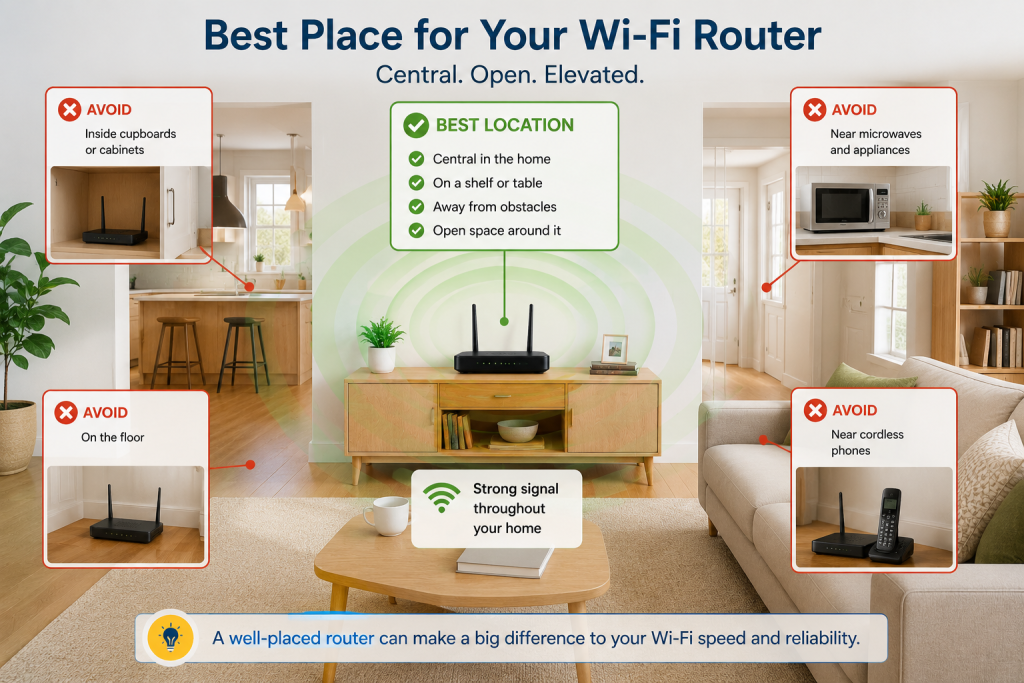
Step 8: Keep Your Router in the Best Place
For the strongest Wi-Fi signal:
✅ Place it in a central room.
✅ Keep it off the floor.
✅ Avoid cupboards.
✅ Keep it away from microwaves and cordless phones.
Frequently Asked Questions
Why Is My Wi-Fi Slow but My Internet Is Fine?
The internet coming into your home may be working normally, but a weak Wi-Fi signal can make devices seem slow.
Should I Restart My Router Often?
Restarting it occasionally is perfectly normal and can solve many temporary problems.
Can Too Many Devices Slow Down Wi-Fi?
Yes.
Every connected device shares your internet connection.
When Should I Contact My Broadband Provider?
Contact them if:
- Your internet has been slow for several days.
- Restarting your router doesn’t help.
- All devices have the same problem.
- You suspect a fault with your broadband service.
Top Tips for Faster Internet
✔ Restart your router.
✔ Move closer to your Wi-Fi router.
✔ Disconnect unused devices.
✔ Restart your computer or phone.
✔ Place your router in an open, central location.
✔ Check for broadband outages.
Final Thoughts
A slow internet connection is frustrating, but in many cases the solution is simple.
By following the steps in this guide, you can often improve your internet speed in just a few minutes.
If the problem continues, your broadband provider may be able to help investigate further.
Technology Made Simple.
Related Guides
- Why Won’t My Phone Connect to Wi-Fi?
- How to Bank Online Safely
- How to Save a Website for Easy Access
- What Is a Smart TV?
- What Is Streaming TV?
- How to Clear Your Browser Cache
Latest posts:
- How to Pay for Parking With Your Phone: A Simple Beginner’s Guide
- How to Use a Car Park Payment Machine: A Simple Beginner’s Guide
- How to Use a Supermarket Self-Service Checkout: A Simple Beginner’s Guide
- What Is a Smart Speaker and How Does It Work? A Beginner’s Guide
- What Is a Smart Plug and How Does It Work? A Beginner’s Guide