
You’ve probably seen QR codes on restaurant menus, tickets, posters, packaging, parking machines and even television screens.
They look like small square patterns made from black and white blocks.
The good news is that you usually don’t need a special app to scan one. Most modern iPhones and Android phones can scan QR codes using the normal Camera app. Apple and Google both support scanning QR codes this way on compatible devices.
In this guide, we’ll show you exactly what to do — and what to check before you tap the link.
Quick answer: Open your phone’s Camera, point it at the QR code without taking a photograph, wait for a link or message to appear, and then tap it.
What Is a QR Code?
QR stands for Quick Response.
A QR code can contain information that your phone can read. Most commonly, scanning one opens a website.
QR codes can also be used for things such as:
- restaurant menus;
- event tickets;
- parking;
- joining Wi-Fi;
- opening an app;
- product information;
- making payments;
- signing into services.
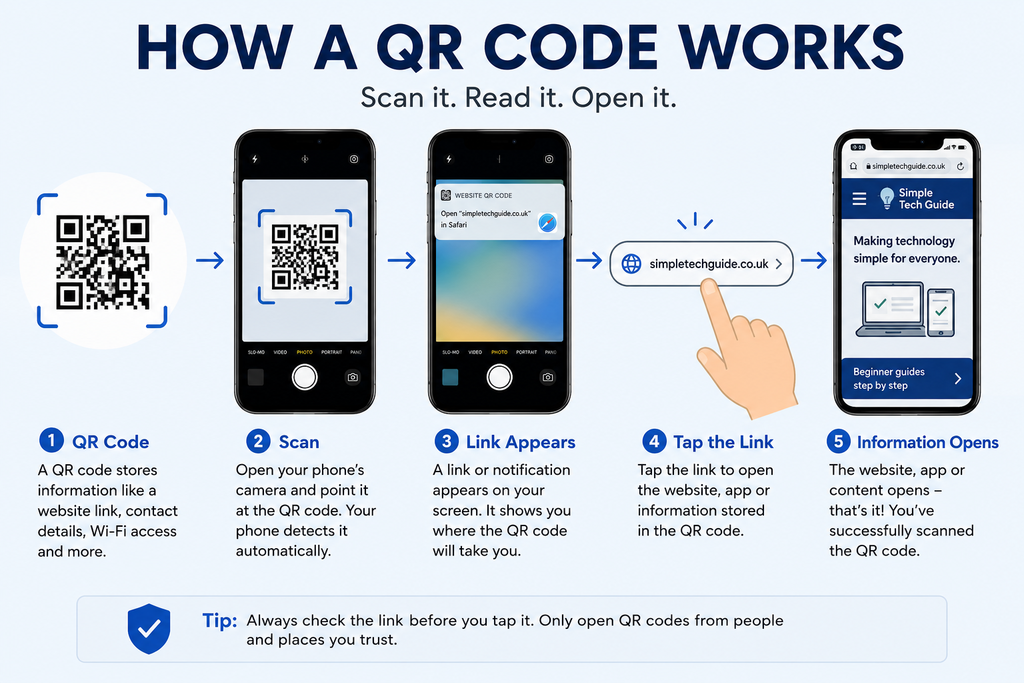
How to Scan a QR Code on an iPhone
Apple makes this very straightforward.
Step 1: Open the Camera
Find the Camera app on your iPhone and tap it.
You can also open the camera from your Lock Screen.
Step 2: Point the Camera at the QR Code
Hold your iPhone so that you can see the whole QR code on the screen.
You do not need to take a photograph.
Just hold the phone reasonably still.
Step 3: Wait for the Link to Appear
After a moment, your iPhone should recognise the QR code.
A link or notification will appear on the screen.
Step 4: Tap the Link
Check that the link looks sensible before opening it.
If you’re happy with it, tap the link.
Your iPhone will then open the website, app or information connected to the QR code.
Apple’s current instructions confirm that you can scan using either the Camera app or Apple’s Code Scanner.
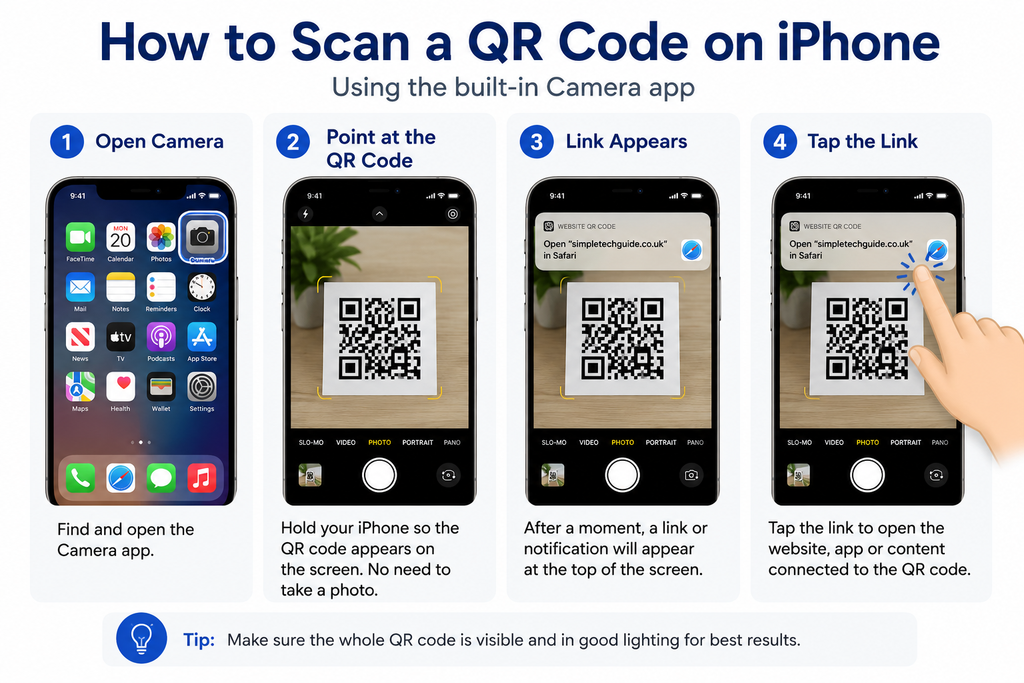
How to Scan a QR Code on Samsung & Android
The exact appearance varies slightly between Android phones, but the process is usually very similar.
Google’s current instructions for compatible Android devices are essentially:
Open Camera → point at QR code → tap the link that appears.
Step 1: Open Your Camera
Open the normal Camera app.
Step 2: Point It at the QR Code
Make sure the whole square QR code is visible on your screen.
Again, don’t press the camera shutter button.
Step 3: Wait
Your phone should recognise the code automatically.
A website address, banner or other message should appear.
Step 4: Tap the Link
Check the link first.
If it looks genuine and you expected the QR code to take you there, tap it.
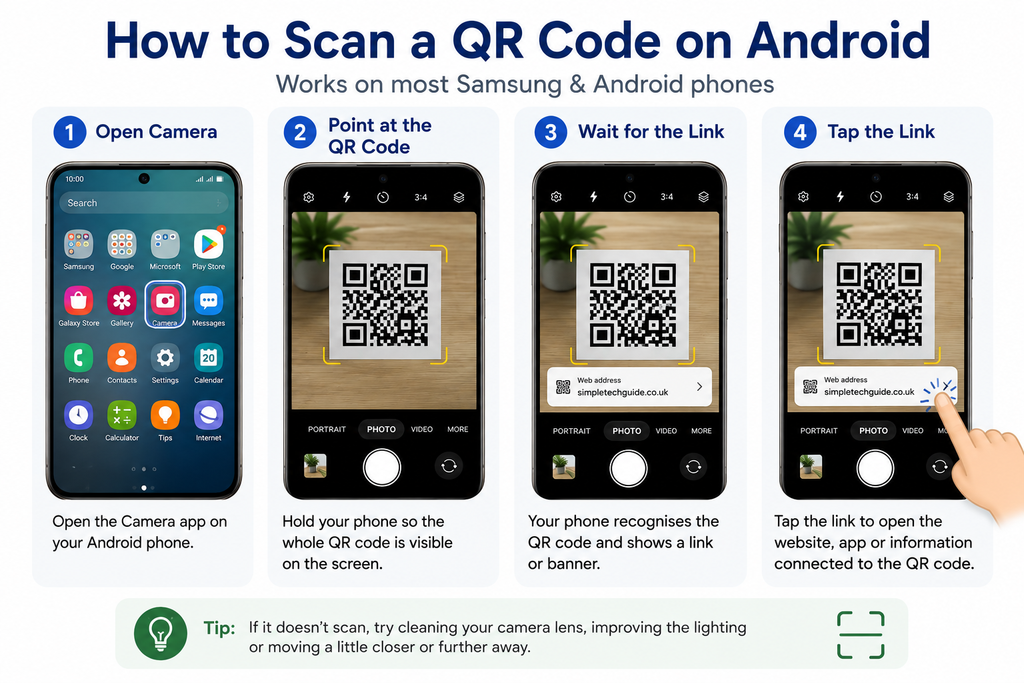
My Phone Won’t Scan the QR Code
Don’t worry. There are several simple things to try.
Clean the Camera Lens
A fingerprint or smudge on the camera can make a QR code difficult to read.
Gently wipe the camera lens with a soft clean cloth.
Move the Phone Back
You don’t normally need to put the camera extremely close to the QR code.
Try moving the phone backwards slightly until the entire QR code fits comfortably on the screen.
Google recommends experimenting with the distance if a QR code isn’t being recognised.
Improve the Lighting
If the QR code is in a dark area, move somewhere brighter or add more light.
Google also recommends improving lighting when troubleshooting QR-code scanning.
Hold the Phone Still
Give the camera a second or two to focus.
Try Your Phone’s QR Scanner
Some Android phones also have a dedicated Scan QR code option in Quick Settings.
On iPhone, Apple also provides Code Scanner through Control Centre.
Can I Scan a QR Code That’s Already on My Phone?
This is a common source of confusion.
If somebody sends you a QR code on the same phone you’re using, you obviously can’t point that phone’s camera at its own screen.
Depending on your phone and the app you’re using, you may be able to open the saved picture or screenshot and use an available QR/link recognition feature.
Another simple option is to display the QR code on another phone, tablet or computer and scan it normally with your phone.
We’ll keep this section simple because the exact options differ between devices and software versions.
Are QR Codes Safe?
This is the section that can make our article substantially better than many generic QR tutorials.
A QR code itself isn’t proof that a website is safe.
Think of it like clicking a link in an email or text message.
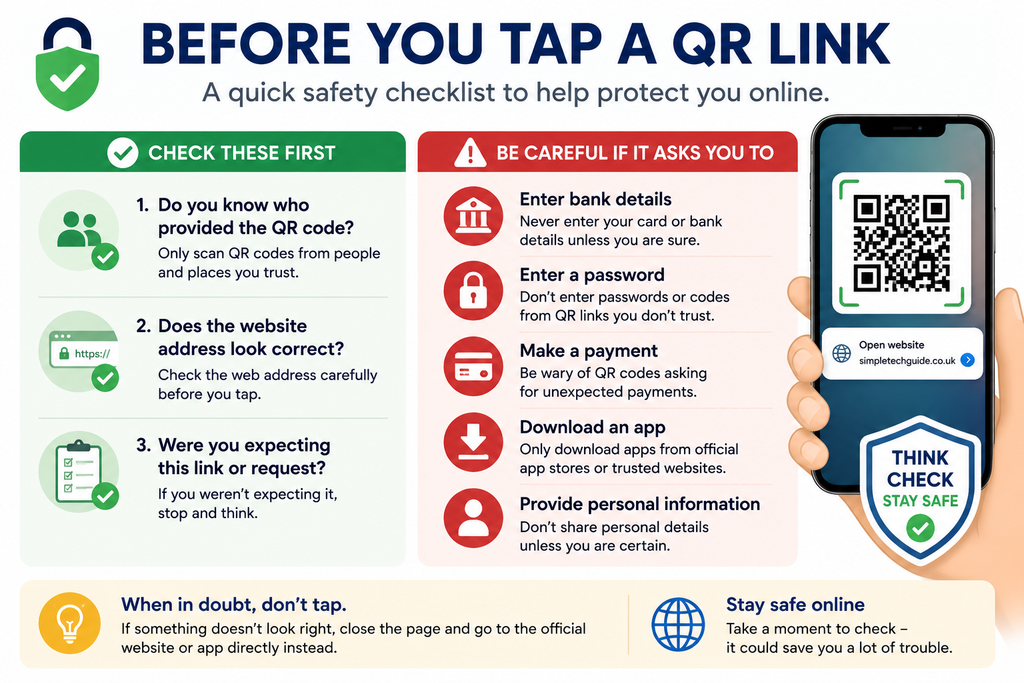
Before opening the link, ask:
Do I know where this QR code came from?
A QR code printed on a restaurant’s own menu is very different from an unexplained sticker placed over another QR code.
Be particularly careful if the QR code asks you to:
- enter your bank details;
- enter a password;
- make an unexpected payment;
- download an unfamiliar app;
- provide personal information;
- act urgently because your account is supposedly in danger.
If something doesn’t look right, don’t continue.
Instead, go to the organisation’s official website yourself or use its official app.
Do I Need a QR Code Scanner App?
Usually, no.
Modern iPhones have QR scanning built into the Camera app, while supported Android devices can also scan QR codes through their built-in camera.
For a beginner, I would try the normal Camera app before downloading another QR-scanner app.
That keeps things simpler and avoids installing an unnecessary application.
What Happens After I Scan a QR Code?
That depends on what information the QR code contains.
It might:
🌐 Open a website
For example, a restaurant menu.
🎟 Open a ticket
For an event or journey.
📱 Open an app or app page
📶 Help connect to something
💳 Take you to a payment page
The important point is that scanning the code doesn’t mean you have to continue.
If something unexpected appears, simply close it.
Frequently Asked Questions
How do I scan a QR code with my phone?
Open your Camera app, point it at the QR code and wait for a link or notification to appear. Tap the link if you trust it.
Do I take a picture of the QR code?
No. Normally you simply point the camera at the QR code and wait for your phone to recognise it.
Do I need a QR scanner app?
Usually not. Modern iPhones and supported Android phones have QR scanning built into their camera software.
Why won’t my phone scan a QR code?
Try cleaning your camera lens, improving the lighting, holding the phone still and moving slightly closer or further away. Google recommends these types of checks when QR scanning fails.
Is it safe to scan a QR code?
Scanning one is easy, but you should check where the resulting link is taking you before entering passwords, payment details or personal information.
Need More Help With QR Codes?
If your phone still won’t scan a QR code, or you’d like more help using your smartphone safely, these trusted resources are a good next step.
Apple & Google Support
Phone features and menus can change after software updates. These official support pages contain the latest guidance.
- Apple: Scan a QR code with iPhone or iPad → Opens the official Apple Support website
- Google: Scan QR codes on Android → Opens the official Google Help website
More Beginner-Friendly Help
Need help with another phone problem or want to learn how to stay safer online? Try one of these next.