
If your computer is starting to fill up with photos, documents and downloads, creating folders is one of the easiest ways to keep everything organised.
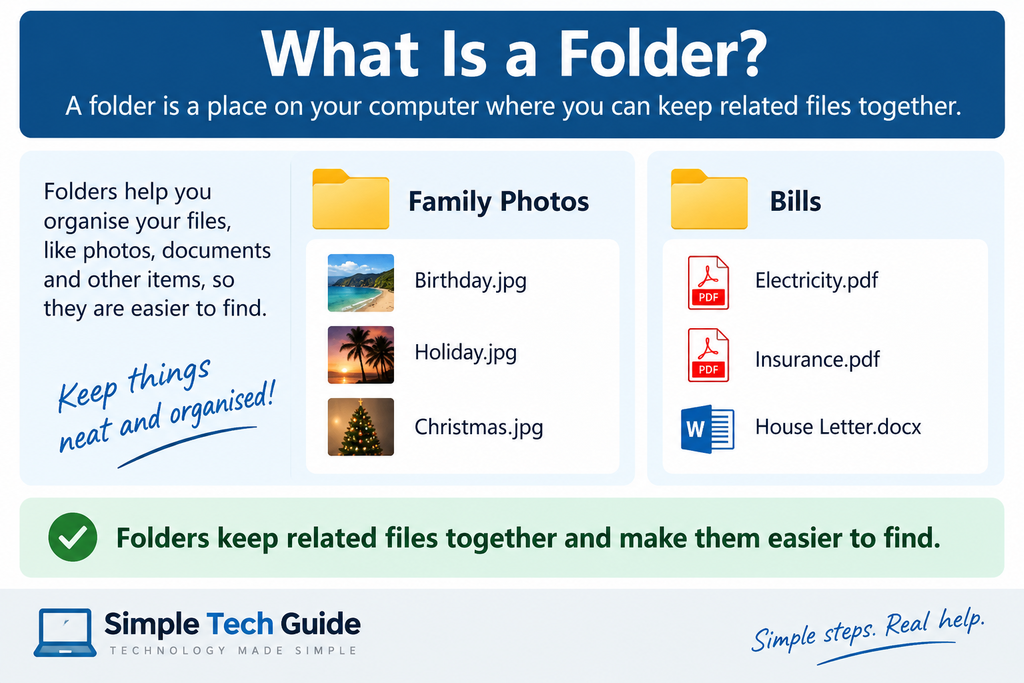
A folder is simply a place on your computer where you can keep related files together. For example, you could create folders called Holiday Photos, Bills, Work Documents or Family Photos.
In this guide, we’ll show you several simple ways to create a new folder in Windows 11 and Windows 10.
Quick answer: Go to the place where you want your new folder, right-click an empty space, choose New, then Folder. Type a name for your folder and press Enter.
What Is a Folder in Windows?
Think of a Windows folder like a folder or filing box in your home.
Instead of having every document and photograph mixed together, folders let you organise things into groups.
For example, your computer might contain:
Pictures
- Family Photos
- Holidays
- Pets
Documents
- Bills
- Letters
- Work
You can also create folders inside other folders, so you can organise things in whatever way makes sense to you.
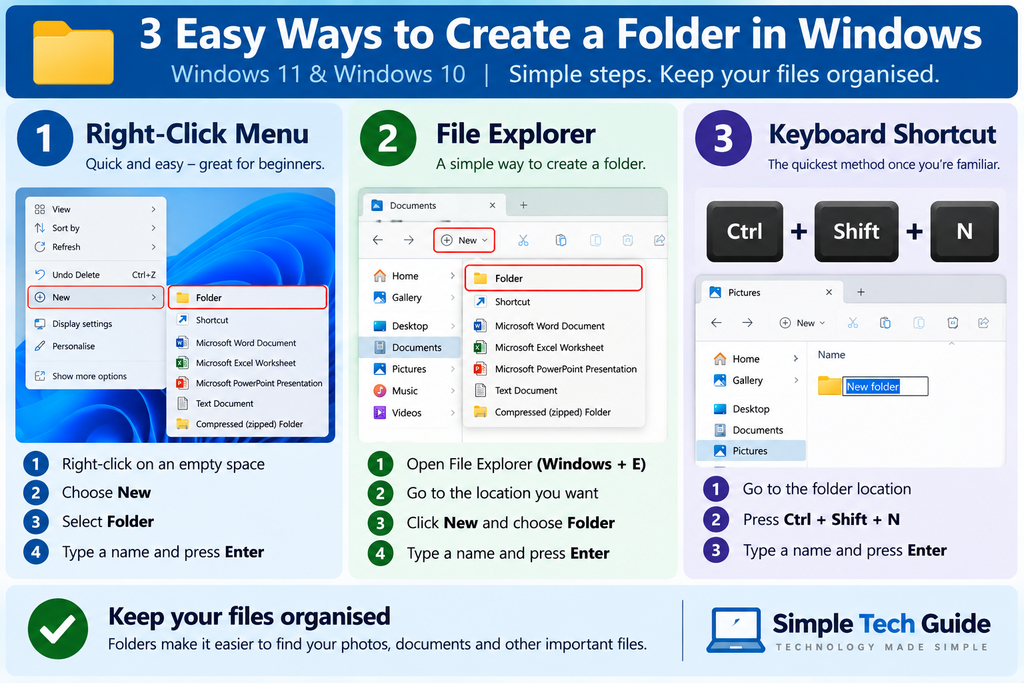
Method 1: Create a Folder Using Right-Click
For most beginners, this is probably the easiest method.
Step 1 — Choose where you want the folder
You can create a folder in places such as your:
- Desktop
- Documents
- Pictures
- Downloads
- another existing folder
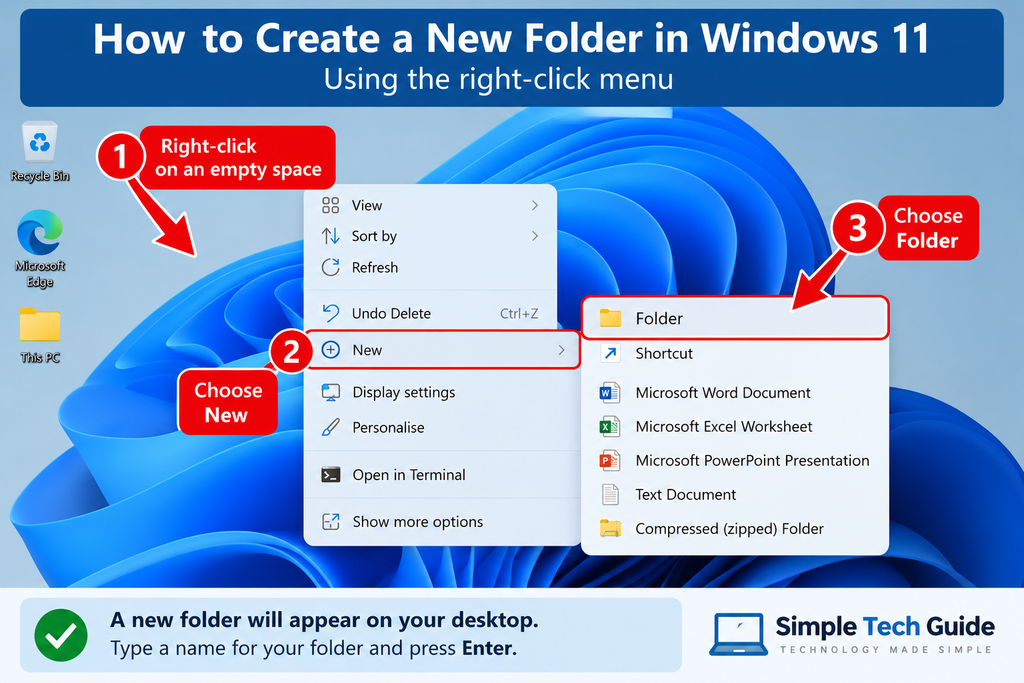
For this example, imagine you want to create a folder on your Desktop called Family Photos.
Step 2 — Right-click an empty space
Move your mouse pointer to an empty area.
Click the right-hand mouse button once.
A menu should appear.
Step 3 — Select New
Look for New in the menu.
Move your pointer over it or select it.
Another small menu should appear.
Step 4 — Select Folder
Choose Folder.
A new folder will appear.
Step 5 — Give your folder a name
The folder name should already be highlighted.
Type the name you want, such as:
Family Photos
Then press Enter on your keyboard.
That’s it — you’ve created a folder.
Method 2: Create a Folder Using File Explorer
You can also create folders using File Explorer.
File Explorer is the part of Windows used to find and organise your files and folders. Microsoft confirms it can be opened from Start, the taskbar or by pressing Windows + E.
Step 1 — Open File Explorer
Look for the yellow folder icon on your taskbar.
Or press:
Windows key + E
Step 2 — Choose where you want your folder
For example, select:
Documents
or:
Pictures
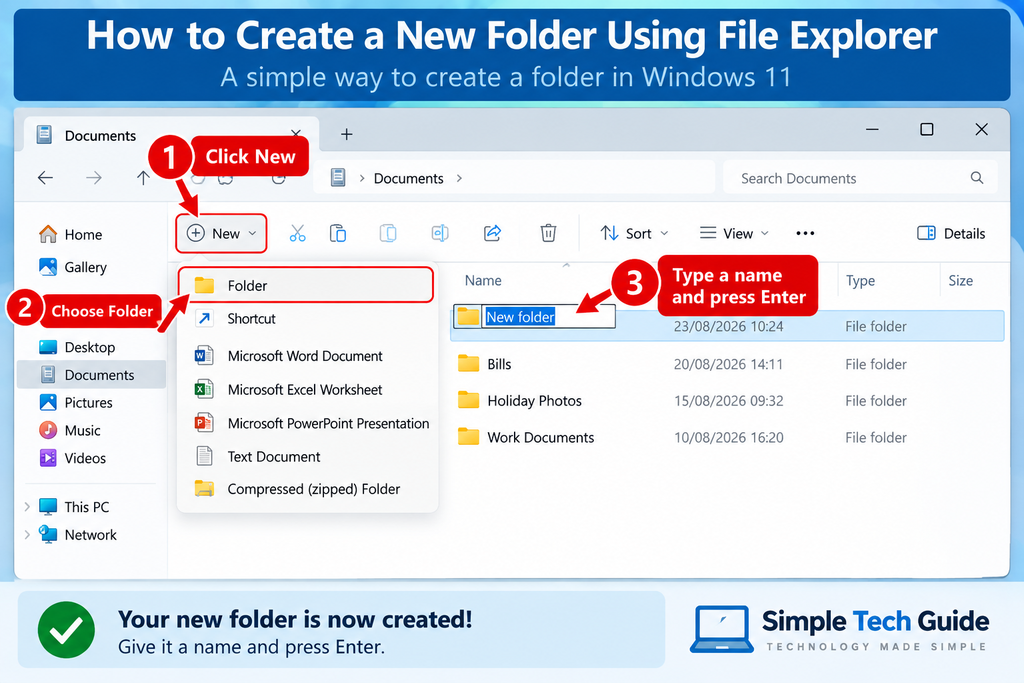
Step 3 — Select New
In Windows 11, look near the top of File Explorer and select:
New
Then choose:
Folder
Microsoft documents this as the standard File Explorer method for creating a folder.
Step 4 — Name the folder
Type a name for your new folder and press:
Enter
Your folder is ready to use.
Method 3: Use the New Folder Keyboard Shortcut
Once you’re comfortable using Windows, there’s an even quicker method.
Go to the place where you want the folder and press:
Ctrl + Shift + N
Windows will immediately create a new folder.
Type its name and press Enter.
Microsoft lists Ctrl + Shift + N as the File Explorer shortcut for creating a new folder.
Beginner tip: You don’t need to learn this shortcut. Right-clicking or using File Explorer is perfectly fine. The shortcut is simply there if you find it easier.
How to Rename a Folder
Don’t worry if you give a folder the wrong name.
You can change it.
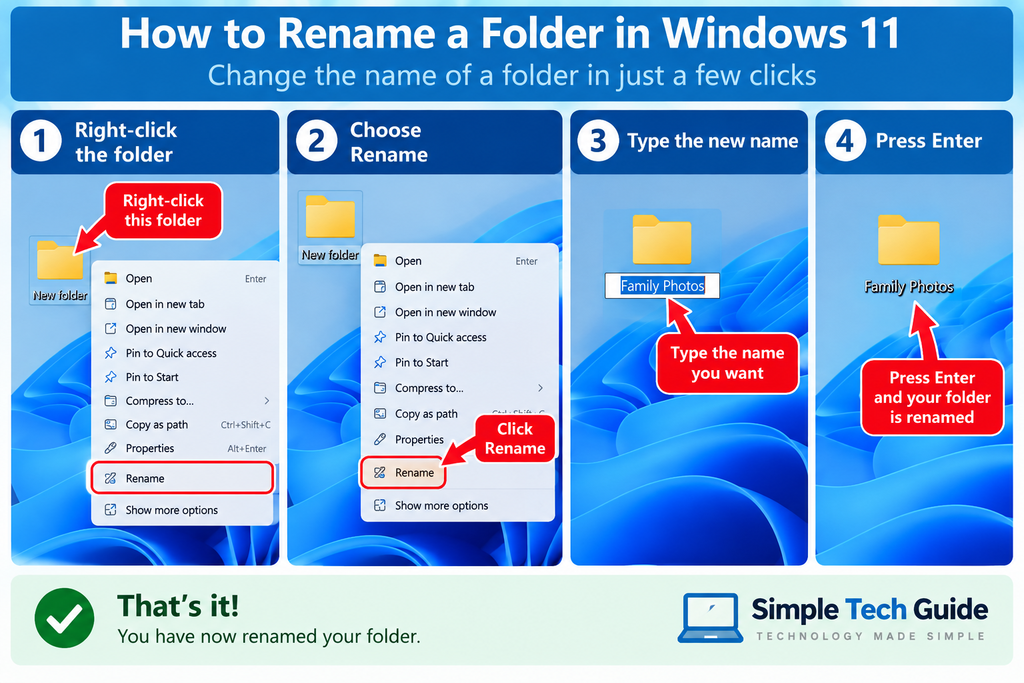
- Find the folder.
- Right-click it.
- Choose Rename.
- Type the new name.
- Press Enter.
You can also select the folder and press F2 on your keyboard. Microsoft lists F2 as the Windows shortcut for renaming a selected item.
How Do I Put Files Into My New Folder?
Once you’ve created a folder, you can move files into it.
One simple method is to drag and drop them.
- Find the file you want to move.
- Click and hold the file with your mouse.
- Move it over your new folder.
- Release the mouse button.
The file will move into the folder.
You can also use Cut and Paste. Windows File Explorer provides Cut and Paste controls for moving files and folders.
We’ll cover moving and organising files in more detail in a separate Simple Tech Guide.
Where Should I Create My Folders?
There’s no single correct place.
Windows already provides several useful locations for organising different types of files.
Documents
Good for:
- letters
- bills
- PDFs
- work documents
- important paperwork
Pictures
Good for:
- family photographs
- holiday photos
- downloaded pictures
Desktop
Useful for folders you want to reach quickly.
However, try not to put everything on your Desktop because it can quickly become cluttered.
Downloads
Files you download from websites often appear here.
Microsoft identifies Desktop, Documents, Downloads, Pictures, Music and Videos as standard Windows folders available through File Explorer.
What If I Can’t Find the Folder I Created?
First, go back to the place where you created it.
For example, if you created it inside Documents, open:
File Explorer → Documents
If you still can’t find it, you can use Windows Search.
Type the folder’s name into the Windows search box or use the search box in File Explorer. Microsoft confirms File Explorer search can locate files and folders stored on the PC and connected cloud storage.
This is also why giving folders sensible names such as Holiday Photos 2026 is better than leaving them called New Folder.
Can I Create a Folder Inside Another Folder?
Yes.
These are sometimes called subfolders.
For example:
Family Photos
→ 2025
→ 2026
And inside your 2026 folder you might have:
2026
→ Summer Holiday
→ Birthdays
→ Christmas
You don’t need to make your filing system complicated. Just use names and groups that make sense to you.
Windows 10 Users
These instructions also apply to Windows 10, although some buttons and menus may look slightly different.
One important point: Microsoft ended free support for Windows 10 on 14 October 2025. Windows 10 computers still work, but Microsoft recommends moving to Windows 11 where possible because standard free security fixes and technical support have ended.
Quick Reminder: 3 Ways to Create a Folder
| Method | What to do | Best for |
|---|---|---|
| Right-click | Right-click → New → Folder | Beginners |
| File Explorer | New → Folder | Organising files |
| Keyboard | Ctrl + Shift + N | Quickest method |
Common Questions About Windows Folders
What is the difference between a file and a folder?
A file is an individual item, such as a photo, PDF, Word document or spreadsheet.
A folder is used to organise and store files.
Think of a file as a sheet of paper and a folder as the place you keep those sheets together.
Can I create a folder on my Desktop?
Yes. Right-click an empty area of your Desktop, choose New → Folder, give it a name and press Enter.
Can I put folders inside folders?
Yes. You can create as many subfolders as you need.
For example:
Photos → Holidays → Spain 2026
Can I move a folder after creating it?
Yes. A folder can be moved to another location using Windows’ Cut and Paste controls, or in many situations by dragging it to another location.
Can I change a folder’s name?
Yes. Right-click the folder and choose Rename, type the new name and press Enter.
Can I delete a folder?
Yes, but be careful.
If the folder contains files, those files will normally be moved to the Recycle Bin along with the folder when you delete it in the usual way.
Always check what’s inside a folder before deleting it.
Why can’t I create a new folder?
First make sure you’re somewhere that allows you to create folders, such as Documents, Pictures or your Desktop.
If File Explorer itself isn’t working properly, restarting your computer is a sensible first troubleshooting step. Microsoft also recommends checking Windows Update when File Explorer will not open or start.
Can I create a folder just for photos?
Yes — and it’s a good way to keep photographs organised.
For example:
Family Photos → Holidays → Cornwall 2026
What does Ctrl + Shift + N do?
When you’re in File Explorer or another suitable Windows folder location, Ctrl + Shift + N creates a new folder.
Further Help
Need a little more help? You can use Microsoft’s official Windows guidance or continue with our simple, beginner-friendly computer guides.
🏢 Official Microsoft Help
Microsoft — Create a New Folder
Official instructions for creating and organising folders.
Microsoft — File Explorer in Windows
Learn more about finding and organising files and folders in Windows.
💻 More Simple Tech Guide Help
Computer Problem Finder
Can’t find something or something isn’t working? Use our step-by-step problem finder.
Computer Basics
Browse more simple Windows and computer guides for beginners.