
If a photo seems to have disappeared from your phone, don’t panic and don’t start changing lots of settings.
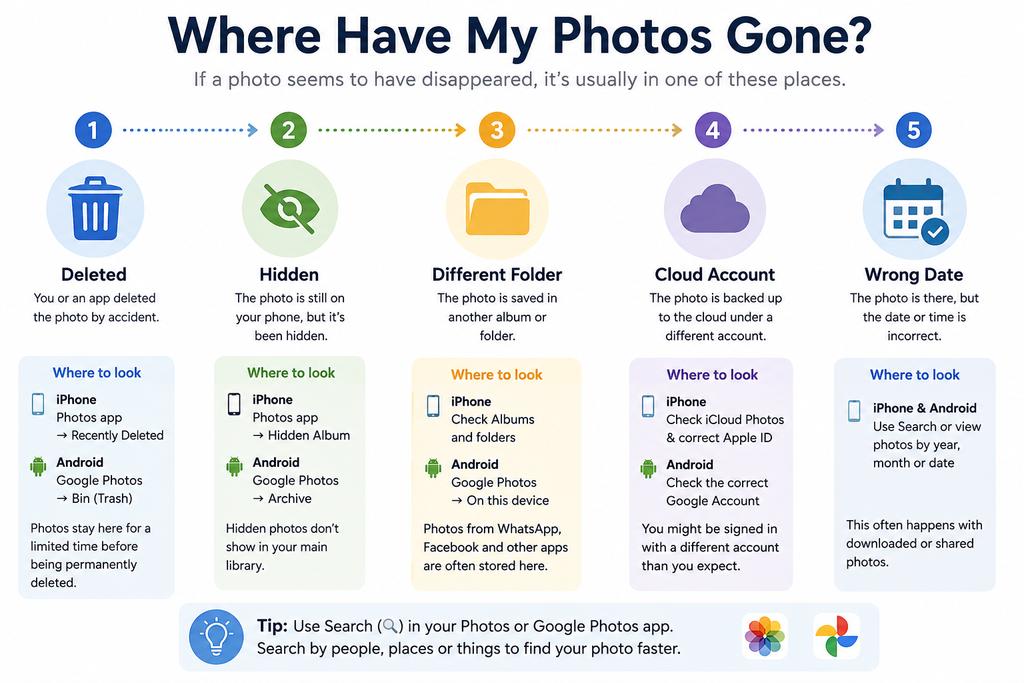
In many cases, the photo hasn’t actually been lost. It may have been accidentally deleted, moved into another album or folder, hidden, backed up to the cloud, or saved under a different date.
This guide will take you through the safest places to look on an iPhone, Samsung phone or other Android phone, one step at a time.
Quick answer: Start by checking Recently Deleted on an iPhone or the Bin in Google Photos on Android. If the photo isn’t there, we’ll show you the other places to check.
First: Don’t Delete Anything Else
If you’re trying to recover an important photo, avoid deleting more photos or using phone-cleaning apps while you’re looking for it.
Instead, work through the checks below in order.
Where could my photo have gone?
If You Have an iPhone
Start with the Photos app — the multicoloured flower-shaped icon.
1. Check Recently Deleted
When you delete a photo on an iPhone, it doesn’t normally disappear immediately.
Apple says deleted photos and videos can be recovered from Recently Deleted for 30 days.
Open:
Photos → Collections → swipe up → Recently Deleted
You may be asked to unlock the album using Face ID, Touch ID or your passcode.
If you find the photo:
- Tap the photo.
- Tap Recover.
- Confirm that you want to recover it.
The photo should return to your Photos library.

2. Check the Hidden Album
Sometimes a photo hasn’t been deleted at all — it has been hidden.
Apple specifically recommends checking the Hidden album when photographs appear to be missing.
Open the Photos app and look under Collections for the Hidden album in Utilities.
You may need to unlock it.
If your missing photo is there, you can unhide it so that it appears normally in your photo library again.
3. Search for the Photo
If you have thousands of pictures, manually scrolling through them can make a perfectly safe photo seem lost.
Use Search inside the Photos app.
Try searching for something you remember about the picture, such as:
dog
Manchester
beach
car
birthday
You can also look around the approximate month or year when you think the photo was taken.
4. Check iCloud Photos
If you use iCloud, your photographs may be synchronised between your Apple devices.
Make sure you’re signed into the Apple Account you normally use and that iCloud Photos is set up as expected.
This is particularly worth checking if you have recently:
- changed iPhone;
- signed out of your Apple Account;
- changed account settings;
- started using another Apple device.
Apple also notes that Shared Library settings can affect which photos you see.
If You Have a Samsung or Other Android Phone
Android phones vary slightly, so don’t worry if the wording on your phone isn’t identical.
Many Android phones use Google Photos, while Samsung and some other manufacturers may also provide their own Gallery app.
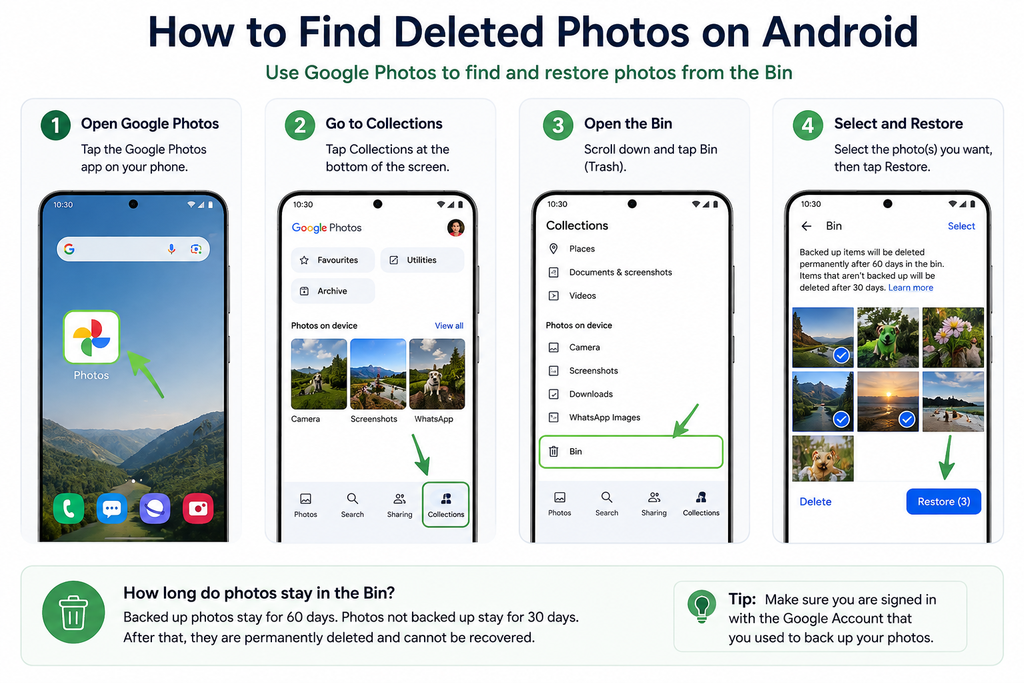
1. Check the Google Photos Bin
Open Google Photos.
Then go to:
Collections → Bin
If you find the missing photo:
- Touch and hold it.
- Tap Restore.
Google says backed-up photos normally remain in the Bin for 60 days, while certain photos that weren’t backed up may only remain there for 30 days.
2. Check You’re Using the Correct Google Account
This is surprisingly important.
Google says photographs can appear to have disappeared simply because you’re looking at a different Google Account.
In Google Photos, tap your profile picture or initial near the top of the screen.
Check the email address shown.
If you have more than one Google account, see whether your photographs were backed up using another one.
3. Check Other Folders on the Phone
Not every picture necessarily comes from your camera.
Pictures from apps such as WhatsApp, Facebook or other services can be stored in separate device folders.
In Google Photos try:
Collections → On this device
Then look through the available folders. Google specifically recommends checking device folders when photographs from other apps appear to be missing.
4. Check the Archive
A photo can also be archived rather than deleted.
In Google Photos, look under:
Collections → Archive
If the missing picture is there, you can remove it from the Archive so that it appears normally again.
5. Search Instead of Scrolling
Google Photos can search your backed-up photographs.
Try searching for the approximate:
- person;
- place;
- object;
- event;
- date.
There’s another useful trick.
Search for:
Recently added
Google recommends this when you’re struggling to find a photograph you recently saved or backed up.
What If the Photo Has the Wrong Date?
This is an easy one to miss.
Sometimes a photograph is still there but appears much further back in your library because its date or time is incorrect.
This can happen with downloaded or scanned photographs, or images transferred from another device.
Google specifically warns that incorrect timestamps can make apparently missing photographs appear somewhere unexpected in your library.
So if you can’t find a photograph from “last week”, don’t assume it has been deleted.
Try searching for the person, place or object shown in it instead.
What If I Still Can’t Find My Photos?
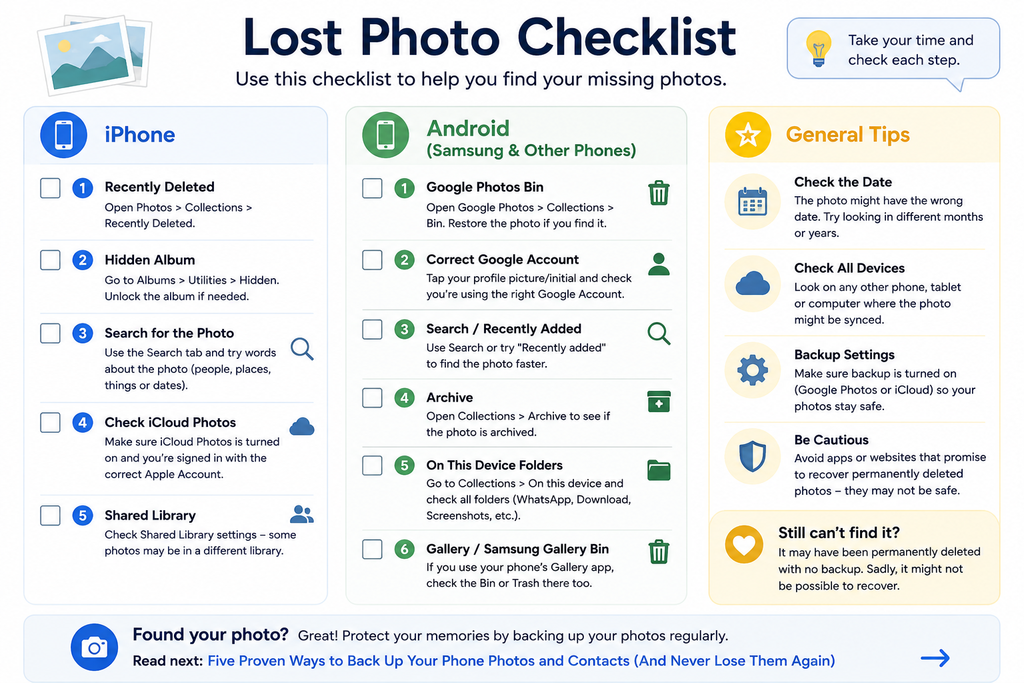
Work through this checklist before assuming they’re permanently gone:
iPhone
☐ Recently Deleted
☐ Hidden album
☐ Search
☐ Correct Apple Account
☐ iCloud Photos
☐ Shared Library
Android / Samsung
☐ Google Photos Bin
☐ Correct Google Account
☐ Search / Recently added
☐ Archive
☐ Collections → On this device
☐ Samsung/phone Gallery Bin if applicable
☐ Google Photos backup settings
Can Permanently Deleted Photos Be Recovered?
Sometimes, unfortunately, no.
If a photo has been permanently deleted and no backup exists, recovery may not be possible.
For Google Photos in particular, Google states that items permanently deleted from the Bin cannot be restored through Google Photos.
Be particularly cautious about websites or apps promising guaranteed recovery of permanently deleted photographs.
Don’t give an unknown service your Google password, Apple Account password or other security details just because it claims it can recover your photographs.
Found Your Photos? Protect Them Next
Once you’ve found an important photo, this is a good time to check that your photographs are being backed up.
Simple Tech Guide already has a step-by-step guide to backing up your phone photos and contacts so they’re less likely to be lost in future.
👉 Read next: Five Proven Ways to Back Up Your Phone Photos and Contacts (And Never Lose Them Again)
Frequently Asked Questions
Why have my photos suddenly disappeared from my phone?
They may not actually have been permanently deleted. Check Recently Deleted or Bin first, followed by hidden/archived photographs, your cloud account, device folders and search.
Where are deleted photos on an iPhone?
Open the Photos app and look for Recently Deleted under Collections/Utilities. Apple currently allows photographs to be recovered there for 30 days after deletion.
Where are deleted photos on an Android phone?
If you use Google Photos, open Collections → Bin. Your phone manufacturer’s Gallery app may also have its own Bin or Trash.
Why are some of my Google Photos missing?
Check that you’re signed into the correct Google Account, that backup is configured correctly, and look in Bin, Archive and Collections → On this device.
Can I recover permanently deleted photos?
Not always. If a photograph has been permanently deleted and there is no other copy or backup, it may be unrecoverable. Google explicitly states that permanently deleted items cannot be restored through Google Photos.
Need More Help With Your Photos?
If you still can’t find your photos, these trusted resources and Simple Tech Guide articles can help you with the next step.
Apple & Google Support
Phone menus can change after updates. These official support pages contain the latest instructions from Apple and Google.
- Apple: Find missing photos or videos → Opens the official Apple Support website
- Apple: Delete and recover photos → Opens the official Apple Support website
- Google: Find lost photos and videos → Opens the official Google Photos Help website
- Google: Restore deleted photos → Opens the official Google Photos Help website
Keep Going With Our Guides
Found your photos or need help with something else? These beginner-friendly guides are a good next step.