
Has your computer suddenly stopped responding?
You may notice:
- mouse not moving
- programs stuck
- screen frozen
- keyboard not working
Do not worry.
A frozen computer is very common and often easy to fix.
This guide explains simple beginner steps with no jargon.
What Does “Computer Frozen” Mean?
A frozen computer means:
👉 the computer has temporarily stopped responding.
It may look like:
- spinning circle
- stuck screen
- mouse not moving
- app refusing to close
This does not always mean the computer is broken.

Step 1 – Wait a Few Minutes
Before pressing lots of buttons:
👉 wait a minute or two.
Sometimes computers temporarily freeze while:
- loading updates
- opening programs
- saving files
- starting apps
The computer may recover by itself.
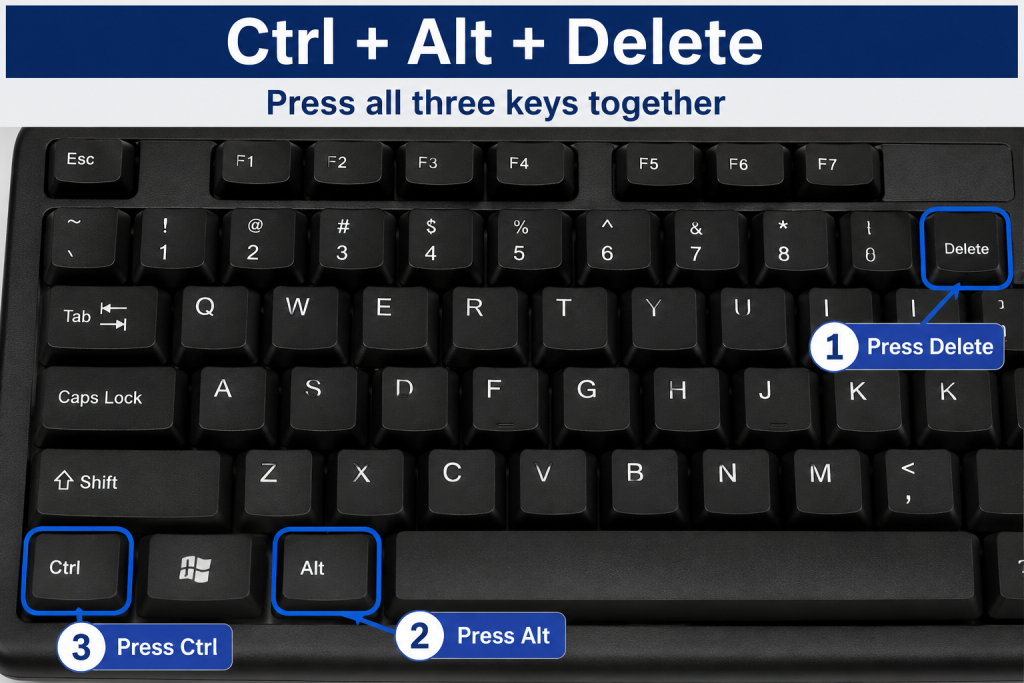
Step 2 – Try Keyboard Shortcuts
Press:
Ctrl + Alt + Delete
together.
This may open options including:
- Task Manager
- Restart
- Sign Out
If this screen appears:
your computer is still responding.
Step 3 – Close the Problem Program
If only one program is frozen:
Open:
👉 Task Manager
Select:
the problem app
Press:
👉 End Task
Examples:
- browser stuck
- Word not responding
- email frozen
Step 4 – Restart the Computer
If nothing works:
restart the computer.
You can often:
Hold power button for about 5–10 seconds.
Wait.
Turn computer back on.
Many freezes disappear after restarting.
Step 5 – Check Too Many Programs Are Not Open
Computers sometimes freeze because too much is running.
Examples:
- many browser tabs
- videos
- several apps
- updates
Closing unused programs may help.
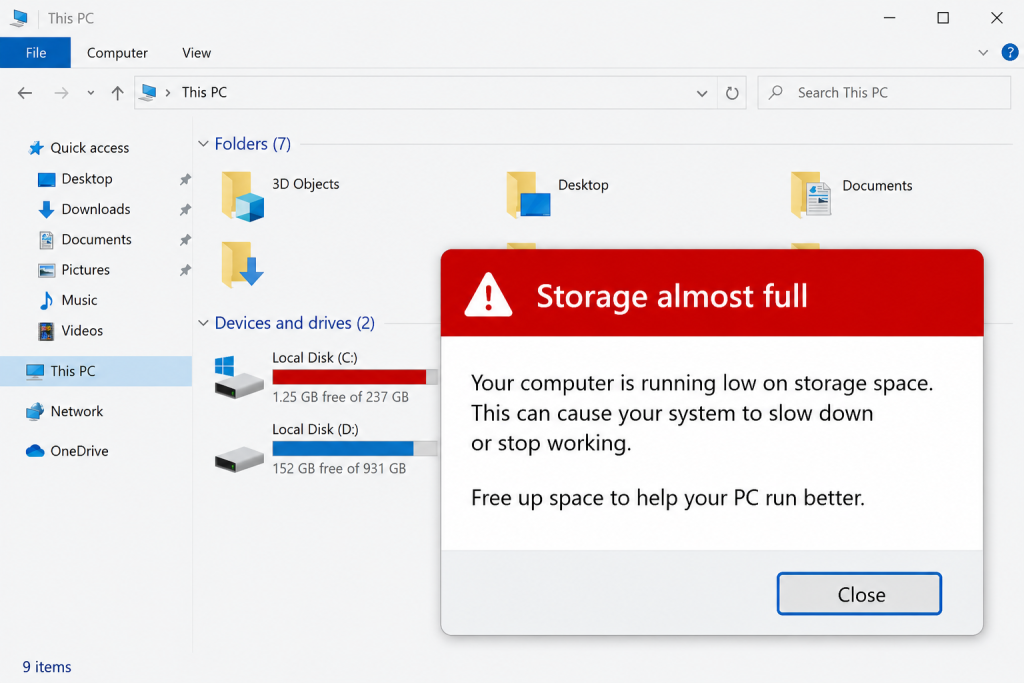
Step 6 – Check Available Storage
If storage becomes full:
computers may become:
- slow
- unresponsive
- unstable
Delete:
- old downloads
- unused files
- duplicate photos
Why Do Computers Freeze?
Common causes:
✔ too many programs
✔ low memory
✔ updates
✔ full storage
✔ old devices
✔ temporary software problems
Usually it is not serious.
Common Questions
Is my computer broken?
Usually not.
Many freezes are temporary.
Will restarting delete files?
Normally no.
But unsaved work may be lost.
Should I keep pressing buttons?
No.
Pressing many buttons quickly may make things worse.
How often should I restart?
Restarting every few days may help performance.

Simple Tips To Prevent Freezing
✔ restart occasionally
✔ keep storage free
✔ close unused programs
✔ update Windows
✔ avoid too many browser tabs
Final Thoughts
A frozen computer is frustrating but common.
Most of the time:
👉 restarting or closing programs fixes it.
Take your time.
You do not need to panic.
You May Also Find Helpful
👉 How to Take a Screenshot on Windows
👉 How to Copy and Paste on a Computer
- How to Pay for Parking With Your Phone: A Simple Beginner’s Guide
- How to Use a Car Park Payment Machine: A Simple Beginner’s Guide
- How to Use a Supermarket Self-Service Checkout: A Simple Beginner’s Guide
- What Is a Smart Speaker and How Does It Work? A Beginner’s Guide
- What Is a Smart Plug and How Does It Work? A Beginner’s Guide