
If someone has asked you “Are you on WhatsApp?” and you weren’t quite sure what they meant, you’re in the right place.
WhatsApp is a free app that lets you send messages, share photos and videos, and make voice or video calls using the internet.
It is used by people all over the world to keep in touch with friends and family, and you don’t need to be good with technology to use it.
In this simple beginner’s guide, we’ll explain what WhatsApp is, how WhatsApp works, whether it is free, what you can do with it and how to start using it safely.
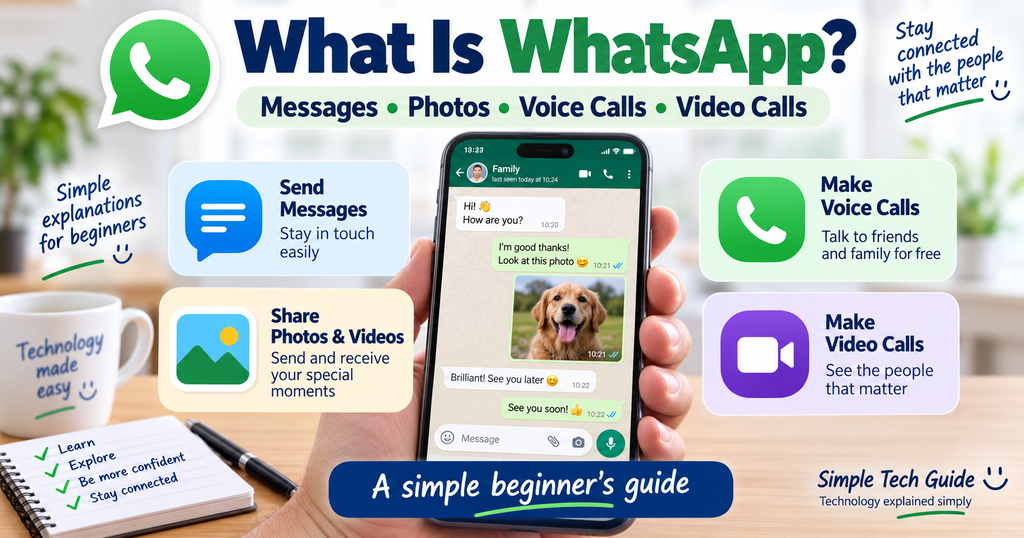
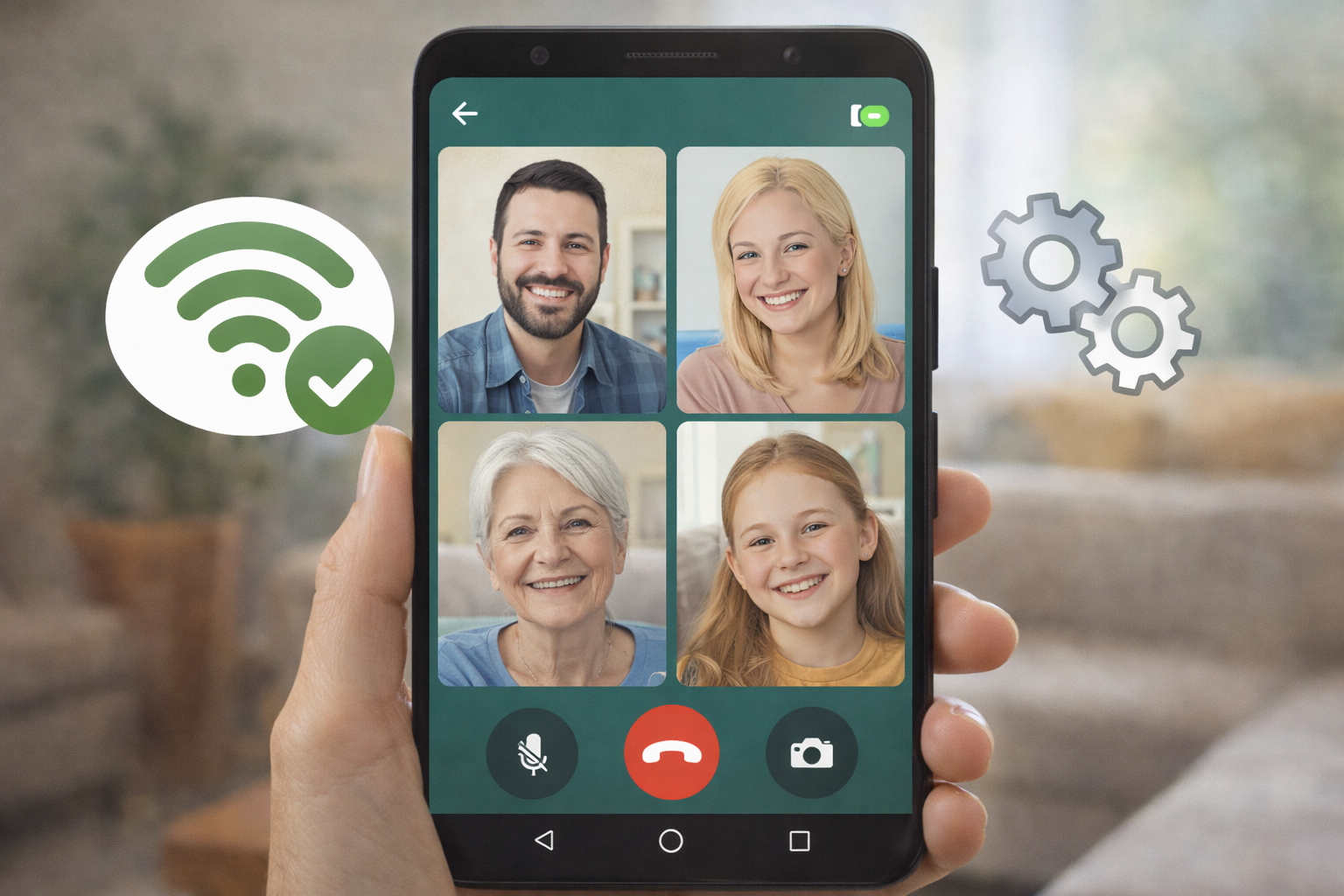
Purpose: Featured image, Google/social image and immediate visual explanation of the article.
Quick Answer: What Is WhatsApp?
WhatsApp is a messaging and calling app that works using an internet connection.
You can use WhatsApp to:
- Send text messages
- Send photos and videos
- Make voice calls
- Make video calls
- Send voice messages
- Share documents
- Chat with several people together in a group
Instead of sending an ordinary SMS text message through your mobile network, WhatsApp normally sends your message through the internet.
That internet connection can come from your home Wi-Fi or your phone’s mobile data.
WhatsApp says it is used by more than 3 billion people in over 180 countries.
Simple explanation: Think of WhatsApp as text messaging, phone calls, video calls and photo sharing combined into one app.
Is WhatsApp Free?
Yes. WhatsApp itself is free to use.
There is no normal monthly WhatsApp subscription charge for sending messages or making WhatsApp calls to friends and family.
However, WhatsApp needs an internet connection.
When you’re connected to your home Wi-Fi, WhatsApp will normally use that connection.
When you’re away from Wi-Fi, your phone may use its mobile-data allowance instead. Depending on your mobile contract, data charges could apply.
For most people with a normal smartphone contract or home Wi-Fi connection, this happens in the background without them having to do anything.
What Do I Need to Use WhatsApp?
For most beginners, you need four things:
- A smartphone
- A mobile phone number
- An internet connection
- The WhatsApp app
WhatsApp is available on iPhone and Android phones and can also be used on compatible computers and tablets.
Your phone number is important because WhatsApp uses it when setting up your account.
How Does WhatsApp Work?
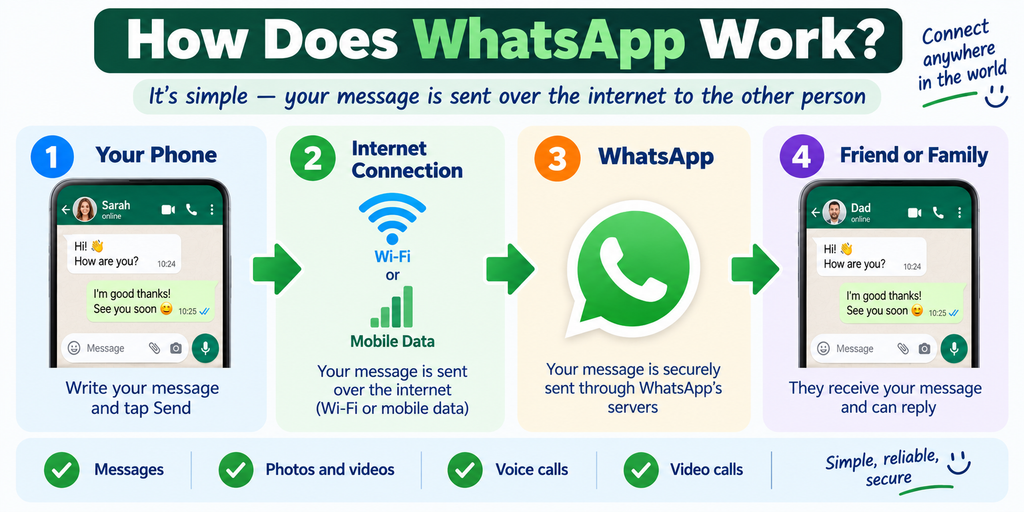
Here’s a simple example.
Imagine you want to send your daughter a message.
Instead of opening your phone’s normal text-message app, you open WhatsApp.
You find your daughter’s name, type:
“Are you coming round on Sunday?”
and tap Send.
The message travels over the internet to WhatsApp on her phone.
She can read it and reply in the same conversation.
You could also send her a photograph, record a voice message, or tap the phone or video-camera symbol to call her.
Placement: Immediately after How Does WhatsApp Work?
Does the Other Person Need WhatsApp?
Yes.
For a normal WhatsApp conversation, the other person also needs to use WhatsApp.
So if somebody says:
“I’ll WhatsApp you later.”
they normally mean they’ll contact you through WhatsApp rather than sending you an ordinary text message.
What Can You Do With WhatsApp?
WhatsApp can do considerably more than simply send written messages.
Send Messages
This is where most beginners should start.
Choose the person you want to contact, type your message and tap Send.
Your messages and their replies appear together as a conversation, so you can look back at what has already been said.
Send Photos and Videos
You can send photographs and videos directly to friends and family.
For example, you could take a photograph of your garden, a new pet or your holiday and send it to a family member within seconds.
This is one of the most useful WhatsApp features to learn.
Make Voice Calls
You can use WhatsApp to speak to another WhatsApp user much like an ordinary telephone call.
The difference is that a WhatsApp call uses an internet connection.
WhatsApp doesn’t charge a separate fee for these voice calls, although your normal mobile-data charges can apply if you aren’t using Wi-Fi.
Make Video Calls
A video call lets you see and hear the person you’re talking to.
This is particularly useful for keeping in touch with children, grandchildren, relatives and friends who don’t live nearby.
Already have WhatsApp and want to try it?
→ How to Use WhatsApp Video Call — Simple Guide
Send Voice Messages
Don’t want to type?
WhatsApp lets you record yourself speaking and send the recording as a voice message.
The other person can then listen to your message.
Have Group Chats
A WhatsApp group allows several people to take part in the same conversation.
You might have a WhatsApp group for:
- Your family
- Friends
- A holiday
- A sports club
- Parents at school
- A local community
Everyone in the group can see the messages sent to the group and join the conversation.
What Do the Ticks on WhatsApp Mean?
You may notice small ticks next to messages you’ve sent.
As a simple guide:
✓ One grey tick — your message has been sent.
✓✓ Two grey ticks — your message has been delivered.
✓✓ Two blue ticks — the person has normally read your message.
Don’t worry if the ticks don’t immediately turn blue.
The person may not have opened your message yet, and privacy settings can also affect whether read receipts are shown.
Is WhatsApp the Same as Text Messaging?
No, although they can feel very similar.
An ordinary SMS text message is sent through your mobile-phone service.
A WhatsApp message uses the internet.
That connection could be:
Wi-Fi — for example, your broadband connection at home.
or
Mobile data — the internet connection supplied by your mobile network when you’re away from Wi-Fi.
WhatsApp also offers features beyond basic text messaging, including video calls, group conversations, voice messages and easy photo sharing.
Can I Call Someone Abroad Using WhatsApp?
Yes.
This is one of WhatsApp’s particularly useful features.
You can make WhatsApp voice and video calls to other WhatsApp users in different countries using an internet connection.
WhatsApp doesn’t charge a separate international-call fee for a WhatsApp call, although your usual internet or mobile-data costs can still apply.
This can make it a convenient way for families and friends living in different countries to keep in touch.
Is WhatsApp Safe?
WhatsApp includes important security and privacy features.
Personal WhatsApp messages and calls use end-to-end encryption.
In simple terms, this protects the contents of your personal messages and calls so they’re between you and the people you’re communicating with. WhatsApp states that it cannot read or listen to these encrypted personal messages and calls.
But there is something very important to understand:
A secure app cannot guarantee that the person contacting you is trustworthy.
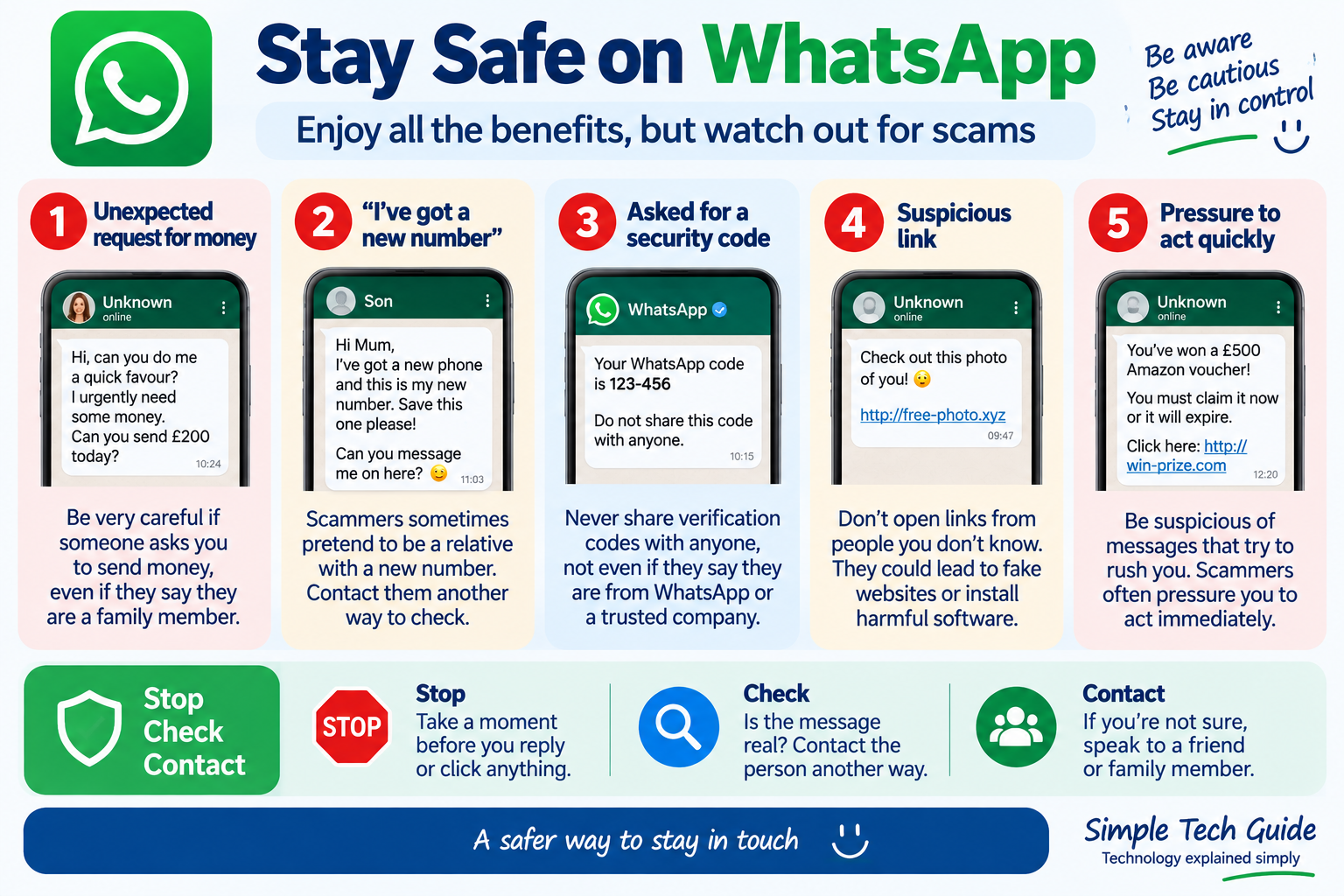
Scammers use WhatsApp too.
Watch Out for WhatsApp Scams
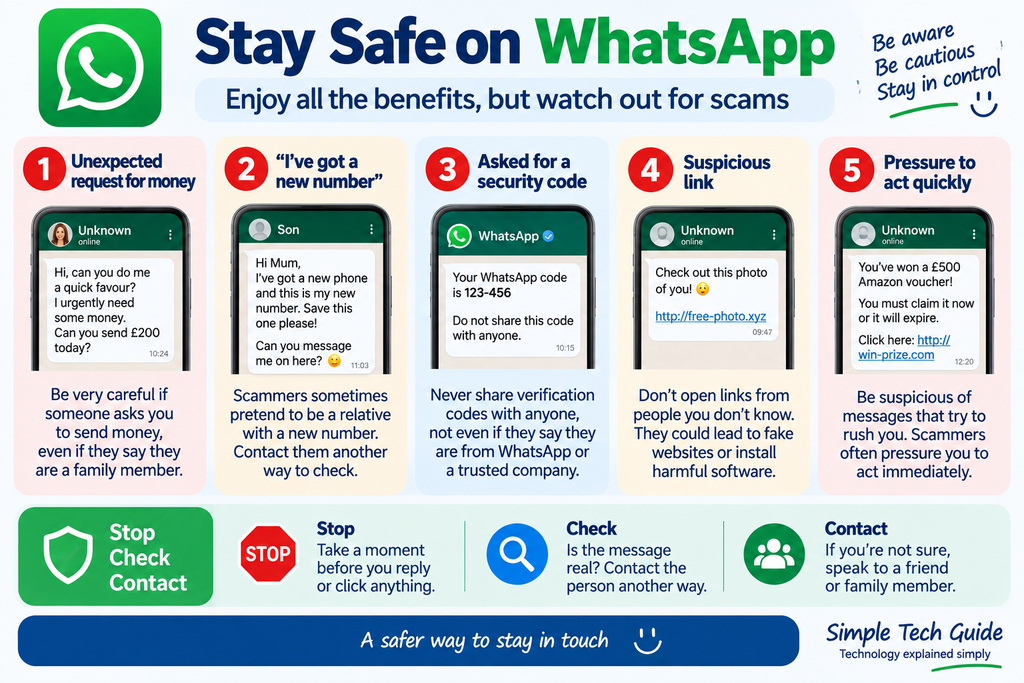
Be suspicious if somebody unexpectedly:
- Asks you to send money
- Asks for a verification or security code
- Says they’re a relative using a new phone number
- Says they urgently need money
- Sends you a suspicious link
- Claims you’ve won a prize
- Asks for your bank or card details
- Pressures you to do something immediately
One common warning sign is a message that appears to come from a family member saying something such as:
“Hi Mum, I’ve got a new phone. This is my new number.”
That doesn’t automatically mean it’s a scam, but don’t send money simply because someone claims to be a relative.
Contact the person using a telephone number you already know or speak to them another way first.
Can Strangers Contact Me on WhatsApp?
Someone who has your telephone number may potentially be able to contact you through WhatsApp.
That doesn’t mean you have to reply.
WhatsApp provides controls that allow you to block and report unwanted contacts and manage various privacy settings.
If you don’t recognise someone who contacts you, be cautious about replying, opening links or sharing personal information.
How Do I Get WhatsApp?
Installing WhatsApp is fairly straightforward.
On an iPhone
Open the App Store.
Search for:
WhatsApp Messenger
Make sure you’re looking at the genuine WhatsApp app, then tap Get.
On an Android Phone
Open the Google Play Store.
Search for:
WhatsApp Messenger
Choose the genuine WhatsApp app and tap Install.
Once installed, open WhatsApp and follow the instructions on the screen.
WhatsApp will guide you through registering and verifying your telephone number.
Important: Download WhatsApp from your phone’s official app store or the official WhatsApp website. Don’t download unfamiliar versions advertised on random websites.
Official WhatsApp download page
Does WhatsApp Automatically Find My Friends?
WhatsApp can use the contacts stored on your phone to help you find people you know who also use WhatsApp.
This means friends and relatives whose numbers are already saved in your phone may appear in WhatsApp without you having to enter all their details again.
If somebody you know doesn’t appear, first check that you have their correct telephone number saved.
Can I Use WhatsApp on My Computer?
Yes.
WhatsApp can also be used on a Windows PC or Mac, and there’s a web version.
This can be useful if:
- You prefer typing on a proper keyboard
- You want a larger screen
- You spend a lot of time at your computer
For someone completely new to WhatsApp, however, I’d recommend becoming comfortable with it on your phone first.
Can I Use WhatsApp on an iPad or Tablet?
Yes, on supported devices.
WhatsApp supports compatible tablets as well as phones and computers.
A tablet’s larger screen may actually make WhatsApp easier to see and use for some people.
What Is a WhatsApp Group?
A WhatsApp group is simply one conversation involving several people.
Imagine you have three adult children.
Instead of sending each of them a separate message about Sunday lunch, you could have a family WhatsApp group and send:
“Sunday lunch at 1pm. Is everyone coming?”
All three can see the message and reply in the same conversation.
Groups are very useful, although busy groups can generate lots of notifications.
If that becomes annoying, WhatsApp lets you mute notifications from a group.
Do I Need Facebook to Use WhatsApp?
No.
You don’t need a Facebook account to use WhatsApp.
WhatsApp is owned by Meta, the company that also owns Facebook and Instagram, but WhatsApp remains a separate app and doesn’t require you to have a Facebook account.
What’s the Difference Between WhatsApp and Facebook Messenger?
Both services let people send messages and make calls, but they’re separate apps.
WhatsApp is particularly closely associated with your telephone number and phone contacts.
You can use WhatsApp without having a Facebook account.
For a beginner, there’s no need to worry about which has the most features.
If your friends and family say they use WhatsApp, start with WhatsApp.
Is WhatsApp Difficult to Learn?
No — and you don’t need to learn everything at once.
When you first open WhatsApp, there may be buttons and symbols you’ve never seen before.
Ignore most of them initially.
Start by learning how to:
1. Find someone you know
2. Send them a message
3. Read their reply
Once you’re comfortable doing that, learn how to send a photograph and make a call.
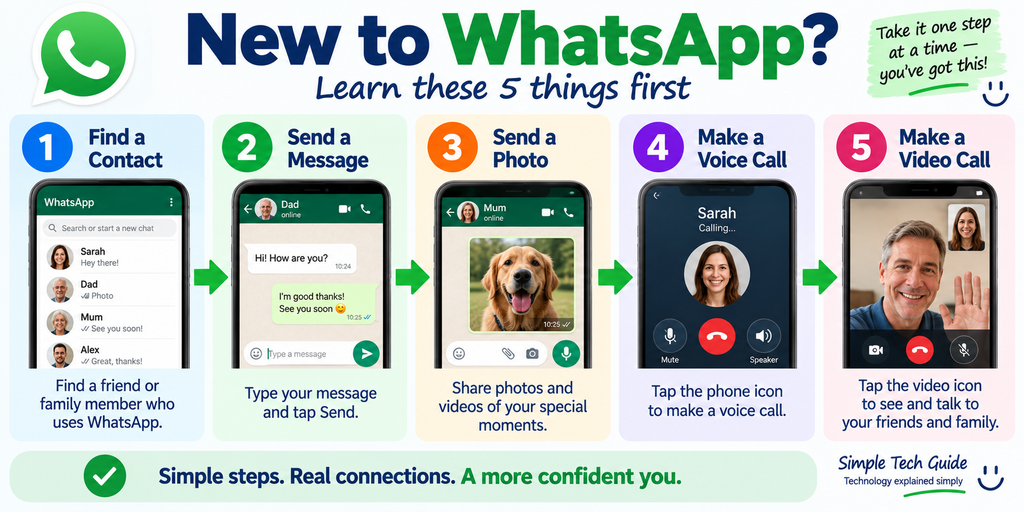
WhatsApp for Beginners: 5 Things to Learn First
If you’re completely new to WhatsApp, these are the five skills I’d concentrate on:
1. Find a Contact
Learn how to find a friend or family member who already uses WhatsApp.
2. Send a Message
Type a short message and tap Send.
This is the most important skill.
3. Send a Photo
Once you’re comfortable messaging, learn how to choose and send a photograph.
4. Make a Voice Call
Learn where the phone symbol is and try calling somebody you know.
5. Make a Video Call
Finally, learn how to make a video call so you can see the person you’re talking to.
We already have a step-by-step guide to help:
→ How to Use WhatsApp Video Call — Simple Guide
Frequently Asked Questions About WhatsApp
Is WhatsApp really free?
Yes. WhatsApp itself doesn’t normally charge you to message or call friends and family. It uses the internet, though, so mobile-data charges could apply if you aren’t connected to Wi-Fi.
Does WhatsApp use my phone number?
Yes. Your phone number is used when registering your WhatsApp account.
Can I WhatsApp someone who doesn’t have WhatsApp?
For a normal WhatsApp conversation, the other person needs to use WhatsApp too.
Can I use WhatsApp without Wi-Fi?
Yes. If your phone has a mobile-data connection, WhatsApp can use that instead of Wi-Fi.
Can I make video calls on WhatsApp?
Yes. WhatsApp supports both voice and video calling.
Can I send photos on WhatsApp?
Yes. Sending photographs and videos is one of WhatsApp’s main features.
Is WhatsApp safe?
Personal WhatsApp messages and calls use end-to-end encryption. You should still be careful about scams, suspicious links and unexpected requests for money.
Do I need a Facebook account to use WhatsApp?
No.
Can I use WhatsApp on a laptop or computer?
Yes. WhatsApp has desktop and web options as well as mobile apps.
Can I use WhatsApp to contact somebody abroad?
Yes. WhatsApp voice and video calls work over the internet, including between users in different countries. Normal internet/mobile-data costs can still apply.
What Should I Learn Next?
Once you understand what WhatsApp is, the next step is learning a few practical skills.
Start here:
→ How to Use WhatsApp Video Call — Simple Guide
What Do the Ticks Mean on WhatsApp?
→ How to Send a Photo on WhatsApp
→ How to Send a Message on WhatsApp
→ How to Make a WhatsApp Voice Call
→ How to Create and Use a WhatsApp Group
→ How to Spot a WhatsApp Scam
Need More Help With Your Phone?
You don’t have to learn everything about your smartphone at once.
At Simple Tech Guide, we explain everyday technology in straightforward language for beginners, without unnecessary technical jargon.

Visit our Smartphone Basics for Beginners section to learn one thing at a time.
Or, if you have a particular problem and aren’t sure which guide you need: