
WhatsApp video calling is a simple way to see and talk to family or friends using your smartphone.
It is popular because it is free to use over Wi-Fi or mobile data, and it works on both iPhone and Android phones.
This guide shows you how to make a WhatsApp video call step by step.
What You Need Before You Start
Before making a WhatsApp video call, make sure you have:
- WhatsApp installed on your phone
- an internet connection using Wi-Fi or mobile data
- the person saved in your contacts
- the person also using WhatsApp
If one of these is missing, the video call may not work properly.
What Is WhatsApp Video Call?
A WhatsApp video call lets you see the other person while you talk to them.
It works a bit like a normal phone call, but it uses the internet and shows live video from both phones.
Many people use it to:
- talk to family
- see grandchildren
- check in with friends
- speak face to face without meeting in person
How to Make a WhatsApp Video Call
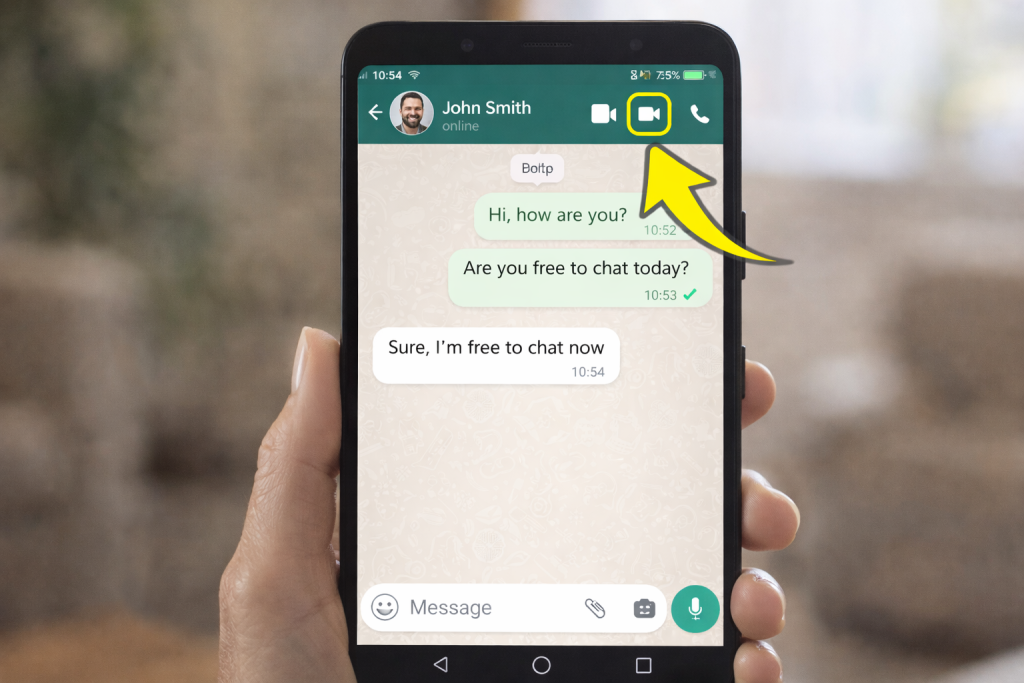
Steps:
- Open WhatsApp
- Tap Chats
- Open the conversation with the person you want to call
- Tap the video camera icon at the top right
- Wait for the other person to answer
Once they answer, you will see them on your screen.
How to Start a Video Call From Contacts
You can also start a call from your WhatsApp contacts.
Steps:
- Open WhatsApp
- Tap Calls or Chats
- Choose the person you want to call
- Tap the video call icon
This does the same thing and can be easier if you already know where the contact is.
How to Answer a WhatsApp Video Call
When someone video calls you on WhatsApp, your phone will ring and show the call on the screen.
To answer:
- tap Accept
- or swipe the answer button, depending on your phone
If you do not want to answer, tap Decline.
How to End a WhatsApp Video Call
To end the call:
- tap the red phone button
This will stop the video call straight away.
How to Turn Camera or Microphone Off During a Call
During a WhatsApp video call, you can change what the other person sees or hears.
You can:
- turn the camera off if you only want to talk
- mute the microphone if you do not want them to hear you for a moment
- switch between the front and back camera
These buttons appear on the screen during the call.
Can You Use WhatsApp Video Call on iPhone and Android?
Yes. WhatsApp video calling works on both:
- iPhone
- Android
The steps are very similar on both types of phones.
How Many People Can Join a WhatsApp Video Call?
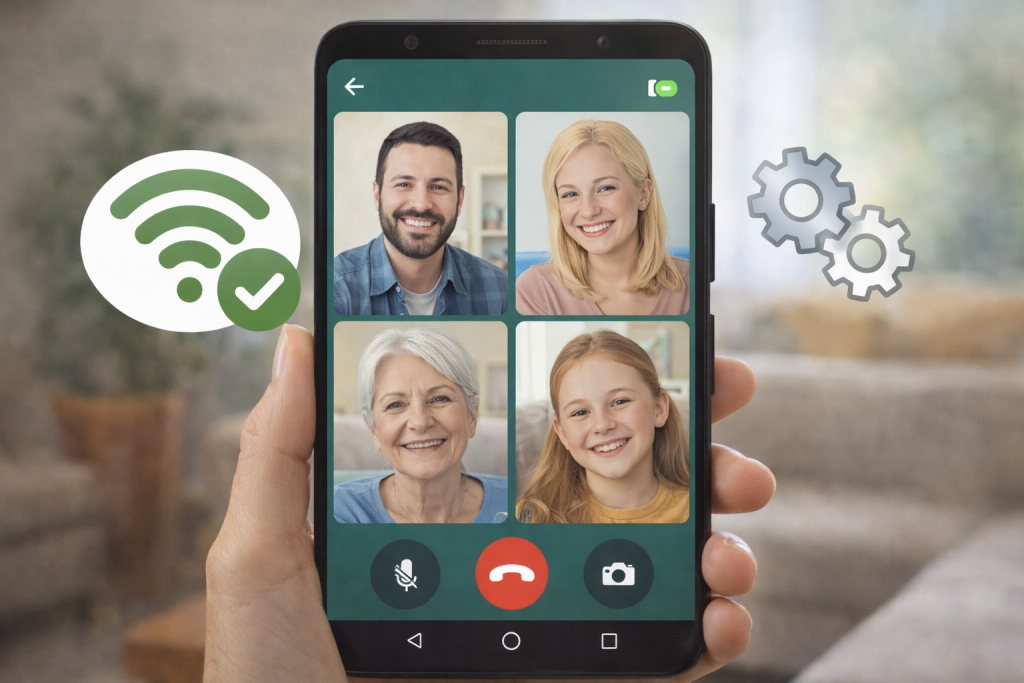
WhatsApp also allows group video calls.
That means you can speak to more than one person at the same time, which is useful for family calls.
To start a group video call:
- Open WhatsApp
- Open a group chat, or start a new call
- Select the people you want
- Tap the video icon
This is helpful for birthdays, family catch-ups, and group chats.
Does WhatsApp Video Calling Cost Money?
WhatsApp does not charge extra for video calls.
But it does use:
- Wi-Fi
- or mobile data
If you are not on Wi-Fi, your phone network may use some of your data allowance.
Using Wi-Fi is usually the best option for longer video calls.
If WhatsApp Video Call Is Not Working
Sometimes the call may not connect or the video may not appear.
Try this:
- make sure your internet is working
- check that WhatsApp is updated
- restart your phone
- make sure the other person has WhatsApp
- check that camera and microphone permissions are allowed
- move somewhere with better signal
- try Wi-Fi instead of mobile data
Tips for Better Video Calls
These simple tips can make WhatsApp calls easier:
- hold the phone steady
- sit somewhere with good light
- speak clearly
- use Wi-Fi if possible
- keep the phone charged
- turn the volume up if needed
Is WhatsApp Video Call Safe?
WhatsApp video calls are generally private because they use encryption.
That means the call is designed so other people cannot easily listen in.
Still, it is best to:
- only answer calls from people you know
- be careful with scam messages
- never share bank details during a call
- keep WhatsApp updated
Common Questions About WhatsApp Video Call
How do I make a video call on WhatsApp?
Open WhatsApp, open the chat with the person, and tap the video camera icon at the top of the screen.
Is WhatsApp video call free?
Yes, WhatsApp does not charge for the call, but it uses Wi-Fi or mobile data.
Can I use WhatsApp video call on an iPhone?
Yes, WhatsApp video calling works on iPhone.
Can I use WhatsApp video call on Android?
Yes, it also works on Android phones.
Why can’t I see the video camera icon on WhatsApp?
The person may not be using WhatsApp properly, your app may need updating, or there may be a connection issue.
Can I video call more than one person on WhatsApp?
Yes, WhatsApp allows group video calls.
Do both people need WhatsApp?
Yes, both people need WhatsApp installed to use WhatsApp video calling.
Helpful next guides
How to Download WhatsApp on a Phone
How to send a message on Whattsapp
How to Use Google Maps on Your Phone
Pingback: What Is WhatsApp and How Does It Work? A Beginner’s Guide -