
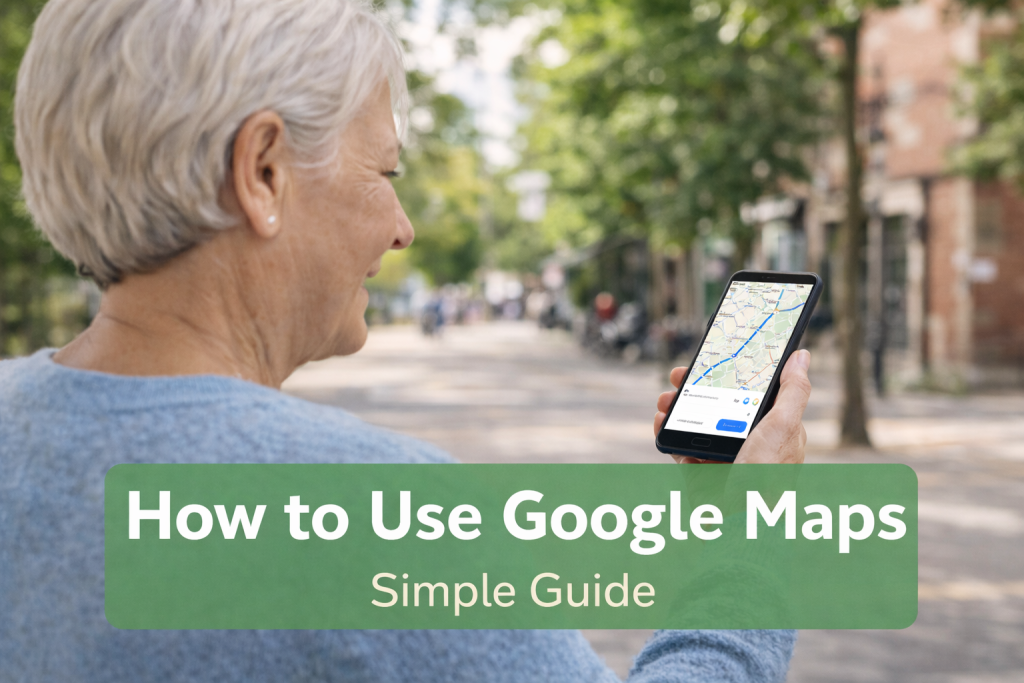
Google Maps is a very useful app for finding places, getting directions, and checking how long a journey will take.
Many people use it for everyday trips, driving, walking, visiting family, or finding places on holiday.
This guide shows you how to use Google Maps on your phone step by step.
What You Need Before You Start
Before using Google Maps, make sure you have:
- a smartphone
- the Google Maps app installed
- internet access using Wi-Fi or mobile data
- location services turned on
Google Maps works on both iPhone and Android phones.
What Can Google Maps Do?
Google Maps can help you:
- find an address
- get directions
- see how long a trip will take
- find shops, cafés, petrol stations, and hotels
- avoid getting lost
- see traffic and road delays
It is one of the easiest apps for getting from one place to another.
How to Open Google Maps
Steps:
- Find the Google Maps app on your phone
- Tap the app to open it
- Allow location access if your phone asks
Once the app opens, you will usually see a map of the area around you.
How to Search for a Place
If you want to find somewhere, use the search bar at the top of the app.
Steps:
- Open Google Maps
- Tap the search bar
- Type the name of the place, address, or postcode
- Tap the correct result
Google Maps will then show the place on the map.
You can search for places like:
- supermarkets
- train stations
- airports
- restaurants
- hotels
- family addresses
How to Get Directions
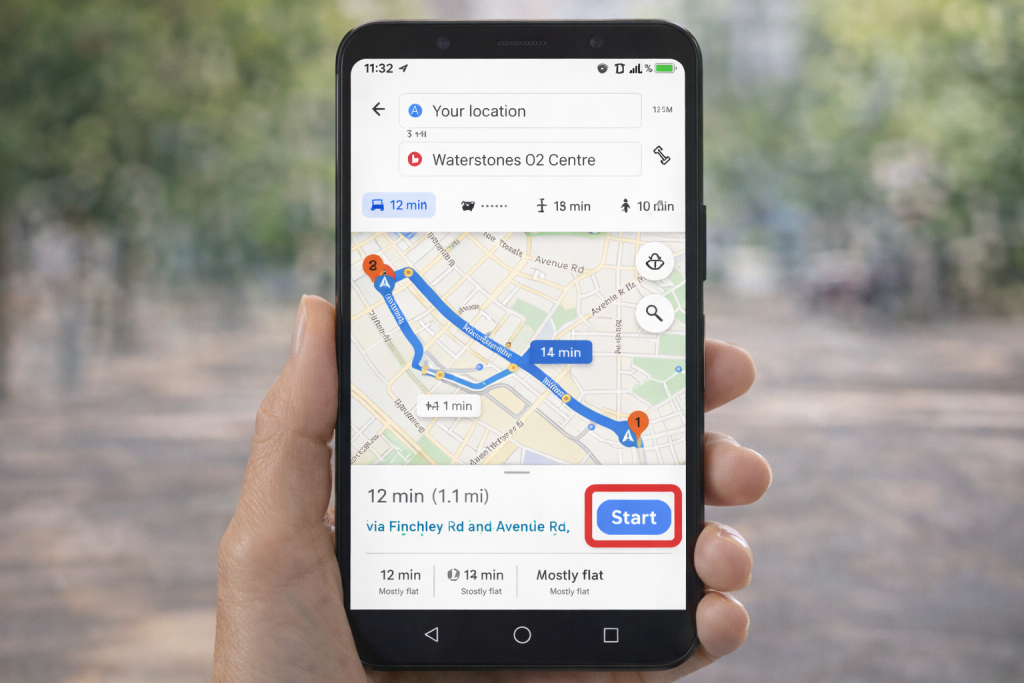
This is one of the most useful parts of Google Maps.
Steps:
- Search for the place you want to go
- Tap Directions
- Choose your starting point
- Choose how you want to travel:
- car
- walking
- public transport
- cycling
- Tap Start
Google Maps will guide you along the route.
How to Use Google Maps for Driving
If you are driving:
- Search for your destination
- Tap Directions
- Tap the car icon
- Tap Start
Google Maps will then speak directions out loud if your sound is on.
This helps you know:
- where to turn
- how far away the next turn is
- how long the journey should take
- whether traffic is causing delays
How to Use Google Maps for Walking
If you are walking somewhere:
- Search for the place
- Tap Directions
- Tap the walking icon
- Tap Start
This is useful for short trips, city visits, and holidays.
How to Use Google Maps for Public Transport
Google Maps can also help with buses and trains.
Steps:
- Search for your destination
- Tap Directions
- Tap the public transport icon
- Look at the route options shown
You may see:
- bus times
- train times
- walking time to the stop or station
- total journey time
How to Use Your Current Location
Google Maps can show where you are now.
To do this:
- tap the small location icon on the screen
This helps if you are unsure where you are or want directions from your current position.
How to Zoom In and Out on the Map
To make the map bigger or smaller:
- place two fingers on the screen
- move them apart to zoom in
- move them together to zoom out
This helps you see streets more clearly.
How to See Nearby Places
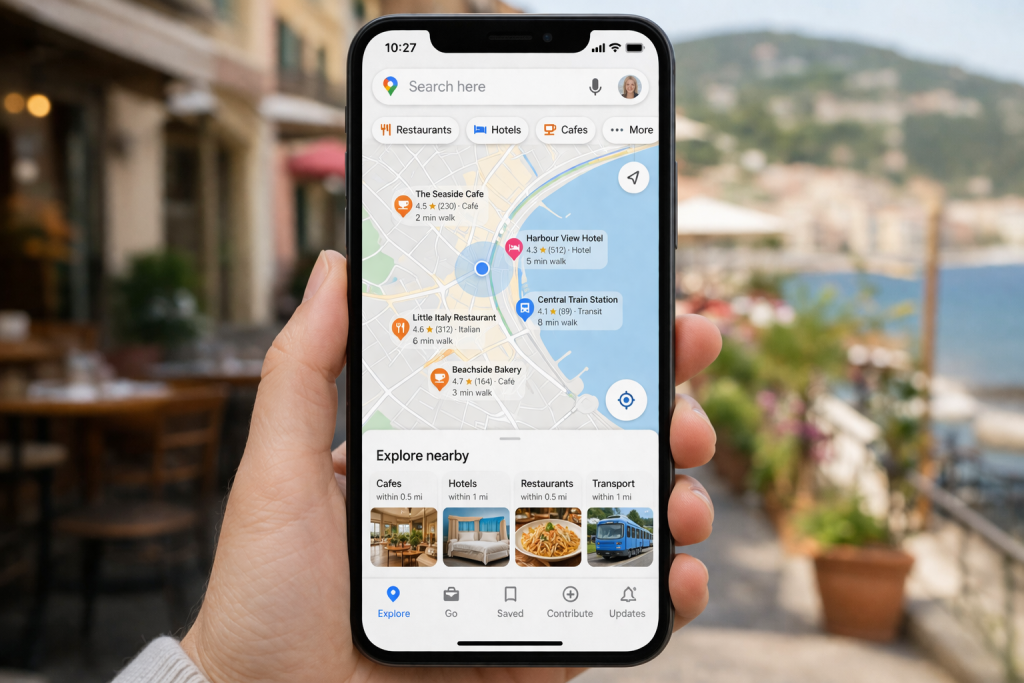
Google Maps can show useful places near you.
You can search for things like:
- café near me
- petrol station near me
- pharmacy near me
- hotel near me
- supermarket near me
This is very helpful when travelling or visiting a new area.
How to Save a Place
If you want to keep a place for later:
- Search for the place
- Tap the result
- Tap Save
This is useful for:
- holiday locations
- favourite places
- family homes
- places you want to visit later
Can You Use Google Maps on Holiday?
Yes, Google Maps is very useful on holiday.
You can use it to:
- find your hotel
- look for restaurants
- walk around a new town
- get directions to tourist places
- find airports and train stations
It is one of the best travel apps for beginners.
If Google Maps Is Not Working
Sometimes Google Maps may not work properly.
Try this:
- make sure your internet is on
- turn location services on
- restart the app
- restart your phone
- update the Google Maps app
- move to an area with better signal
If the blue dot is missing, your phone may not know your location yet.
Tips for Using Google Maps More Easily
These simple tips can help:
- hold your phone upright and steady
- turn the sound up if using spoken directions
- check the route before you leave
- keep your phone charged
- use Wi-Fi when possible
- stop safely before changing anything if driving
Common Questions About Google Maps
How do I use Google Maps on my phone?
Open the Google Maps app, search for a place, tap Directions, and then tap Start.
Is Google Maps free to use?
Yes, the app is free, but it may use mobile data if you are not on Wi-Fi.
Can I use Google Maps on iPhone?
Yes, Google Maps works on iPhone.
Can I use Google Maps on Android?
Yes, it also works on Android phones.
Why is Google Maps not showing my location?
Location services may be turned off, or your signal may be weak.
Can Google Maps help with walking directions?
Yes, you can choose the walking option and follow the route on screen.
Can I use Google Maps abroad?
Yes, but it may use mobile data unless you are on Wi-Fi.
Helpful next guides
- How to Use WhatsApp Video Call
- How to Download an App on a Smartphone
- How to Use Your Phone Abroad
- Best Apps for Holidays
- How to Check In Online for a Flight