
Facebook is a popular website and app that helps people stay in touch with family and friends.
You can use it to see photos, read updates, send messages, join groups, and keep up with what people are doing.
If you have never used Facebook before, it can feel confusing at first. This guide explains the basics step by step.
What Is Facebook?
Facebook is a social media platform.
It lets you:
- connect with family and friends
- share photos and updates
- read local news and community posts
- join hobby or interest groups
- message people privately
Many people use Facebook to keep in touch with children, grandchildren, neighbours, and old friends.
What You Need Before You Start
Before using Facebook, make sure you have:
- an email address or mobile phone number
- a smartphone, tablet, or computer
- internet access
- the Facebook app, or access to the Facebook website
How to Create a Facebook Account
Steps:
- Open the Facebook app or website
- Tap or click Create New Account
- Enter your name
- Add your date of birth
- Enter your email address or phone number
- Create a password
- Follow the steps on screen
- Confirm your email or phone number if Facebook asks
Once this is done, your Facebook account is ready.
How to Log In to Facebook
After you create your account, you can log in any time.
Steps:
- Open Facebook
- Enter your email address or phone number
- Enter your password
- Tap or click Log In
If you are on your own phone or computer, Facebook may keep you signed in.
What Is Your Facebook Profile?
Your profile is your personal Facebook page.
It usually shows:
- your name
- your profile photo
- your cover photo
- your posts
- your friends list
You can add a photo and a little information about yourself if you want, but you do not have to share too much.
How to Add a Profile Picture
A profile picture helps people recognise you.
Steps:
- Go to your profile
- Tap or click your photo area
- Choose Add Photo or Edit Photo
- Pick a photo from your device
- Save the change
Choose a clear photo of yourself if possible.
How to Find Friends on Facebook
You can search for friends or family by name.
Steps:
- Tap or click the search bar
- Type the person’s name
- Look for the correct person
- Tap or click Add Friend
The other person must accept your friend request before you become Facebook friends.
How to Accept a Friend Request
If someone sends you a friend request:
- Open Facebook
- Go to Friend Requests
- Tap Confirm to accept
- Tap Delete if you do not know the person
Only accept requests from people you know.
What Is the Facebook Home Feed?
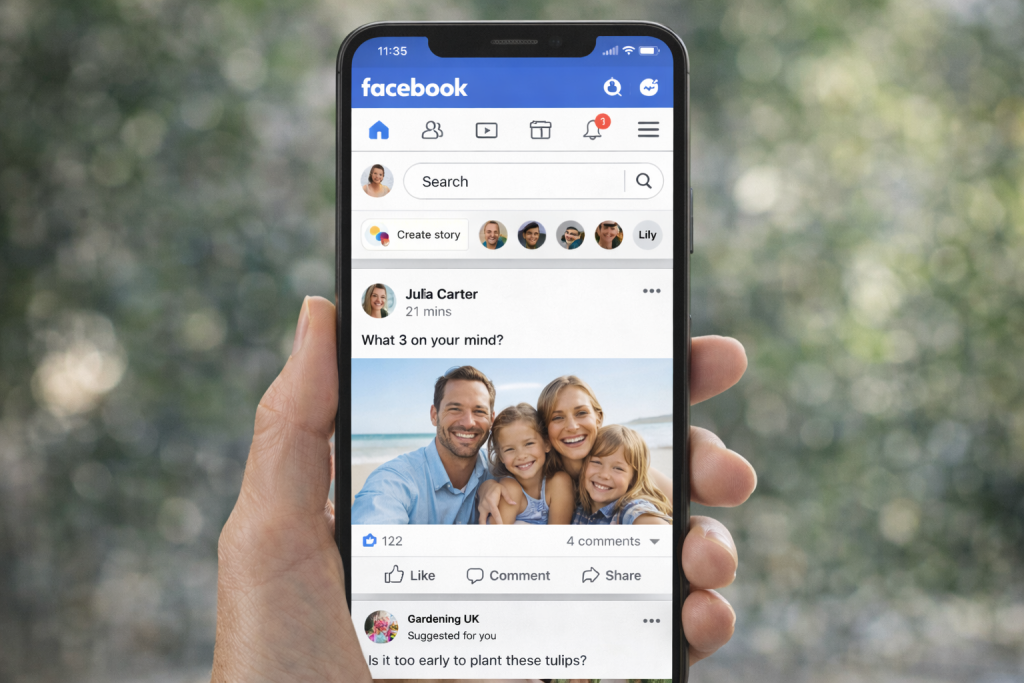
The Home Feed is the main page you see when you open Facebook.
This is where you will see:
- posts from friends
- photos
- videos
- local news
- group posts
- suggested content
You can scroll down to see more.
How to Like a Post
If you enjoy a post, you can tap or click Like.
This is a simple way to show that you enjoyed a photo, update, or message.
How to Comment on a Post
You can reply to a post by writing a comment.
Steps:
- Tap Comment
- Type your message
- Tap Post
Comments are public to the people who can see that post.
How to Share a Post
The Share button lets you send a post to other people or place it on your own page.
Before sharing, make sure it is something you trust and want others to see.
How to Write a Facebook Post
You can use Facebook to share your own update.
Steps:
- Go to the Home page or your profile
- Tap or click What’s on your mind?
- Type your message
- Add a photo if you want
- Tap or click Post
You can post simple things like:
- family news
- a photo
- a birthday message
- a holiday update
How to Add Photos to Facebook
Steps:
- Start a new post
- Tap Photo
- Choose a picture from your phone or computer
- Tap Post
This is one of the most common things people do on Facebook.
How to Use Facebook Messenger
Facebook also has a messaging tool called Messenger.
It lets you send private messages instead of public posts.
You can use Messenger to:
- send messages
- send photos
- make voice calls
- make video calls
How to Join a Facebook Group
Groups are places where people talk about shared interests.
For example:
- local community groups
- gardening groups
- travel groups
- hobby groups
- buy and sell groups
Steps:
- Search for the group name
- Open the group
- Tap or click Join
- Wait to be accepted if needed
How to Stay Safe on Facebook
This part is very important.
Safety tips:
- only accept friend requests from people you know
- do not share your address, bank details, or private information
- be careful with links in posts and messages
- ignore messages asking for money or urgent help
- use a strong password
- log out on shared computers
If something seems strange, do not click it.
What to Do If Facebook Feels Too Busy
Facebook can feel cluttered at first.
That is normal.
Start with just these basics:
- read posts
- like posts
- add family members
- write one simple post
- use Messenger for private messages
You do not need to use every feature.
Can You Use Facebook on a Phone and Computer?
Yes. Facebook works on:
- smartphones
- tablets
- laptops
- desktop computers
The layout may look slightly different, but the main features are the same.
If Facebook Is Not Working Properly
Try this:
- check your internet connection
- close and reopen the app
- update the Facebook app
- restart your phone or computer
- make sure your password is correct
- try logging out and back in
Common Questions About Facebook
What is Facebook used for?
Facebook is used for staying in touch with friends and family, sharing photos, reading updates, and joining groups.
Is Facebook free to use?
Yes, Facebook is free, but it uses internet access or mobile data.
Can I use Facebook on my phone?
Yes, Facebook works on smartphones through the Facebook app.
Can I use Facebook on a computer?
Yes, you can use Facebook on a computer through the Facebook website.
What is the difference between Facebook and Messenger?
Facebook is the main social platform. Messenger is for private messages, calls, and chats.
Should I accept friend requests from strangers?
No. Only accept requests from people you know and trust.
Can I post photos on Facebook?
Yes, you can upload and share photos in a post.