
If you are new to computers, words like files and folders can sound confusing.
In reality, they work very much like paper documents and folders in real life.
This guide explains what files and folders are, how they work, and how to use them safely.
What Is a File?
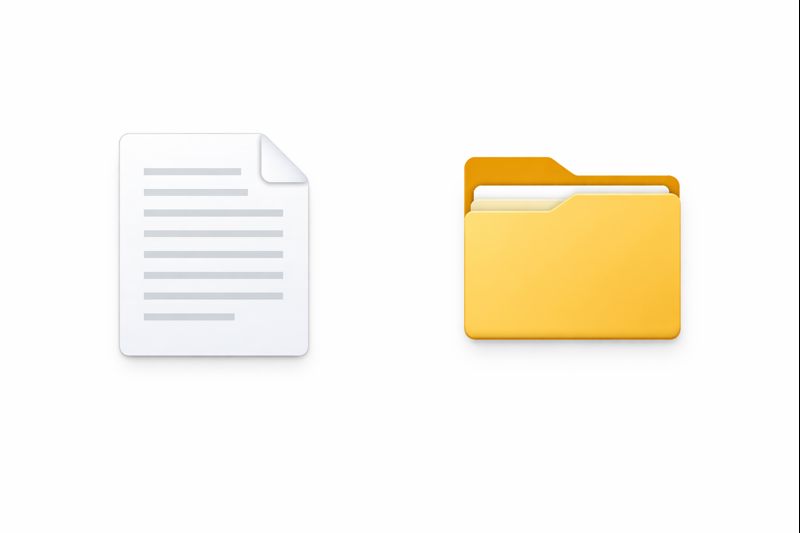
A file is a single item stored on your computer.
Examples of files:
- A letter or document
- A photo
- A video
- A downloaded form
- An email attachment you saved
Each file usually has:
- A name
- A type (for example: document, picture, video)
Think of a file as one piece of paper.
What Is a Folder?
A folder is used to store files together.
Folders help keep things organised.
Examples:
- A folder for letters
- A folder for photos
- A folder for important documents
Think of a folder as a real folder or drawer that holds papers.
Folders can also contain other folders inside them.
Why Files and Folders Matter
Without folders, everything would be messy and hard to find.
Using folders helps you:
- Find things quickly
- Keep related items together
- Avoid deleting the wrong thing
- Stay organised
Opening Files and Folders
To open a file or folder:
- Move the mouse pointer over it
- Double-click it
- A folder opens to show what’s inside
- A file opens in a program (for example, a document opens in a writing app)
Where Files Are Usually Stored
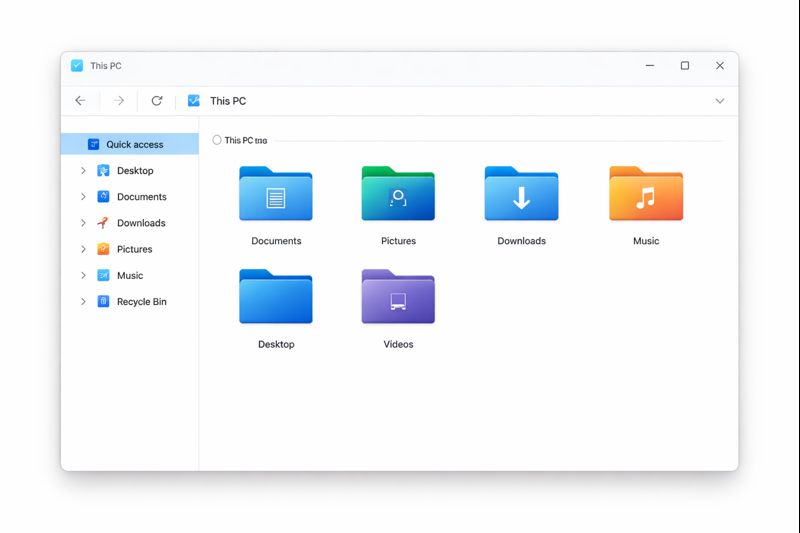
Most computers have common folders such as:
- Documents – letters and written files
- Pictures – photos and images
- Downloads – files you download from the internet
- Desktop – items saved directly on the screen
These folders are safe places to keep your files.
Saving a File
When you create or download something, the computer asks where to save it.
A simple approach:
- Choose Documents for written files
- Choose Pictures for photos
- Use Downloads temporarily, then move files later
You can always move files later if needed.
Moving Files Into Folders
To move a file:
- Click once on the file
- Hold the mouse button down
- Drag it into a folder
- Release the mouse button
This is like putting a piece of paper into a folder.
Renaming Files and Folders
You can rename files to make them easier to recognise.
To rename:
- Right-click the file or folder
- Choose Rename
- Type a new name
- Press Enter
Use clear names like:
- “Bank Letter January”
- “Holiday Photos”
- “Important Documents”
Deleting Files (Be Careful)
If you delete a file:
- It usually goes to the Recycle Bin
- You can restore it if deleted by mistake
Avoid deleting files unless you are sure.
If unsure — leave it.
A Simple Tip for Beginners
Create a few clear folders, such as:
- Letters
- Photos
- Bills
- Personal
You do not need many folders to start.
Simple is best.
Take Your Time
Understanding files and folders takes practice.
Nothing breaks if you open the wrong thing.
If something feels confusing:
- Pause
- Close the window
- Come back later
What to Learn Next
When you are ready, the next guide is:
How to Use the Internet on a Computer
This explains browsing safely, clicking links, and avoiding common mistakes.
You’re Making Progress
Learning computers is not about speed.
It’s about confidence.
You are doing this step by step — exactly the right way.
When you’re ready, say “next” and we’ll move on to How to Use the Internet on a Computer.
Amazing