
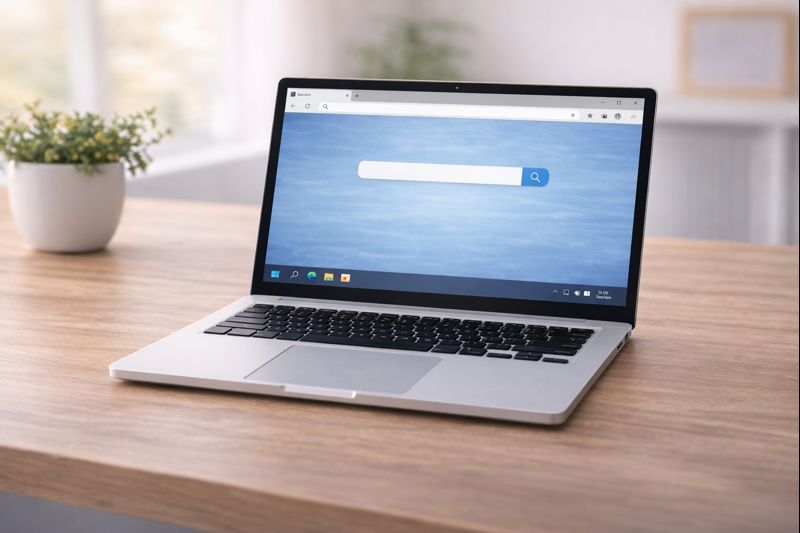
Using the internet on a computer allows you to read information, visit websites, watch videos, and stay in touch with people. If you are new to computers, the internet can feel confusing at first — but the basics are simple once you understand them.
This guide explains how to use the internet on a computer step by step, using clear language and no technical jargon.
What Is the Internet?
The internet is a worldwide network that lets computers share information.
You can use the internet to:
- Read news and articles
- Search for information
- Watch videos
- Check email
- Visit websites for banks, shops, or services
You access the internet through a program called a web browser.
“If you need to find a file before uploading it, see our guide on how to find a file on your computer.”
What Is a Web Browser?
A web browser is a program that lets you view websites.
Common browsers include:
- Google Chrome
- Microsoft Edge
- Firefox
- Safari (on some computers)
You only need one browser. Any of them will work.
How to Open the Internet
- Look for a browser icon on the desktop or taskbar
- Double-click the icon
- The browser will open and show a page
You are now ready to use the internet.
What Is a Website?
A website is a collection of pages you can read online.
Examples of websites include:
- News websites
- Government websites
- Shopping websites
- Help and information sites
Each website has an address, also called a web address.
Using the Address Bar
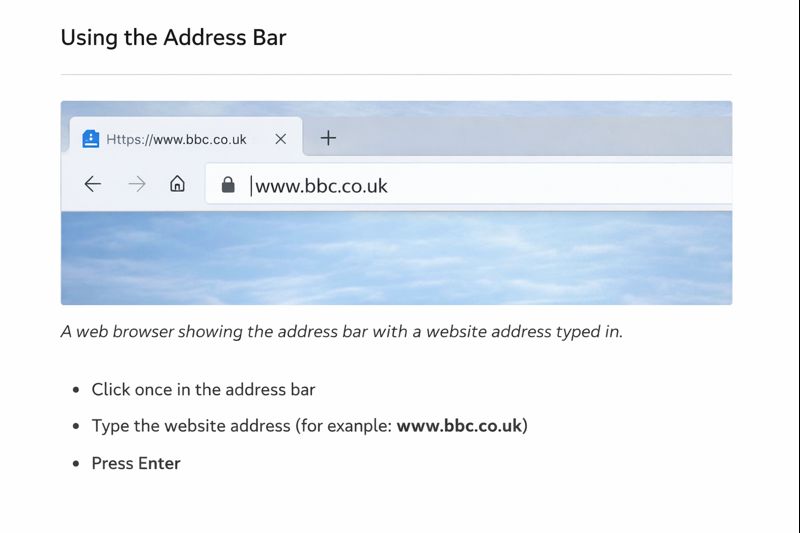
At the top of the browser, you will see a long box.
This is the address bar.
To visit a website:
- Click once in the address bar
- Type the website address (for example:
www.bbc.co.uk) - Press Enter
The website will load on the screen.
Searching for Information
You do not need to know website addresses to use the internet.
To search:
- Click in the address bar
- Type what you are looking for
(for example: weather tomorrow or how to send an email) - Press Enter
A list of results will appear. You can click one to read more.
Clicking Links Safely
On websites, you will see links:
- Words or pictures you can click
- Often underlined or a different colour
To open a link:
- Click it once
If a page opens that you don’t want:
- Click the Back button at the top of the browser
Opening and Closing Tabs
Browsers use tabs, which are like pages inside the browser.
- Each tab shows a different website
- Tabs appear along the top of the browser
To open a new tab:
- Click the + symbol
To close a tab:
- Click the X on the tab
This does not harm the computer.
Going Back to a Page
If you click something by mistake:
- Click the Back arrow at the top of the browser
You can always return to where you were before.
Simple Internet Safety Tips
For beginners:
- Use well-known websites when possible
- Be careful with pop-ups asking for information
- Do not enter personal details unless you trust the site
- Close any page that feels confusing or suspicious
If unsure — close the browser and try again later.
Take Your Time
You do not need to explore everything at once.
Using the internet becomes easier the more you practice.
There is no “right speed”.
What to Learn Next
When you feel comfortable using the internet, the next helpful guide is:
Basic Computer SettinBasic Computer Settings Explained (Beginner Friendly)gs Explained
This helps you understand simple changes without worrying about breaking anything.
You’re doing very well.
Learning technology step by step is exactly how confidence grows.