
If you are using a computer for the first time, it’s completely normal to feel unsure or overwhelmed. Computers can look complicated, but you do not need technical knowledge to get started.
This guide explains everything slowly and clearly, using plain language. You can take your time, read at your own pace, and come back whenever you need to.
What Is a Computer?
A computer is a machine that lets you:
- Write documents and emails
- Browse the internet
- Watch videos and view photos
- Store information like letters, photos, and files
Most computers work in very similar ways, even if they look different.
Turning a Computer On

- Look for the power button
- It often has a circle with a line through it
- It may be on the front, side, or top
- Press the button once
- Do not hold it down
- The screen should light up after a few seconds
- Wait while the computer starts
- This can take a minute
- You may see a logo or loading screen
Logging In (If Asked)
Some computers ask for:
- A password
- A PIN number
If you don’t have one, the computer may open automatically.
Take your time — there is no rush.
Understanding the Screen (Desktop)
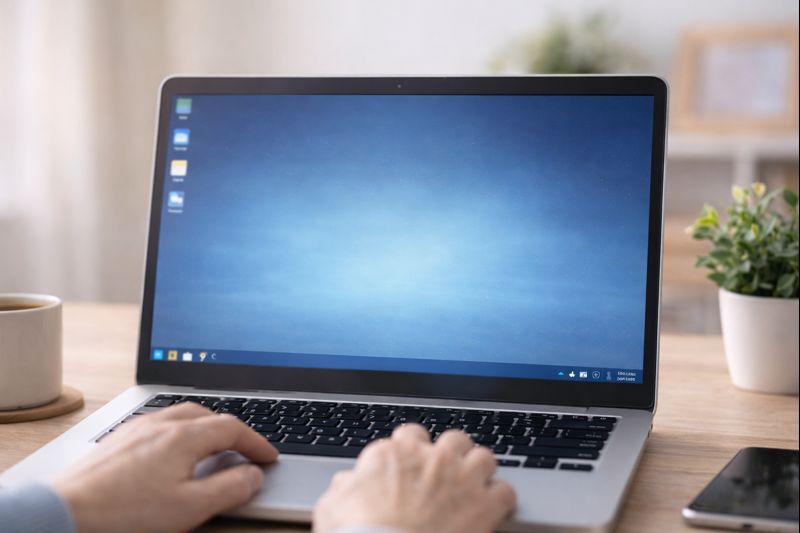
When the computer finishes starting, you will see the desktop.
The desktop usually includes:
- Icons (small pictures you can click)
- A taskbar (a bar along the bottom of the screen)
- A background image or plain colour
Think of the desktop like a real desk — it’s where things are placed so you can use them.
Using a Mouse or Touchpad
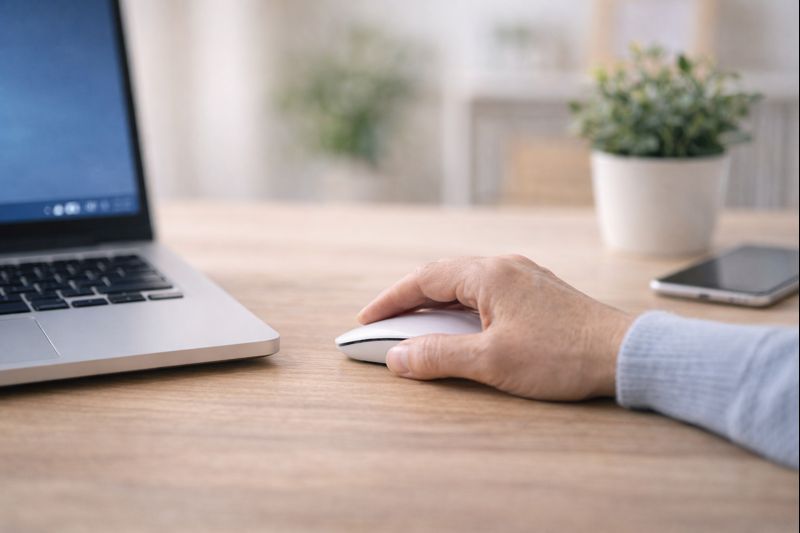
Most computers use either:
- A mouse (a small handheld device)
- A touchpad (a flat area below the keyboard)
Basic actions:
- Move the pointer: move the mouse or your finger
- Click: press the left button once
- Double-click: press the left button twice quickly
- Right-click: press the right button once
You can practice — nothing will break.
Opening a Program
To open something:
- Move the pointer over an icon
- Double-click it
Examples:
- Internet browser
- Documents or photos
- Settings
If something opens by mistake, you can close it.
Closing a Program
Most programs have:
- An X in the top corner
Click the X once to close it.
Using the Keyboard
The keyboard lets you type letters, numbers, and symbols.
Important keys:
- Enter: starts a new line or confirms something
- Backspace: deletes the letter before the cursor
- Space bar: adds a space between words
You don’t need to memorise everything — you’ll learn naturally.
Shutting Down the Computer Properly
Always shut down properly to avoid problems.
- Click the Start button (usually bottom-left)
- Look for Power
- Choose Shut down
Wait until the screen turns off completely before closing the laptop or turning off power.
Take Your Time
You do not need to learn everything at once.
Using a computer is a skill that improves with practice.
Mistakes are normal and safe.
You can return to this guide as often as you like.
What to Learn Next
Once you feel comfortable, these guides will help you build confidence:
- What Is a Mouse and Keyboard? (And How to Use Them)
- What Is the Desktop, Taskbar, and Start Menu?
- How to Open, Close, and Switch Between Programs
- How to Shut Down and Restart a Computer Properly
You Are Doing Well
If computers have felt confusing before, that’s okay.
You’re learning now — step by step.
You don’t need to be “good with technology”.
You just need clear instructions.