
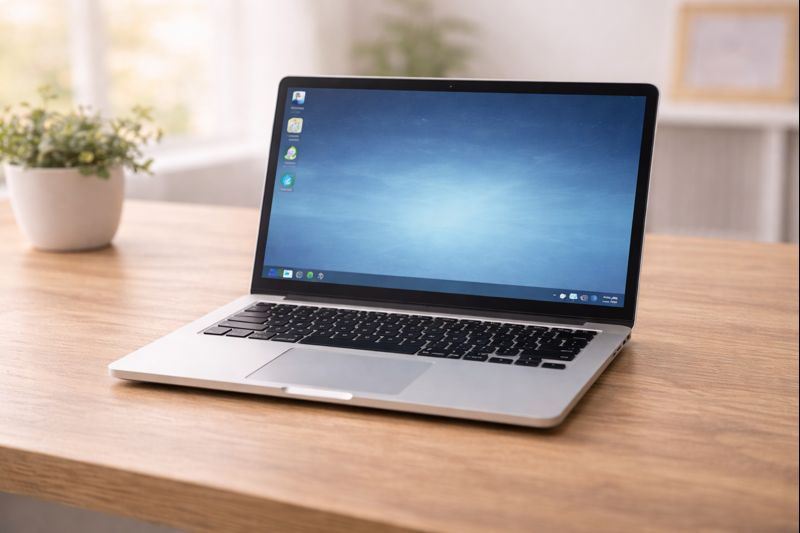
When you turn on a computer, the first screen you usually see can feel confusing. There may be icons, a bar along the bottom, and menus that appear when you click.
This guide explains what the desktop, taskbar, and Start menu are, and how to use them, using clear and simple language.
You do not need any previous experience.
What Is the Desktop?
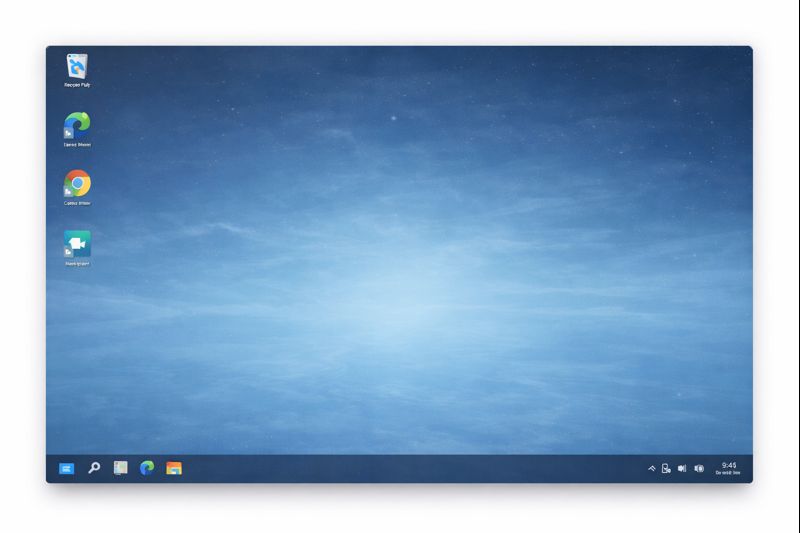
The desktop is the main screen you see when the computer is ready to use.
Think of it as a desk or table where things are placed so you can find them easily.
On the desktop, you may see:
- Small pictures called icons
- A background image
- A bar at the bottom of the screen (the taskbar)
The desktop is a safe place to start.
What Are Icons?
Icons are small pictures that represent:
- Programs (such as internet or email)
- Files (such as documents or photos)
- Shortcuts to things you use often
To open an icon:
- Move the pointer over it
- Double-click it
If nothing happens, try clicking a little slower.
What Is the Taskbar?
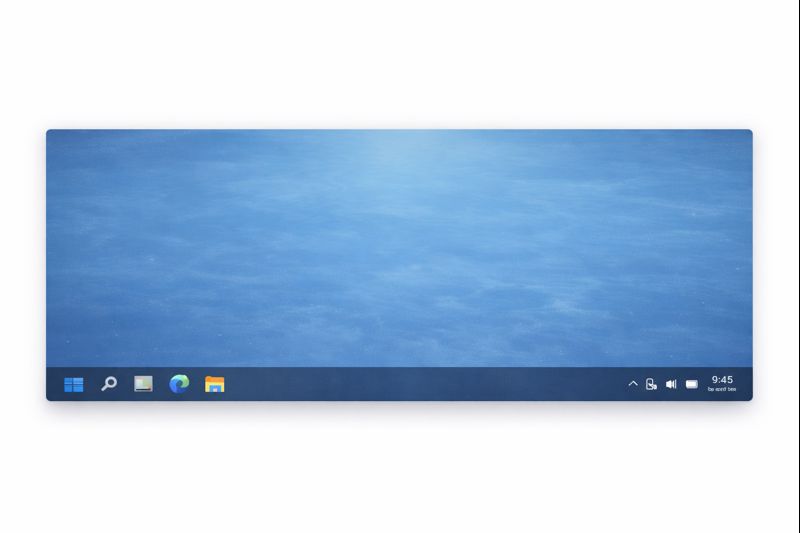
The taskbar is the long bar usually found at the bottom of the screen.
It helps you see what is open and lets you switch between things easily.
The taskbar often shows:
- The Start button
- Icons for open programs
- The time and date
- Small system icons (sound, internet, battery)
Using the Taskbar
You can use the taskbar to:
- See which programs are open
- Switch between open programs
- Open programs you use often
To switch programs:
- Look for the program icon on the taskbar
- Click it once
The program will come to the front of the screen.
What Is the Start Menu?
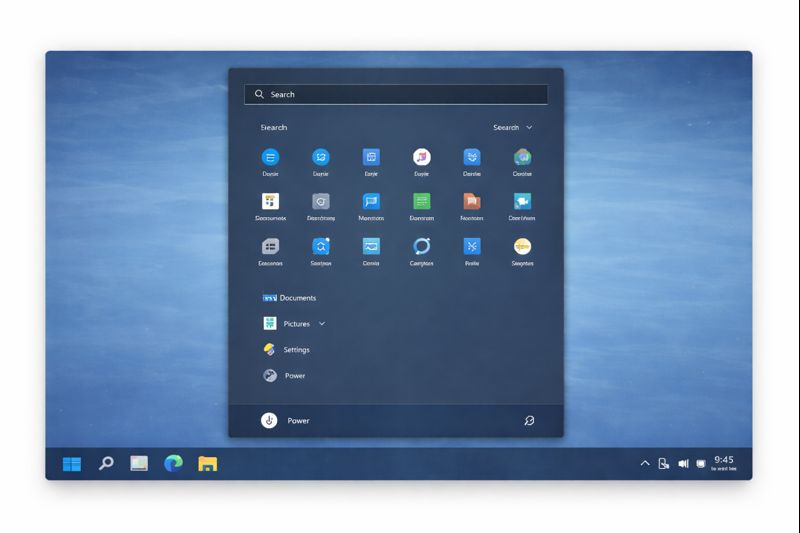
The Start menu is where many important computer functions are kept.
To open it:
- Click the Start button (usually bottom-left)
When the Start menu opens, you may see:
- A list of programs
- A search box
- Power options (shut down, restart)
Using the Start Menu Simply
You can use the Start menu to:
- Open programs
- Find settings
- Shut down the computer safely
You do not need to explore everything at once.
Closing the Start Menu
To close the Start menu:
- Click anywhere outside it
or - Press the Start button again
Nothing bad will happen if you open it by mistake.
Common Beginner Questions
“Can I delete something by accident?”
Not just by clicking. Deleting usually requires confirmation.
“Why does my screen look different from someone else’s?”
Computers can look different depending on brand and settings. This is normal.
“What if I get lost?”
You can always:
- Close a window
- Return to the desktop
- Restart the computer if needed
Take Your Time
You do not need to remember everything straight away.
Understanding the desktop, taskbar, and Start menu comes naturally with use. The more you practice, the more familiar it becomes.
What to Learn Next
When you are ready, the next helpful guides are:
You can always return to the Computer Basics page to choose what to learn next.
Simple Tech Guide helps you understand everyday technology clearly, one step at a time.