
Taking a screenshot lets you capture what is on your phone screen.
You can save messages, photos, websites, or anything you see on your screen.
This guide shows the simple steps for Android and iPhone.
What Is a Screenshot?
A screenshot is a picture of your phone screen.
People often take screenshots to save:
• messages
• website pages
• photos
• instructions
• app screens
The screenshot is saved as an image in your phone.
Method 1 — Android Phones
Most Android phones use the same buttons.
Step 1 — Open the Screen
Open the screen you want to capture.
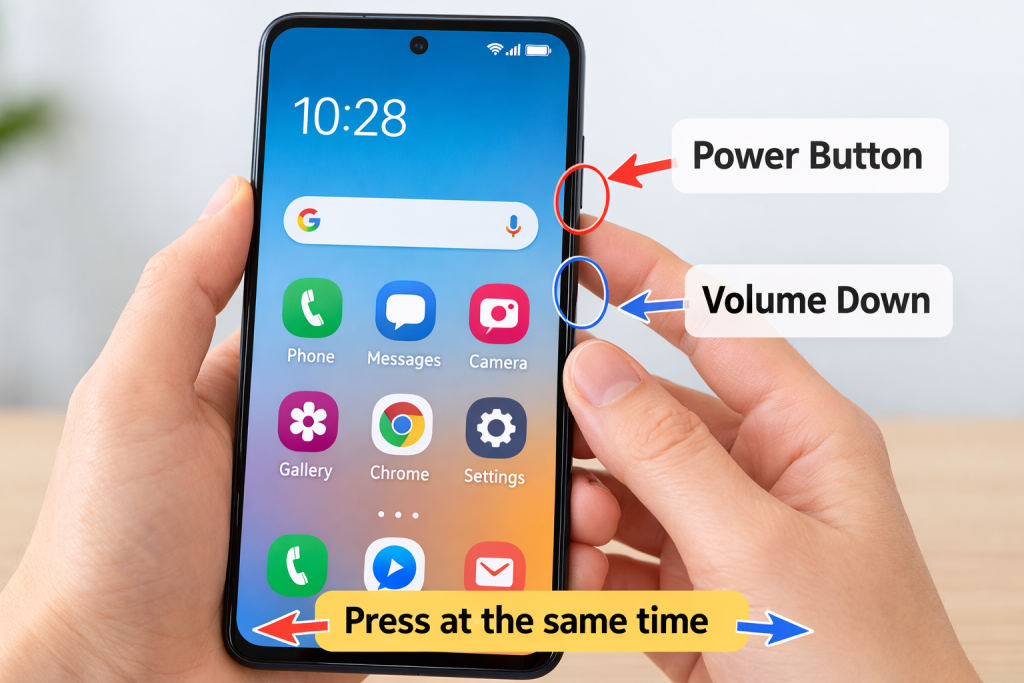
Step 2 — Press Two Buttons Together
Press at the same time:
Power button + Volume Down
Hold them for about 1 second.
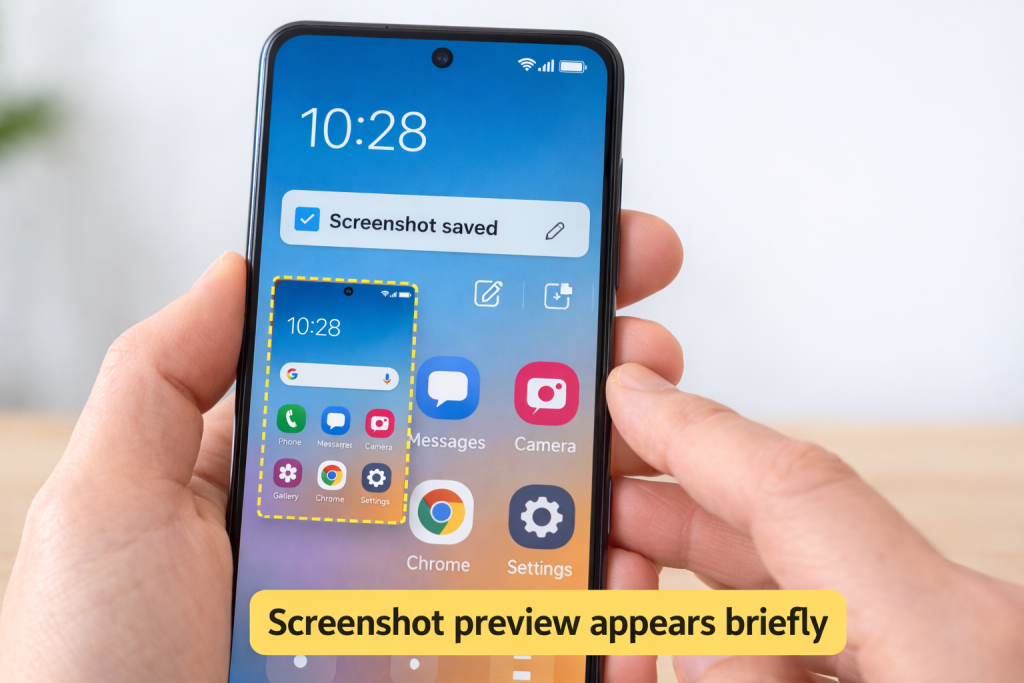
Step 3 — Screenshot Is Taken
You will see:
• a quick screen flash
• a preview of the screenshot
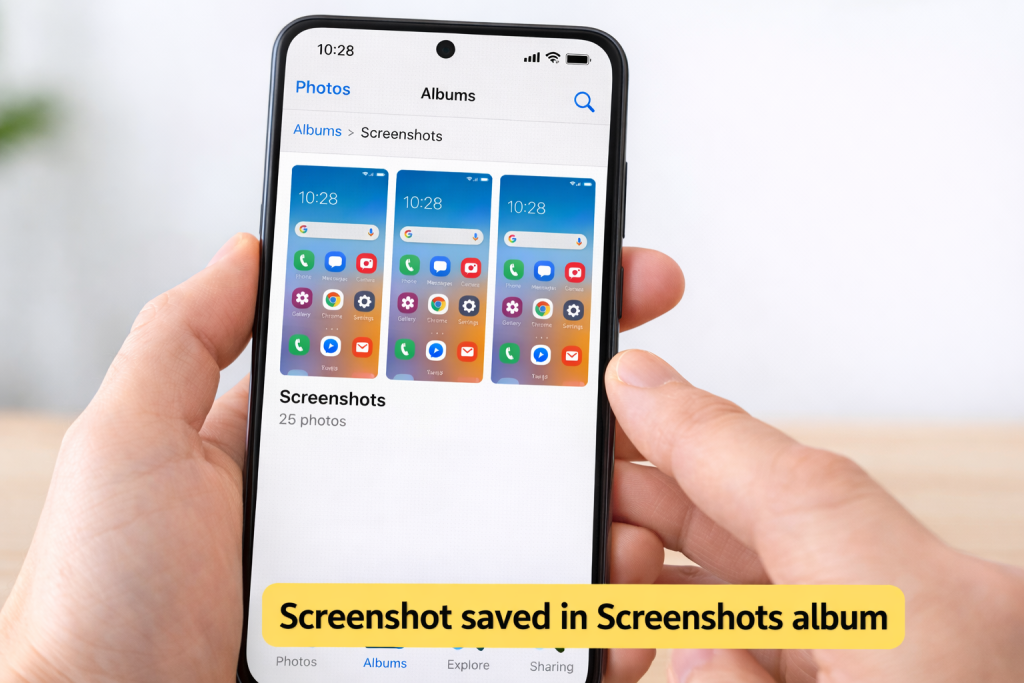
Step 4 — Screenshot Is Saved
Your screenshot will be saved in:
• Photos
• Gallery
• Screenshots folder
Method 2 — iPhone
For most iPhones:
Press at the same time:
Side button + Volume Up
The screenshot will appear in the corner of the screen.
Where Screenshots Are Stored
Screenshots are saved in your Photos app.
Look for an album called:
Screenshots
Good to Know
• Screenshots do not change the original screen
• You can delete them anytime
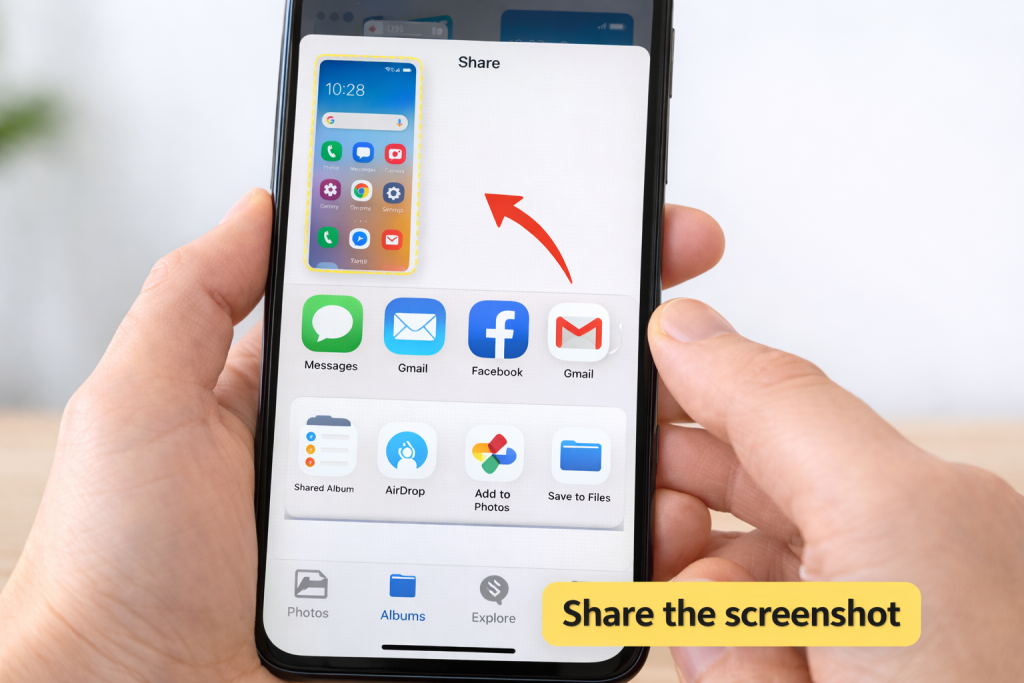
• Screenshots can be shared by email or message
Helpful Next Guides
Add these links:
How to Send Photos From Your Phone by Email