
If you have a Samsung phone, you may notice three buttons at the bottom of the screen.
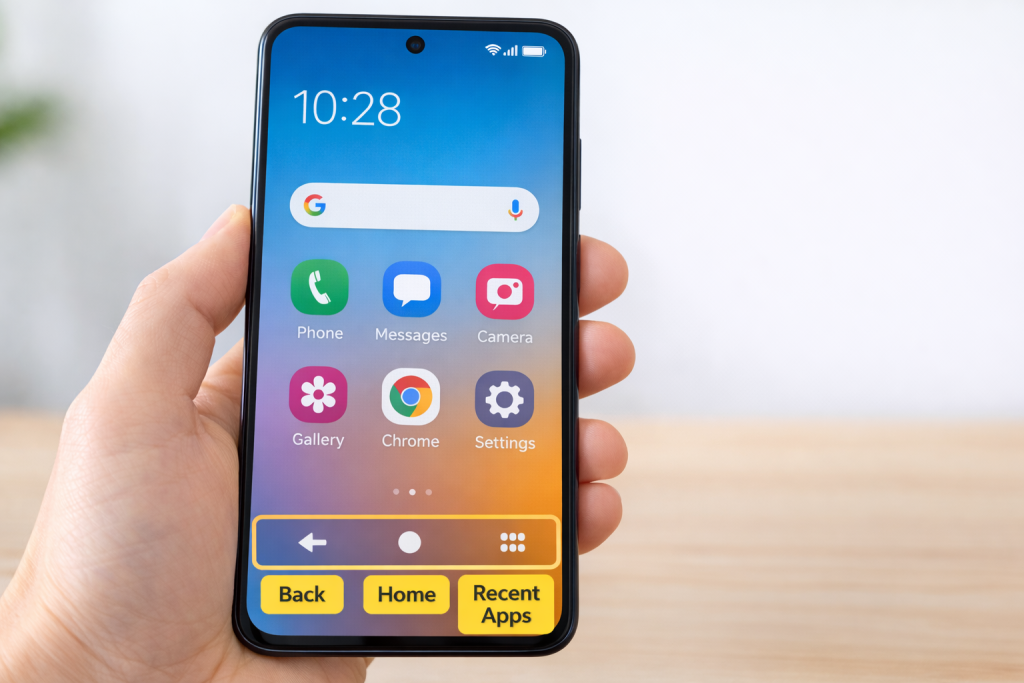
These are called navigation buttons.
They help you move around your phone and switch between apps.
The three buttons are:
• Back
• Home
• Recent Apps
Once you understand them, using your phone becomes much easier.
The Three Samsung Navigation Buttons
At the bottom of your screen you will see three symbols.
Each button does something different.
The Back Button
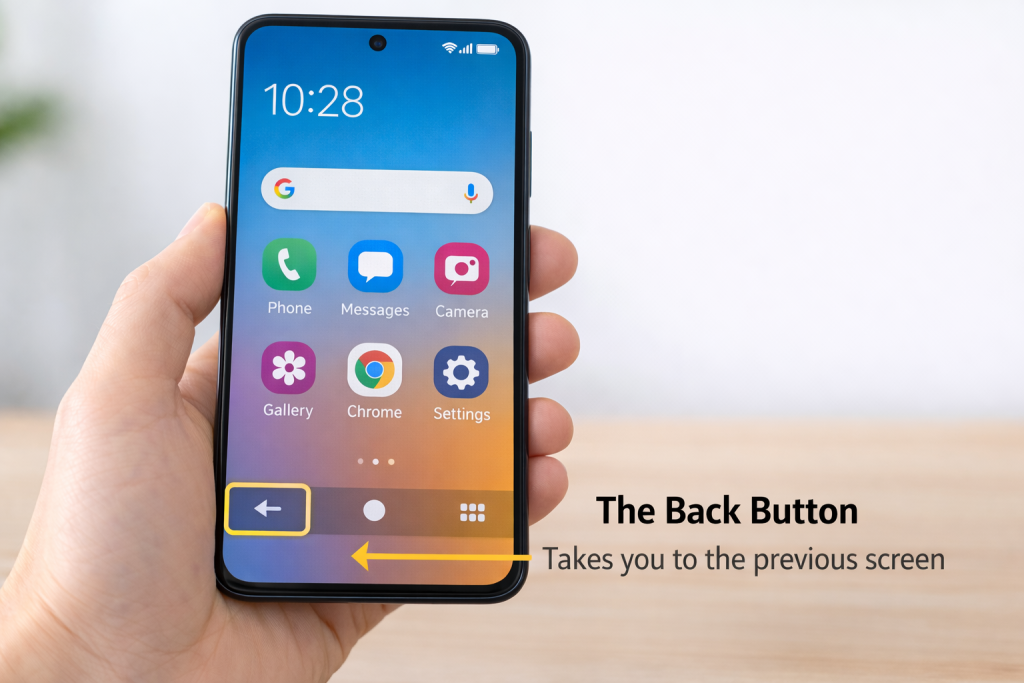
The Back button takes you to the previous screen.
For example:
• If you open a message
• If you open a website
• If you open settings
Pressing Back will return you to where you were before.
This button usually looks like:
⬅️ an arrow
The Home Button
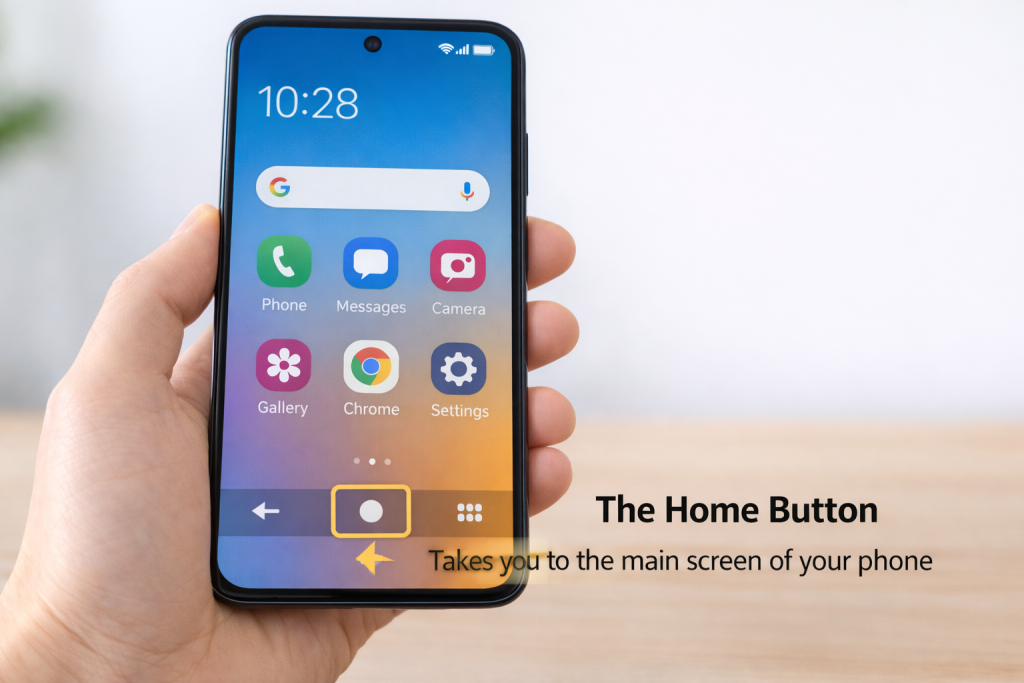
The Home button returns you to the main screen of your phone.
This is called the Home Screen.
You can press Home anytime if you want to start again.
The Home button usually looks like:
⬤ a circle
The Recent Apps Button
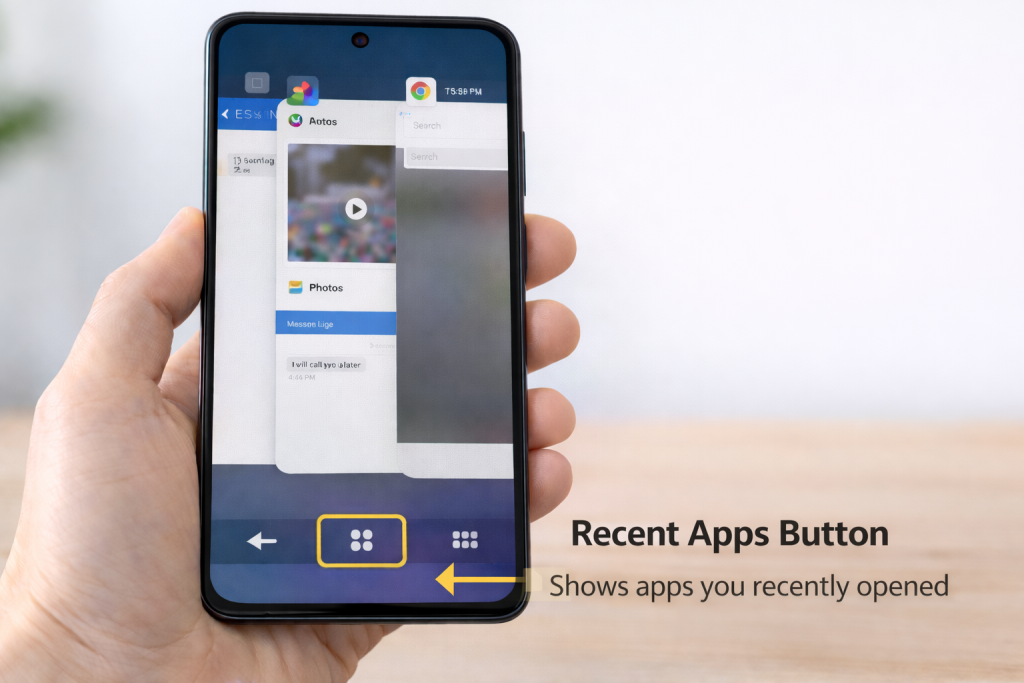
The Recent Apps button shows apps you recently opened.
This makes it easy to switch between apps without closing them.
For example you can quickly switch between:
• Messages
• Internet
• Photos
• Email
The button usually looks like:
☰ three lines or a square
Why These Buttons Are Helpful
These buttons help you:
• move around your phone
• switch between apps
• return to your main screen
• avoid getting lost in menus
After a little practice, using them becomes very natural.
Good to Know
Some newer phones use gesture navigation instead of buttons.
But many Samsung phones still use the three navigation buttons, especially in beginner mode.
Helpful Next Guides
How to Take a Screenshot on a Phone
How to Send Photos From Your Phone by Email
How to Use Email on a Smartphone