
Worried about what your child can access online?
Giving a child their first smartphone can be exciting, but it also brings concerns about screen time, online safety, inappropriate content and app downloads.
The good news is that both Apple and Android devices include free parental controls that are easy to set up and can help keep children safer online.
In this guide, we’ll explain exactly how to set up parental controls on both iPhone and Android devices using simple step-by-step instructions.
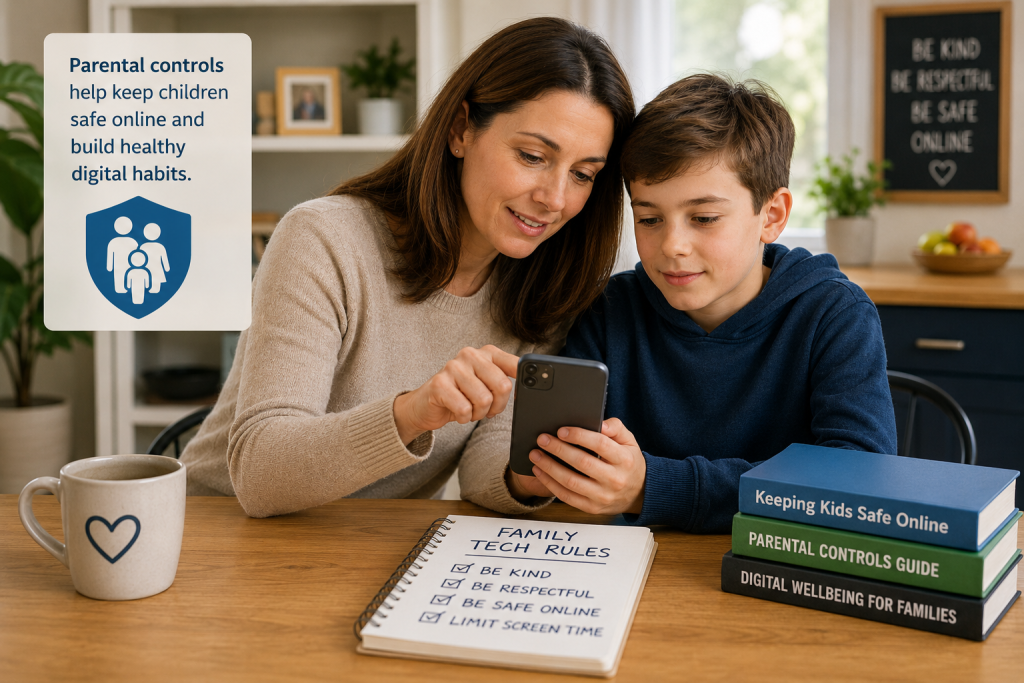
Caption: Parental controls can help parents manage screen time, app downloads and online safety.
What Are Parental Controls?
Parental controls are built-in settings that help parents manage what children can do on their devices.
They can help you:
✅ Limit screen time
✅ Block inappropriate websites
✅ Restrict app downloads
✅ Prevent accidental purchases
✅ Set age ratings for apps and content
✅ Monitor device usage
✅ Manage location sharing
Think of parental controls as digital safety settings that help children use technology responsibly.
Why Should Parents Use Parental Controls?
The internet offers many benefits for children, including learning, communication and entertainment.
However, without restrictions, children may encounter:
- Inappropriate content
- Online scams
- Excessive screen time
- In-app purchases
- Social media risks
- Contact from strangers
Parental controls help reduce these risks while allowing children to enjoy technology safely.
How to Set Up Parental Controls on an iPhone
Apple provides parental controls through a feature called Screen Time.
Screen Time is built into every modern iPhone and iPad.
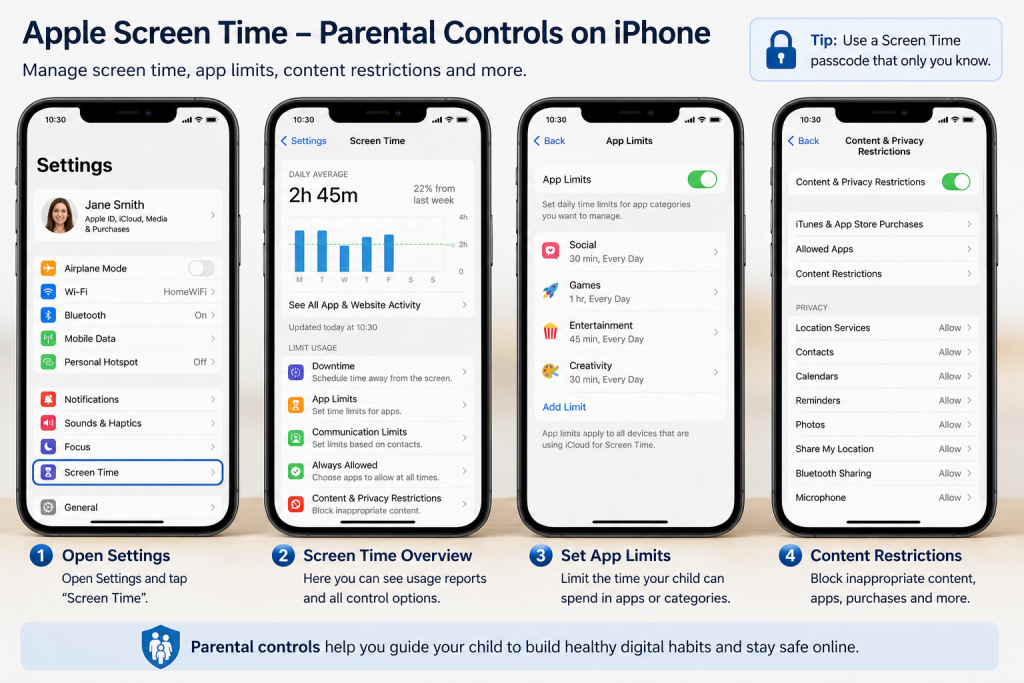
Step 1: Open Screen Time
On your child’s iPhone:
- Open Settings
- Tap Screen Time
- Select Turn On Screen Time
- Tap Continue
Apple will explain what Screen Time does.
Step 2: Select Child Device
Choose:
This Is My Child’s iPhone
This unlocks additional parental control options.
Step 3: Create a Screen Time Passcode
Create a passcode that only you know.
This prevents your child from changing restrictions without permission.
Tip: Use a different passcode from the phone’s unlock code.
Step 4: Set Downtime
Downtime allows you to choose when the phone can be used.
Example:
- Allowed: 8:00 AM – 8:00 PM
- Restricted: 8:00 PM – 8:00 AM
This can be useful for bedtime, homework and family time.
Step 5: Set App Limits
Go to:
Settings > Screen Time > App Limits
You can limit categories such as:
- Games
- Social Media
- Entertainment
- Video Streaming
Example:
- Games: 1 hour per day
- Social Media: 30 minutes per day
Step 6: Restrict App Downloads
Go to:
Settings > Screen Time > Content & Privacy Restrictions
Turn on:
Content & Privacy Restrictions
Then select:
iTunes & App Store Purchases
You can:
- Block app downloads
- Prevent app deletions
- Restrict purchases
Step 7: Block Inappropriate Content
Within:
Content Restrictions
You can limit:
- Websites
- Movies
- TV shows
- Music
- Books
- Apps
Apple provides age-based restrictions to help protect younger users.
Family Sharing for Parents
Apple Family Sharing provides even more control.
Benefits include:
✅ App approval requests
✅ Screen time monitoring
✅ Family location sharing
✅ Subscription sharing
✅ Management of multiple child devices
To set it up:
- Open Settings
- Tap your Apple ID
- Select Family Sharing
- Follow the setup instructions
For most families, this is the best solution.
How to Set Up Parental Controls on Android
Most Android devices use Google Family Link.
Family Link is free and works on Android phones and tablets.
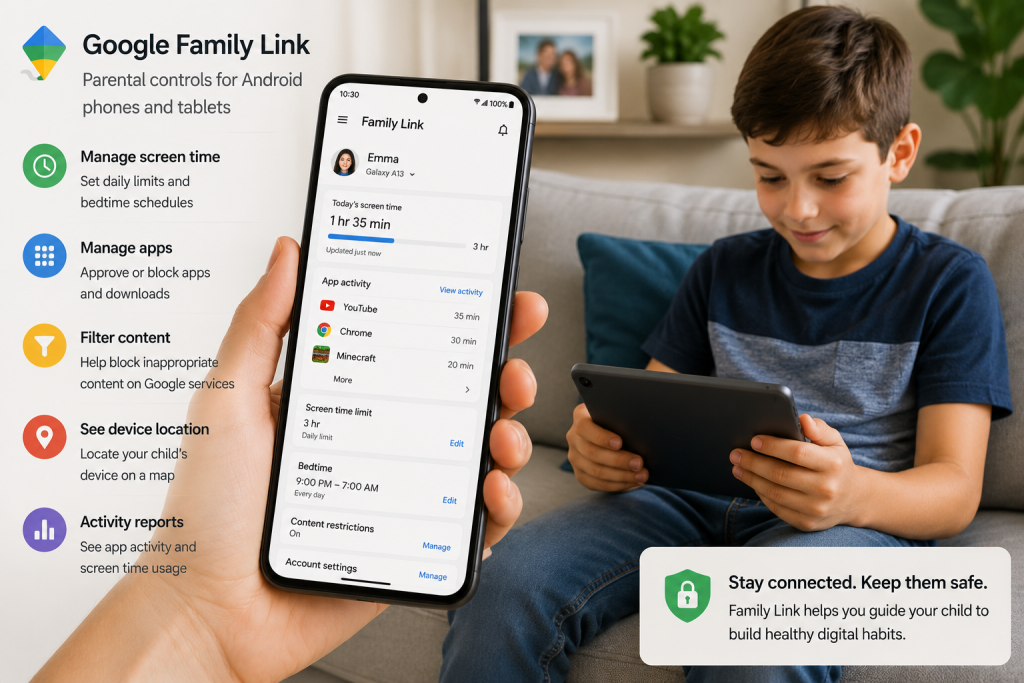
Step 1: Download Google Family Link
Install:
Google Family Link
On:
- Your phone
- Your child’s device
Follow Google’s setup instructions.
Step 2: Create or Connect a Child Account
Family Link works using your child’s Google account.
You can:
- Create a new account
- Connect an existing account
Step 3: Link Parent and Child Devices
Follow the guided setup process.
Once connected, you can manage your child’s device remotely.
Step 4: Set Screen Time Limits
Using Family Link you can:
- Set daily screen limits
- Schedule bedtime
- Lock the device remotely
Example:
- 2 hours daily usage
- Device automatically locks at 8 PM
Step 5: Manage Apps
Family Link allows parents to:
- Approve downloads
- Block apps
- View installed apps
- Limit app usage
Parents receive notifications when children request new apps.
Step 6: Filter Content
You can restrict:
- Google Play content
- Chrome browsing
- YouTube content
- Search results
This helps reduce exposure to inappropriate material.
Step 7: View Device Location
Family Link includes location tracking features.
Parents can see:
- Device location
- Online status
- Battery level
This can provide additional peace of mind.
Which Is Better: iPhone or Android Parental Controls?
Both systems are excellent.
Apple Screen Time
Pros:
✅ Built into iPhone
✅ Easy to use
✅ Strong app restrictions
✅ Works with Family Sharing
Google Family Link
Pros:
✅ Free
✅ Excellent remote management
✅ Detailed monitoring
✅ Strong Android integration
Most parents will find either solution more than adequate.
Common Parental Control Mistakes
Avoid these common mistakes:
❌ No Screen Time passcode
❌ No restrictions on app purchases
❌ No website filtering
❌ Not reviewing settings regularly
❌ Relying solely on technology instead of conversations
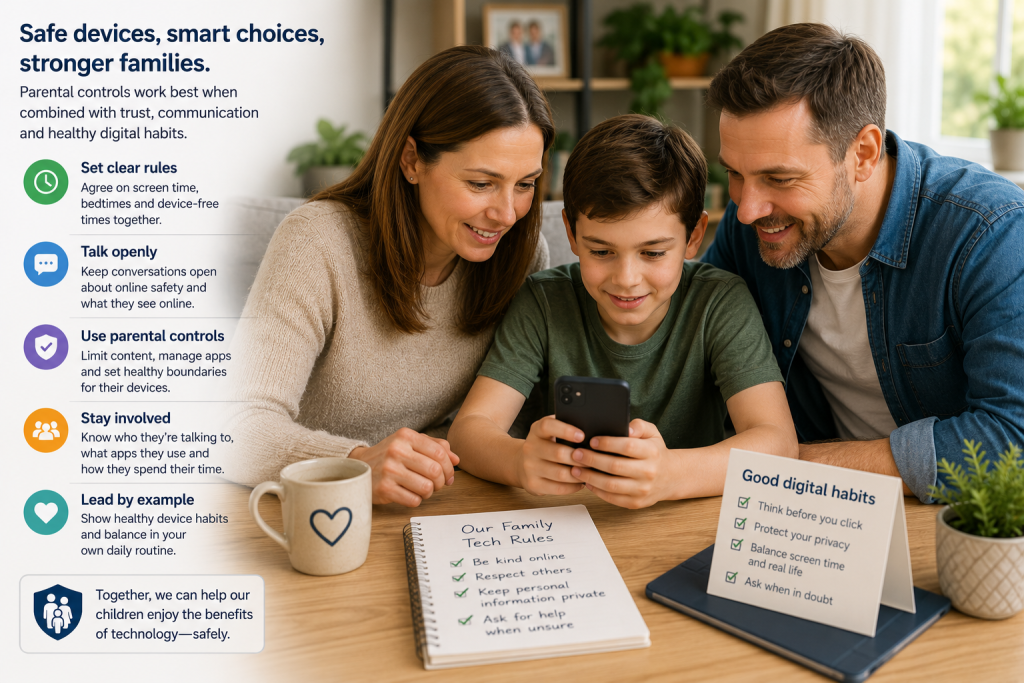
Parental controls work best when combined with open discussions about online safety.
Frequently Asked Questions
Can parental controls see text messages?
Generally no.
Most parental control systems manage settings and usage rather than reading private conversations.
Can children bypass parental controls?
Older children may try.
Strong passwords and regular reviews help prevent this.
Are parental controls free?
Yes.
Apple Screen Time and Google Family Link are both free.
At what age should I use parental controls?
Most experts recommend enabling parental controls whenever a child receives their first smartphone, tablet or internet-connected device.
Final Thoughts
Parental controls are one of the easiest ways to help children stay safer online.
Whether you use Apple’s Screen Time or Google’s Family Link, setting up a few simple restrictions can help manage screen time, prevent accidental purchases and reduce exposure to inappropriate content.
Remember, parental controls work best when combined with trust, communication and regular conversations about responsible technology use.
Related Guides
- How to Set Up a Child’s First Smartphone Safely
- What Is Screen Time and How Much Is Too Much?
- What Is Parental Control and Do I Need It?
- Keeping Children Safe Online
- What Age Should Children Get a Phone?
- What Is Google Family Link and How Does It Work?
- Should My Child Have Snapchat?
- How to Track Your Child’s Phone Location Safely
Published by Simple Tech Guide – Technology Made Simple
Latest posts:
- How to Pay for Parking With Your Phone: A Simple Beginner’s Guide
- How to Use a Car Park Payment Machine: A Simple Beginner’s Guide
- How to Use a Supermarket Self-Service Checkout: A Simple Beginner’s Guide
- What Is a Smart Speaker and How Does It Work? A Beginner’s Guide
- What Is a Smart Plug and How Does It Work? A Beginner’s Guide