
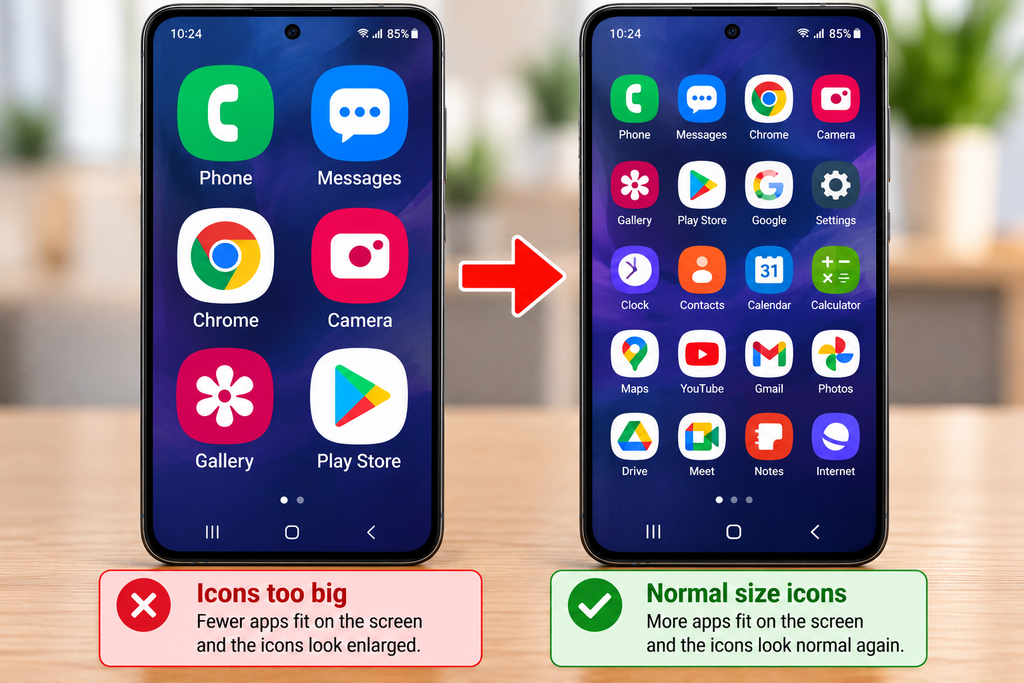
Have the icons on your phone suddenly become enormous? Perhaps your apps look much bigger than yesterday, fewer icons fit on the screen, or everything seems unusually large.
Don’t worry. This is a common problem, and in many cases you can get your phone looking normal again in just a few minutes.
The cause is often a display setting, an accessibility feature or a change made during a software update.
In this guide, we’ll show you how to make your phone icons smaller again on Samsung Galaxy, other Android phones and Apple iPhones. We’ll also explain what to do if the text, keyboard or entire screen has become too large.
Are your phone icons suddenly too big? If your apps look much larger than normal, follow our step-by-step guide to making phone icons smaller again. It covers Samsung, Android and iPhone.
You won’t need to delete your apps or reset your phone.
In This Guide
- Why phone icons suddenly become bigger
- Five quick things to check
- How to make Samsung icons smaller
- How to make Android icons smaller
- How to make iPhone icons smaller
- What to do if everything on the screen is enlarged
- How to fix large text and keyboard settings
- What to do after a software update
- Frequently asked questions
- Final checklist
1. Why Have My Phone Icons Suddenly Become So Big?
Your phone’s home screen is designed to show several apps at once. When a display setting changes, the icons may become larger and fewer apps may fit on each page.
The most common causes are:
- Display size or screen zoom: Your phone is set to show everything at a larger size.
- Easy Mode on Samsung: A simplified home screen uses larger icons and text.
- Home screen layout: The number of apps that fit across the screen has changed.
- Accessibility settings: Magnification or another feature may have been switched on.
- A software update: Your phone’s appearance or layout may have changed.
- A different launcher: On Android, a home screen app can change the size and arrangement of icons.
The good news is that changing these settings usually doesn’t delete any apps, photos or messages.
2. Five Quick Checks to Make Your Phone Icons Smaller
Before going into detailed settings, try these simple checks.
Check 1: Restart Your Phone
Switch your phone off and back on.
This can help if the screen changed because of a temporary software problem.
Check 2: Check Whether Everything Is Bigger
Look at your phone’s home screen, Settings menu and keyboard.
- If only the app icons are bigger, check your home screen layout.
- If icons, menus and buttons are all bigger, check display size or zoom.
- If only the writing is bigger, check font size.
- If only part of the screen looks magnified, check accessibility magnification.
Knowing which parts have changed will help you choose the right fix.
Check 3: Check for Easy Mode on Samsung
Easy Mode makes Samsung phones easier to use by showing larger icons and simpler layouts.
If it has been switched on accidentally, your phone may suddenly look very different.
We’ll show you how to turn it off below.
Check 4: Look for Display Size or Zoom
Both Android phones and iPhones have settings that can make screen content appear larger.
You may have changed one accidentally.
Check 5: Think About a Recent Update
Did the icons change after your phone installed an update?
If so, the appearance may have changed because of the new software.
You may still be able to adjust the size, although not every design change can be reversed.
3. How to Make Samsung Galaxy Icons Smaller
If you have a Samsung Galaxy phone, start here.
Samsung provides several settings that affect how large your home screen icons appear.
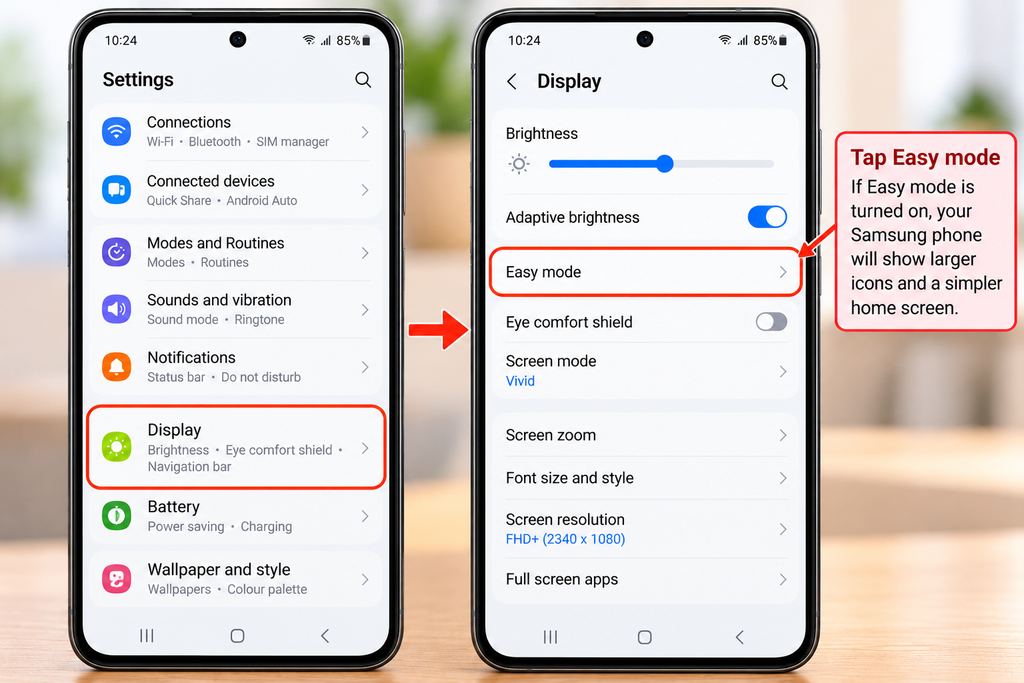
Step 1: Turn Off Easy Mode
Easy Mode is one of the first things to check when Samsung icons suddenly become very large.
- Open Settings.
- Tap Display.
- Look for Easy mode.
- If Easy Mode is switched on, turn it off.
- Return to your home screen.
Your phone should return to its standard home screen appearance.
Turning off Easy Mode won’t delete your apps, although the arrangement of your home screen may change.
Step 2: Change the Home Screen Grid
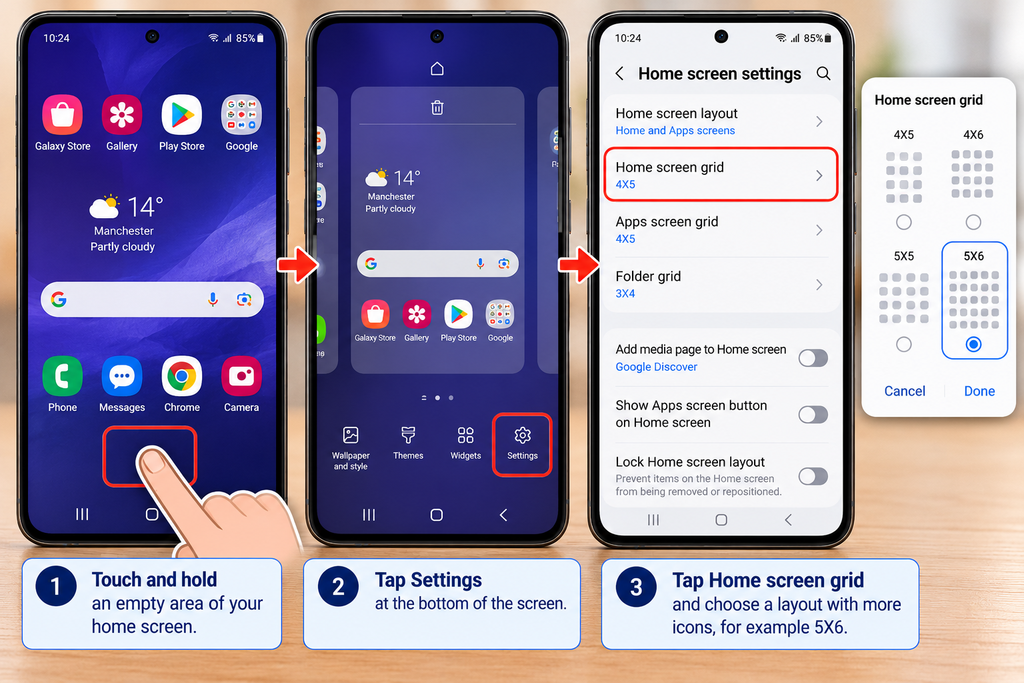
The home screen grid controls how many app icons fit on each page.
A grid with fewer spaces can make the icons appear larger or more spread out.
To change it:
- Touch and hold an empty area of your home screen.
- Tap Settings.
- Look for Home screen grid or a similar layout option.
- Choose a layout that fits more apps across the screen, if available.
- Apply the change.
For example, a layout with five icons across may appear more compact than one with four.
The exact choices depend on your Samsung model and software version.
Step 3: Check Screen Zoom
If menus, buttons and other items also look too big, try adjusting screen zoom.
- Open Settings.
- Tap Display.
- Look for Screen zoom.
- Move the slider towards the smaller setting.
- Check whether the screen looks more familiar.
Some Samsung software versions use slightly different names or arrangements.
Step 4: Check Home Screen App Size
On newer Samsung software, there may be a separate option for adjusting app icon size.
Touch and hold an empty part of the home screen, open Settings, and look for an icon-size control.
If one is available, reduce the size until the icons look comfortable.
Not every Samsung Galaxy phone has this option.
4. How to Make Icons Smaller on Other Android Phones
Android phones from Google, Motorola, Xiaomi and other manufacturers use similar display settings, although the menus can differ.
Step 1: Open Display Settings
- Open Settings.
- Tap Display or Display & touch.
- Look for Display size, Display size and text, or a similar option.
- Reduce the display size slightly.
- Return to your home screen and check the icons.
On some phones, changing display size affects more than just the icons.
Step 2: Check Your Home Screen Settings
Touch and hold an empty area of your home screen.
Look for Home settings, Layout, Grid or Icon size.
If your phone provides these controls, adjust them to make the icons smaller or fit more apps on the screen.
Step 3: Check Magnification
If the whole screen appears enlarged and you have to move around to see different parts, magnification may be enabled.
- Open Settings.
- Go to Accessibility.
- Look for Magnification.
- Turn it off temporarily if it’s enabled.
- Check the screen again.
Magnification is useful for people with reduced vision, so leave it enabled if you rely on it.
5. How to Make iPhone Icons Smaller Again
Apple iPhones have different display settings from Android phones.
If your iPhone icons suddenly look too big, there are two main things to check.
Step 1: Check Display Zoom
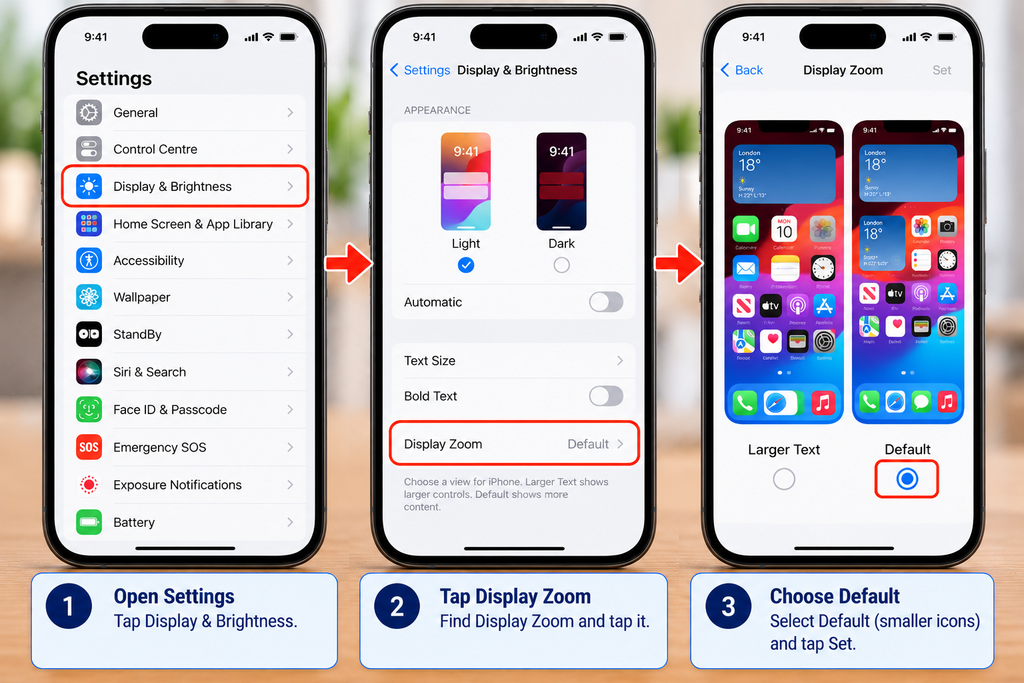
Display Zoom makes screen content appear larger.
- Open Settings.
- Tap Display & Brightness.
- Look for Display Zoom.
- Choose the standard or default display option, if available.
- Apply the change.
Your iPhone may briefly adjust its display before showing the new size.
Step 2: Check Home Screen Icon Size
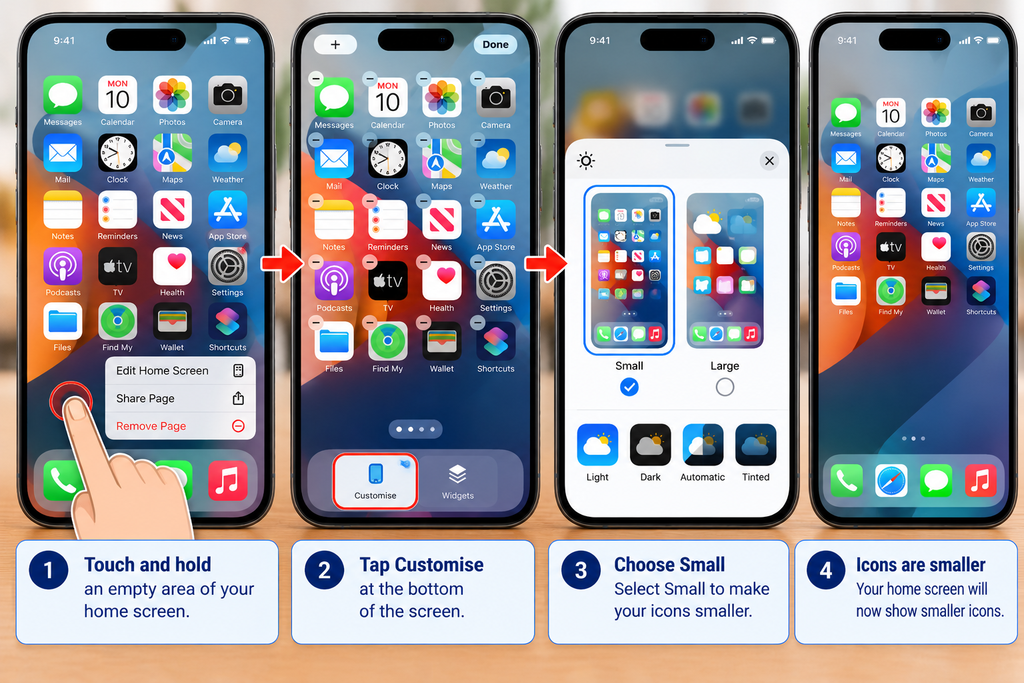
On supported iPhone software, you can choose between smaller and larger home screen icons.
- Touch and hold an empty area of your home screen.
- Tap Edit, then Customise.
- Look for the Small and Large icon options.
- Select Small.
- Tap outside the menu to finish.
Large icons may also hide the app names underneath them. If your app names have disappeared, changing back to Small may restore them.
Step 3: Check Accessibility Zoom
If only part of your iPhone screen is greatly enlarged, the Accessibility Zoom feature may be on.
Try double-tapping the screen with three fingers to change the zoom level.
You can also open:
Settings → Accessibility → Zoom
Turn Zoom off if you don’t need it.
This is different from Display Zoom, which changes the overall size of screen content.
6. What If Everything on My Phone Screen Is Too Big?
Sometimes the problem isn’t limited to app icons.
You might notice that:
- Settings menus are unusually large.
- Buttons take up more space.
- Fewer messages fit on the screen.
- The keyboard looks bigger.
- You need to scroll more than usual.
This usually points towards a display-size or accessibility setting.
Samsung and Android
Open Settings → Display and look for Screen zoom or Display size.
Reduce the setting gradually until the screen feels comfortable.
iPhone
Open Settings → Display & Brightness → Display Zoom.
Choose the standard display setting if available.
If the screen is extremely magnified, also check Settings → Accessibility → Zoom.
7. How to Make Text Smaller Without Changing Your Icons
Sometimes the app icons look normal, but the writing on your phone has become too large.
You can usually adjust text separately.
Samsung
- Open Settings.
- Tap Display.
- Select Font size and style.
- Move the font size slider towards a smaller setting.
Other Android Phones
Open Settings, then search for Font size.
Reduce the size gradually.
iPhone
- Open Settings.
- Tap Display & Brightness.
- Select Text Size.
- Move the slider towards smaller text.
If the writing remains unusually large, check Settings → Accessibility → Display & Text Size → Larger Text.
Don’t make the writing so small that it becomes difficult to read.
8. Why Has My Phone Keyboard Suddenly Become Bigger?
A large keyboard can make it seem as though the whole phone layout has changed.
There are several possible causes.
On Samsung and Android
Check whether the keyboard has been resized or switched to a different layout.
If you use Samsung Keyboard, open its settings and look for Size and transparency.
Other keyboards, such as Gboard, may have their own resizing options.
On iPhone
Check Display Zoom first, as this can affect the size of on-screen controls.
If your keyboard looks different rather than simply larger, check whether you’ve switched keyboard layouts or installed another keyboard app.
9. Why Did My Phone Icons Change After an Update?
Phone manufacturers regularly change the appearance of menus, icons and home screens.
After an update, you may notice:
- Different app icon designs.
- New spacing between icons.
- Changes to folders or widgets.
- Different home screen controls.
- New display settings.
Not every change can be undone.
However, you can often make your phone feel familiar again by adjusting the home screen grid, display size and icon appearance.
For more help, see our guide: Why Has My Phone or Computer Layout Changed?
10. What If My Phone Icons Are Still Too Big?
If you’ve tried the settings above and the icons are still unusually large, work through these checks.
- Restart your phone and check the home screen again.
- Check Easy Mode if you use Samsung.
- Check Display Zoom or Display Size.
- Check accessibility magnification.
- Look for a separate icon-size setting.
- Check whether you’re using a different home screen app on Android.
- Check for a software update that might fix a display problem.
If you use a custom Android launcher, open its settings and look for icon size, layout or grid options.
Avoid installing random apps that promise to fix your phone’s appearance. The built-in settings are usually the safest place to start.
And don’t factory-reset your phone just because the icons have become larger.
11. Frequently Asked Questions
Why have all my Samsung app icons suddenly become huge?
Easy Mode, Screen Zoom or a change to the home screen grid may be responsible. Start by checking Settings → Display → Easy mode.
How do I get my phone icons back to their normal size?
Check the display-size setting and home screen layout. On Samsung, also check Easy Mode. On iPhone, check Display Zoom and the Small/Large icon setting.
Why are my iPhone icons big and the app names missing?
Your iPhone may be using the Large home screen icon setting. Touch and hold the home screen, tap Edit → Customise, and choose Small.
Will making my icons smaller delete any apps?
No. Changing icon size, display zoom or home screen layout doesn’t delete the apps themselves. However, changing certain modes or layouts can rearrange where icons appear.
Why is everything on my phone suddenly zoomed in?
Display Zoom, Screen Zoom or an accessibility magnification feature may have been enabled.
Can a phone update make icons bigger?
Yes. Software updates can change icon appearance, spacing and home screen settings. Some changes are adjustable, while others are part of the updated design.
Why are my phone icons big but the text is normal?
The home screen grid or icon-size setting may have changed independently of the text size.
Do I need to reset my phone to fix large icons?
Usually not. Check the display and home screen settings first. A factory reset is unnecessary for most icon-size problems.
Final Checklist: Make Your Phone Icons Normal Again
If your phone icons suddenly look too large, remember these key checks:
- Restart your phone.
- Check whether only the icons or the whole screen is enlarged.
- On Samsung, check Easy Mode.
- Adjust the home screen grid or icon size where available.
- On Android, check Display size.
- On iPhone, check Display Zoom and Small/Large icons.
- Check accessibility magnification.
- Review any recent software updates.
In most cases, you can make your phone look familiar again without deleting anything.
More Simple Phone Guides
Why Has My Phone or Computer Layout Changed? — Get familiar menus, icons and screen layouts back.
Samsung Navigation Buttons Explained — Learn how to use the Back, Home and Recent Apps buttons.
How to Move Apps to Your Home Screen — Find out how to put app shortcuts where you want them.
At Simple Tech Guide, we help you solve everyday technology problems with clear, straightforward instructions — one step at a time.