
Printing a document is something many people need to do, but it can be confusing if you’ve never done it before.
This guide shows you how to print from a computer and from a smartphone step by step.
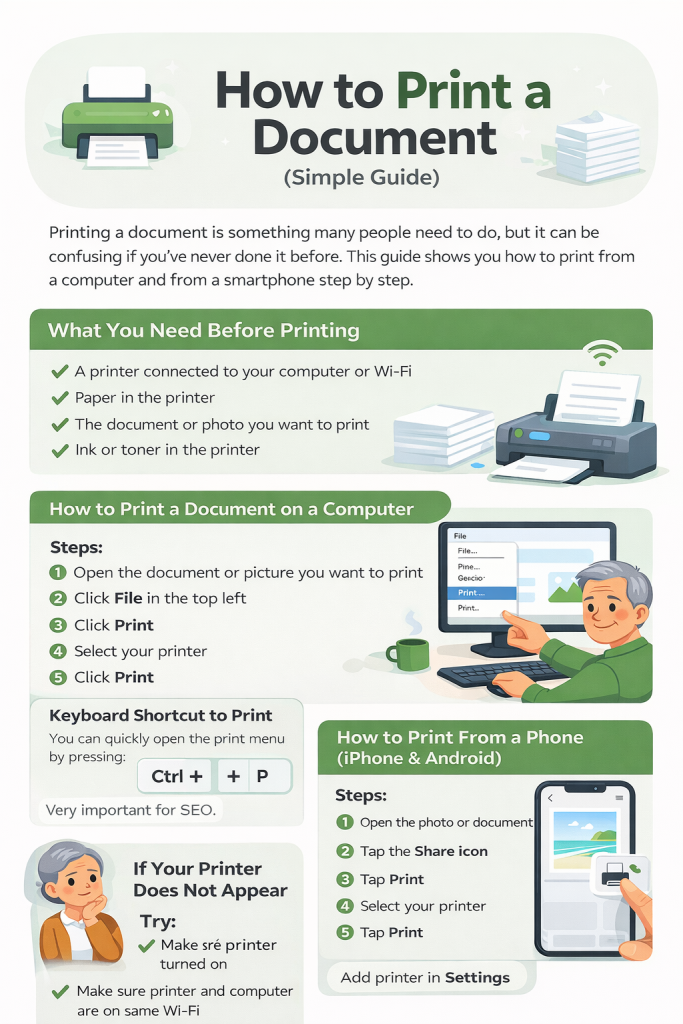
What You Need Before Printing
- A printer connected to your computer or Wi-Fi
- Paper in the printer
- The document or photo you want to print
- Ink or toner in the printer
How to Print a Document on a Computer
Steps:
- Open the document or picture you want to print
- Click File in the top left
- Click Print
- Select your printer
- Click Print
Keyboard Shortcut to Print
You can quickly open the print menu by pressing:
Ctrl + P
How to Print From a Phone (iPhone & Android)
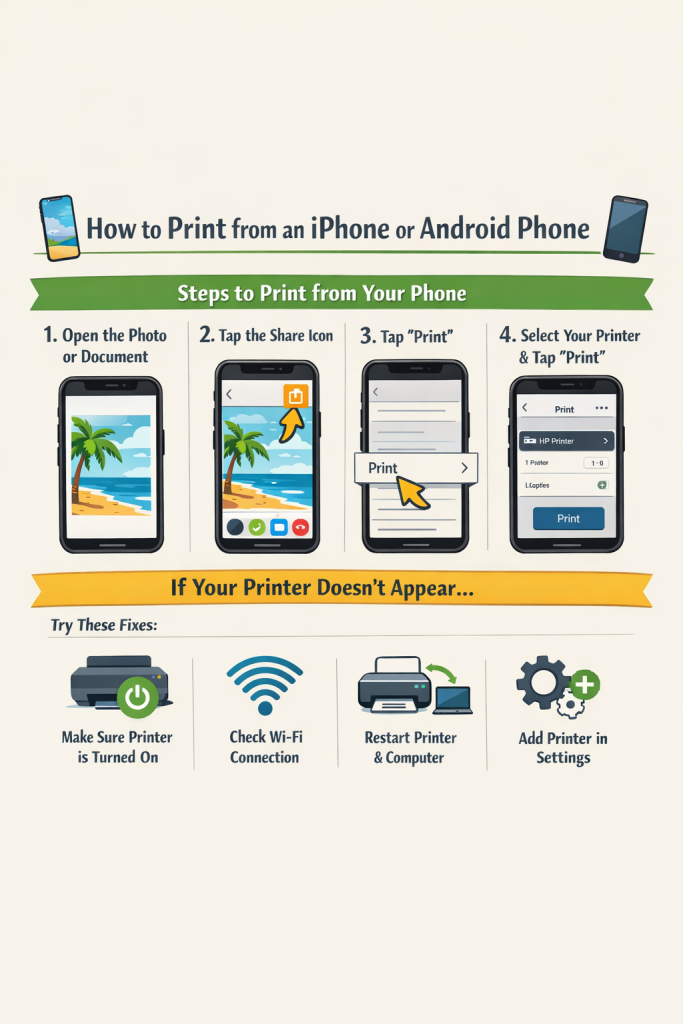
Steps:
- Open the photo or document
- Tap the Share icon
- Tap Print
- Select your printer
- Tap Print
If Your Printer Does Not Appear
Try:
- Make sure printer is turned on
- Make sure printer and computer are on same Wi-Fi
- Restart printer
- Restart computer
- Add printer in Settings
Common Questions
Common Questions About Printing
Why won’t my document print?
The printer may be offline, out of paper, or not connected to Wi-Fi.
Can I print photos from my phone?
Yes, you can print photos using the Share → Print option.
Do I need Wi-Fi to print?
Most modern printers use Wi-Fi, but some use a cable connection.
What does Ctrl + P do?
It opens the print menu on most computers.
You May Also Find These Guides Helpful
How to Copy and Paste on a Computer