
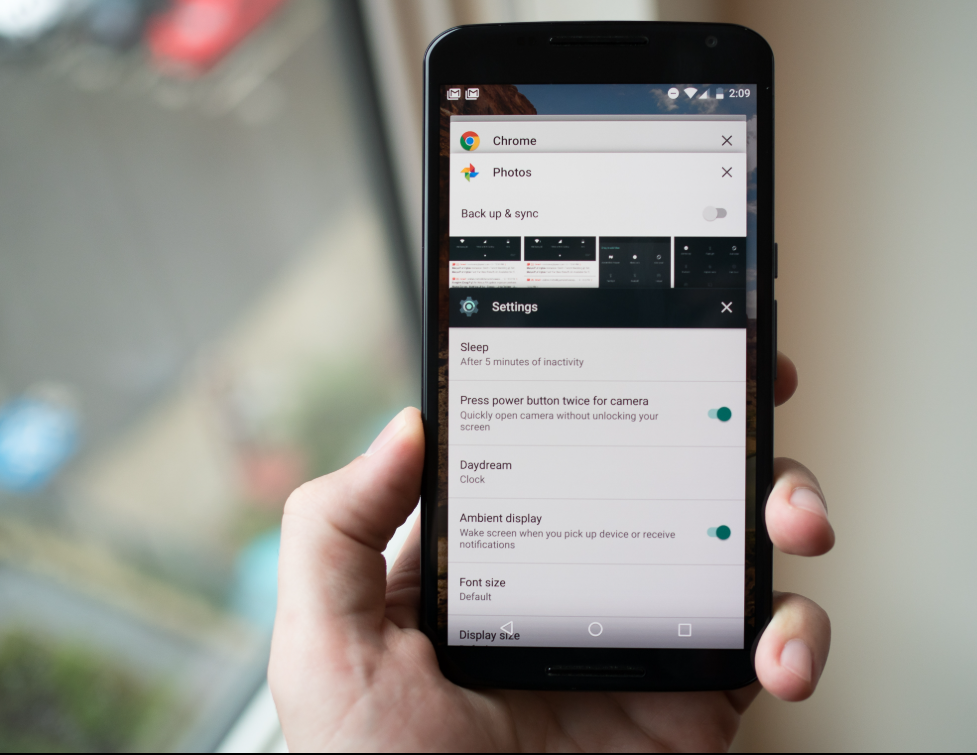
How to Close Apps on a Smartphone
If your phone feels slow, apps are frozen, or you want to clear open apps, you can close apps in a few simple steps.
This guide will show you how to close apps on both Android phones and iPhones.
You won’t break anything by doing this — it’s safe and easy.
📱 How to Close Apps on an Android Phone
(Android phones include Samsung, Google Pixel, Motorola and others.)
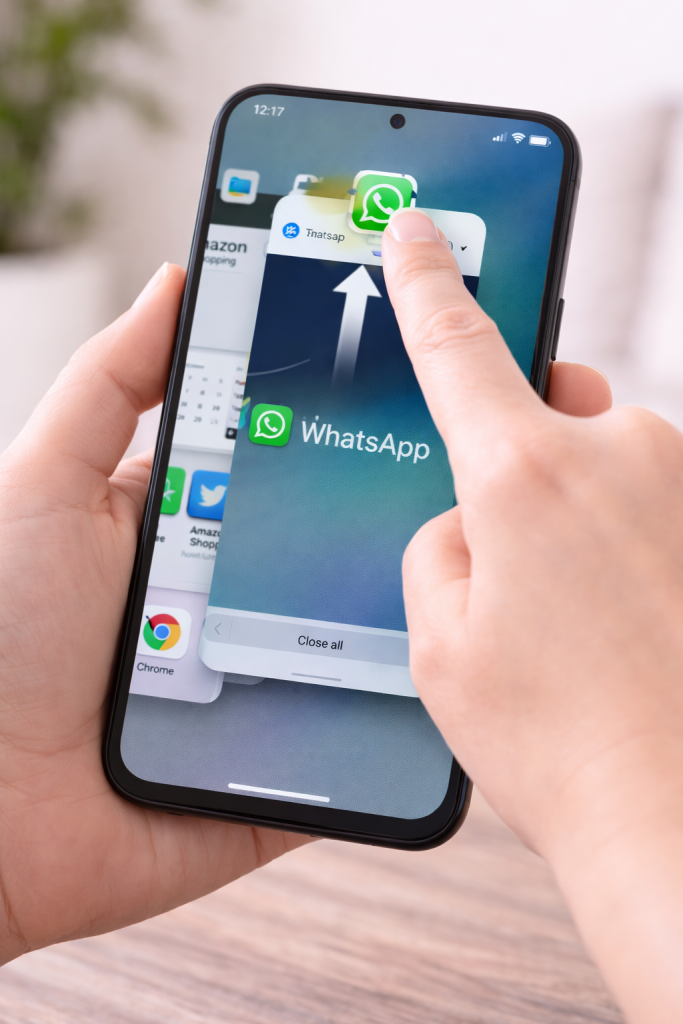
Steps:
- Look at the bottom of your phone screen.
- Tap the Recent Apps button (usually three lines or a square).
- You will see all the apps that are open.
- Swipe the app upwards to close it.
- The app will disappear — this means it is closed.
Some phones also have a “Close all” button.
🍏 How to Close Apps on an iPhone
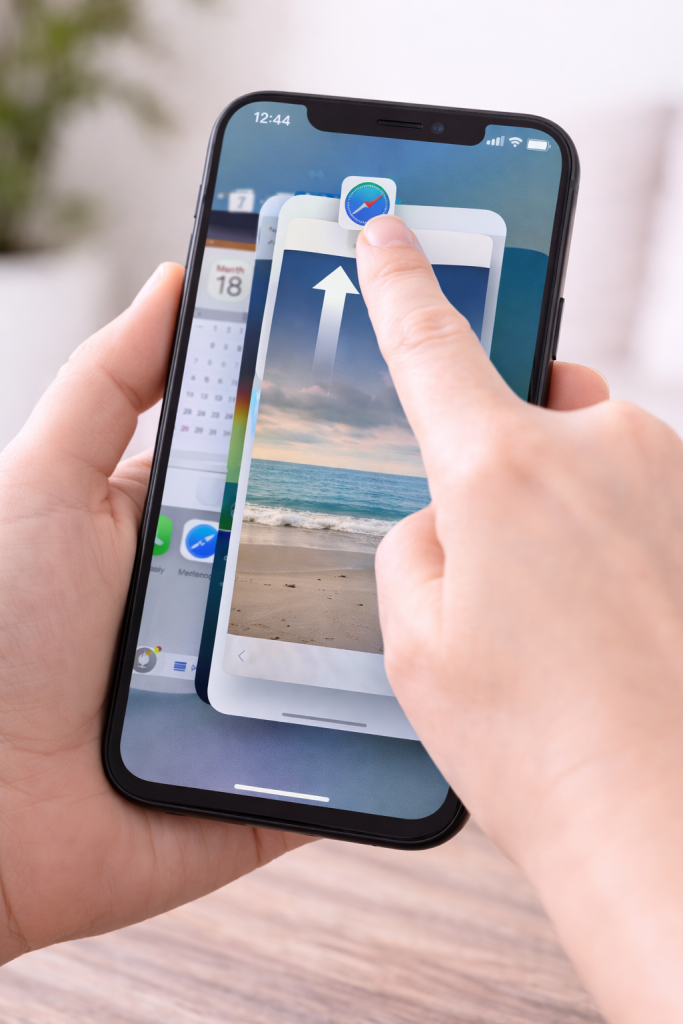
The steps are slightly different on an iPhone.
Steps:
- Swipe up from the bottom of the screen and pause in the middle.
- You will see all open apps.
- Swipe an app upwards to close it.
- The app will disappear — this means it is closed.
❓ When Should You Close Apps?
You do not need to close apps all the time, but it can help if:
- Your phone is slow
- An app is frozen
- An app is not working properly
- Your battery is draining quickly
Closing apps can sometimes make your phone run better.
🔗 You May Also Find These Guides Helpful
(Add these as internal links in WordPress)
- How to Move Apps to Your Home Screen
- How to Set an Alarm on Your Phone
- How to Connect Your Phone to Wi-Fi
- How to Make Text Bigger on Your Phone
- How to Take a Screenshot on a Phone
- How to Send Photos From Your Phone
This helps SEO and navigation.