
The good news is that many ringing problems are caused by a setting that’s been changed accidentally, rather than a broken phone.
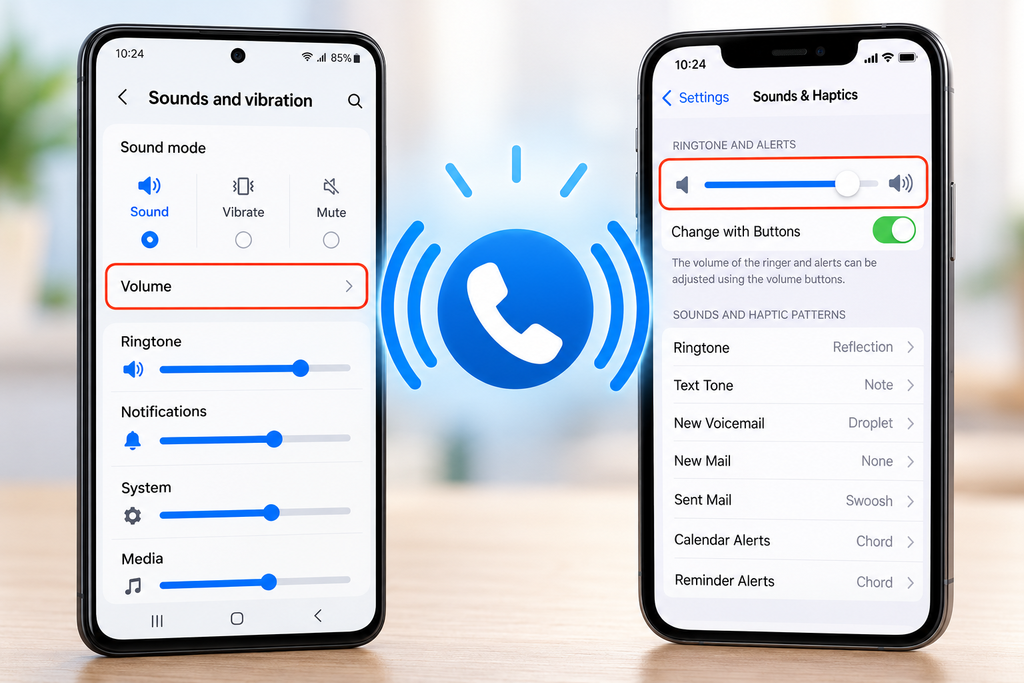
Whether you have a Samsung Galaxy, another Android phone or an Apple iPhone, this guide will help you find out why your phone isn’t ringing and get it working again.
We’ll also explain how to change your ringtone, text message sounds, WhatsApp notifications, alarms and other volume settings.
You don’t need to be confident with technology. Just follow the steps that match your phone.
In This Guide
- Five quick checks when your phone isn’t ringing
- How to fix a Samsung or Android phone that isn’t ringing
- How to fix an iPhone that isn’t ringing
- Understanding the different phone volume settings
- How to change your ringtone
- How to change message and notification sounds
- How to adjust alarms, keyboard sounds and vibration
- Why some calls ring but others don’t
- What to do if your phone still won’t ring
- Frequently asked questions
1. Phone Not Ringing? Try These Five Quick Checks
Before changing lots of settings, try these five simple checks. They solve many common problems.
Check 1: Turn Up Your Ringtone Volume
Your phone has different volume controls for different sounds.
For example, turning up YouTube or music volume doesn’t necessarily make incoming calls ring louder.
On Samsung:
- Open Settings.
- Tap Sounds and vibration.
- Tap Volume.
- Move the Ringtone slider to the right.
On iPhone:
- Open Settings.
- Tap Sounds & Haptics.
- Find Ringtone and Alerts.
- Move the slider to the right.
Ask someone to call you to test the ringtone.
Check 2: Make Sure Your Phone Isn’t on Silent
It’s easy to switch your phone to Silent or Vibrate without realising.
On Samsung:
- Open Settings.
- Tap Sounds and vibration.
- Under Sound mode, choose Sound.
On iPhone:
If your iPhone has a Ring/Silent switch, check that Silent mode is off.
Newer iPhones may have an Action button instead. Check whether Silent mode is enabled.
Check 3: Turn Off Do Not Disturb
Do Not Disturb stops calls and notifications from interrupting you.
It’s useful at night, but can also explain why your phone suddenly stops ringing.
On Samsung:
- Open Settings.
- Tap Notifications.
- Select Do not disturb.
- Turn it off temporarily.
On some Android phones, this setting is found under Modes or Sound & vibration.
On iPhone:
- Open Control Centre.
- Tap Focus.
- Check whether Do Not Disturb, Sleep or another Focus mode is active.
- Turn it off temporarily.
Check 4: Disconnect Bluetooth Devices
If your phone is connected to headphones, a car or another Bluetooth device, some sounds may be sent to that device.
Turn Bluetooth off temporarily and ask someone to call you.
Bluetooth doesn’t always redirect incoming call sounds, but this is a useful check.
Check 5: Restart Your Phone
Sometimes a temporary software problem affects sound.
Restart your phone, wait for it to switch back on, and test it again.
If your phone still isn’t ringing, follow the instructions below.
2. How to Fix a Samsung or Android Phone That Isn’t Ringing
Samsung Galaxy phones have several separate sound settings, which can be confusing if you’re unfamiliar with them.
Step 1: Check Sound Mode
- Open Settings.
- Tap Sounds and vibration.
- Find Sound mode.
- Choose Sound instead of Vibrate or Mute.
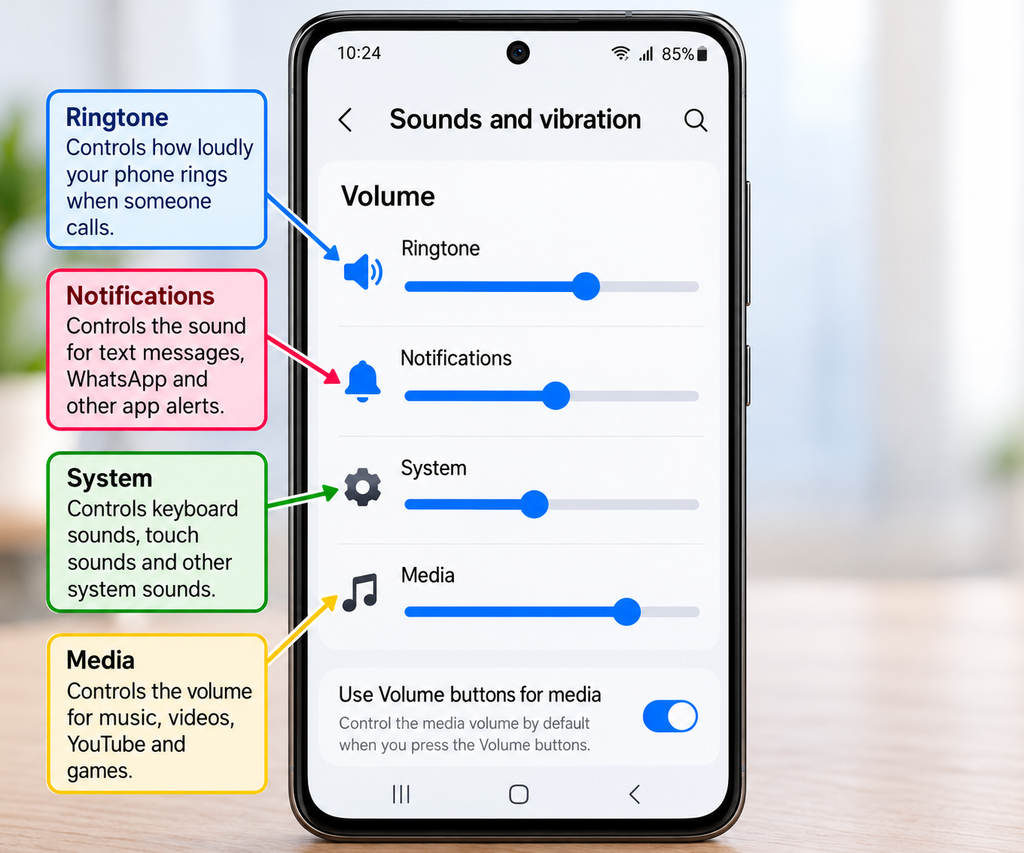
Step 2: Understand Samsung’s Four Volume Settings
Many Samsung Galaxy phones have four separate volume sliders.
| Setting | What It Controls |
|---|---|
| Ringtone | How loudly your phone rings when someone calls |
| Notifications | Sounds for messages, WhatsApp and app alerts |
| System | Keyboard, touch and other system sounds |
| Media | YouTube, music, videos and games |
To find them:
- Open Settings.
- Tap Sounds and vibration.
- Select Volume.
- Adjust the four sliders individually.
Important: If your phone isn’t ringing, check Ringtone first. Turning up Media won’t necessarily make calls louder.
Step 3: Check Do Not Disturb and Modes
Some Samsung phones can automatically activate Do Not Disturb through a routine or bedtime schedule.
Open Settings → Notifications → Do not disturb.
If your phone has Modes and Routines, check whether a mode is automatically silencing calls.
Temporarily disable it and test your ringtone.
Step 4: Choose a Louder Ringtone
- Open Settings.
- Tap Sounds and vibration.
- Select Ringtone.
- Listen to the available sounds.
- Choose a clear, easily recognisable ringtone.
Step 5: Check Whether Every Caller Is Affected
Ask two different people to call you.
If one person’s calls ring but another person’s don’t, check whether the affected contact has a special ringtone or has been blocked.
Other Android phones, including Google Pixel and Motorola, may use slightly different menu names.
3. How to Fix an iPhone That Isn’t Ringing
iPhones organise their sound settings differently from Samsung phones.
Follow these steps in order.
Step 1: Check Silent Mode
If your iPhone has a Ring/Silent switch, make sure Silent mode is off.
On iPhones with an Action button, check whether the button is configured to control Silent mode.
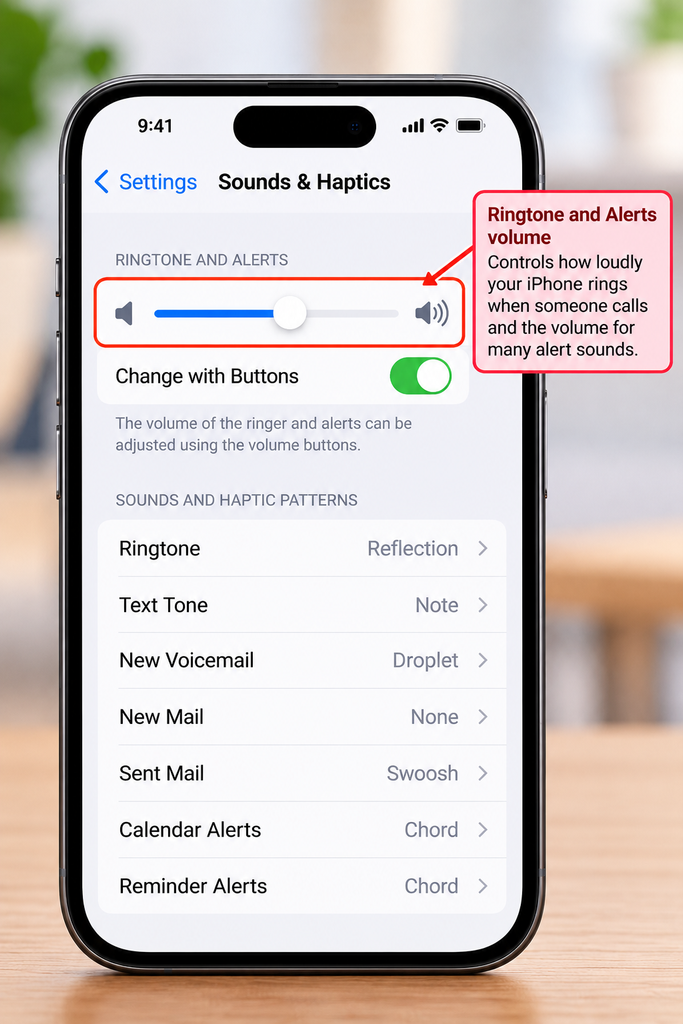
Step 2: Increase Ringtone and Alerts Volume
- Open Settings.
- Tap Sounds & Haptics.
- Find Ringtone and Alerts.
- Move the slider to the right.
You may also see Change with Buttons.
When enabled, the side volume buttons can adjust your ringtone volume in certain circumstances.
If you often change the ringtone volume accidentally, consider turning this option off.
Step 3: Check Focus and Do Not Disturb
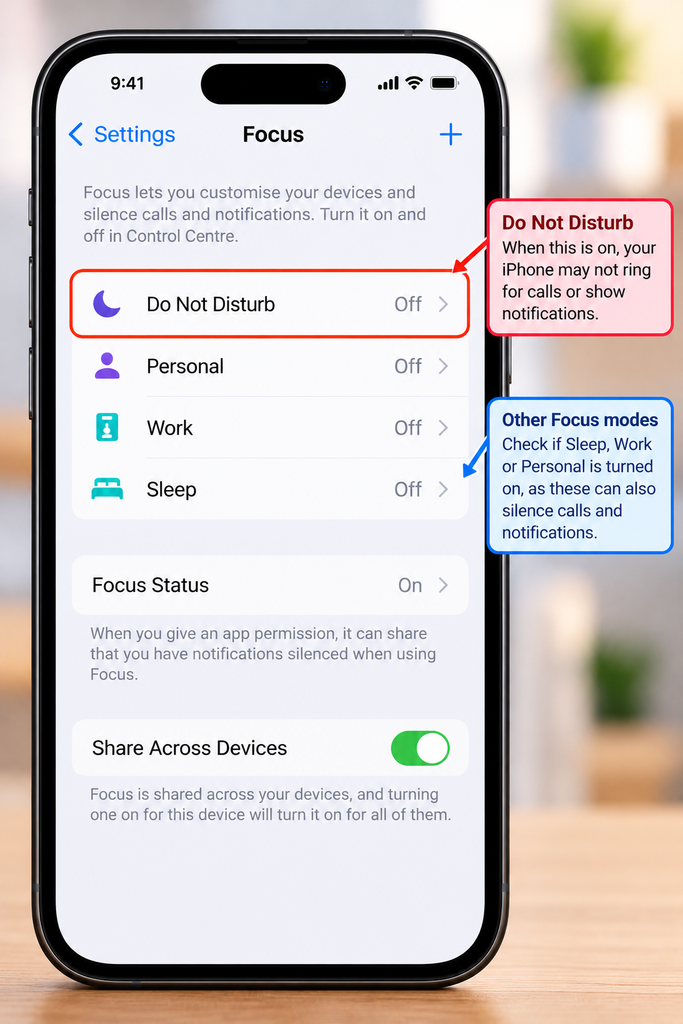
Focus modes can silence incoming calls.
- Open Control Centre.
- Tap Focus.
- Check whether Do Not Disturb, Sleep, Work or another Focus mode is active.
- Turn it off temporarily.
If Focus keeps switching itself on, open Settings → Focus and check for scheduled activation.
Step 4: Check Unknown Caller Settings
If calls from people you know ring normally but unfamiliar numbers don’t, your iPhone may be screening or silencing unknown callers.
Open Settings and search for Unknown Callers.
Depending on your iOS version, you may find options to screen or silence unfamiliar numbers.
These features help reduce unwanted calls, so consider whether you want to change them.
Step 5: Choose Another Ringtone
- Open Settings.
- Tap Sounds & Haptics.
- Select Ringtone.
- Listen to the available sounds.
- Choose one that’s easy to hear.
Ask someone to call you to check the result.
4. Understanding the Different Phone Volume Settings
One common misunderstanding is that phones have only one volume setting.
In reality, different sounds can be controlled separately.
Samsung and Android
- Ringtone: Incoming telephone calls.
- Notifications: Messages and app alerts.
- System: Keyboard and touch sounds.
- Media: Music, videos and games.
Some Android phones also have a separate alarm volume control.
iPhone
On iPhone, Ringtone and Alerts controls the main volume for incoming calls and many alert sounds.
Media playback volume is adjusted separately using the volume buttons or Control Centre.
Standard Clock alarms generally use the Ringtone and Alerts volume, while Sleep/Wake Up alarms have their own volume adjustment.
Remember: Being able to hear YouTube doesn’t necessarily mean your ringtone volume is turned up.
5. How to Change Your Phone’s Ringtone
Choosing a distinctive ringtone can help you notice calls more easily.
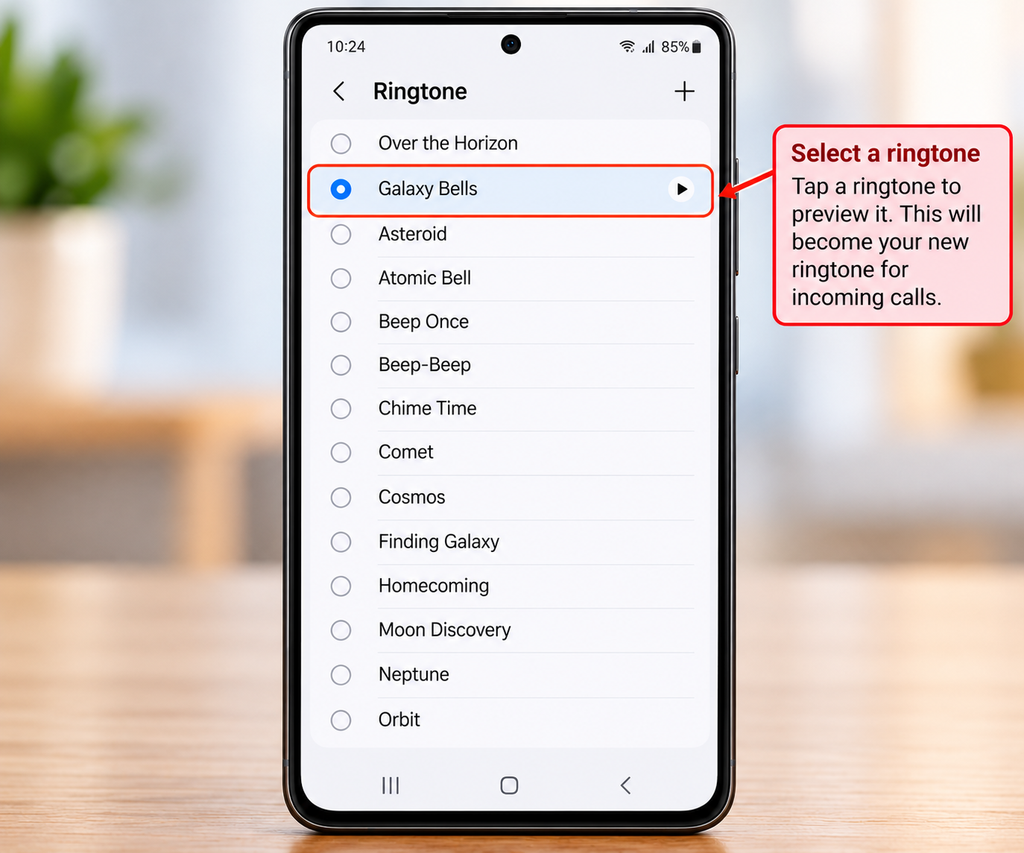
Change Your Ringtone on Samsung
- Open Settings.
- Tap Sounds and vibration.
- Select Ringtone.
- Listen to the available sounds.
- Choose your favourite.
Change Your Ringtone on iPhone
- Open Settings.
- Tap Sounds & Haptics.
- Select Ringtone.
- Tap different sounds to preview them.
- Choose the one you prefer.
A ringtone with a clear, noticeable beginning may be easier to hear than a soft melody.
6. How to Change Text Message and Notification Sounds
Your phone ringing for calls doesn’t automatically mean you’ll hear text messages or app notifications.
These use separate settings.
Samsung Notification Volume
- Open Settings.
- Tap Sounds and vibration.
- Select Volume.
- Increase Notifications.
To change the notification sound itself, look for Notification sound under Sounds and vibration.
For individual apps, open Settings → Notifications → App notifications.
iPhone Text Message Sounds
- Open Settings.
- Tap Sounds & Haptics.
- Select Text Tone.
- Choose the sound you prefer.
For other apps, open Settings → Notifications, select the app and check whether sounds are enabled.
What If WhatsApp Notifications Are Silent?
Check that:
- WhatsApp notifications are allowed.
- Notification sounds are enabled in WhatsApp.
- The conversation hasn’t been muted.
- Do Not Disturb or Focus isn’t silencing alerts.
- Notification volume is turned up on Android.
If only one WhatsApp conversation is silent, check that conversation’s notification settings.
7. How to Change Alarm, Keyboard and Vibration Settings
Your phone has several other useful sound controls.
Alarm Volume
On Samsung and many Android phones, open the Clock app and check the sound and volume settings for your alarm.
On iPhone, standard Clock alarms generally use the Ringtone and Alerts volume.
Sleep/Wake Up alarms have their own volume control.
Always test an important alarm after changing its settings.
Keyboard Sounds
If your phone clicks when you type, that’s a system sound.
Samsung: Open Settings → Sounds and vibration and look for system sound controls.
iPhone: Open Settings → Sounds & Haptics → Keyboard Feedback.
You can turn off keyboard sounds without silencing incoming calls.
Vibration Settings
Vibration can help you notice calls when your phone is in your pocket.
Samsung: Open Settings → Sounds and vibration and look for call vibration settings.
iPhone: Open Settings → Sounds & Haptics → Haptics.
Choose the settings that work best for you.
8. Why Do Some Calls Ring but Others Don’t?
If your phone rings for certain people but stays silent for others, check these possibilities.
Different Ringtones for Different Contacts
Some phones allow you to assign a separate ringtone to an individual contact.
Check whether that contact has been given a quiet or unusual ringtone.
Unknown Callers Are Being Silenced
Your phone may screen unfamiliar numbers or filter suspected spam.
Check the call settings in your Phone app.
Do Not Disturb Allows Certain People
Focus and Do Not Disturb modes can allow selected contacts to ring while silencing others.
Review your allowed callers.
A Number Has Been Blocked
Check your blocked-number list if one person repeatedly cannot reach you.
Poor Mobile Reception
If calls go straight to voicemail, the problem may involve your mobile signal, SIM or network.
Try receiving a call in another location.
9. What If Your Phone Still Won’t Ring?
If you’ve checked the settings and your phone is still silent, try these steps.
- Test the speaker. Play a video or preview a ringtone.
- Disconnect Bluetooth devices. Remove headphones and other connected accessories temporarily.
- Restart your phone. This can resolve temporary software problems.
- Check for updates. Install available updates through your phone’s normal Settings menu.
- Check mobile reception. Ask someone to call you and see whether the call appears on your screen.
- Contact your mobile provider. If calls aren’t arriving, there may be a SIM or network issue.
- Consider a repair assessment. If the speaker produces no sound at all, a hardware fault is possible.
Avoid factory-resetting your phone as an early troubleshooting step. A reset can erase your personal information if you haven’t backed it up.
10. Frequently Asked Questions
Why is my phone not ringing even though the volume is up?
You may have increased Media volume rather than Ringtone volume. Your phone could also be on Silent, Vibrate or Do Not Disturb.
Why does my Samsung phone only vibrate when someone calls?
Your phone may be set to Vibrate. Open Settings → Sounds and vibration, choose Sound, and check the Ringtone volume.
Why is my iPhone silent when someone calls?
Check Silent mode, Ringtone and Alerts volume, Focus settings and unknown-caller screening.
Why can I hear YouTube but not incoming calls?
Media and ringtone volumes are controlled separately. Your speaker may be working normally even though calls are silent.
Why does my phone ring for some people but not others?
Check contact-specific ringtones, blocked numbers, Do Not Disturb exceptions and unknown-caller settings.
Can I make WhatsApp louder without changing my ringtone?
On Samsung and many Android phones, you can adjust notification volume separately from ringtone volume.
On iPhone, notification behaviour depends on the app and its available settings.
Will changing my ringtone delete anything?
No. Changing your ringtone or volume settings won’t delete photos, contacts or messages.
Should I reset my phone if it won’t ring?
Not as a first step. Most common causes can be investigated through sound and notification settings without resetting the device.
Final Checklist: Get Your Phone Ringing Again
Before giving up, check that:
- Ringtone volume is turned up.
- Silent or Vibrate mode is off.
- Do Not Disturb or Focus is off.
- Your ringtone is easy to hear.
- Bluetooth devices aren’t causing an audio problem.
- Calls aren’t being blocked or screened.
- Your phone has been restarted.
- Your mobile signal is working.
For most people, checking the ringtone volume and Silent mode is the best place to start.
More Simple Phone Guides
If you’d like more help, these free guides may be useful:
How to Make Your Phone Ring Louder — Extra tips for making incoming calls easier to hear.
Samsung Navigation Buttons Explained — Learn what the three buttons at the bottom of a Samsung phone do.
Why Has My Phone or Computer Layout Changed? — Simple ways to restore familiar screen settings.
At Simple Tech Guide, we explain everyday technology in plain English, one step at a time.