
If your Kindle won’t charge, don’t panic. In many cases, the problem is something simple like a faulty charging cable, a dirty charging port or a completely flat battery.
The good news is that most Kindle charging problems can be fixed at home without replacing your device.
This guide explains the most common reasons why a Kindle won’t charge and shows you exactly what to do.

Why Isn’t My Kindle Charging?
Some of the most common causes include:
- Damaged charging cable
- Faulty charger or plug
- Dirty charging port
- Battery completely drained
- Software has frozen
- Charging from a low-power USB port
- Damaged charging socket
Let’s work through them one by one.
1. Check the Charging Cable
Charging cables wear out over time.
Look for:
✔ Frayed cable
✔ Bent connector
✔ Loose connection
If possible, try another USB charging cable.
Many Kindle charging problems are simply caused by a faulty cable.
2. Try a Different Charger
Sometimes the charger is the problem rather than the Kindle.
Try:
- another wall charger
- another USB socket
- another charging plug
Avoid very old USB chargers that provide very little power.
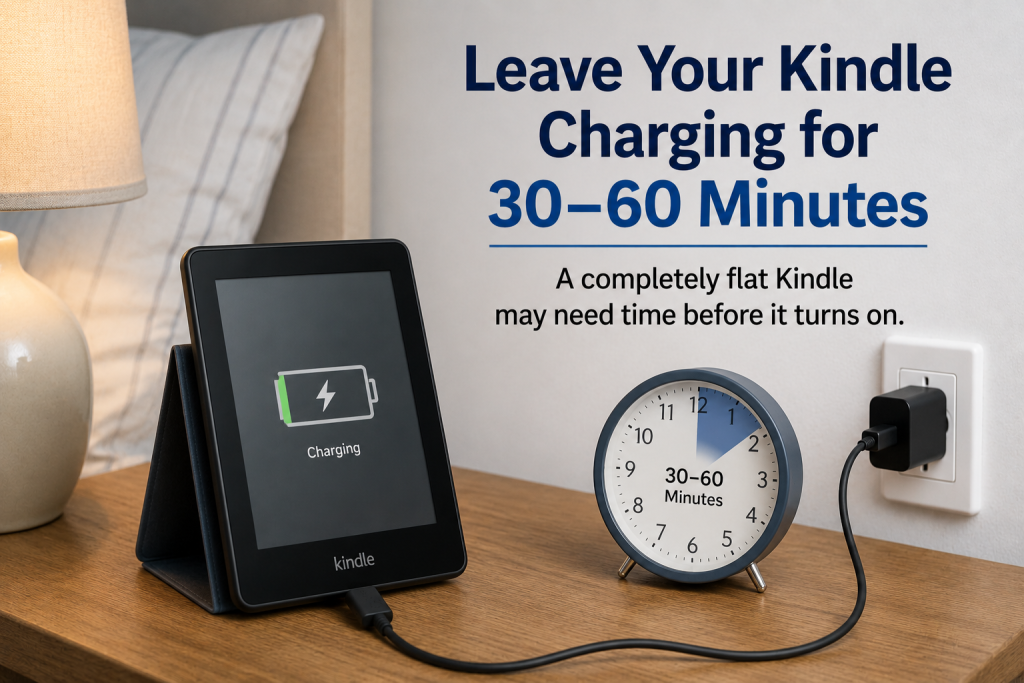
3. Leave It Charging for 30–60 Minutes
If the battery has gone completely flat, the screen may stay black for quite a while.
Leave it plugged in for at least 30 to 60 minutes before trying to switch it on.
Many people think their Kindle is broken when it simply needs longer to recharge.
4. Clean the Charging Port
Dust and pocket fluff can stop the charging cable making a proper connection.
Look carefully inside the charging socket.
If you see dirt:
- Switch the Kindle off.
- Gently remove dust using a wooden cocktail stick or a soft brush.
- Never use anything metal.
Do not force anything into the charging port.
5. Restart Your Kindle
Sometimes the Kindle software freezes.
Try restarting it.
Most Kindle models can be restarted by holding the Power button for around 40 seconds, then releasing it.
If the screen refreshes, allow the Kindle to restart normally.
6. Look for the Charging Light
Many Kindle models have a small LED charging light.
Usually:
🟠 Amber or orange = charging
🟢 Green = fully charged
No light may indicate:
- faulty cable
- faulty charger
- dirty charging port
- hardware fault
7. Avoid Charging From Some USB Ports
Some older computers provide very little power through their USB ports.
Whenever possible, charge your Kindle from a wall plug using a suitable USB charger.
Charging is usually much faster.
Can a Completely Flat Kindle Take Time to Wake Up?
Yes.
If the battery has been empty for several days or weeks, it may appear completely dead.
Leave it connected to a charger for up to an hour before attempting to turn it on.
What If My Kindle Still Won’t Charge?
If you have already:
✅ Tried another cable
✅ Tried another charger
✅ Cleaned the charging port
✅ Left it charging for at least an hour
✅ Restarted the Kindle
…and it still won’t charge, the battery or charging socket may need professional repair or replacement.
Frequently Asked Questions
Why won’t my Kindle charge even though it’s plugged in?
The most common causes are a faulty cable, damaged charger, dirty charging port or a completely flat battery.
How long should I charge a dead Kindle?
Leave it charging for 30 to 60 minutes before trying to switch it on.
Can a Kindle battery wear out?
Yes. Like all rechargeable batteries, Kindle batteries gradually lose capacity as they get older.
Should I use any USB charger?
Most standard USB chargers work, but using a good-quality wall charger usually provides the best charging performance.
Quick Checklist
Before replacing your Kindle, try these simple fixes:
✔ Try another charging cable
✔ Try another charger
✔ Leave it charging for an hour
✔ Restart the Kindle
✔ Clean the charging port
✔ Check for charging lights
You May Also Find These Guides Helpful
- 📚 What Is a Kindle and How Does It Work? (Simple Beginner Guide)
- 📱 Which Smartphones Are Easiest for Older Adults to Use?
- 📶 Why Is My Wi-Fi Connected but There’s No Internet?
- 🔔 Why Am I Not Getting Notifications on My Phone?
- 📱 How to Make Icons and Apps Bigger on Your Phone
- 🔠 How to Make Text Bigger on a Smartphone
Final Thoughts
A Kindle that won’t charge doesn’t always mean it has reached the end of its life. In many cases, the solution is as simple as replacing the charging cable, using a different charger or cleaning the charging port.
By following the steps in this guide, you can often get your Kindle working again in just a few minutes.
Latest posts:
- How to Pay for Parking With Your Phone: A Simple Beginner’s Guide
- How to Use a Car Park Payment Machine: A Simple Beginner’s Guide
- How to Use a Supermarket Self-Service Checkout: A Simple Beginner’s Guide
- What Is a Smart Speaker and How Does It Work? A Beginner’s Guide
- What Is a Smart Plug and How Does It Work? A Beginner’s Guide