
There’s nothing more frustrating than a slow internet connection, especially when you’re in the middle of binge-watching your favorite series or trying to join an important video call. We’ve all been there, staring at the buffering wheel, wondering why our internet speed seems to crawl when we need it the most. This post was created to help you tackle that annoyance head-on by providing you with actionable solutions to boost your internet speed.
If you’re someone who relies on the internet for work, school, or entertainment, this guide is for you. Whether you’re a remote worker trying to keep your productivity high or a gamer looking for a lag-free experience, you’ll find valuable insights here. I’ve compiled 12 simple ways to enhance your internet speed that are straightforward and easy to implement. You won’t need to be a tech expert to understand these tips.
By following this guide, you’ll learn practical strategies that can make a noticeable difference in your connectivity. From checking your internet plan to optimizing your router’s placement, each step is designed to help you kick buffering to the curb. So get ready to enjoy a faster internet experience and say goodbye to those frustrating interruptions!
Key Takeaways
– Know Your Plan: Start by checking your internet service plan to understand the speed you should be getting and identify if an upgrade is needed.
– Simple Restart: Restarting your router can solve many speed issues by refreshing your internet connection.
– Router Placement Matters: Optimizing the placement of your router can improve signal strength and coverage throughout your home.
– Limit Devices: Too many connected devices can slow down your internet. Limit the number of devices using the network at any one time.
– ISP Support: If all else fails, don’t hesitate to contact your Internet Service Provider for further assistance or troubleshooting.
Contents
- 1. Check Your Internet Plan
- 2. Restart Your Router
- 3. Update Your Router Firmware
- 4. Optimize Your Router Placement
- 5. Limit Connected Devices
- 6. Use Ethernet Instead of Wi-Fi
- 7. Keep Your Devices Updated
- 8. Clear Your Cache
- 9. Change Your DNS Settings
- 10. Reduce Bandwidth-Heavy Applications
- 11. Use a Wi-Fi Extender
- 12. Contact Your ISP for Support
1. Check Your Internet Plan

Understanding your current internet plan is crucial for boosting your speed. You may be paying for less than you need, especially with multiple devices connected. Check your provider’s offerings and compare them with your actual speed using reliable speed test websites. Knowing what you’re supposed to get helps you make informed decisions.
Consider upgrading your plan if you notice your needs aren’t met. Many providers have different tiers tailored for light browsing, HD streaming, or gaming. Don’t hesitate to ask for promotional deals when you reach out to your provider.
Key steps to evaluate your plan:
– Review your Internet Service Provider’s speed options.
– Conduct speed tests to verify your actual speeds.
– Explore better plan options if your current one is insufficient.
📹 Related Video: How to Find Out the Internet Plan You’re Paying For
2. Restart Your Router

A simple restart can significantly improve your internet speed. If you’re experiencing sluggishness, try turning off your router for a bit. This easy action refreshes your connection and can clear up temporary issues that slow you down.
To restart, unplug the router, wait for about 30 seconds, and then plug it back in. Make this a regular part of your maintenance to keep everything running smoothly. It’s a quick fix that many overlook!
Steps for a proper restart:
– Unplug your router, wait 30 seconds, then reconnect it.
– Aim to perform this monthly for optimal performance.
– After restarting, check if your speed has improved.
Here’s a quick truth: a simple router restart can boost your internet speed in seconds. Unplug, wait 30 seconds, plug back in, and suddenly videos stop buffering.
How To Improve Your Internet Speed
Tools You’ll Need:
– Laptop or smartphone
– Internet connection
– Access to your router settings
– Basic understanding of network settings
Step 1: Check Your Internet Plan
✔ Confirm your current internet speed by using online tools like Speedtest.net.
✔ Compare your results with the speeds promised in your internet plan. If they don’t match, it might be time to upgrade.
Knowing your plan helps you understand if slow speeds are due to your subscription or another issue.
Step 2: Restart Your Router
✔ Unplug your router’s power for at least 30 seconds.
✔ Plug it back in and wait for all the lights to stabilize.
Restarting can clear temporary issues and improve your connection. It’s a simple fix that often works wonders!
Step 3: Update Your Router Firmware
✔ Access your router settings through a web browser (usually by typing 192.168.1.1 or 192.168.0.1 in the address bar).
✔ Check for firmware updates in the settings menu and follow the prompts to update.
Router manufacturers often release updates to improve performance and security. Keeping firmware up to date can significantly enhance your internet speed.
Step 4: Optimize Router Placement
✔ Position your router in a central location in your home, away from walls and obstructions.
✔ Keep it elevated, such as on a shelf, to improve signal coverage.
Router placement plays a vital role in coverage and speed. A well-placed router can cover your entire space more effectively.
Step 5: Limit Connected Devices
✔ Check how many devices are connected to your network and disconnect any that aren’t in use.
✔ Each device uses some of your available speed, so less can mean more for everyone else.
Fewer devices connected at once can lead to faster speeds for the ones that remain connected.
Step 6: Use Ethernet Instead of Wi-Fi
✔ If possible, connect your device to the router using an Ethernet cable.
✔ Wired connections typically provide faster and more reliable speeds than wireless ones.
Using Ethernet can drastically reduce lag and buffering, especially for gaming or streaming.
Step 7: Keep Your Devices Updated
✔ Regularly check for system updates on your devices and install them.
✔ Updates often include performance improvements that can enhance your browsing speed.
Just like routers, your devices benefit from keeping their software fresh.
Step 8: Clear Your Cache
✔ Go into your browser settings and find the option to clear your cache and cookies.
✔ This can free up space and improve browsing speeds. Aim to do this once a month.
Regularly clearing your cache helps your browser run smoother and faster.
Step 9: Change Your DNS Settings
✔ Access your network settings and look for the DNS settings option.
✔ Consider switching to a public DNS service like Google DNS (8.8.8.8) or OpenDNS (208.67.222.222).
Changing DNS settings can significantly reduce loading times for websites.
Step 10: Reduce Bandwidth-Heavy Applications
✔ Close applications that consume a lot of bandwidth, like streaming services or large downloads.
✔ Try to limit activities like HD streaming during peak hours.
By managing your bandwidth usage, you prioritize speed for essential tasks.
Step 11: Use a Wi-Fi Extender
✔ If you have dead zones in your home, consider purchasing a Wi-Fi extender.
✔ These devices boost your signal strength in hard-to-reach places.
A good extender can help eliminate the frustrations of weak signals.
Step 12: Contact Your ISP for Support
✔ If you’ve tried all these steps and still experience slow speeds, reach out to your Internet Service Provider.
✔ They can check for outages or issues on their end and suggest further solutions.
Sometimes, professional help is the best way to address persistent issues.
Pro Tip: Keeping a close eye on your internet usage habits can help you identify what slows you down. Tracking your speed and making small adjustments can lead to noticeable improvements! 🚀
3. Update Your Router Firmware

Updating your router’s firmware is key to enhancing internet speed. Manufacturers regularly release updates to fix bugs and boost performance. To check for updates, log into your router’s settings through a web browser.
Look for the firmware update section in the settings menu. Following the instructions is straightforward, and this practice not only increases speed but also enhances security. Make checking for updates a regular habit!
Steps to update your firmware:
– Log into your router settings via your browser using its IP address.
– Find the “Firmware Update” option.
– Follow the prompts to complete the update.
4. Optimize Your Router Placement
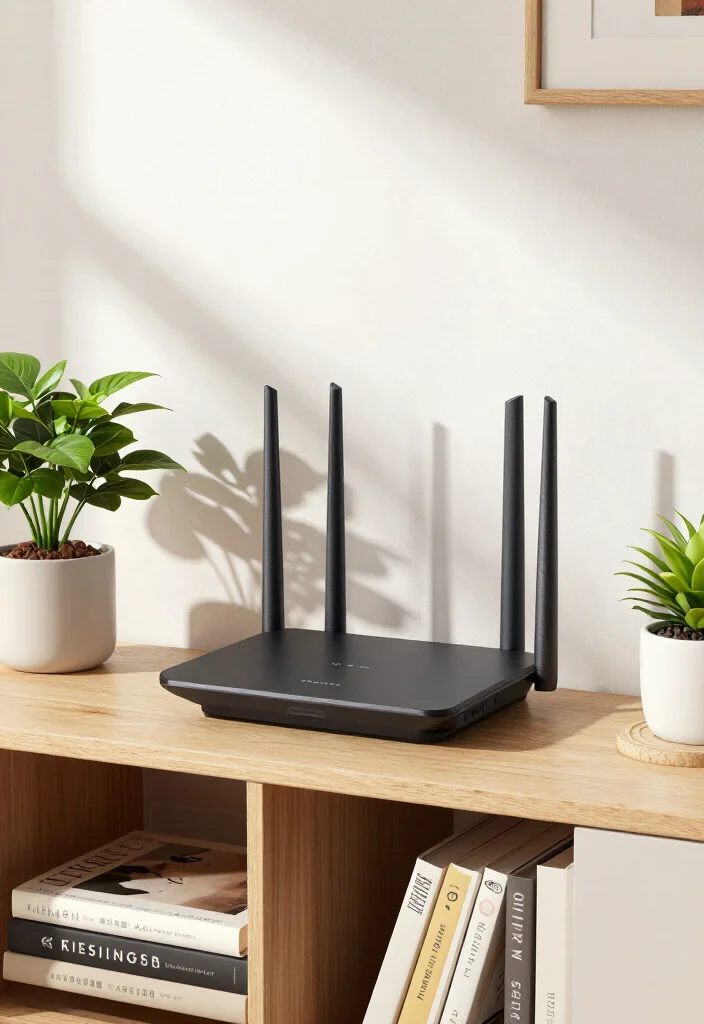
Where you place your router can greatly impact your internet speed. Ideally, position it centrally in your home, away from walls or obstructions that block signals. Elevating your router can also help spread the signal effectively.
Avoid spots near devices like microwaves that may cause interference. Keeping it out in the open, rather than hidden away, can significantly enhance your Wi-Fi range and speed.
Tips for effective placement:
– Position your router centrally for better signal distribution.
– Keep it away from other electronic devices that can interfere.
– Elevate the router for improved reach throughout your space.
Pro tip: Centering your router and elevating it just a bit can improve your internet speed by up to 20–30%. Keeping it away from microwaves and hidden corners makes your signal travel farther and faster—no more buffering.
5. Limit Connected Devices

Multiple devices can drain your internet speed. Each one connected to your Wi-Fi consumes bandwidth, which can slow things down, especially during busy times. Limiting the number of devices online at once can help.
You can set priorities for devices that need faster connections, like those used for streaming or gaming. Disconnect any devices not currently in use to free up more bandwidth.
Steps to manage your devices:
– Disconnect unused devices from your network.
– Use Quality of Service (QoS) settings to prioritize important devices.
– Monitor bandwidth use to identify which devices are consuming the most.
Did you know that each extra device on your Wi‑Fi can cut your internet speed by up to 20% during peak hours? Limit the number of connected devices to reclaim bandwidth and keep streaming and gaming smooth.
6. Use Ethernet Instead of Wi-Fi

For a more reliable connection, switch to an Ethernet cable for your internet speed. While Wi-Fi is convenient, it can be affected by distance and interference. A wired connection ensures a steady signal, especially for activities like gaming and streaming.
Connect devices that require a stable connection using Ethernet cables. This small change can significantly enhance your online experience!
Getting started with Ethernet:
– Buy a high-quality Ethernet cable long enough for your setup.
– Connect directly from your router to your device for best results.
– Use Wi-Fi only for mobile devices when necessary.
7. Keep Your Devices Updated

Your devices also need updates for optimal internet speed. Regularly updating your smartphone, computer, and other gadgets can improve performance and speed. Updates often fix bugs and enhance how your device processes data.
Make it a routine to check for updates on all your devices. Whether it’s an operating system upgrade or an app update, these improvements can help eliminate slowdowns. Don’t forget to reboot after updates to ensure everything runs smoothly!
Tips for keeping devices current:
– Enable automatic updates wherever possible.
– Regularly check for updates to stay current.
– Reboot devices post-update to maximize performance.
8. Clear Your Cache

Over time, browsers gather data that can slow your internet speed. Clearing your cache not only frees up space but can also enhance your browsing efficiency. Regularly clearing cached files allows your browser to load pages more quickly.
To clear your cache, access your browser’s settings and find the option for clearing browsing data. Aim to do this every few weeks, especially if you frequently visit sites that require log-ins or large files.
Steps to clear your cache:
– Go to your browser’s settings to locate the cache clearing option.
– Set a schedule, like every few weeks, to clear your cache.
– Explore browser extensions designed to help manage cache effectively.
9. Change Your DNS Settings
Your DNS settings can influence your internet speed. Switching to a public DNS service, like Google DNS or OpenDNS, can improve loading times for websites. These servers often perform better than your ISP’s default settings.
To change your DNS, go to your network settings and input the new DNS addresses. After making the change, restart your connection and run a speed test to check for improvements. This simple adjustment can lead to a better browsing experience!
Steps to update your DNS:
– Research reliable public DNS services to use.
– Access your device’s network settings to enter the new DNS addresses.
– Restart your connection and test your speeds afterward.
10. Reduce Bandwidth-Heavy Applications

Certain applications can significantly drain your internet speed. Identify and limit the use of bandwidth-heavy applications, especially during peak hours. Activities like file downloads or video streaming can slow down your connection.
Consider scheduling large downloads for off-peak times or using tools to manage bandwidth on your router. Keeping an eye on what’s running helps you pinpoint what’s causing slowdowns, allowing for smarter usage decisions.
Managing your bandwidth effectively:
– Use task manager tools to identify bandwidth-hogging applications.
– Schedule large downloads for late-night or early morning when traffic is low.
– Discuss bandwidth usage with others in your household.
11. Use a Wi-Fi Extender

If your home has weak Wi-Fi signals in certain areas, a Wi-Fi extender can help. These devices boost your Wi-Fi signal, eliminating frustrating dead spots and improving your internet speed. They’re especially useful in larger homes or those with complex layouts.
Setting up a Wi-Fi extender is typically straightforward; just plug it in where you can get a good signal from your router and follow the setup instructions. This simple addition can enhance coverage, allowing for faster internet access throughout your home!
Steps for using a Wi-Fi extender:
– Select a compatible Wi-Fi extender for your router.
– Position it strategically to maximize coverage.
– Test the connection in previously weak areas to ensure it works.
12. Contact Your ISP for Support

If you’re still facing slow internet speed, reach out to your Internet Service Provider (ISP). They can help troubleshoot issues, provide information about local problems, and sometimes offer solutions you might not know about.
It’s their responsibility to ensure you get the best service possible. Have your account details and speed test results ready when you contact them, as this will help them assist you better.
Tips for contacting your ISP:
– Document your speed test results before reaching out.
– Be prepared to explain any issues you’ve encountered.
– Inquire about available upgrades or solutions to enhance your service.
Conclusion

Improving your internet speed doesn’t have to be a daunting task. With just a few simple tweaks and strategies, you can enjoy a faster, smoother online experience. From ensuring your devices are up to date to optimizing your router’s placement, each step contributes to a more reliable connection.
Don’t forget to revisit these tips from time to time and share what works best for you! Your seamless internet journey is within reach—happy surfing!
Frequently Asked Questions
What simple steps can I take to improve my internet speed at home?
Here are quick, beginner-friendly steps to boost your internet speed at home. This is a simple guide to improving internet speed without getting overwhelmed.
First, run a fast speed test to compare your current internet speed with your plan.
Next, reboot your modem and router to clear glitches.
Whenever possible, connect important devices with an Ethernet cable for the most reliable speed.
Place your router in a central, elevated spot away from walls and electronics to reduce dead zones.
Check for firmware updates on your router and modem, which can boost performance.
Close or pause bandwidth-heavy apps and cloud backups that run in the background.
Switch to a less crowded Wi‑Fi channel (5 GHz is faster if your devices support it).
For ongoing needs, consider upgrading your router or enabling QoS to prioritize video calls, streaming, or gaming.
If speeds are still slow, contact your ISP about a plan upgrade or possible line issues.
Why is my internet speed slow on Wi-Fi but fine on Ethernet, and how can I fix it?
When your internet speed is fine on Ethernet but slow on Wi‑Fi, the wireless link is usually the bottleneck. Here is a simple guide to fix it: position your router in a central, elevated spot; reduce interference from cordless phones, microwaves, and neighboring networks; ensure you’re using the 5 GHz band for higher speeds and switch to a clearer channel; update router firmware; enable Quality of Service (QoS) to prioritize video calls, streaming, or gaming; if you have many devices, consider a mesh Wi‑Fi system or wired access points to extend coverage; finally, you may need a newer router that supports faster standards like 802.11ac/ax.
How can I test my internet speed accurately and know if I’m getting what I pay for?
To test accurately, use a wired connection for baseline and run several tests at different times of day.
Use reputable tools like Speedtest by Ookla or Fast.com.
Compare results to your plan’s advertised speeds, and note download, upload, and latency.
If you’re consistently below what you pay for, contact your ISP with your test results and ask for a fix or plan adjustment.
Tip: avoid testing over a VPN or during peak congestion hours for a clearer view of your line.
Remember that Wi‑Fi overhead and multiple devices can shave some speed, so the wired test gives the most accurate baseline.
Do routers and Wi-Fi extenders affect internet speed, and how should I optimize them?
Yes — your hardware and setup can cap or boost internet speed.
Optimize by placing the router high and central, away from thick walls and electronics; keep firmware updated; choose a modern router that supports fast standards (like 802.11ac/ax); using the 5 GHz band for higher speeds where possible, and enabling QoS to prioritize important traffic; if your home is large, a mesh Wi‑Fi system or wired access points often deliver steadier coverage than multiple extenders.
After changes, run a quick speed test to confirm improvements.
What beginner-friendly fixes stop buffering and improve streaming and online gaming?
Buffering usually means your network is juggling traffic. Try these beginner fixes: pause nonessential downloads and cloud backups, close background apps, and enable QoS to prioritize streaming and gaming; lower streaming quality or enable adaptive bitrate to reduce bandwidth needs; whenever possible, use a wired Ethernet connection for streaming devices; ensure your modem and router firmware are up to date; if buffering persists, consider upgrading your plan or equipment, and check with your ISP for outages or throttling.