
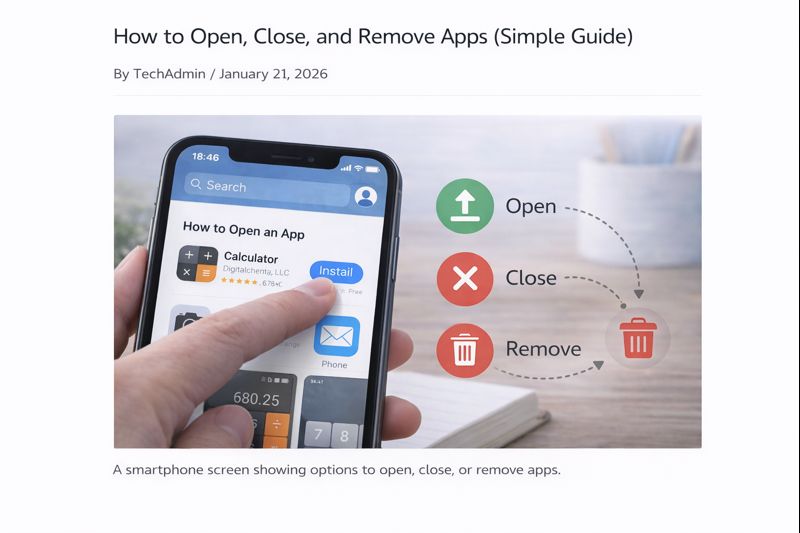
Once an app is installed, the next step is knowing how to open it, close it, and remove it if you no longer need it.
Many beginners worry about closing apps the “wrong” way or deleting something by mistake. This guide explains everything simply and safely, step by step.
How to Open an App
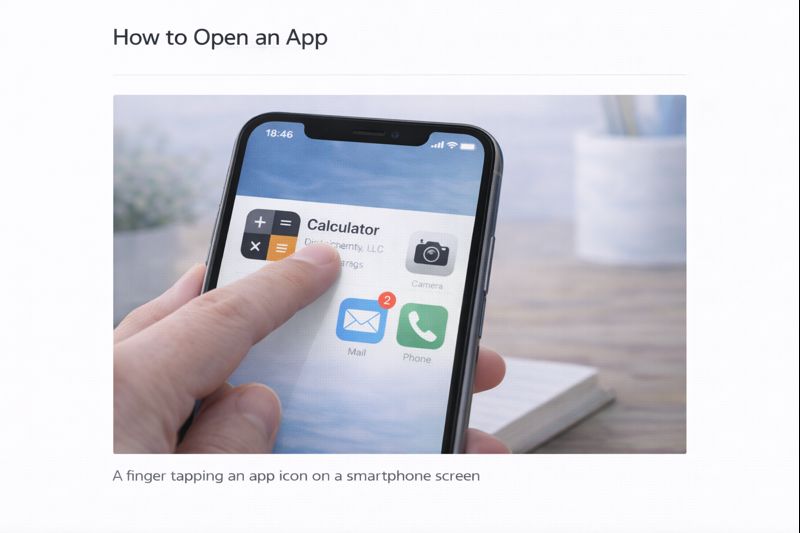
To open an app:
- Find the app’s icon on your screen
- Click or tap the icon once
- Wait for the app to open
The app will open in its own window or full screen.
You do not need to press hard or tap repeatedly.
How to Tell If an App Is Open
An app is open if:
- You can see it on the screen
- It appears in the taskbar (on computers)
- It appears as an active app on phones or tablets
Only one app is usually active at a time.
How to Close an App
Closing an app is safe and normal.
On a computer:
- Look for the X in the top corner of the app window
- Click the X once
On a phone or tablet:
- Use the device’s method for closing apps
(this varies slightly by device, and we’ll explain this in later guides)
Closing an app does not delete it.
Closing vs Removing an App (Important Difference)
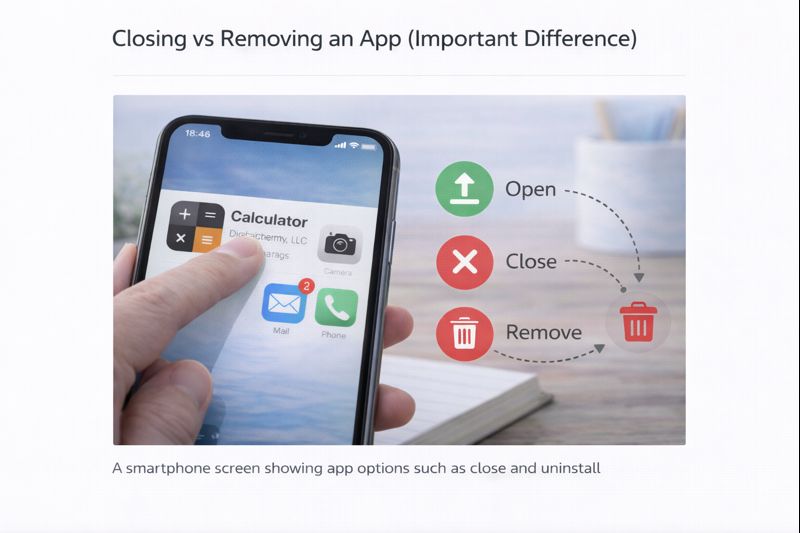
This is a very common confusion.
Closing an app:
- Stops it running
- Keeps it installed
- You can open it again later
Removing an app:
- Deletes it from your device
- Frees up space
- You would need to download it again to use it
Closing is safe and temporary.
Removing is permanent — but still safe if you choose to do it.
How to Remove an App You Don’t Want
If you no longer want an app, you can remove it.
General steps (may vary slightly):
- Find the app’s icon
- Right-click (computer) or press and hold (phone/tablet)
- Choose Remove, Uninstall, or Delete
- Confirm when asked
The app will be removed from your device.
What Happens When an App Is Removed?
When you remove an app:
- The app is deleted
- The app icon disappears
- Any information saved inside the app may be removed
If unsure, it’s fine to leave the app installed.
Common Beginner Worries
“Will I break something if I close an app?”
No. Apps are meant to be opened and closed.
“What if I remove the wrong app?”
Most important apps are protected. If needed, apps can usually be reinstalled.
“Do I need to close apps all the time?”
No. Closing apps when finished is helpful but not required.
Take Your Time
You do not need to manage apps perfectly.
Learning comes from:
- Using apps
- Making small mistakes
- Becoming familiar over time
That is completely normal.
What to Learn Next
The next helpful guide is:
How to Update Apps (And Why It Matters)
This explains why apps ask for updates and how to handle them safely.
You can also return to the Apps Guides page at any time.
Simple Tech Guide explains everyday technology clearly, without pressure or jargon.