
Copy and paste is one of the most useful things you can learn on a computer. It allows you to copy text, files, or pictures and place them somewhere else. Once you learn this, many computer tasks become much easier.
Copying and pasting is a normal, safe computer task. Copying something does not remove or change the original.”
Quick Answer
To copy and paste on a Windows computer:
- Select the text, picture or file you want to copy.
- Press Ctrl + C on your keyboard.
- Click where you want to put it.
- Press Ctrl + V.
Ctrl + C = Copy
Ctrl + V = Paste
You can also right-click the item and choose Copy, then right-click where you want it and choose Paste.
Before You Start
- You cannot break anything by copying and pasting
- You can practice as many times as you like
- If you make a mistake, you can try again
- These steps work on most Windows computers
Take your time and follow the steps slowly.
How to Copy and Paste Using the Keyboard

This is the fastest and most common way.
Step 1: Select the Text or File
To copy text:
- Click at the start of the text
- Hold the left mouse button
- Drag across the text
To copy a file:
- Click the file once
The text or file should now be highlighted.
Step 2: Copy
Press the keys:
Ctrl + C
This copies the selected item.
Step 3: Go to Where You Want to Paste
Open the document, email, or folder where you want the copied item to go.
Step 4: Paste
Press:
Ctrl + V
The copied text, file, or picture will appear.
How to Copy and Paste Using the Mouse
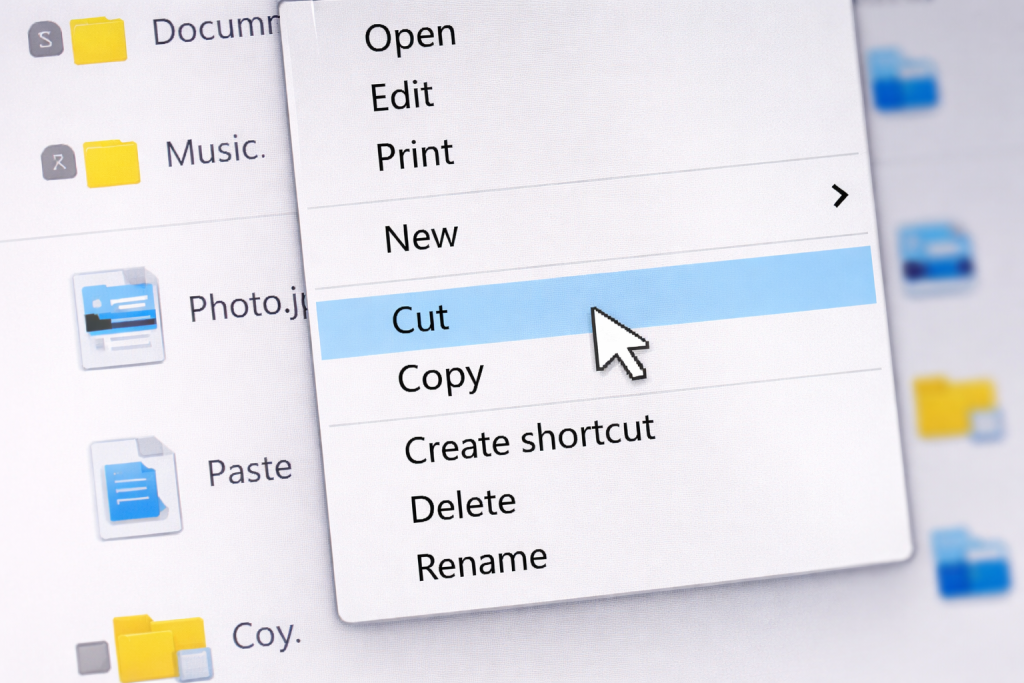
You can also copy and paste using the mouse.
Steps:
- Select the text or file
- Right-click with the mouse
- Click Copy
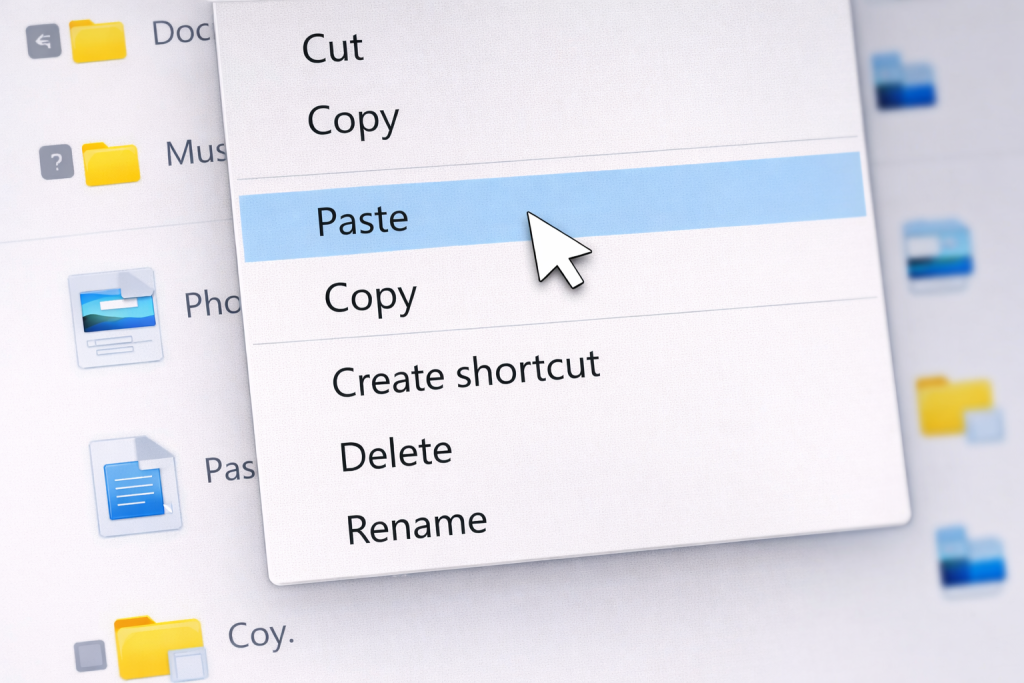
- Go to where you want to paste
- Right-click again
- Click Paste
This does the same thing as the keyboard shortcuts.
Copying and Pasting Files
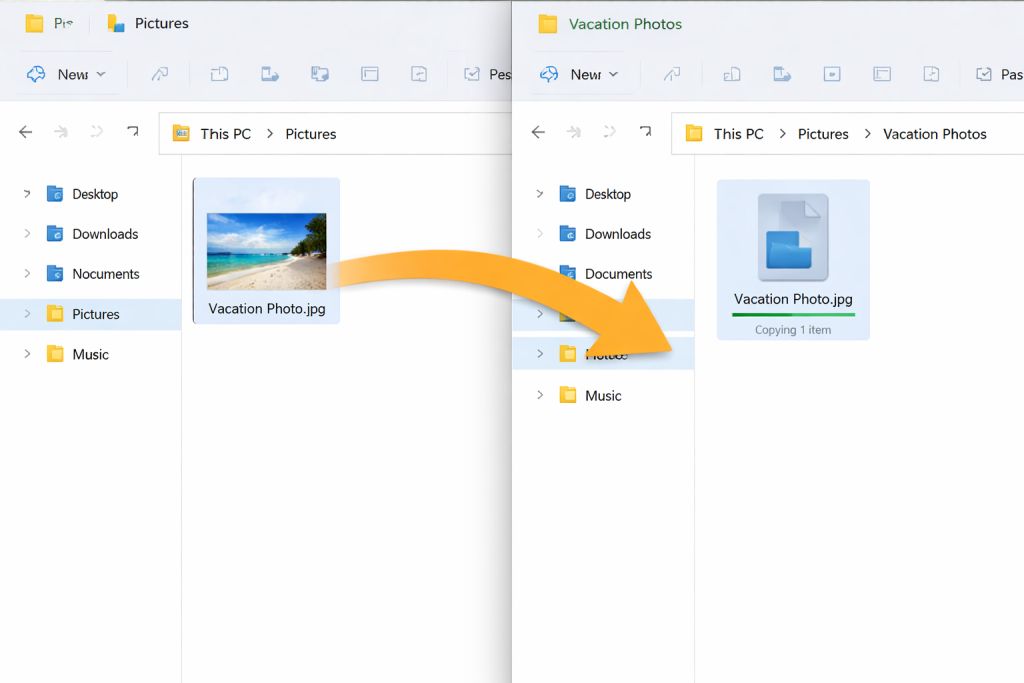
You can copy files such as:
- Documents
- Pictures
- Music files
- PDFs
To copy a file:
- Click the file once
- Press Ctrl + C
- Open the folder where you want to put the file
- Press Ctrl + V
A copy of the file will appear in the new folder.
Copy vs Cut (Important)
There is a difference between Copy and Cut.
| Action | What it does |
|---|---|
| Copy | Makes another copy and keeps the original |
| Cut | Moves the item to a new location |
Keyboard shortcuts:
- Ctrl + C = Copy
- Ctrl + X = Cut
- Ctrl + V = Paste
If you are unsure, use Copy, not Cut.
Common Questions
Why is paste not working?
You may not have copied anything yet. Press Ctrl + C first, then try Ctrl + V.
Can I copy and paste pictures?
Yes, you can copy pictures just like text or files.
Can I undo paste?
Yes. Press Ctrl + Z to undo.
What is the easiest way to copy and paste?
Use:
- Ctrl + C to copy
- Ctrl + V to paste
Good to Know
- Copying does not delete the original
- You can paste the same thing many times
- Copy and paste works in most programs
- This is one of the most useful computer skills
Take your time. You will get used to it quickly.
🖨️ Prefer a printable guide?
Want to keep the most useful keyboard shortcuts beside your computer?
Our free Keyboard Shortcuts printable includes simple shortcuts you can refer to whenever you need them.
View the Free Printable Guide →
No sign-up needed.