
Getting a new laptop or computer should be exciting, but the first setup screens can feel confusing if you’re not used to Windows.
You might be wondering:
- Which options should I choose?
- Do I need a Microsoft account?
- Should I accept all the privacy settings?
- Do I need antivirus software?
- How do I move my photos and documents from my old computer?
- What should I do before I start using it?
Don’t worry. You don’t need to understand everything Windows asks you.
This guide takes you through the important steps in the order we’d recommend for a beginner.
Quick answer: Turn on your new computer, connect it to Wi-Fi, follow the Windows setup instructions, sign in or create your Microsoft account, create a PIN and finish the initial setup. Once you reach the desktop, run Windows Update before installing lots of programs or moving your files.
Before You Start
It helps to have a few things nearby before turning on your new computer:
- Your Wi-Fi name and password
- Your email address
- Your mobile phone
- Your old computer, if you’re moving files from it
- The charger that came with your new laptop
If it’s a laptop, plug it into the charger while you’re setting it up.
You don’t need to rush. Most of the settings Windows asks about can be changed later.
Step 1: Turn On Your New Computer
Find the power button and press it once.
The first startup can take a little longer than normal. You should eventually see the Windows setup screen.
Windows will ask you some basic questions, such as your country or region and keyboard layout.
For most UK users:
Country or region: United Kingdom
Keyboard layout: United Kingdom
Follow the instructions on the screen and select Next when you’re ready.
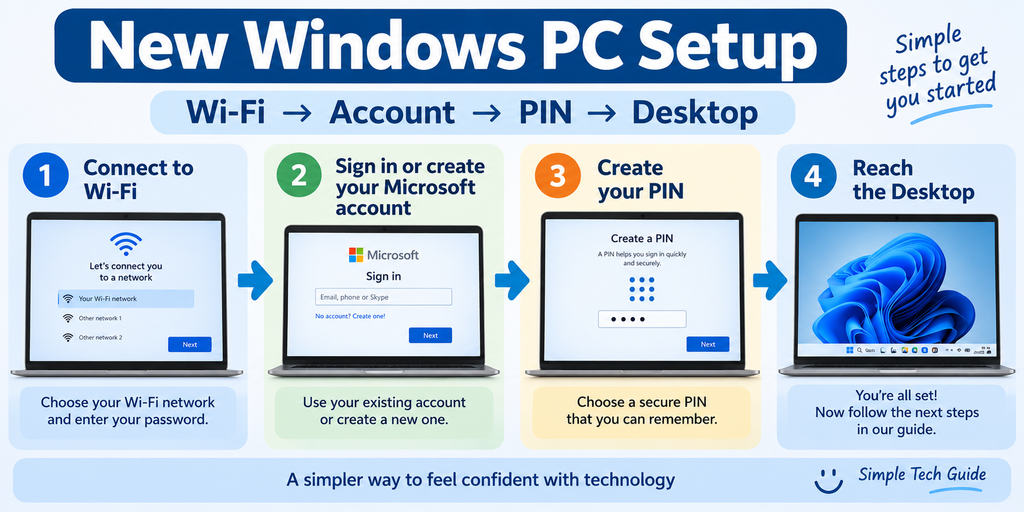
Step 2: Connect to Your Wi-Fi
Windows should show a list of nearby Wi-Fi networks.
Find the name of your home Wi-Fi network, select it and choose Connect.
Enter your Wi-Fi password.
Be careful here: Wi-Fi passwords are usually case-sensitive, so capital and lowercase letters matter.
Once connected, Windows can use your internet connection to continue setting up the computer and check for updates.
Can’t connect?
Don’t repeatedly change settings if you’re unsure.
Check that:
- You selected your own Wi-Fi network
- The password was entered correctly
- Your router is switched on
- Other devices can connect to the internet
If Wi-Fi works on your phone but not your new computer, use our Computer Problem Finder for further help.
Step 3: Sign In or Create Your Microsoft Account
Windows may ask you to sign in with a Microsoft account.
A Microsoft account is the account used for services such as Windows, OneDrive, Microsoft 365 and Xbox.
If you already have an Outlook, Hotmail or Microsoft email account, you may already have one.
If you don’t have an account, Windows can guide you through creating one.
Do I need a Microsoft account?
For most beginners buying a normal Windows 11 computer, using a Microsoft account is the simplest option.
It can help with:
- Backing up some settings and files
- Recovering your account
- Using OneDrive
- Downloading apps
- Moving to another Windows computer later
Windows Backup can also use your Microsoft account to make restoring supported information on another PC easier.
Important: Write down which email address you used, but never leave your password somewhere other people can easily find it.
Step 4: Create Your Windows PIN
Windows will normally ask you to create a PIN.
This is the number you can use to unlock your computer instead of typing your Microsoft account password every time.
Choose something you can remember but that isn’t obvious to somebody else.
Avoid simple PINs such as 1234, 0000, your birth year or part of your phone number.
Some computers also support fingerprint or facial recognition. You can set these up if offered, but you don’t have to.
Step 5: Read the Privacy Options
Windows may now show several privacy choices.
Don’t feel you have to press Accept immediately.
Read each option and decide whether you’re comfortable with it.
You may see settings relating to things such as:
- Location
- Diagnostic information
- Personalised experiences
- Advertising
You can change Windows privacy settings later, so don’t worry if you’re unsure about one of them during setup.
Simple Tech Guide tip: It’s perfectly reasonable to turn off optional features you don’t understand and enable them later if you discover you need them.
Step 6: Don’t Worry About Every Optional Offer
During setup you may be offered additional Microsoft services or trials.
These can vary between computers.
You do not have to subscribe to something simply because Windows shows it during setup.
Read each screen before selecting Next, Accept or Buy.
If you don’t want an optional trial or service, look for choices such as:
Skip
Not now
No thanks
or similar wording.
Never enter payment details unless you understand exactly what you’re signing up for.
Step 7: Wait for the Windows Desktop
Eventually you’ll reach the Windows desktop.
You’ll normally see the taskbar along the bottom of the screen and the Start button.
Congratulations — the basic Windows setup is complete.
But there are a few important jobs worth doing before you start using the computer normally.
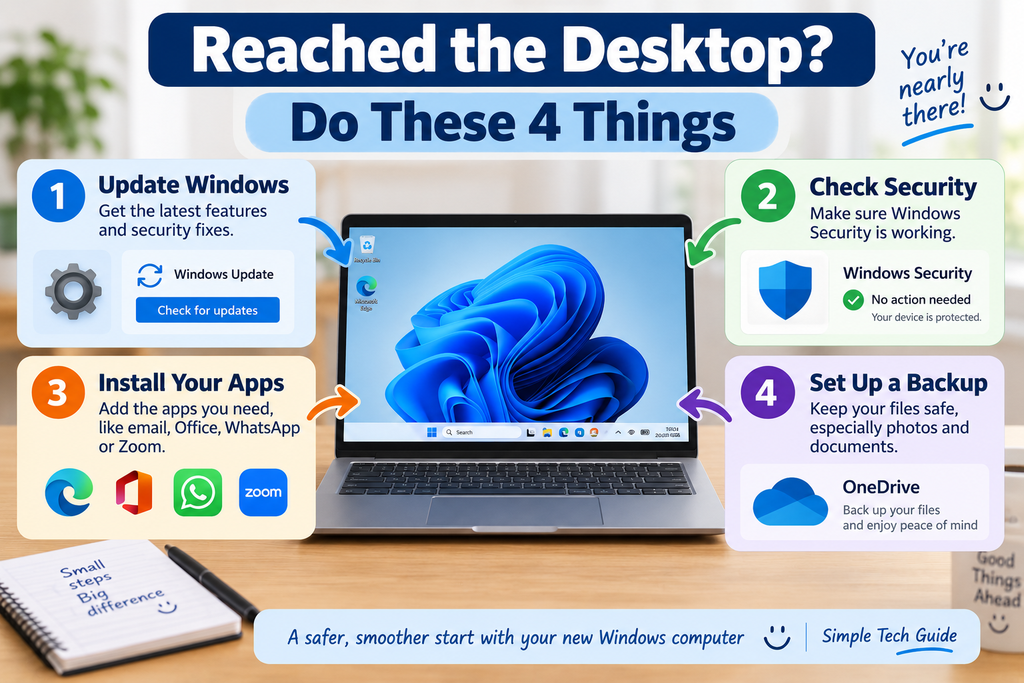
Step 8: Update Windows
This is one of the most important steps.
Open:
Start → Settings → Windows Update
Then choose:
Check for updates
Allow Windows to download and install any available updates.
Your computer may need to restart.
After it restarts, check Windows Update again. Sometimes another update becomes available after the first one installs.
Don’t switch the computer off while Windows says it is installing an update.
Step 9: Check That Windows Security Is Working
Here’s some good news:
You don’t necessarily need to buy separate antivirus software just because you’ve bought a new computer.
Windows includes built-in security protection.
Search Windows for:
Windows Security
Open it and look at the main security areas.
You shouldn’t need to change complicated settings.
For most beginners, the important thing is simply to make sure Windows isn’t showing a warning that requires your attention.
Be cautious if a pop-up tells you that your computer has hundreds of viruses and demands immediate payment. Fake security warnings are a common scam.
Step 10: Remove Programs You Don’t Want — Carefully
New computers sometimes arrive with extra apps, trials or manufacturer software already installed.
You don’t need to remove everything.
If you recognise an unwanted trial or game, you can remove it through:
Settings → Apps → Installed apps
But if you don’t know what something is, leave it alone.
Some unfamiliar-looking software may be needed by your computer.
Our rule for beginners is simple:
Don’t uninstall something just because you don’t recognise its name.
Step 11: Install the Apps You Actually Need
Now think about what you use your computer for.
You might want apps for:
- Video calls
- Music
- Photos
- Printing
- Microsoft 365
- Spotify
- Zoom
You don’t need to fill a new computer with apps immediately.
Start with the things you genuinely use.
Whenever possible, download programs from the Microsoft Store or the software company’s official website rather than clicking random download adverts in search results.
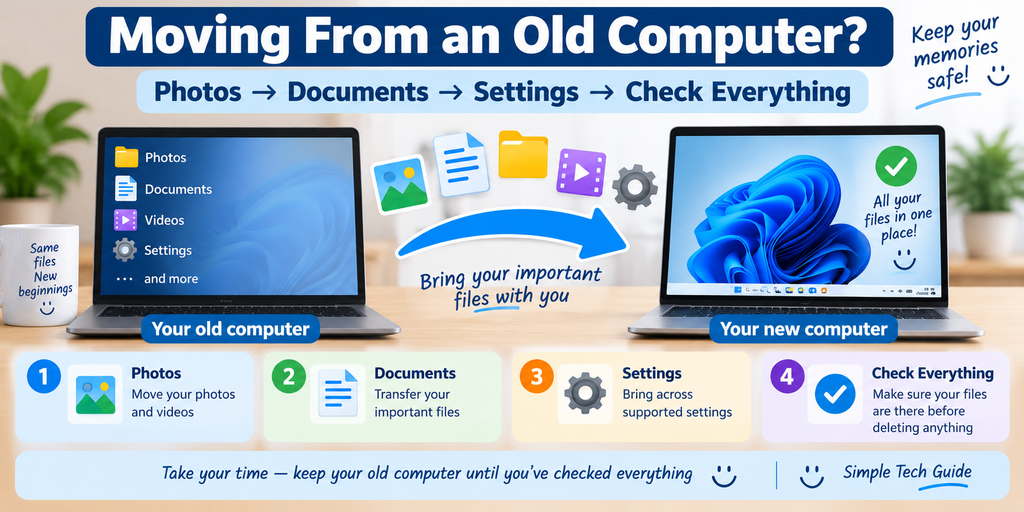
Step 12: Move Files From Your Old Computer
If this computer is replacing an old one, you may want to move your:
- Photos
- Documents
- Videos
- Desktop files
- Other personal folders
Don’t erase or dispose of your old computer yet.
Windows provides backup and transfer options for moving supported information to a new PC. The precise options available can depend on your computer and existing backup setup.
You can also use services such as OneDrive or an external USB drive.
Very important
Check that your important files have arrived safely before deleting anything from your old computer.
Keep the old computer untouched for a while if possible.
Step 13: Set Up a Backup
This is one of those jobs people often ignore until something goes wrong.
A backup gives you another copy of important information such as your photos and documents.
Windows Backup can back up supported files, settings and other information associated with your Microsoft account.
Even if your computer is brand new, start thinking about backup now.
A computer can be replaced.
Family photographs and important documents sometimes can’t.
Step 14: Connect Your Printer — If You Have One
Don’t worry about setting up a printer until the main computer setup is finished.
Turn on your printer and make sure it’s connected correctly.
Windows can often detect modern printers automatically, although some manufacturers provide their own setup app.
If it doesn’t work, don’t start changing lots of Windows settings randomly.
Visit our printer help section for simple step-by-step help.
Step 15: Make Windows Easier to Use
You don’t have to use Windows exactly as it arrives.
You can make text larger, change the screen brightness and adjust other accessibility settings.
If things look too small, don’t struggle with them.
Open:
Start → Settings → Accessibility
Windows provides options that can make the computer easier to see, hear and control.
This is particularly useful if you’re setting up a computer for a parent or relative.
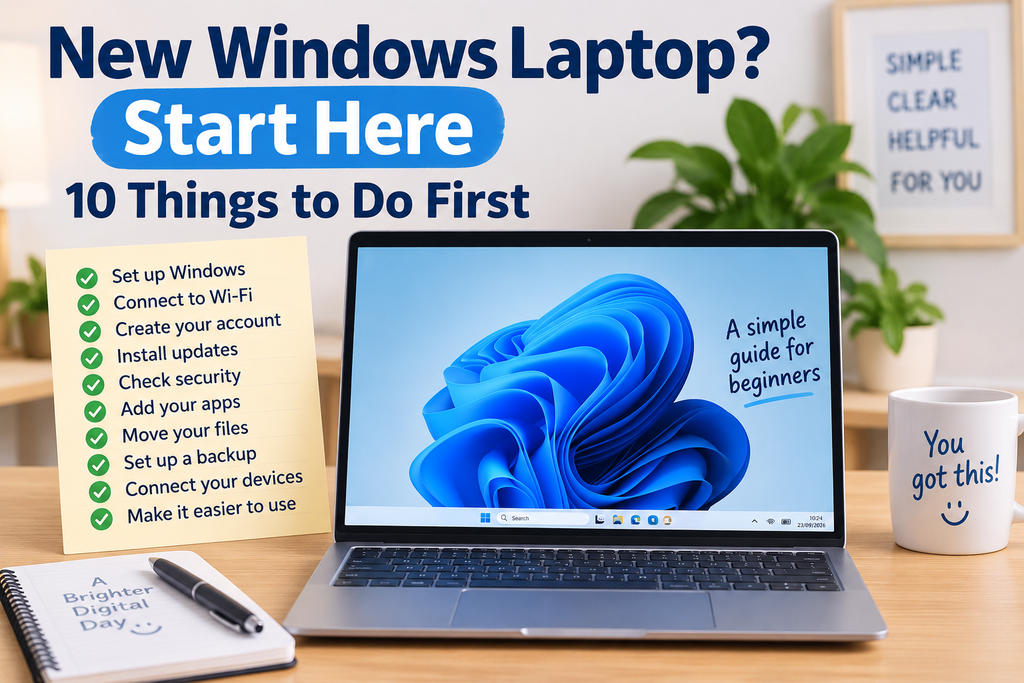
The 10 Things I’d Do First
If all of that feels like too much, concentrate on these:
- Plug the laptop in.
- Connect to your home Wi-Fi.
- Complete the Windows setup.
- Create a secure PIN.
- Reach the Windows desktop.
- Run Windows Update.
- Check Windows Security.
- Install only the apps you need.
- Move your important files carefully.
- Set up a backup.
You do not need to learn everything about your new computer today.
Once those jobs are complete, you can learn the rest gradually.
What Should I Learn Next?
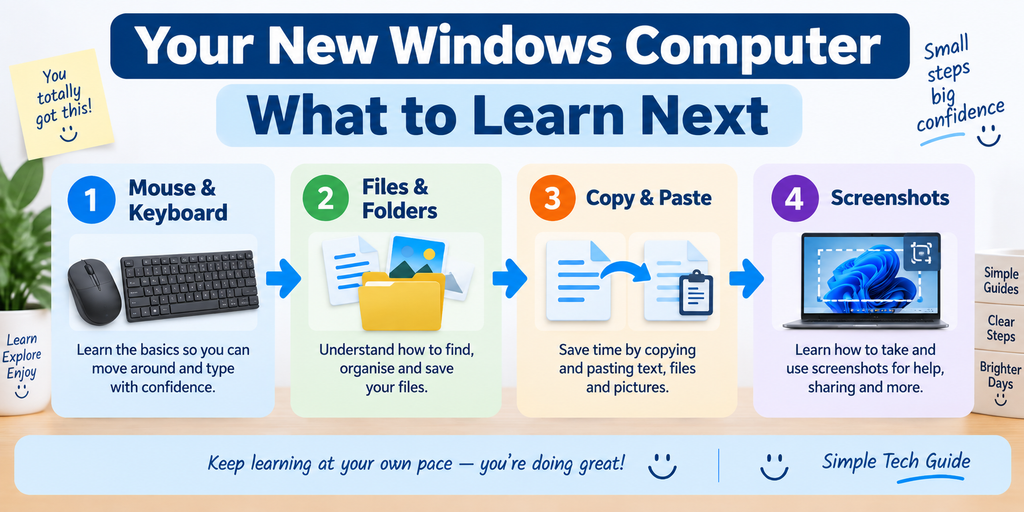
Once your new computer is ready, start with a few basic skills.
Simple Tech Guide already has beginner guides covering:
- What Is a Mouse and Keyboard?
- Understanding Files and Folders
- How to Create a Folder in Windows
- How to Copy and Paste on a Computer
- How to Open and Save a File
- How to Find a File on Your Computer
- How to Take a Screenshot in Windows
You don’t need to learn them all at once. Pick the skill you need and come back whenever you’re ready for the next one.
Frequently Asked Questions
How long does it take to set up a new Windows laptop?
The initial setup can often be completed fairly quickly, but Windows updates and transferring files can make the whole process take considerably longer.
Allow yourself plenty of time rather than trying to rush it.
Should I charge a new laptop before using it?
You don’t normally need to wait for a full charge before starting, but keeping the laptop plugged into its charger during setup and updates is sensible.
Do I need internet to set up Windows 11?
Internet connectivity is used during the normal Windows 11 setup experience for account setup, updates and connected services.
The exact setup screens can vary depending on the Windows edition, version and computer manufacturer.
Do I need to buy antivirus for my new computer?
Windows includes built-in security protection, so don’t assume you must immediately pay for another antivirus package.
Some users choose additional security software, but it isn’t something you should buy simply because a pop-up tells you to.
Do I need a Microsoft account?
Microsoft integrates Microsoft accounts closely with the normal Windows 11 consumer setup experience.
A Microsoft account also enables features such as Windows Backup and easier restoration of supported information to another PC.
Can I transfer everything from my old computer?
Not necessarily.
Windows backup and transfer tools can move a substantial amount of information, but not everything will necessarily transfer automatically.
That’s why you should keep your old computer until you’ve checked everything important.
Should I throw away my old computer after transferring everything?
No.
Keep it until you’ve checked that all your important photos, documents and other files are safely available on the new computer.
Is Windows 10 still supported?
Standard Windows 10 support ended on 14 October 2025.
If you’re buying a new Windows computer now, Windows 11 should normally be your focus rather than setting up a new machine around Windows 10.
Further Help
Official Help
Microsoft — Set up Windows
Microsoft — Windows Backup
Simple Tech Guide

New to technology? Visit our Getting Started section for simple guides to setting up and using new phones, computers, smartwatches, speakers and other devices.