
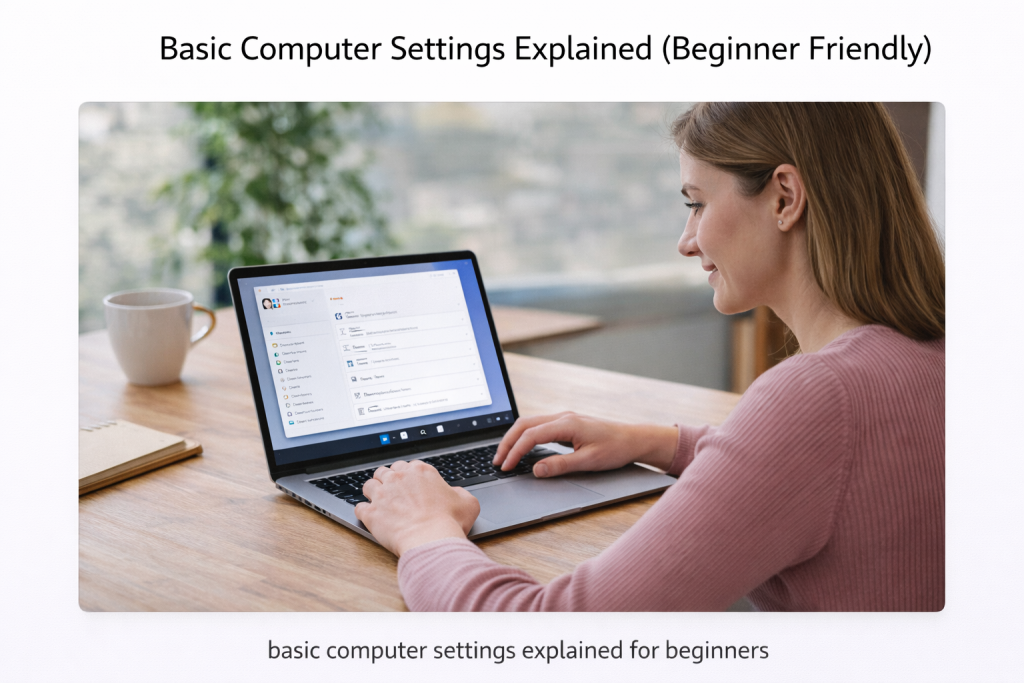
Computer settings allow you to change how your computer looks and behaves. Many beginners avoid settings because they worry about breaking something.
That’s understandable — but the good news is that basic settings are safe, and you can always change them back.
This guide explains the most common computer settings in a simple, non-technical way.
What Are Computer Settings?
Settings control things like:
- Screen brightness
- Sound volume
- Text size
- Internet connections
- Basic preferences
Settings do not damage your computer when used normally.
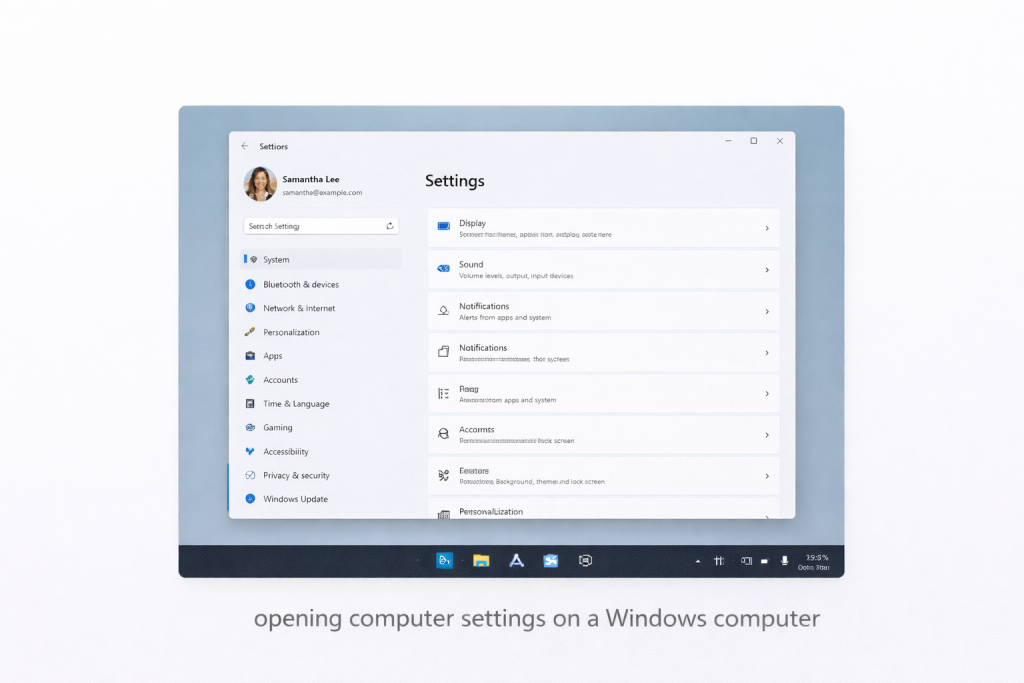
How to Open Computer Settings
- Click the Start button
(usually bottom-left of the screen) - Look for Settings
- Click it once
A settings window will open with different sections.
Screen Brightness and Display Settings
If the screen feels:
- Too bright
- Too dark
- Hard to read
You can adjust this.
Look for:
- Display
- Brightness
Move the slider slowly until it feels comfortable.
You are not changing anything permanently.
Text Size (Making Things Easier to Read)
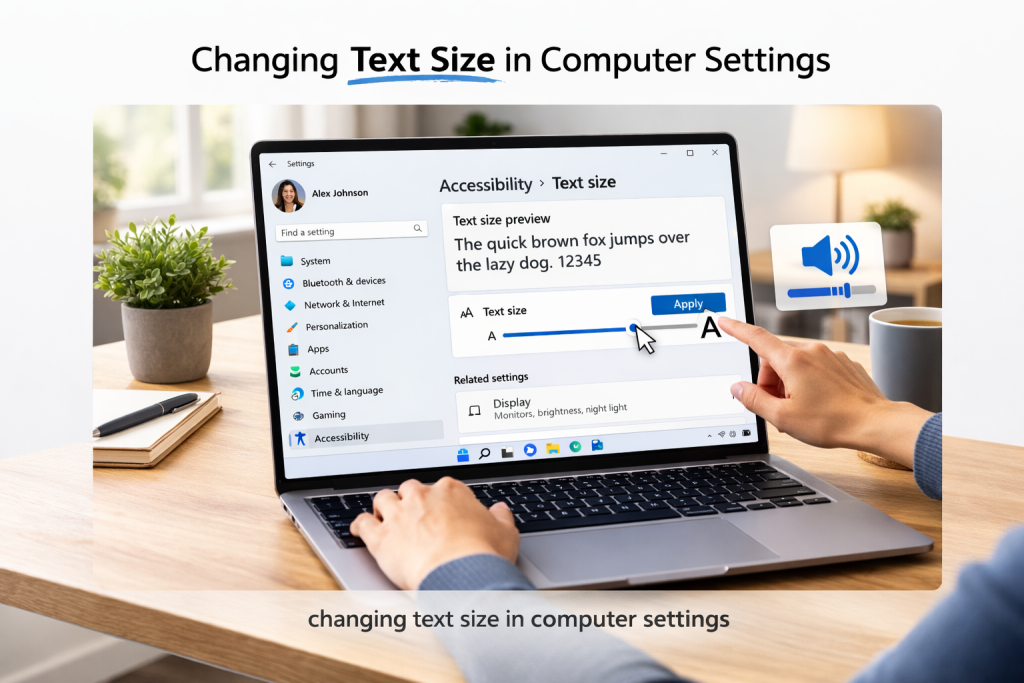
If text looks too small:
- Open Display settings
- Look for Text size or Scale
- Increase it slightly
This makes:
- Words easier to read
- Menus clearer
Many people find this very helpful.
Sound and Volume Settings
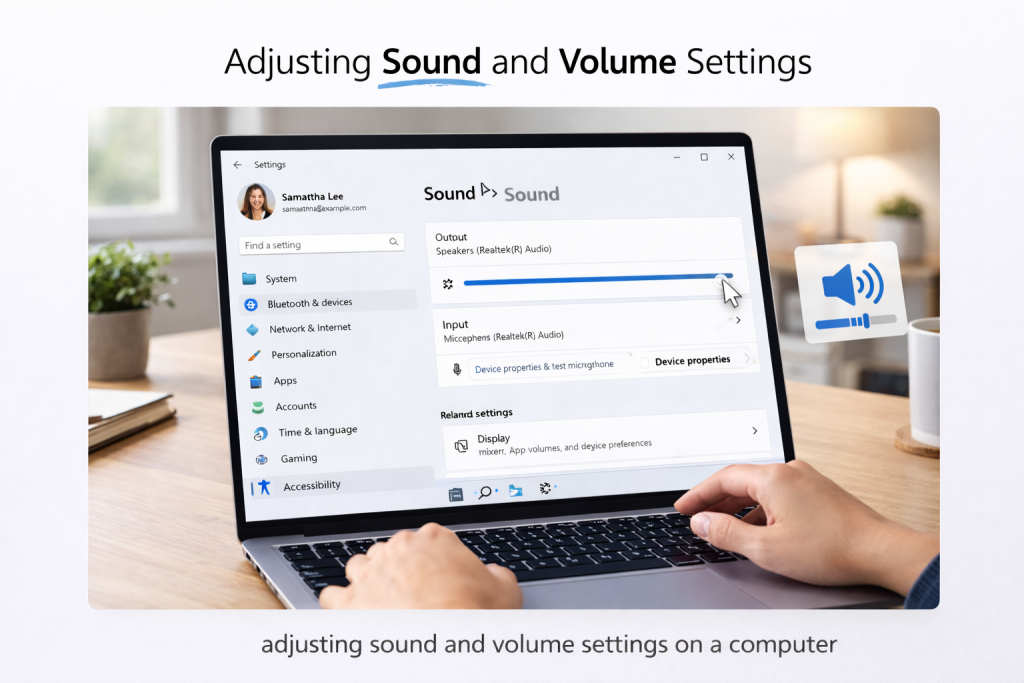
If your computer is:
- Too quiet
- Too loud
- Making unexpected sounds
Open:
- Sound settings
Here you can:
- Adjust volume
- Choose speakers or headphones
You cannot damage the computer by adjusting sound.
Internet and Wi-Fi Settings
If the internet stops working:
- Open Network or Wi-Fi settings
- Check if Wi-Fi is turned On
- Make sure you are connected to the correct network
This fixes many common internet problems.
Mouse and Keyboard Settings (Optional)
You can adjust:
- Mouse speed
- Pointer size
- Keyboard repeat speed
If something feels uncomfortable:
- Try a small change
- Use it for a while
- Change it back if needed
There is no pressure to adjust these.
What You Should Avoid Changing (For Now)
As a beginner, it’s best to avoid:
- Advanced system settings
- Security warnings you don’t understand
- Anything marked “Advanced” or “System”
If unsure — leave it alone.
That is a good rule.
You Can Always Change Settings Back
One important thing to remember:
👉 Settings are not permanent
If something doesn’t feel right:
- You can undo it
- Or change it back later
- Or restart the computer
Nothing is locked in.
Take Your Time
You do not need to explore every setting.
Many people use computers for years without touching most settings.
You only need what helps you.
What to Do Next
You have now completed the Computer Basics section.
You can:
- Revisit any guide
- Practice at your own pace
- Move on to Apps Guides or Internet & Email
You are building confidence — and that’s the goal.
Well done
Learning technology is not about being fast or clever.
It’s about feeling comfortable.
You’ve taken this step by step — exactly the right way.