
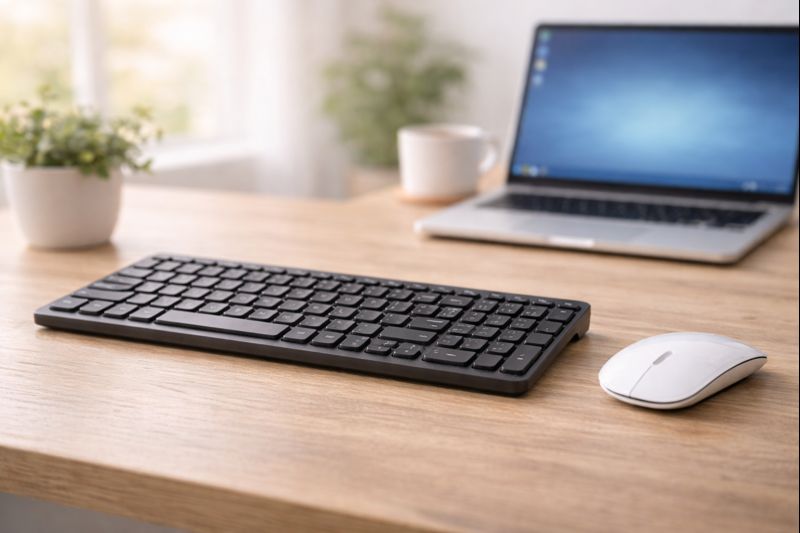
If you are new to computers, the mouse and keyboard can feel confusing at first. You may wonder which one to use, when to click, or what happens if you press the wrong key.
This guide explains what the mouse and keyboard are and how to use them, step by step, using simple language.
You do not need any previous experience.
What Is a Mouse?
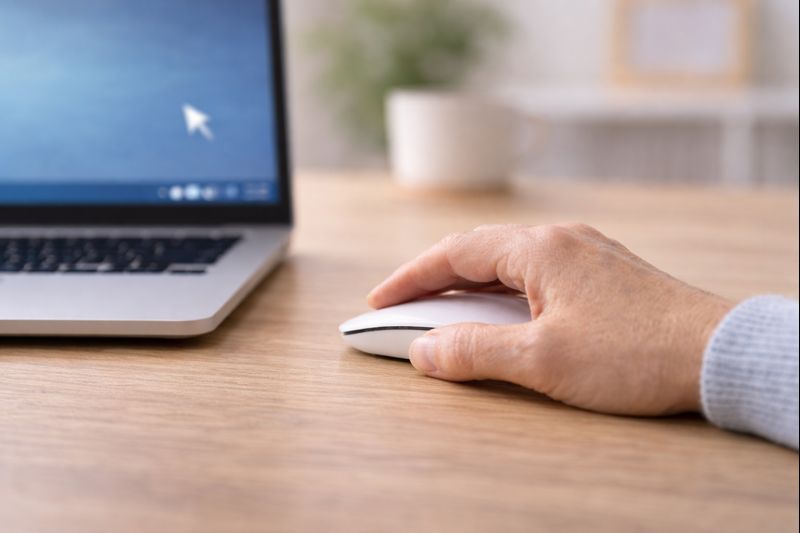
A mouse is a small device that you move with your hand. It controls the pointer (arrow) on the screen.
Most mice have:
- A left button
- A right button
- A scroll wheel in the middle
The mouse helps you:
- Point at things on the screen
- Click on buttons
- Open programs and files
How to Hold and Move the Mouse
- Place the mouse on a flat surface
- Rest your hand gently on top
- Move the mouse slowly
As you move the mouse, the pointer on the screen will move in the same direction.
You do not need to move quickly or press hard.
Mouse Clicking Explained Simply
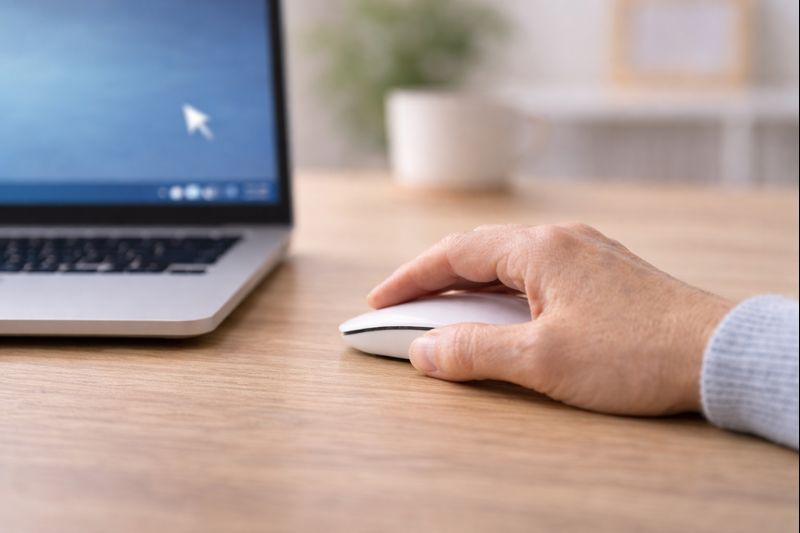
- Single click (left button): Selects something
- Double click (left button, twice quickly): Opens something
- Right click: Shows extra options
If something does not open, try clicking more slowly rather than harder.
What Is a Keyboard?
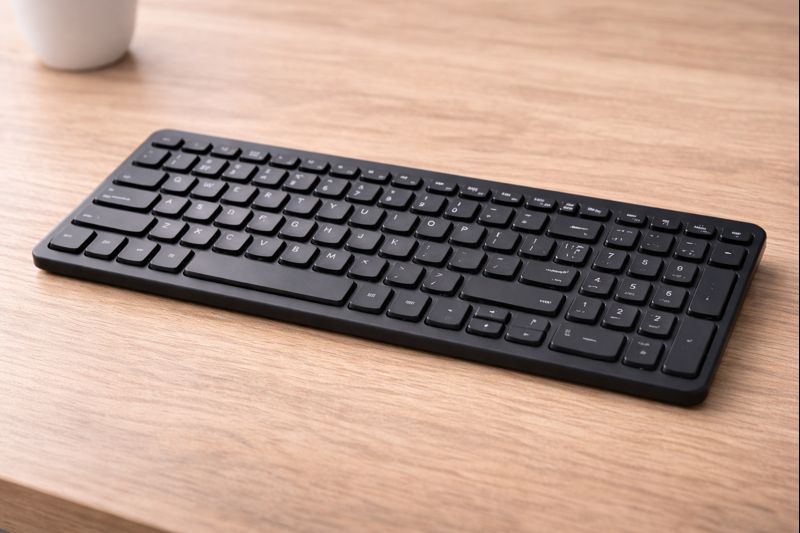
The keyboard is used for typing letters, numbers, and commands.
It looks similar to a typewriter and sits in front of the screen.
You do not need to learn every key to use a computer.
The Only Keyboard Keys You Need at First
Here are the most important keys for beginners:
- Letter keys: For typing words
- Number keys: For numbers
- Space bar: Makes a space between words
- Enter: Starts a new line or confirms something
- Backspace: Deletes mistakes
These five are enough to get started.
Typing Basics
- Press keys gently — no force needed
- Look at the screen, not the keyboard, when possible
- Go slowly and take breaks
Everyone types at a different speed. Speed does not matter.
Using a Laptop Trackpad Instead of a Mouse
If you are using a laptop, you may not have a mouse.
The trackpad replaces it.
- Move one finger to move the pointer
- Tap once to click
- Tap twice to double-click
Some trackpads also allow two-finger scrolling.
Common Beginner Worries (Reassurance)
“What if I press the wrong button?”
Nothing serious will happen. You can always close a window or go back.
“Do I need to remember everything?”
No. You will remember things naturally with use.
“Why does my mouse feel awkward?”
This is normal. It improves with time and practice.
Take Your Time
Learning to use a mouse and keyboard takes patience.
You are not expected to be perfect.
You are expected to learn slowly.
That is how everyone starts.
What to Learn Next
Once you are comfortable with the mouse and keyboard, the next helpful guides are:
You can return to the Computer Basics page whenever you need to.
Simple Tech Guide explains everyday technology clearly, without pressure or jargon.