
By TechAdmin / January 21, 2026
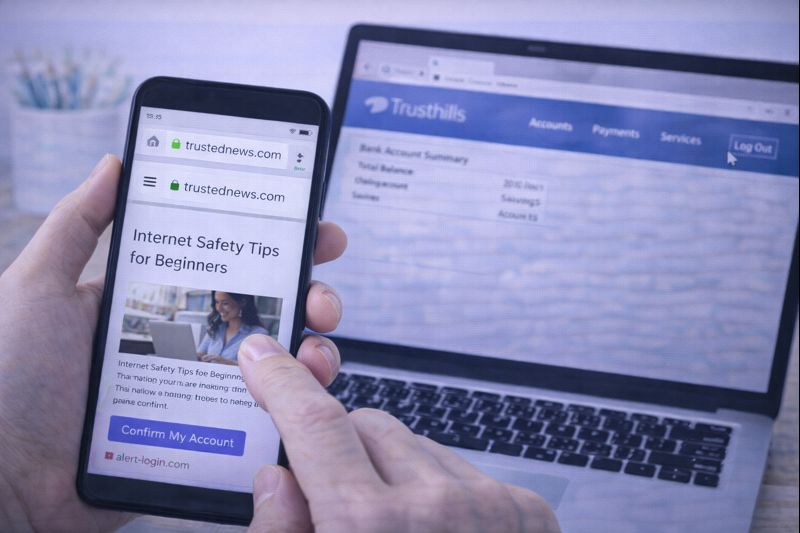
Using the internet can be helpful and enjoyable, but it’s important to browse safely — especially if you’re new to technology.
You do not need to be an expert to stay safe online.
This guide explains how to browse the internet more safely using simple language, calm advice, and clear steps. There is no fear and no technical jargon.
Why Internet Safety Matters
Browsing safely helps you:
- Protect your personal information
- Avoid scams and misleading websites
- Feel more confident online
- Reduce stress and worry
Most problems online can be avoided by slowing down and knowing what to look for.
Use Trusted Websites
When possible, use websites you already know and trust.
Trusted websites usually include:
- News sites you recognise
- Government websites
- Banks or service providers you already use
- Well-known companies
Be cautious with websites you’ve never seen before, especially if they ask for information.
Check the Website Address
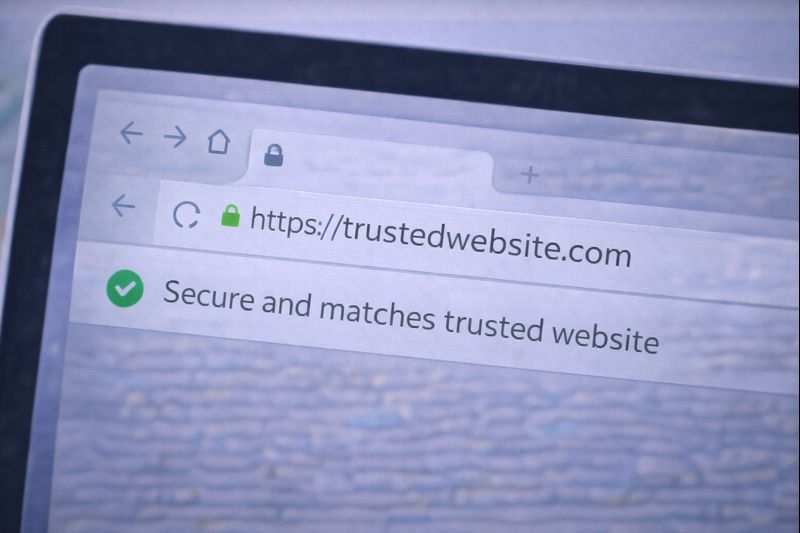
At the top of the browser, you’ll see the website address.
A safer website usually:
- Starts with https://
- Shows a small lock icon in the address bar
- Matches the name of the company clearly
If the address looks strange, misspelled, or confusing — pause.
Be Careful With Links
Links are words or pictures you can click.
Before clicking:
- Read the link carefully
- Be cautious with urgent messages
- Avoid clicking links from unexpected emails or messages
If you’re unsure, it’s safer not to click.
Do Not Share Personal Information
Be careful about entering personal details online.
Avoid sharing:
- Passwords
- Bank details
- Full address
- Phone number
- Personal identification numbers
Legitimate websites rarely ask for sensitive information unexpectedly.
Watch Out for Pop-Ups
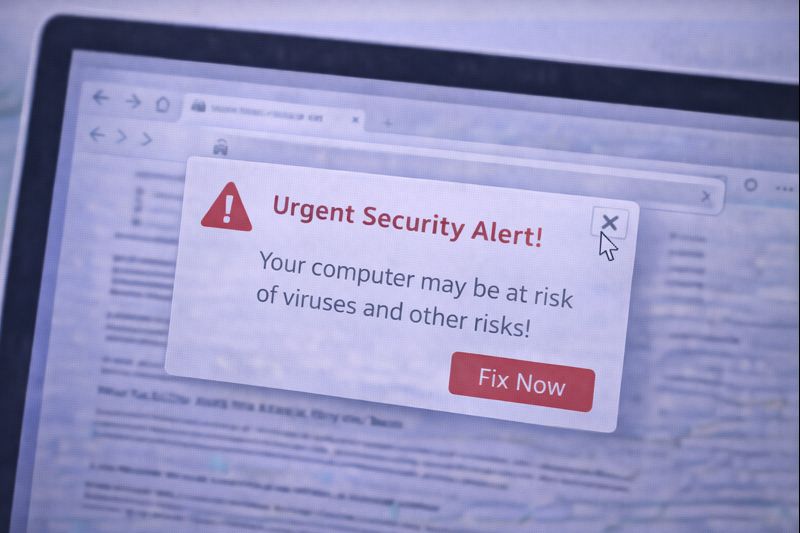
Pop-ups are boxes that suddenly appear on the screen.
Be cautious if a pop-up:
- Claims your device has a problem
- Asks you to click immediately
- Requests personal information
If unsure, close the pop-up or close the browser tab.
Use the Back Button
If a page feels wrong or confusing:
- Click the Back button
- Close the tab
- Close the browser if needed
Nothing bad happens if you leave a website.
Keep Your Browser Updated
Web browsers update automatically on most devices.
Updates help:
- Improve security
- Fix problems
- Keep browsing safe
You usually don’t need to do anything — updates happen quietly in the background.
A Simple Rule for Beginners
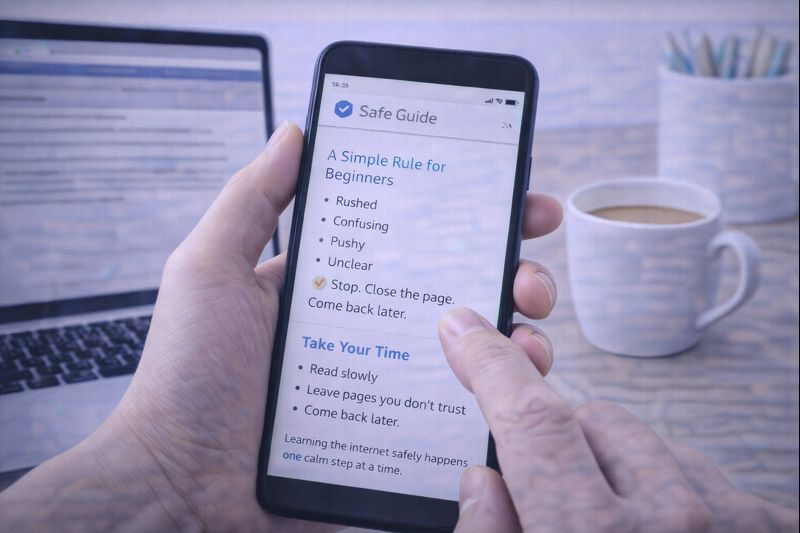
If something feels:
- Rushed
- Confusing
- Pushy
- Unclear
👉 Stop. Close the page. Come back later.
You are always in control.
Take Your Time
Safe browsing is not about speed.
You can:
- Read slowly
- Leave pages you don’t trust
- Come back later
Learning the internet safely happens one calm step at a time.
You can also return to the Online Safety page at any time.