
📱 Smartphone Basics | 💻 Computer Basics | 🧩 Apps Guides | 🌐 Internet & Email | 🔒 Online Safety | ❓ Simple Technology Questions
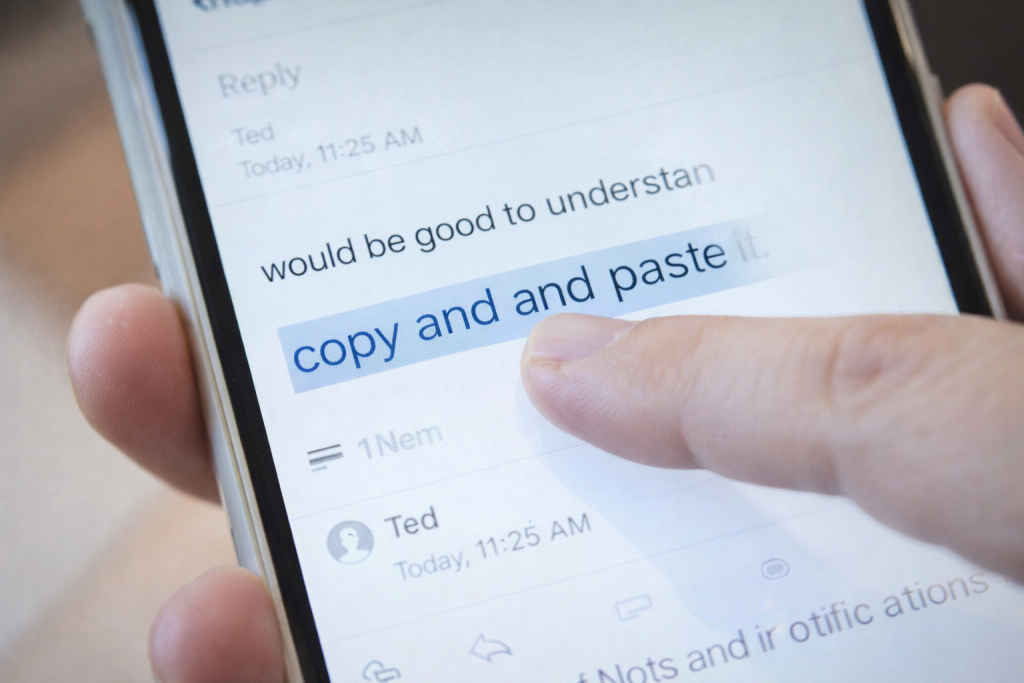
Can’t Copy and Paste on Your Phone?
If copy and paste is not working, you are not alone.
Many beginners find this confusing at first.
The good news is:
👉 It’s very easy once you know what to do.
This guide will show you step by step.
You do not need any technical knowledge.
What Does Copy and Paste Mean?
Copy means:
- Making a temporary copy of text or a link
Paste means:
- Putting that copied text somewhere else
Your original text stays exactly where it is.
Nothing is removed.
What You Need
- A smartphone that is turned on
- Some text on the screen (a message, email, or website)
Step 1: Touch and Hold the Text
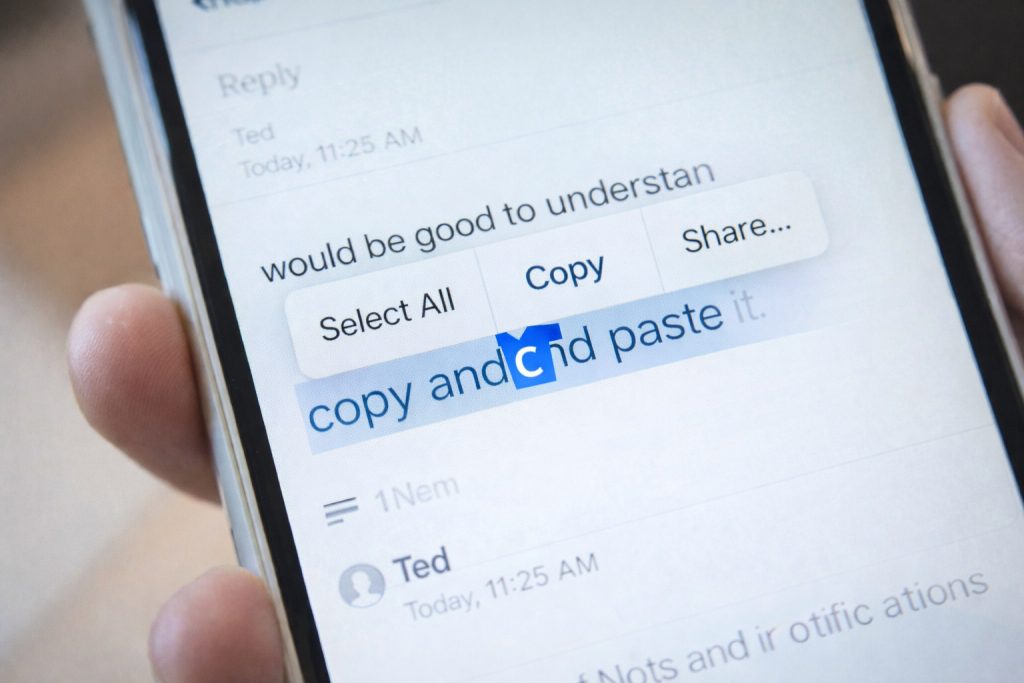
- Place your finger on the text you want to copy
- Keep your finger there for a moment
A small menu will appear.
If nothing happens, try again slightly slower.
Step 2: Tap “Copy”
- In the menu, tap Copy
- The menu will disappear
The text is now copied.
You will not see anything happen — this is normal.
Step 3: Go to Where You Want the Text
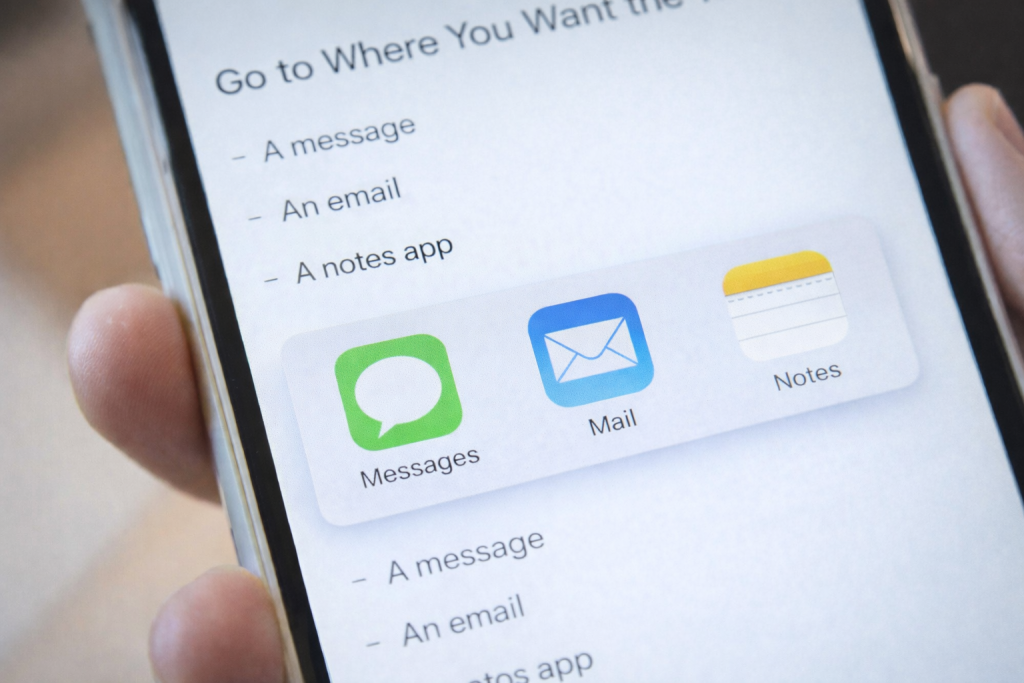
You can paste copied text into:
- A message
- An email
- A notes app
- A search box
Tap where you want the text to go.
Step 4: Touch and Hold Again
- Touch and hold in the empty space
- A menu will appear
Step 5: Tap “Paste”
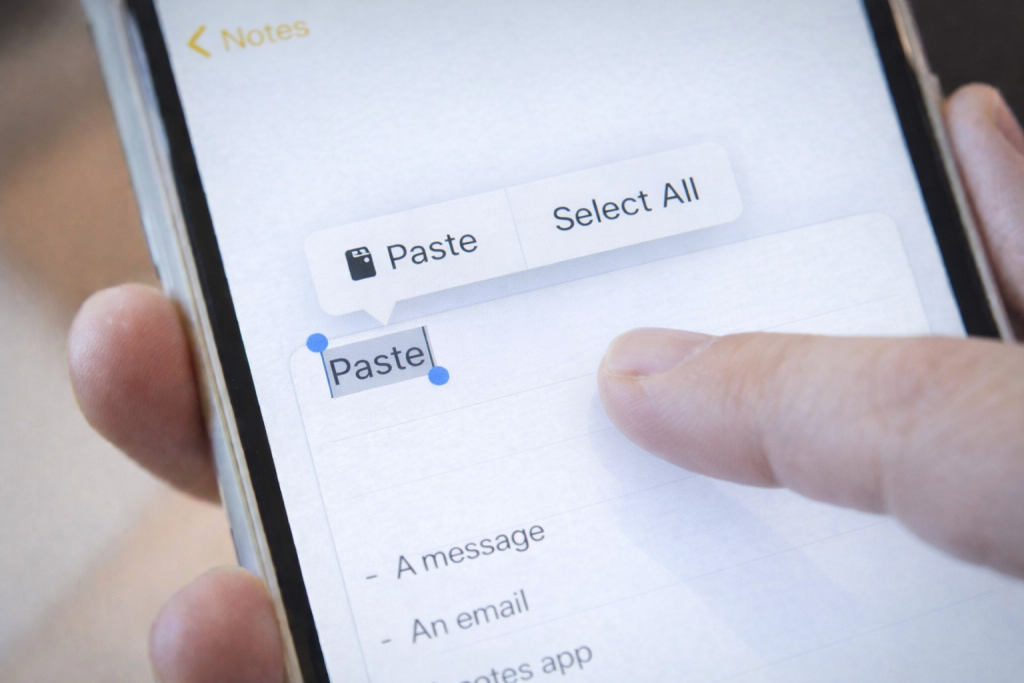
- Tap Paste
- The copied text will appear
That’s it.
💡 Good to know
Copying and pasting does not remove your original text.
You can try this as many times as you like.
Common Questions
Will copy and paste delete the original text?
No.
The original text always stays where it was.
Why don’t I see the word “Copy”?
Sometimes you need to:
- Hold your finger a little longer
- Try again more slowly
This is normal.
Can I copy more than once?
Yes.
Each time you copy, it replaces the previous copied text.
What if I paste the wrong thing?
Nothing is broken.
You can delete it and try again.
Good to Know
- You can copy text as many times as you like
- You cannot break your phone by copying or pasting
- If it doesn’t work the first time, try again slowly
Take your time. You are doing fine.
Helpful Next Steps
You may also find this useful:
- [How to Send a Message on WhatsApp]
- [Simple Technology Questions Answered]
- Back to smart phone basics
Simple Tech Guide
Calm, beginner-friendly technology help