
Is your phone saying “Storage Almost Full” or “Not Enough Storage”? Perhaps you can’t take another photo, download an app or install an update.
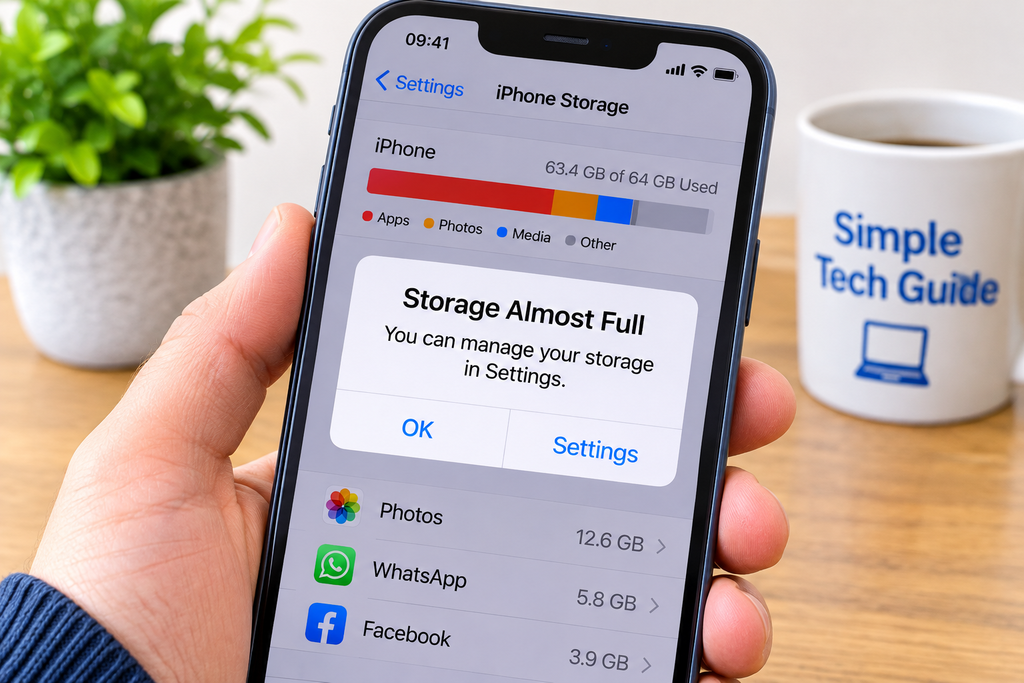
The good news is that you can often free up space without buying a new phone — and without deleting the photos and messages you want to keep.
This beginner-friendly guide explains why phone storage fills up and shows you 12 ways to make more room on an iPhone, Samsung Galaxy or other Android phone.
Quick answer: Start by checking what’s taking up the most space. Old videos, unused apps, WhatsApp attachments and downloaded files are common causes. Don’t delete anything important until you’re sure it’s backed up.
Why Is My Phone Storage Full?
Your phone has a limited amount of built-in storage. This is where it keeps your photos, videos, apps, messages, downloads and the software that makes the phone work.
Over time, these things accumulate. Even if you haven’t installed many new apps, your phone may be storing:
- Videos you’ve recorded or received.
- Photos and videos sent through WhatsApp.
- Apps you no longer use.
- Downloaded programmes, music and podcasts.
- Temporary files created by apps.
- Messages containing large attachments.
- Files you’ve downloaded but forgotten about.
Your phone’s operating system also needs storage space, and software updates may require additional room.
Storage is not the same as memory (RAM). Storage is where your files are kept. RAM helps your phone run apps. Closing apps does not usually solve a full-storage warning.
First: Check What’s Using Your Phone Storage
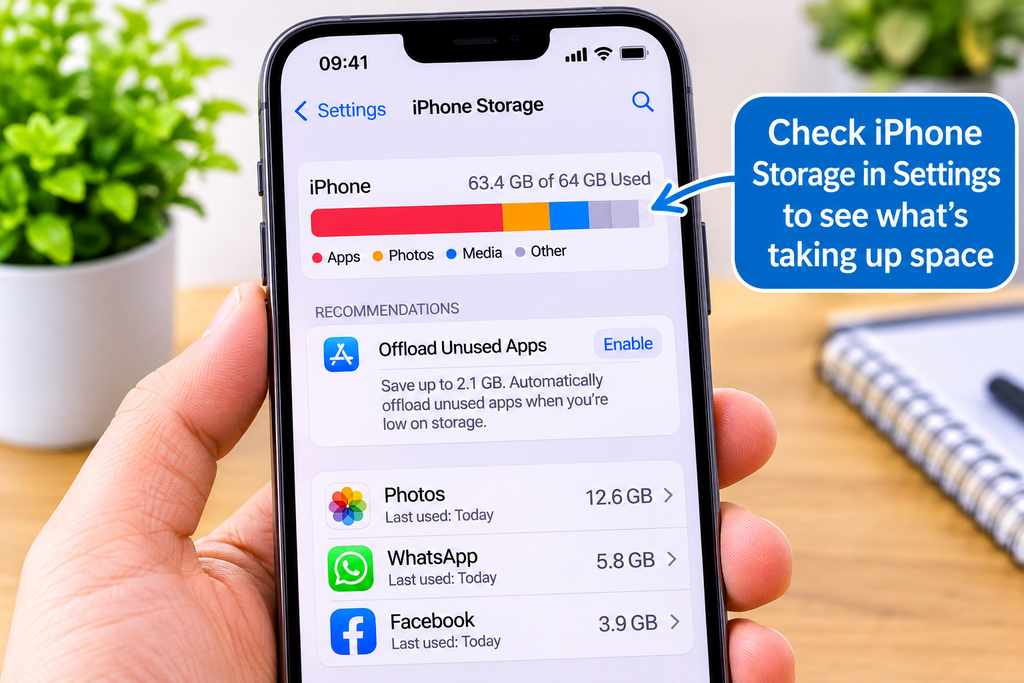
Before deleting anything, find out what’s taking up the space.
On an iPhone
- Open Settings.
- Tap General.
- Tap iPhone Storage.
- Wait for the storage information to load.
You’ll see how much space is being used and which apps or categories take up the most room.
You may also see recommendations for freeing up space.
On a Samsung Galaxy phone
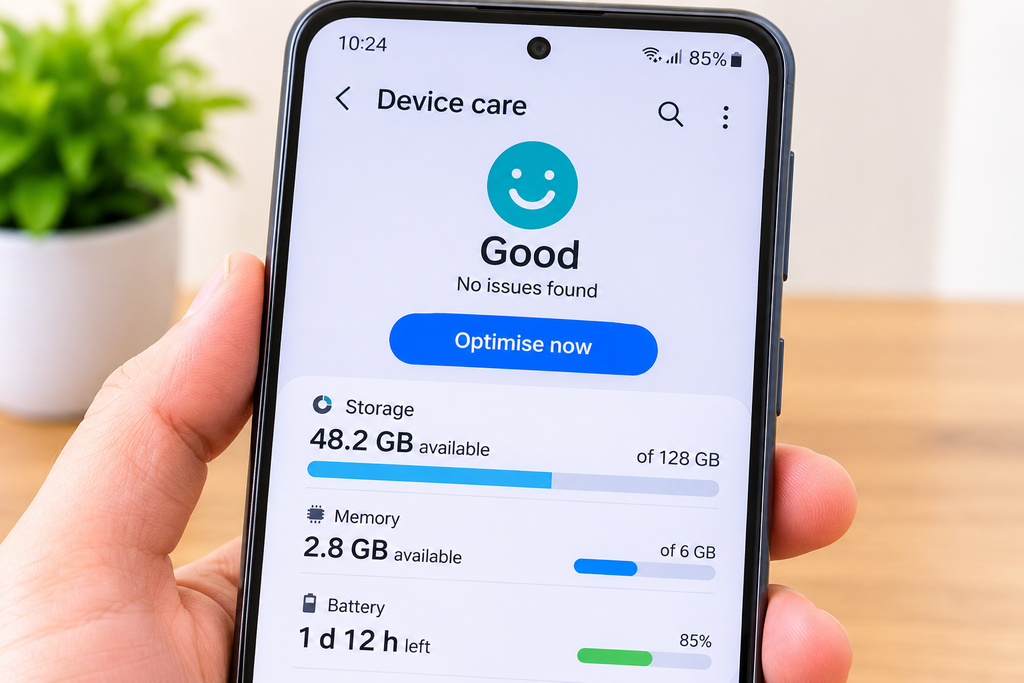
- Open Settings.
- Tap Battery and device care or Device care, depending on your model.
- Tap Storage.
- Review the categories shown.
On some Samsung phones, the menus are slightly different. You can also use the search bar in Settings and type Storage.
On other Android phones
- Open Settings.
- Tap Storage.
- Look at the breakdown of apps, photos, videos and other files.
If you can’t find Storage, use the search function inside Settings.
What should you look for? Start with whichever category uses the most space. If videos take up most of your storage, deleting a tiny app won’t make much difference.
12 Easy Ways to Free Up Space on Your Phone
You don’t need to try every method. Start with the safest and most relevant options.
1. Delete Videos You No Longer Need
Best for: Quickly freeing up a large amount of space.
Videos often take up far more storage than ordinary photographs, particularly long or high-quality recordings.
Open your Photos or Gallery app and look for videos you no longer want.
On an iPhone, you can usually find them in Photos → Collections → Media Types → Videos. On some versions, the layout may look different.
On Android, open Google Photos or your phone’s Gallery app and find the videos section.
Check each video before deleting it. Family recordings and special occasions are worth keeping.
Important: If your photos and videos are synchronised with iCloud Photos or Google Photos, deleting them normally can also delete them from your online photo library and other synchronised devices.
If you want to keep a video, back it up or transfer it safely before removing it.
2. Remove Apps You Never Use
Best for: Clearing out forgotten games and apps.
Many people have apps installed that they haven’t opened for months or years.
Look through your apps and ask yourself whether you still need each one.
On iPhone:
- Open Settings → General → iPhone Storage.
- Tap an app you rarely use.
- Choose Delete App only if you’re happy to remove the app and its associated data.
On Android:
- Open Settings → Apps.
- Select an app you don’t need.
- Tap Uninstall, if available.
Some pre-installed apps cannot be uninstalled.
Be careful with: Banking apps, authenticator apps, password managers and anything storing information you cannot easily recover. Check that you can sign in again and that important data is backed up before removing them.
3. Offload Unused Apps on an iPhone
Best for: Saving space without deleting an app’s saved documents and data.
An iPhone can remove an app itself while keeping its documents and data.
This is called offloading.
- Open Settings.
- Tap General → iPhone Storage.
- Choose an app.
- Tap Offload App, if available.
The app icon remains on your phone, and you can normally download the app again by tapping it.
This is different from Delete App, which removes the app and its related data.
You may also see an option to offload unused apps automatically.
Remember: You may need an internet connection to download an offloaded app again, and it must still be available from the App Store.
4. Clear Temporary App Files on Android
Best for: Apps that have accumulated lots of temporary files.
Some Android apps store temporary information called a cache.
Clearing an app’s cache can sometimes free up space.
- Open Settings → Apps.
- Select an app.
- Tap Storage or Storage & cache.
- Tap Clear cache, if available.
The exact steps vary between Android phones.
Very important: Do not confuse Clear cache with Clear data or Clear storage.
Clearing an app’s data can remove saved settings, accounts, downloads or other information associated with that app.
On an iPhone, there is no equivalent universal Clear Cache button for every app. Some apps offer their own storage controls.
5. Check WhatsApp Photos and Videos
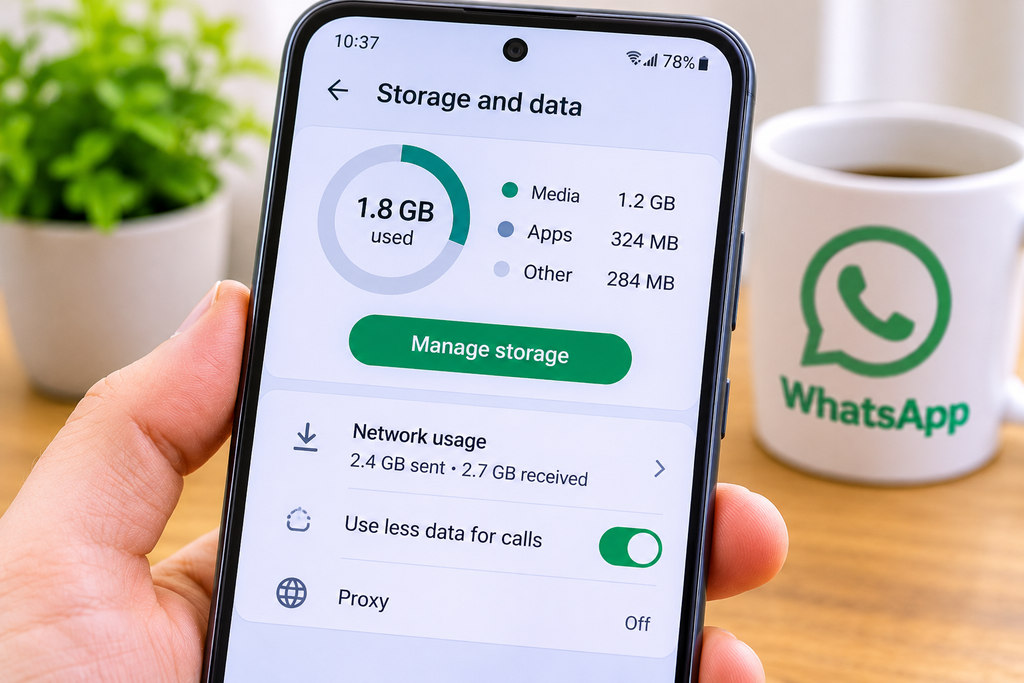
Best for: People who receive lots of family photos, videos and group messages.
WhatsApp can gradually take up a surprising amount of space.
To check:
- Open WhatsApp.
- Open Settings. On some versions, you may need to tap your profile picture.
- Select Storage and data.
- Tap Manage storage.
You can review large files and media stored in individual conversations.
Look particularly for long videos, repeated clips and items you no longer need.
Recent WhatsApp versions also provide ways to manage media from within a chat.
Don’t delete entire conversations just to make space. Review individual attachments first, and back up important WhatsApp information before removing anything.
For more help, read our What Is WhatsApp and How Does It Work? A Beginner’s Guide.
6. Remove Downloaded Films, Music and Podcasts
Best for: People who watch or listen to content offline.
Netflix, Spotify, YouTube and podcast apps may store programmes, music or episodes directly on your phone.
These downloads are useful when travelling, but they can use significant storage.
Open the relevant app and look for a section called Downloads, Downloaded or Offline.
Remove programmes or episodes you’ve already finished.
This usually removes the downloaded copy rather than deleting your streaming account or subscription.
If you use Netflix, our What Is Netflix and How Does It Work? guide explains the basics.
7. Check Your Downloads Folder
Best for: Forgotten PDFs, attachments and downloaded documents.
You might have downloaded restaurant menus, instruction manuals, forms or email attachments that you no longer need.
On iPhone:
- Open the Files app.
- Tap Browse if necessary.
- Check Downloads, including the locations under On My iPhone and iCloud Drive.
On Android:
- Open Files, My Files or Files by Google.
- Select Downloads.
- Review the files.
Delete only files you recognise and no longer need.
Be particularly careful with documents stored in iCloud Drive or another synchronised cloud folder. Removing a file there may remove it from other devices too.
8. Find Duplicate or Unwanted Photos
Best for: People with thousands of pictures.
It’s easy to take several photographs of the same subject and forget to remove the unsuccessful ones.
Look for:
- Blurry photographs.
- Repeated pictures.
- Old screenshots.
- Accidental photographs.
- Duplicate images.
On supported iPhones, the Photos app includes a Duplicates section, usually under Utilities.
Some Android photo or file-management apps also offer cleanup suggestions.
Review suggested duplicates carefully before merging or deleting them.
If you want to keep your photos, don’t remove them simply because your phone is running out of space.
9. Free Up Device Space Using Cloud Photo Backups
Best for: People whose photos and videos use most of their storage.
Cloud photo services can help you keep access to your pictures while reducing the space used on your phone.
However, it’s important to understand the difference between backing up, synchronising and deleting photos.
On iPhone: Optimise iPhone Storage
If you use iCloud Photos:
- Open Settings.
- Tap your name.
- Tap iCloud → Photos.
- Check that Sync this iPhone is enabled.
- Find and enable Optimise iPhone Storage.
The exact location of this setting can vary with the iOS version.
When this feature is active, your iPhone can keep smaller, space-saving versions of photographs locally while full-resolution originals are stored in iCloud.
You’ll need enough available iCloud storage for your photo library.
Do not simply delete photos from the Photos app to free up local storage if you want to keep them in iCloud Photos. Deletions can synchronise across your devices.
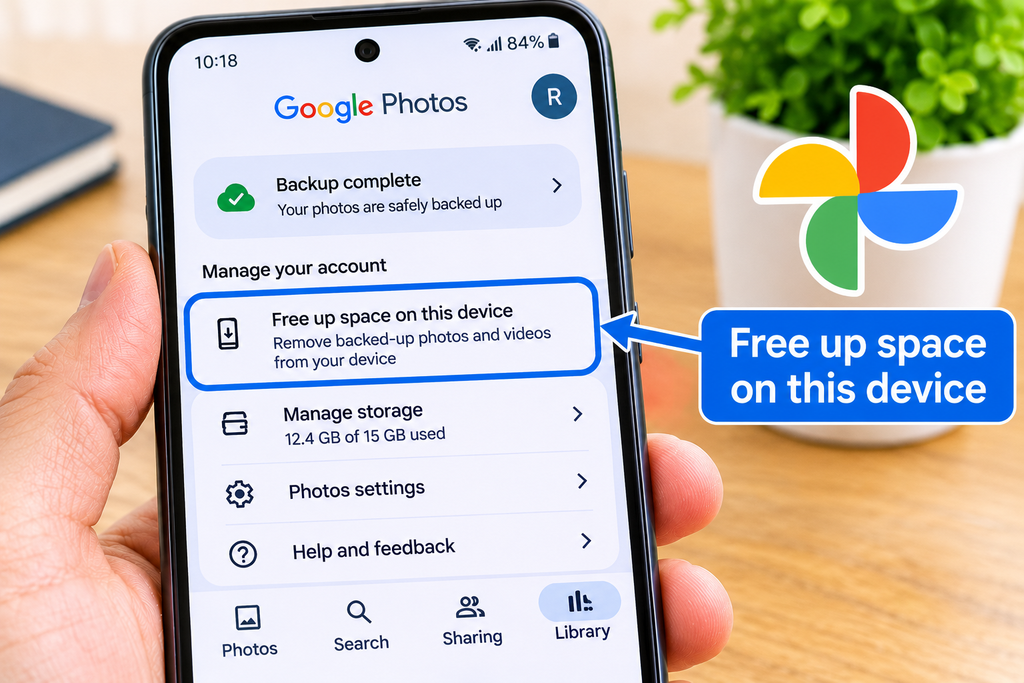
On Android: Google Photos
If you use Google Photos:
- Open Google Photos.
- Check that your important photographs and videos have finished backing up.
- Tap your profile picture.
- Look for Free up space on this device.
- Read the explanation carefully before confirming.
This feature can remove eligible local copies that have already been backed up.
You can still access backed-up items through Google Photos, but some may require an internet connection.
Never assume a photograph is safely backed up without checking first.
10. Empty Recently Deleted or Trash — Carefully
Best for: Reclaiming space after deleting unwanted files.
Deleted photos and files often remain in a temporary holding area for a period of time.
You might see folders called:
- Recently Deleted
- Trash
- Bin
- Recycle Bin
Once you’re certain you no longer need the items, you can permanently remove them.
Warning: Emptying these folders may permanently erase the items and make recovery impossible.
For synchronised photo libraries, permanent deletion can also affect cloud copies.
If you’re unsure, leave the items alone until you’ve checked your backups.
11. Review Large Message Attachments
Best for: People who regularly receive pictures and videos through messages.
Text and messaging conversations can contain years of photographs, videos and attachments.
On an iPhone, open Settings → General → iPhone Storage and look at the storage used by Messages.
You may see options to review large attachments or conversations.
On Android, storage-management options vary between messaging apps.
Only remove attachments you no longer need. Remember that deleting a conversation or attachment may remove information you want to keep.
If you’re worried about losing a special photo, save a separate copy first.
12. Move Important Files to a Computer or External Storage
Best for: People who want to keep their files without paying for extra cloud storage.
If your phone contains years of photos and videos, you may prefer to copy them to a computer or suitable external drive.
A USB cable is often the simplest method, although the steps depend on your phone and computer.
For important memories:
- Copy the files to your computer or external storage.
- Open several copied files to check they work.
- Ideally keep a second backup in another location.
- Only then consider removing the originals from your phone.
Some Android phones also support microSD cards, but many modern phones do not. Check your exact model before buying one.
What Should You Delete First?
If you’re unsure where to begin, use this simple guide.
| What’s taking up space? | Best first action |
|---|---|
| Videos | Review large or unwanted recordings |
| Apps | Remove unused apps or offload them on iPhone |
| Use Manage storage to review large attachments | |
| Downloads | Remove files you recognise and no longer need |
| Photos | Check backups and consider photo storage optimisation |
| Music or films | Remove offline downloads |
| Temporary app files | Clear cache on supported Android apps |
Safest approach: Start with unwanted downloads and unused apps. Be more cautious with personal photos, messages and app data.
What If My Phone Storage Is Still Full?
If you’ve tried the relevant steps and your phone still has very little space, don’t panic.
Restart your phone
Restarting may help your phone complete background cleanup tasks or refresh its storage information. It won’t normally remove large amounts of stored data.
Check the storage breakdown again
Return to your phone’s storage settings.
Has the available space increased? Is one particular app still using an unusually large amount?
If so, investigate that app rather than deleting unrelated files.
Check for unusually large system storage
On an iPhone, you may see categories called iOS and System Data.
On Android, you may see System or similar categories.
Some of this space is necessary for your phone to work.
Avoid downloading unfamiliar “phone cleaner” apps or following instructions that tell you to delete hidden system files.
If system storage appears abnormally large, check official support information for your phone model.
Consider whether your phone has enough capacity
A phone with limited built-in storage can become difficult to manage if you regularly take videos, install large apps or download programmes.
You may be able to use cloud storage or move files elsewhere, but cloud storage does not increase the phone’s built-in capacity.
If you’re choosing a replacement phone, consider how much storage you actually use before buying.
How Much Free Storage Should I Keep?
There isn’t one exact amount that’s right for every phone.
However, keeping several gigabytes free is a sensible practical goal. Large app installations and software updates may need additional temporary space.
The amount required depends on your phone, its operating system and what you’re trying to install.
If your phone regularly reaches its storage limit, aim to maintain more spare room rather than waiting for another warning.
How to Stop Your Phone Storage Filling Up Again
Once you’ve made some space, a few simple habits can help:
- Review large videos every month or two.
- Remove downloaded films and podcasts after using them.
- Check WhatsApp’s storage occasionally.
- Uninstall apps you no longer need.
- Keep a reliable backup of important photographs.
- Check your available storage before major software updates.
You don’t need to spend time cleaning your phone every day. An occasional check is usually enough.
Frequently Asked Questions
Why is my phone storage full when I don’t have many apps?
Photos, videos, messages, downloads, app data and system files all use storage. A small number of apps can also hold large amounts of downloaded or cached content. Check your storage breakdown to identify the cause.
Can I free up phone storage without deleting photos?
Yes. You can remove unused apps, clear suitable Android app caches, delete unwanted downloads and remove offline films or podcasts. Photo storage optimisation may also help if you have verified cloud backups.
Does deleting photos from my phone delete them from Google Photos or iCloud?
It can. When photo synchronisation is enabled, ordinary deletion may also remove photos from the cloud library and other connected devices. Use the service’s supported device-space-saving features instead of assuming deletion affects only your phone.
Does clearing cache delete my photos?
Clearing an individual Android app’s cache normally removes temporary files rather than your personal photographs. However, Clear storage or Clear data is different and may remove important app information. Always check which button you’re selecting.
Will buying more iCloud storage fix a full iPhone?
Not automatically. iCloud storage and iPhone storage are different. Additional iCloud space may help you use features such as iCloud Photos with Optimise iPhone Storage, but it doesn’t physically increase the capacity of your iPhone.
Why does my phone say storage is full after I’ve deleted things?
Some deleted items remain in Recently Deleted or Trash. Your phone may also need time to update its storage information. Check whether the deleted files were stored locally, and review the storage breakdown again.
Do phone cleaner apps really work?
Some legitimate file-management tools can help identify unwanted downloads or large files, but you don’t usually need a separate cleaner app. Start with your phone’s built-in storage settings and trusted tools from Apple, Google or your phone manufacturer.
Should I factory reset my phone to free up space?
Not as a first step. A factory reset removes personal data and settings and can create serious problems if your backups or account recovery details are incomplete. Try the safer methods in this guide first.
Final Thoughts
A full phone doesn’t necessarily mean you need a new one.
For most people, the best starting point is to check what’s using the space, remove things they no longer need and protect important photographs and messages before making changes.
Start with just one or two steps today. Once you’ve freed up some room, your phone should be better prepared for new photos, apps and software updates.
For more straightforward technology help, explore our other Simple Tech Guide articles or use the search box below to describe your problem in your own words
More Helpful Technology Guides
Need a little more help with your phone? Try one of these easy-to-follow guides.
Smartphone Help
Browse all our beginner-friendly phone guides.
Why Has My Phone or Computer Layout Changed?
How to Make Your Phone Ring Louder
Why Won’t My Email Send Photos?
Back to Simple Tech Guide Homepage
Need Help With Something Else?
Search our free, easy-to-follow technology guides. Just describe your problem.
Found this useful? Save Simple Tech Guide in your bookmarks for next time.